Introduction
Thank you for choosing the Eightree Smart Wi-Fi Plug. This device allows you to control your electronic appliances remotely, monitor energy consumption, and automate your home with smart schedules. It supports both 2.4GHz and 5GHz Wi-Fi networks for stable and fast connectivity. Please read this manual carefully before use to ensure proper operation and safety.
Safety Information
- Do not disassemble or modify the device.
- Do not expose the device to water or high humidity.
- Keep out of reach of children.
- Ensure the connected appliance's power rating does not exceed the smart plug's maximum load (3680W, 16A).
- Use only in dry indoor environments.
Package Contents
The package includes:
- Eightree Smart Wi-Fi Plugs (4-pack)
- User Manual
Product Features
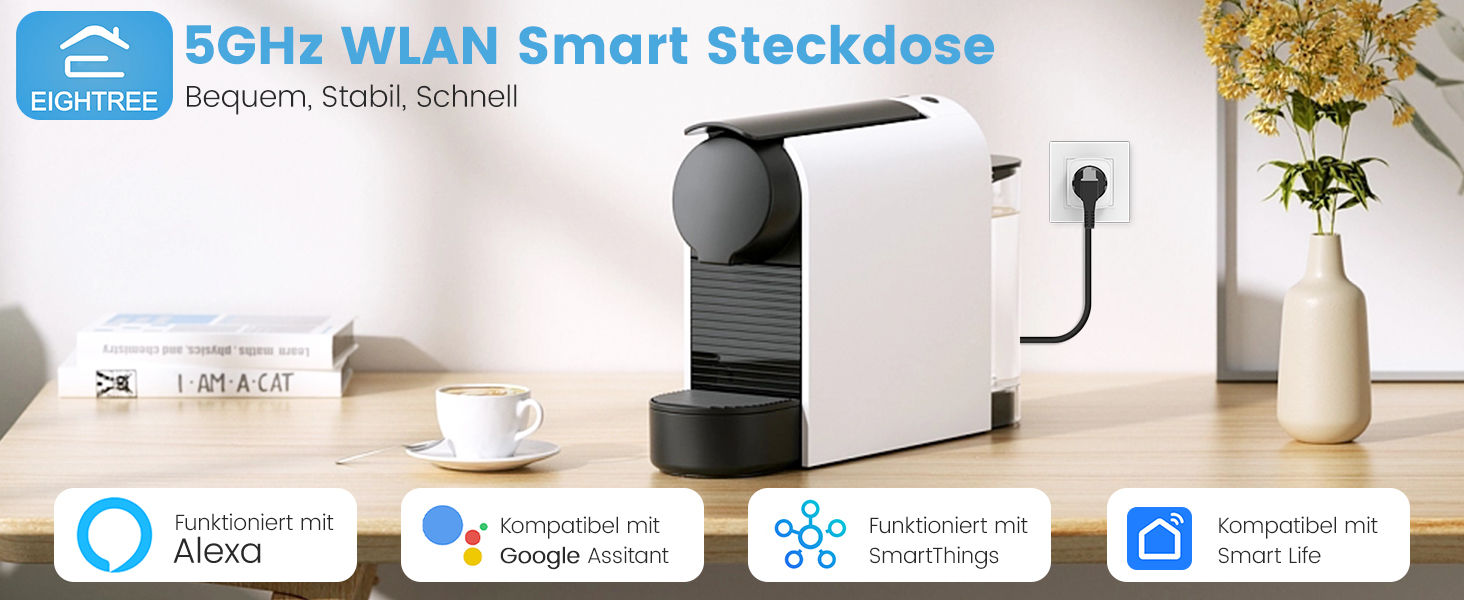
Image: Overview of Eightree Smart Plug features including energy monitoring, voice control, remote control, timers, device sharing, and group control.
- Energy Monitoring: Track power consumption and estimate electricity costs.
- Dual-Band Wi-Fi: Compatible with both 2.4GHz and 5GHz Wi-Fi networks for enhanced stability and faster response.
- Remote Control: Control devices from anywhere using the Smart Life app.
- Voice Control: Works with Alexa and Google Home for hands-free operation.
- Timers & Schedules: Set custom schedules and timers for automated device operation.
- Data Export: Export detailed energy consumption data in PDF format.
Setup
1. Download the Smart Life App
Search for "Smart Life" in the App Store (iOS) or Google Play Store (Android) and download the application. Register or log in to your account.

Image: Smart Life app icon with links to download from App Store and Google Play.
2. Plug in the Smart Plug
Plug the Eightree Smart Wi-Fi Plug into a standard wall outlet. The indicator light on the plug should start blinking rapidly, indicating it's in pairing mode.
3. Add Device in Smart Life App
- Open the Smart Life app.
- Tap the "+" icon in the top right corner or "Add Device".
- The app should automatically detect the smart plug via Bluetooth. If not, select "Electrical" -> "Socket (Wi-Fi)".
- Confirm the indicator light is blinking rapidly.
- Select your Wi-Fi network (supports both 2.4GHz and 5GHz) and enter the password.
- Wait for the device to connect. Once connected, you can rename the plug.
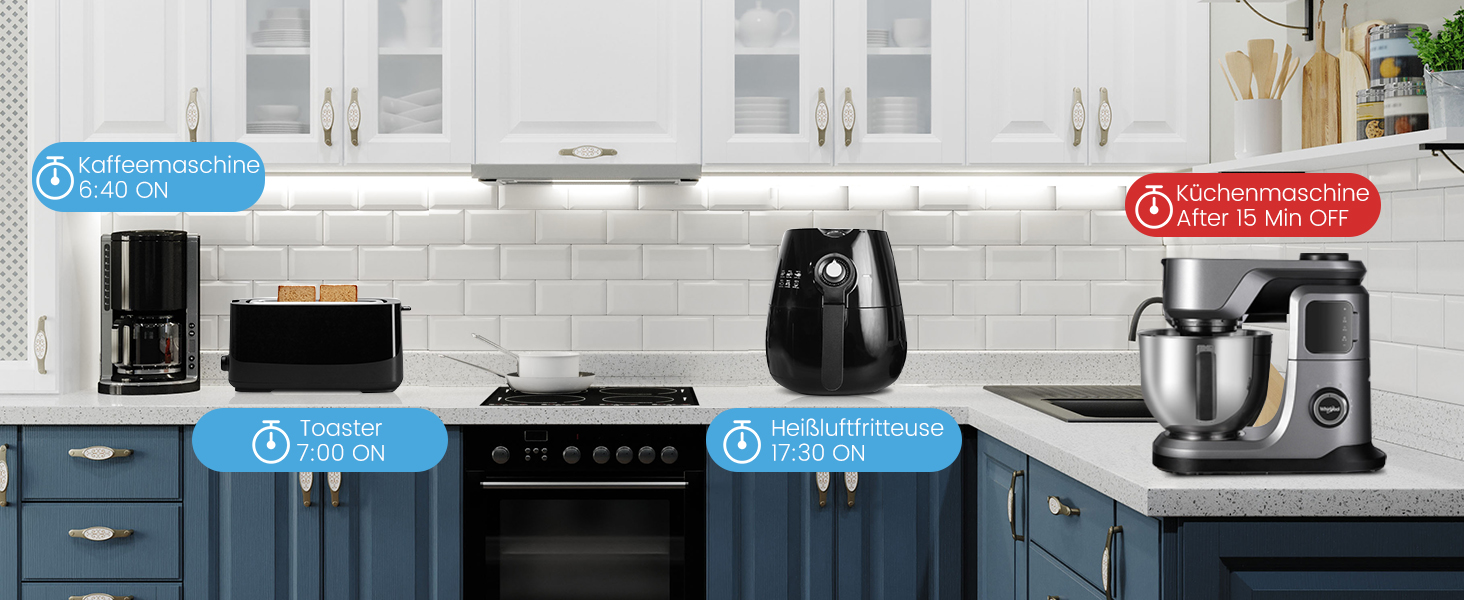
Image: Visual guide for easy installation, showing the Smart Life app detecting the plug and connecting to either 2.4GHz or 5GHz Wi-Fi.
Operating Instructions
Manual Control
Press the power button on the smart plug to manually turn the connected appliance on or off.
Remote Control via Smart Life App
Open the Smart Life app, select the desired smart plug, and tap the power icon to toggle the appliance on or off from anywhere with an internet connection.
Voice Control (Alexa/Google Home)
Integrate your Eightree Smart Plugs with Amazon Alexa or Google Home for hands-free control. Follow the instructions in the Smart Life app to link your account with your voice assistant.
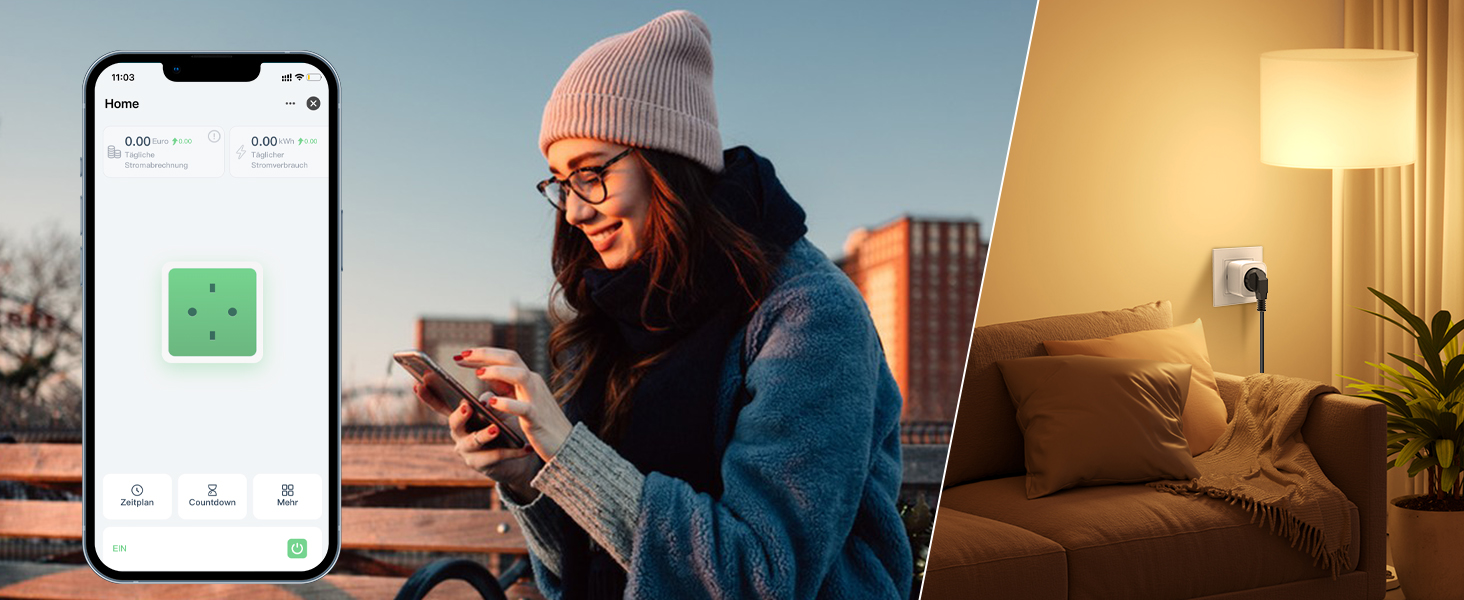
Image: Example of voice control using a smart speaker to turn on a lamp connected to the smart plug.
Common voice commands include:
- "Alexa, turn on [Device Name]"
- "Hey Google, turn off [Device Name]"
Energy Monitoring
The Eightree Smart Wi-Fi Plug provides real-time energy consumption data. In the Smart Life app, select your plug to view detailed statistics on power usage (kWh) and estimated electricity costs. This feature helps you understand and manage your energy consumption.
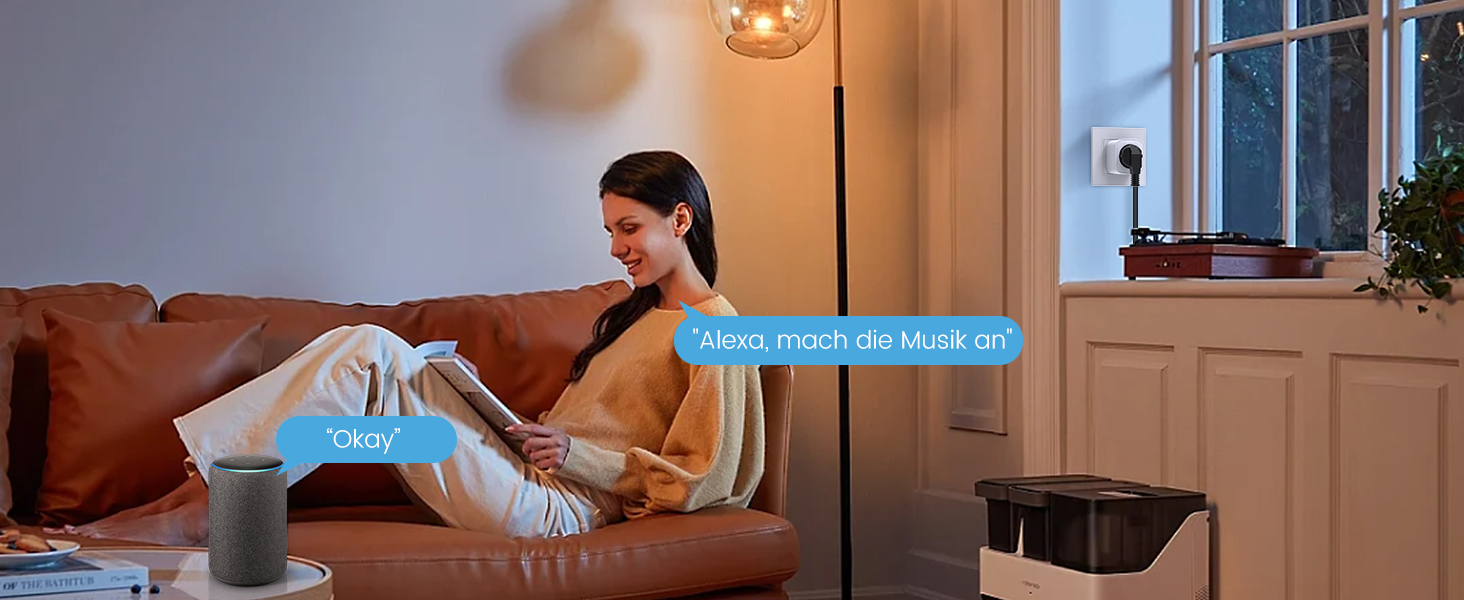
Image: Screenshot of the Smart Life app displaying energy consumption graphs and cost estimates for the smart plug.
You can also export this data in PDF format for further analysis, helping you identify potential energy-saving measures.
Timers and Schedules
Automate your devices by setting custom timers and schedules through the Smart Life app. This allows appliances to turn on or off at specific times, simplifying your daily routine and conserving energy.
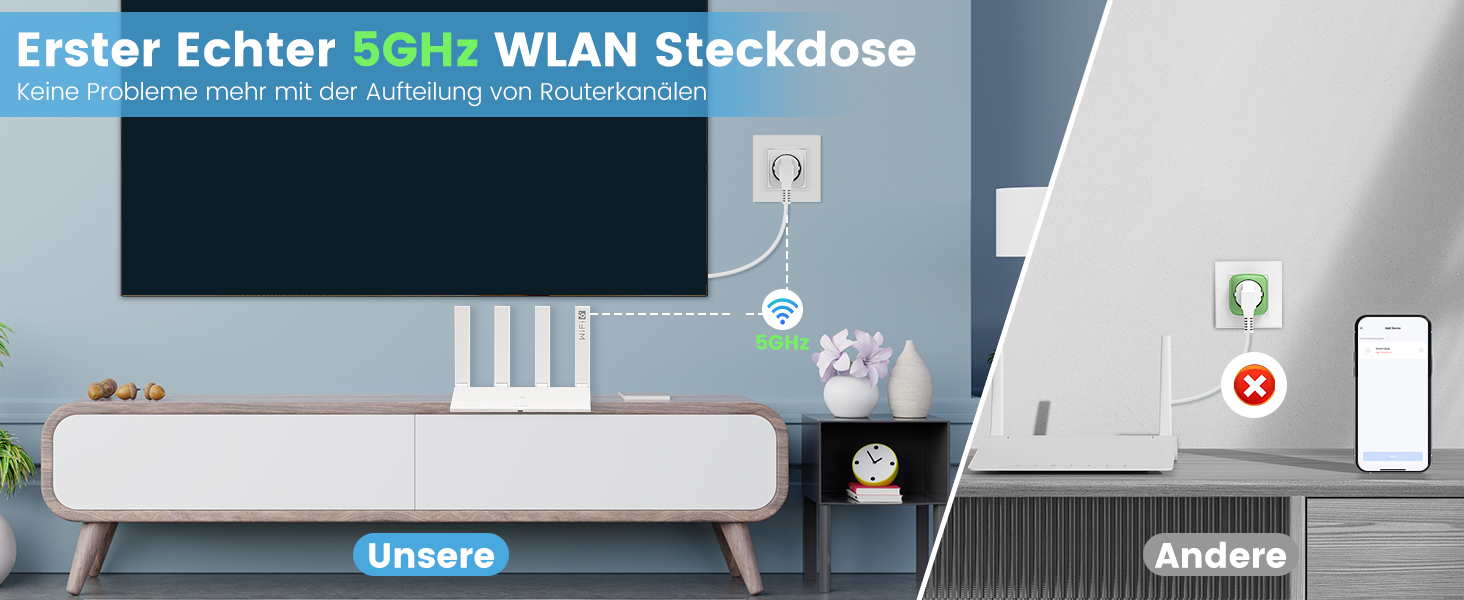
Image: Illustration of setting timers and schedules for various appliances, such as a humidifier and television.
To set a schedule:
- In the Smart Life app, select the desired smart plug.
- Tap on "Schedule" or "Timer".
- Set the desired time, action (On/Off), and repeat days.
- Save the schedule.
Maintenance
- Clean the smart plug with a dry, soft cloth.
- Do not use harsh chemicals or abrasive cleaners.
- Ensure the plug is disconnected from the power outlet before cleaning.
Troubleshooting
| Problem | Possible Cause | Solution |
|---|---|---|
| Plug not connecting to Wi-Fi | Incorrect Wi-Fi password, wrong network (e.g., 5GHz only router not configured for 2.4GHz if plug is 2.4GHz only, but this plug supports both), plug too far from router. |
|
| Appliance not turning on/off | Plug is off, appliance is off, power outage, appliance malfunction. |
|
| Voice control not working | Incorrect device name, voice assistant not linked, internet connection issue. |
|
Specifications
| Brand | Eightree |
| Model Number | ET25 |
| Dimensions (L x W x H) | 22.2 x 5.4 x 8.5 cm |
| Weight | 390 grams |
| Material | Acrylonitrile Butadiene Styrene (ABS) |
| Max Power | 3680 Watt |
| Current Rating | 16 A |
| Operating Voltage | 230 Volts (AC) |
| Wi-Fi Compatibility | 2.4GHz & 5GHz |
| Certifications | CE, RoHS, WEEE, FCC, ETL |
| Batteries Required | No |
Warranty and Support

Image: Eightree commitment to quality, showing product certifications and warranty information.
Eightree products are designed for reliability and performance. This product comes with a 24-month worry-free warranty from the date of purchase. All products are certified by FCC and ETL, ensuring high safety and quality standards.
For technical support, warranty claims, or any questions regarding your Eightree Smart Wi-Fi Plug, please contact our customer service. We are committed to providing fast service to ensure a great user experience.
Please refer to the contact information provided on the product packaging or the official Eightree website for support details.


