
1. Introduction
Thank you for choosing the EIGHTREE ET25 5GHz Smart Plug. This smart plug allows you to control your electronic devices remotely, monitor energy consumption, and automate your home with ease. It supports both 2.4GHz and 5GHz Wi-Fi networks for enhanced connectivity and stability. Please read this manual carefully before use to ensure proper operation and safety.
2. Safety Information
- Do not disassemble or modify the device.
- Do not expose the device to water or humid environments.
- Keep out of reach of children.
- Ensure the connected appliance's power consumption does not exceed the smart plug's maximum rating (16A, 3680W).
- Use only in dry indoor locations.
3. Package Contents
- EIGHTREE ET25 5GHz Smart Plug (1 unit)
- User Manual (this document)
4. Product Overview
The EIGHTREE ET25 Smart Plug is a compact device designed for easy integration into your home. It features a single power button and an indicator light.

This image shows the EIGHTREE ET25 Smart Plug alongside a smartphone screen displaying detailed electricity consumption statistics, including power, current, voltage, and cost over a weekly period. The plug itself is white with a blue power button.
Key Features:
- Energy Monitoring: Track real-time and historical power consumption.
- Voice Control: Compatible with Alexa and Google Home.
- Remote Control: Manage devices from anywhere via the app.
- Timers & Schedules: Automate on/off times for appliances.
- Device Sharing: Share control with family members.
- Group Control: Manage multiple smart plugs simultaneously.
- 5GHz Wi-Fi Support: Enhanced stability and faster response times.

This image highlights the key features of the EIGHTREE 5GHz Smart Plug, including energy monitoring, voice control, remote control, timers and scheduling, device sharing, and group control. A smart plug is shown connected to a coffee machine, demonstrating its practical application.
5. Setup Instructions
5.1 Download the Smart Life App
The EIGHTREE Smart Plug uses the Smart Life app for control and configuration. Search for "Smart Life" in your smartphone's app store (Google Play Store for Android or Apple App Store for iOS) and download it.
5.2 Plug In the Smart Plug
Plug the EIGHTREE Smart Plug into a standard wall outlet. The indicator light on the plug should start blinking, indicating it's in pairing mode.
5.3 Connect to Wi-Fi
The EIGHTREE ET25 Smart Plug supports both 2.4GHz and 5GHz Wi-Fi networks. For optimal performance, connecting to a 5GHz network is recommended, but 2.4GHz is also supported.

This image depicts the easy installation process for the EIGHTREE Smart Plug. A hand holds a smartphone displaying the Smart Life app, which automatically detects the smart plug via Bluetooth for connection to a 5GHz (or 2.4GHz) Wi-Fi network, shown with a router.
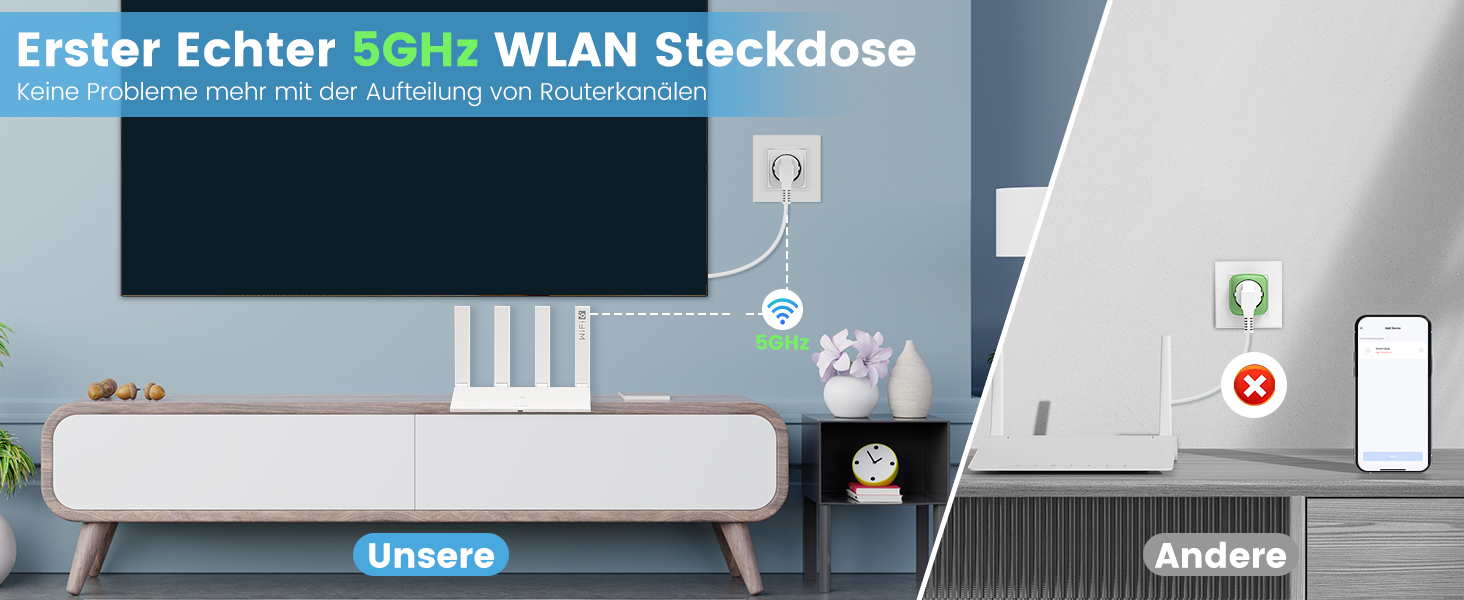
This image compares the EIGHTREE 5GHz Smart Plug's stable connection with a 5GHz router to other smart plugs that might experience connectivity issues due to router separation or incompatible frequencies. It emphasizes the EIGHTREE plug's reliable 5GHz Wi-Fi capability.
5.4 Pairing Steps (Smart Life App)
- Start the Smart Life App: Open the Smart Life application on your smartphone.
- Add Device: Tap the "+" icon or "Add Device" button in the app. The app should automatically detect the smart plug via Bluetooth. Tap "Add" to proceed.
- Enter Wi-Fi Password: Select your 5GHz (or 2.4GHz) Wi-Fi network and enter the correct password.
- Wait for Connection: Follow the on-screen instructions and wait for the smart plug to connect to your Wi-Fi network. Once connected, the indicator light will stop blinking and remain solid.

This image provides a visual, four-step guide for setting up the EIGHTREE Smart Plug. It shows screenshots of the Smart Life app: 1) Starting the app, 2) Tapping "Add" to find the device, 3) Entering the 5GHz Wi-Fi password, and 4) Waiting for the connection to complete.
6. Operating Instructions
6.1 Manual Control
Press the physical power button on the smart plug to manually turn the connected appliance on or off. The indicator light will change state accordingly.
6.2 App Control
Once paired, you can control the smart plug through the Smart Life app:
- On/Off: Tap the power icon in the app to toggle the connected appliance.
- Timers & Schedules: Set specific times for the plug to turn on or off automatically. This allows for intelligent programming of your appliances.

This image illustrates the timers and schedules feature of the EIGHTREE Smart Plug. A humidifier is shown in a living room setting, with on/off times (e.g., 7:00 PM ON, 10:00 PM OFF, 8:00 AM ON) indicating automated control of appliances.
- Countdown: Set a countdown timer for the plug to turn off after a specified duration.
6.3 Energy Monitoring
The smart plug allows you to monitor the energy consumption of your connected devices and estimate electricity costs. This feature helps you make informed decisions to reduce energy usage.
- View Statistics: Access real-time and historical data on power, current, voltage, and energy consumption within the Smart Life app.
- Export Data: Easily export detailed energy consumption data in PDF format for analysis and budgeting.

This image illustrates the energy monitoring capability of the EIGHTREE Smart Plug. A graph on a smartphone screen displays weekly electricity consumption in kWh, allowing users to track and estimate costs. The smart plug is shown connected to a microwave oven.
6.4 Voice Control
Integrate your EIGHTREE Smart Plug with voice assistants like Amazon Alexa and Google Home for hands-free control.
- Link Accounts: Follow the instructions in the Smart Life app to link your account with Alexa or Google Home.
- Voice Commands: Use commands such as "Alexa, turn on the living room light" or "Hey Google, turn off the fan."

This image demonstrates the voice control feature of the EIGHTREE Smart Plug. A Google Home speaker is shown next to a smart plug connected to a floor lamp, with text indicating voice commands like "OK Google, turn on the light." It also shows compatibility with Alexa, Google Home, and SmartThings.
7. Maintenance
- Keep the smart plug clean by wiping it with a dry, soft cloth.
- Do not use harsh chemicals or abrasive cleaners.
- Store the device in a cool, dry place when not in use.
- Regularly check for any signs of damage to the plug or connected cables.
8. Troubleshooting
8.1 Device Not Connecting to Wi-Fi
- Ensure your Wi-Fi network is active and stable.
- Verify you are entering the correct Wi-Fi password.
- Make sure the smart plug is within range of your Wi-Fi router.
- Try resetting the smart plug by unplugging it for 10 seconds and plugging it back in.
- Confirm your router supports 5GHz (or 2.4GHz if you are trying to connect to that band) and that the network name (SSID) is visible.
8.2 Device Not Responding to App/Voice Commands
- Check if the smart plug is connected to Wi-Fi (solid indicator light).
- Ensure your smartphone has an active internet connection.
- Verify that the Smart Life app is up to date.
- For voice control, ensure your Alexa/Google Home account is correctly linked to Smart Life.
- If the issue persists, try removing the device from the app and re-pairing it.
8.3 Power Outage/Router Restart
In case of a power outage or router restart, the smart plug should automatically reconnect to your Wi-Fi network once power and network services are restored. If it does not, follow the Wi-Fi connection troubleshooting steps above.
9. Specifications
| Feature | Specification |
|---|---|
| Model Number | ET25 |
| Dimensions (L x W x H) | 5.5 x 5.8 x 8.7 cm |
| Weight | 100 grams |
| Material | ABS |
| Operating Mode | ON-OFF-ON |
| Current Rating | 16 A |
| Operating Voltage | 230 Volts (AC) |
| Contact Type | Normally open |
| Connector Type | Plug-in (Type F) |
| Manufacturer | Eightree |
10. Warranty
The EIGHTREE ET25 Smart Plug comes with a 24-month worry-free warranty from the date of purchase. This warranty covers manufacturing defects and ensures fast service for a great user experience. Please retain your proof of purchase for warranty claims.

This image displays EIGHTREE's commitment to quality and customer satisfaction, featuring certifications (ETL, Intertek, FCC) and highlighting a "24 months worry-free warranty" and fast service.
11. Customer Support
If you encounter any issues or have questions regarding your EIGHTREE ET25 Smart Plug, please refer to the troubleshooting section of this manual. For further assistance, contact EIGHTREE customer support through the official website or the contact information provided with your purchase.
We are always here to help you enjoy the convenience that smart home technology brings to your life.


