Introduction
This manual provides instructions for the proper setup, operation, and maintenance of your UrbanX UX030 Lightweight Ergonomic Keyboard. Please read this manual thoroughly before using the product to ensure optimal performance and longevity.
Package Contents
Verify that all items are present in your package:
- UrbanX UX030 Wireless Keyboard
- USB Charging Cable
- User Manual (this document)
Product Overview
The UrbanX UX030 keyboard features a lightweight, ergonomic design with multi-device connectivity and RGB backlighting. It supports both Bluetooth 5.1 and 2.4GHz wireless connections.

Image: The UrbanX UX030 keyboard highlighting its compatibility with Android, Windows, and iOS devices. Key labels for OS switching are visible.
Setup
1. Charging the Keyboard
Before first use, fully charge the keyboard. Connect the provided USB charging cable to the keyboard's Micro USB port and the other end to a USB power source (e.g., computer USB port, USB wall adapter).

Image: A close-up of the UrbanX UX030 keyboard showing the Micro USB charging port with a cable connected, indicating the built-in rechargeable battery.
The charge indicator light will illuminate during charging and turn off when fully charged. The built-in aluminum battery provides approximately 90 hours of continuous typing on a single charge.
2. Connecting to Devices
The keyboard supports connection to up to 3 devices simultaneously via Bluetooth 5.1 or 2.4GHz wireless technology.
2.1. 2.4GHz Wireless Connection (via USB Receiver)
- Locate the small USB receiver, usually stored in a compartment on the keyboard.
- Plug the USB receiver into an available USB port on your computer or device.
- Turn on the keyboard using the ON/OFF switch.
- The keyboard should automatically connect to your device.
2.2. Bluetooth 5.1 Connection
- Turn on the keyboard using the ON/OFF switch.
- Press and hold the Fn key and one of the Bluetooth keys (Bluetooth 1, Bluetooth 2, or Bluetooth 3) for 3-5 seconds until the corresponding indicator light flashes, indicating pairing mode.
- On your device (e.g., tablet, smartphone, laptop), enable Bluetooth and search for available devices.
- Select "UrbanX UX030" (or similar name) from the list of found devices.
- Follow any on-screen prompts to complete the pairing process. The indicator light on the keyboard will stop flashing once connected.

Image: The UrbanX UX030 keyboard demonstrating its multi-device connectivity, showing wireless connections to a laptop, tablet, and smartphone.
Operating Instructions
1. Switching Between Connected Devices
To switch between devices connected via Bluetooth, simply press the Fn key along with the corresponding Bluetooth channel key (Bluetooth 1, Bluetooth 2, or Bluetooth 3) that your device is paired to.
2. Backlight Control
The keyboard features customizable RGB backlighting.
- Press the light bulb icon key (usually near the bottom right) to cycle through different backlight colors and modes.
- Use Fn + Up/Down Arrow keys to adjust backlight brightness.

Image: Multiple views of the UrbanX UX030 keyboard showcasing its seven different RGB backlight color options.
3. Shortcut Keys and Fn Lock
The keyboard includes 12 shortcut keys (F1-F12) for media control and other functions. These are typically accessed by pressing the Fn key in combination with the desired F-key.
- Media Controls: Mute, Play/Pause, Backward, Forward, Volume Up, Volume Down.
- Fn Lock: Some keyboards feature an Fn Lock function. Refer to your keyboard's specific layout for an Fn Lock key or combination (e.g., Fn + Esc) to toggle between direct F-key functions and multimedia functions.
Maintenance
1. Cleaning
To clean your keyboard, power it off and disconnect it from any devices. Use a soft, lint-free cloth slightly dampened with water or a mild cleaning solution. Avoid excessive moisture and harsh chemicals. Do not spray cleaners directly onto the keyboard.
2. Battery Care
- Recharge the keyboard when the battery indicator is low.
- If storing the keyboard for an extended period, charge it to about 50% and store in a cool, dry place. Recharge every few months to prevent deep discharge.
- The keyboard enters an energy-saving sleep mode after 30 minutes of inactivity to conserve battery. Press any key to wake it up.
Troubleshooting
- Keyboard not connecting:
- Ensure the keyboard is powered on and fully charged.
- For Bluetooth, ensure the keyboard is in pairing mode (indicator light flashing) and your device's Bluetooth is enabled.
- For 2.4GHz, ensure the USB receiver is securely plugged in.
- Try restarting both the keyboard and your device.
- If previously paired, try removing the keyboard from your device's Bluetooth list and re-pairing.
- Keys not responding:
- Check battery level and charge if necessary.
- Ensure the keyboard is properly connected to your device.
- Clean any debris from around the keys.
- Backlight not working:
- Ensure the keyboard is powered on.
- Press the backlight control key to cycle through modes.
- Adjust brightness using Fn + Up/Down Arrow keys.
- Check battery level; low battery might disable backlighting.
Specifications
| Feature | Detail |
|---|---|
| Model Number | UX030 |
| Connectivity Technology | Bluetooth 5.1, 2.4GHz Wireless |
| Compatible Devices | Wiko 10, Mobile Phone, Tablet, Laptop, Smartphone (Windows, iOS, Mac OS, Android) |
| Special Feature | Lightweight, Ergonomic Design, RGB Backlight |
| Keyboard Backlighting | RGB (7 colors) |
| Material | ABS, Aluminum |
| Battery Type | Rechargeable Lithium-ion |
| Battery Life (no backlight) | Up to 220 hours working, 800 hours standby |
| Battery Life (continuous typing) | Up to 90 hours |
| Key Switch Type | Scissor Switch |
| Key Durability | 3,000,000 key pushes |
| Dimensions | 24.7 cm (9.72 in) length, 15 cm (6 in) width, 0.5 cm (0.2 in) thickness |
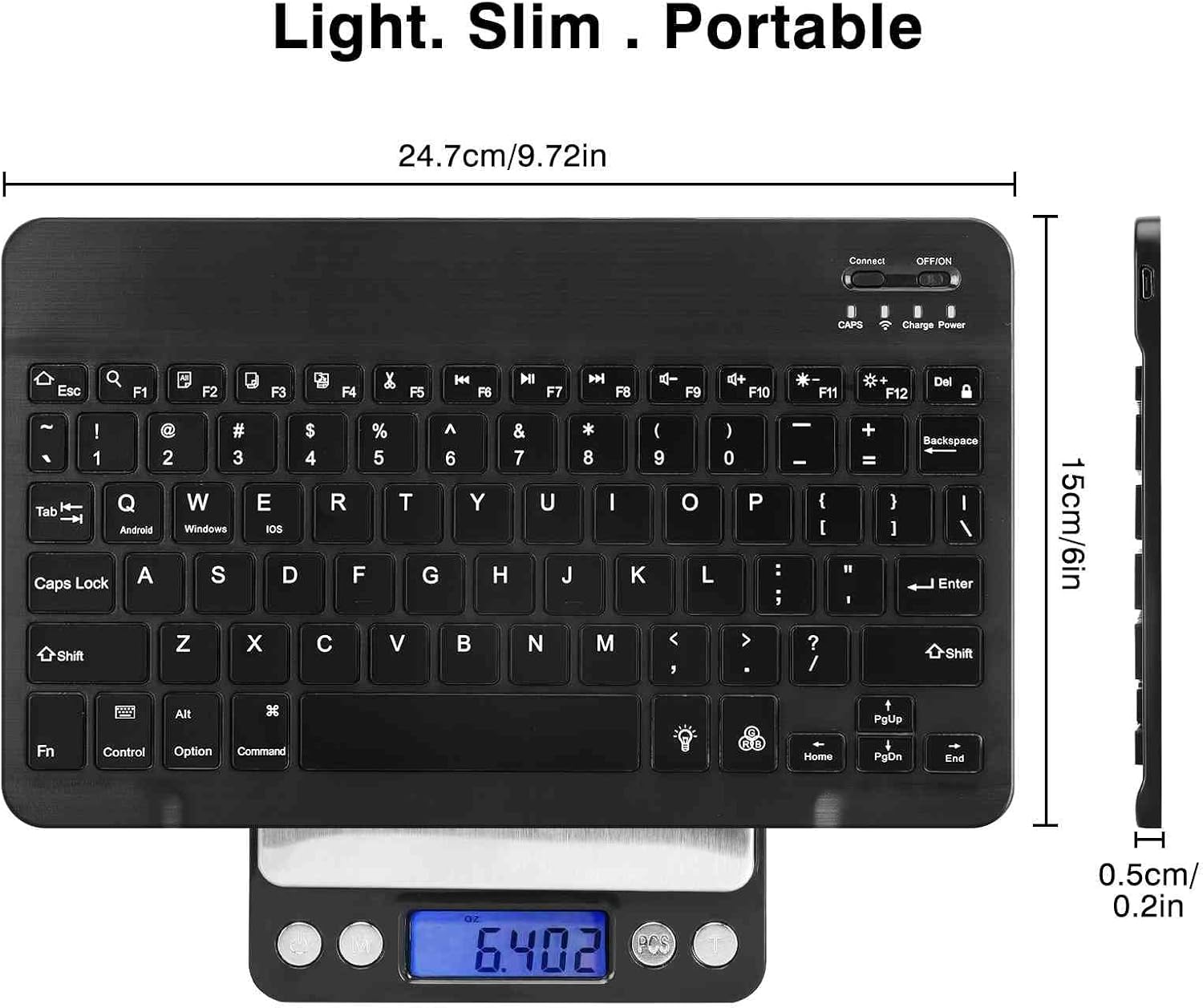
Image: The UrbanX UX030 keyboard displaying its compact dimensions, highlighting its light, slim, and portable design.
Safety Information
- Do not expose the keyboard to extreme temperatures, direct sunlight, or high humidity.
- Avoid dropping or subjecting the keyboard to strong impacts.
- Keep out of reach of children.
- Do not attempt to disassemble or repair the keyboard yourself. This will void the warranty.
- Dispose of the battery according to local regulations.
Warranty and Support
UrbanX products come with a standard manufacturer's warranty. For detailed warranty information, technical support, or service inquiries, please contact UrbanX customer support through their official website or the retailer where the product was purchased.
Please retain your proof of purchase for warranty claims.