
Introduction
Thank you for choosing the WOPET Automatic Cat Feeder FT70. This device is designed to provide scheduled and portion-controlled meals for your cats and small dogs, ensuring they are fed consistently even when you are away. Please read this manual thoroughly before use to ensure proper operation and maintenance.
Product Overview
The WOPET Automatic Cat Feeder FT70 features a 3-liter food tank, capable of dispensing 1 to 8 portions per meal, with up to 6 meals per day. It supports kibble sizes between 2mm and 15mm. The feeder also includes a customizable voice recording feature to call your pet at meal times.
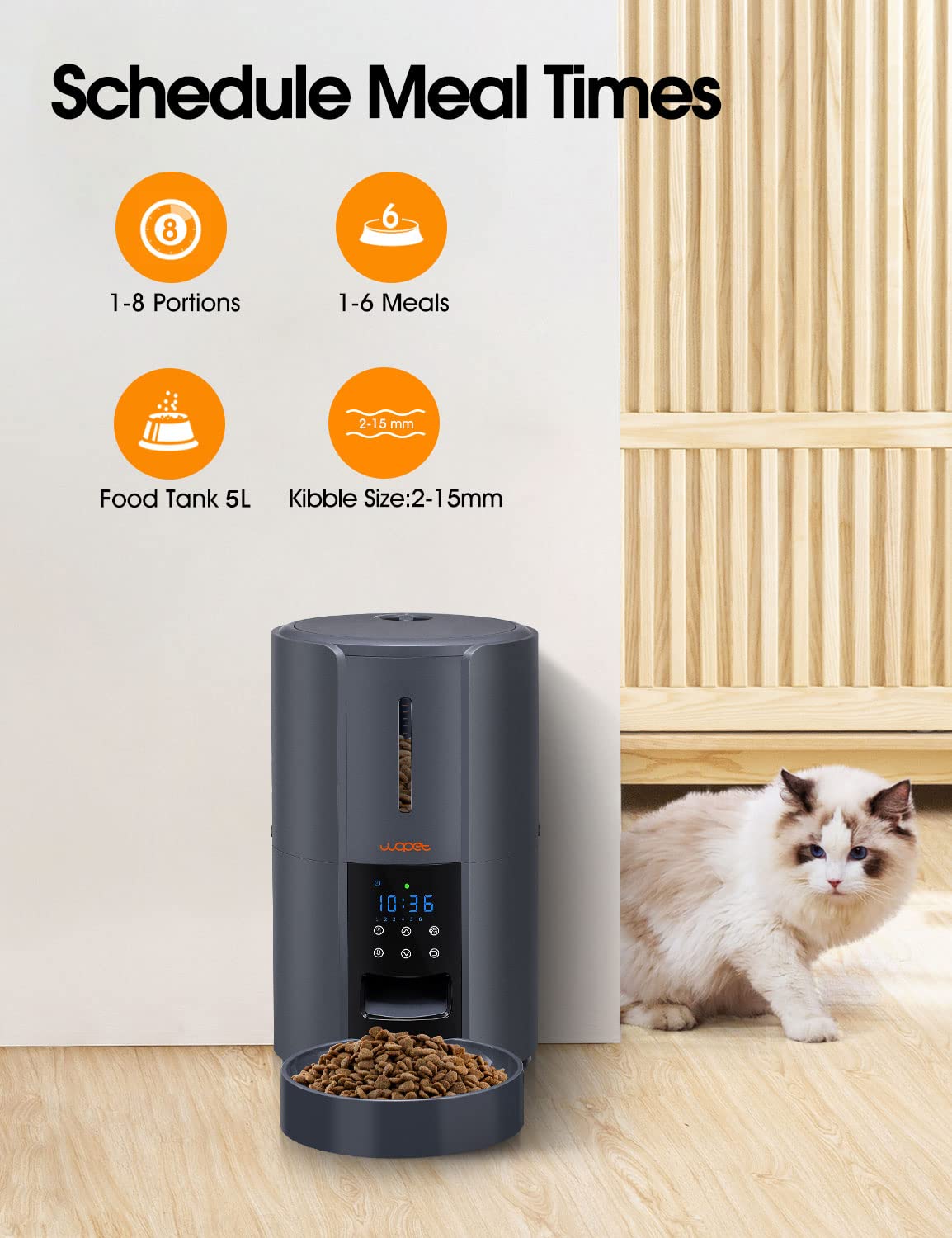

Setup
- Unpack the Feeder: Carefully remove all components from the packaging. Ensure all parts are present: the main feeder unit, food bowl, and power adapter.
- Power Supply:
- AC Adapter: Connect the 5V power adapter to the feeder and plug it into a wall outlet.
- Battery Backup (Optional): For power outages or portability, insert three D-size batteries (not included) into the battery compartment at the bottom of the unit. Ensure correct polarity.

Image: A close-up view of the WOPET Automatic Cat Feeder's base, illustrating the dual power supply options: a 5V power adapter connection and the compartment for three D-size batteries (not included). - Fill the Food Tank: Open the lid of the food tank and pour dry pet food (kibble size 2-15mm) into the reservoir. Close the lid securely.
- Attach Food Bowl: Securely attach the food bowl to the base of the feeder.
- Initial Programming: Refer to the "Operating Instructions" section to set the current time, schedule meals, and define portion sizes.
- Voice Recording: The feeder supports a 10-second customizable voice recording. Press and hold the record button to record your voice, which will play at each mealtime to call your pet.

Operating Instructions
The control panel on the front of the feeder allows you to program and manage meal schedules.
- Setting Current Time:
Press the "SET" button. Use the "UP" and "DOWN" buttons to adjust the hour, then press "SET" again to confirm. Repeat for minutes.
- Scheduling Meals:
Press the "MEAL" button to enter meal programming mode. You can set up to 6 meals per day. For each meal:
- Use "UP" and "DOWN" to set the desired feeding time (hour and minute).
- Press "PORTION" to set the number of portions (1-8) for that meal.
- Press "MEAL" again to move to the next meal setting or exit.
- Manual Feeding:
To dispense food immediately, press the "MANUAL" button. One portion will be dispensed. Press multiple times for additional portions.
- Adjusting Portion Sizes:
During meal scheduling, the "PORTION" button allows you to select the amount of food dispensed per meal, from 1 to 8 portions. Each portion is a fixed volume.
Maintenance
Regular cleaning ensures the longevity and hygienic operation of your WOPET Automatic Cat Feeder.
- Cleaning the Food Tank and Bowl:
The food tank and bowl are detachable for easy cleaning. Hand wash only with mild soap and water. Rinse thoroughly and ensure all parts are completely dry before reassembling.

Image: Detachable components of the WOPET Automatic Cat Feeder, including the food tank and bowl, being hand washed in water, demonstrating the ease of cleaning. - Cleaning the Main Unit:
Wipe the main unit with a damp cloth. Do not submerge the main unit in water or use abrasive cleaners.
- Refilling Food:
Check the food level regularly and refill as needed to ensure continuous feeding for your pet.
Troubleshooting
| Problem | Possible Cause | Solution |
|---|---|---|
| Feeder not dispensing food. |
|
|
| Incorrect portion size dispensed. |
|
|
| Batteries drain quickly. |
|
|
| Voice recording not playing or too low. |
|
|
Specifications
| Model Number | FT70 |
| Brand | WOPET |
| Capacity | 3 Litres |
| Target Species | Cat, Dog (Small) |
| Kibble Size Range | 2-15 mm |
| Max Meals Per Day | 6 |
| Portions Per Meal | 1-8 |
| Power Source | 5V Power Adapter (Included), 3 x D Batteries (Not Included) |
| Product Dimensions (LxWxH) | 18.59 x 18.59 x 28.58 cm |
| Item Weight | 1.53 kg |
| Care Instructions | Hand Wash Only (detachable parts) |
Warranty and Support
For warranty information or technical support, please refer to the contact details provided with your product packaging or visit the official WOPET website. Please retain your proof of purchase for warranty claims.


