
1. Introduction
This manual provides detailed instructions for setting up, operating, maintaining, and troubleshooting your Lenovo ThinkPad X1 Yoga Gen 8. This device is a versatile 2-in-1 laptop designed for productivity and flexibility, featuring a 14-inch WQUXGA OLED touchscreen display and powerful Intel Core i7-1370P processor.

Figure 1.1: Lenovo ThinkPad X1 Yoga Gen 8 in standard laptop configuration.
2. Setup Guide
2.1 Unboxing and Initial Inspection
- Carefully remove the laptop and all accessories from the packaging.
- Verify that all components are present: laptop, power adapter, Lenovo Integrated Pen.
- Inspect the laptop for any visible damage. If damage is found, contact customer support immediately.
2.2 Powering On
- Connect the 65W USB-C power adapter to a power outlet and to one of the USB-C Thunderbolt 4 ports on your laptop.
- Open the laptop lid. The system may power on automatically, or you may need to press the power button located on the side.
- Follow the on-screen instructions to complete the initial Windows 11 Pro setup.
2.3 Connecting Peripherals
The ThinkPad X1 Yoga Gen 8 offers a variety of ports for connecting external devices:
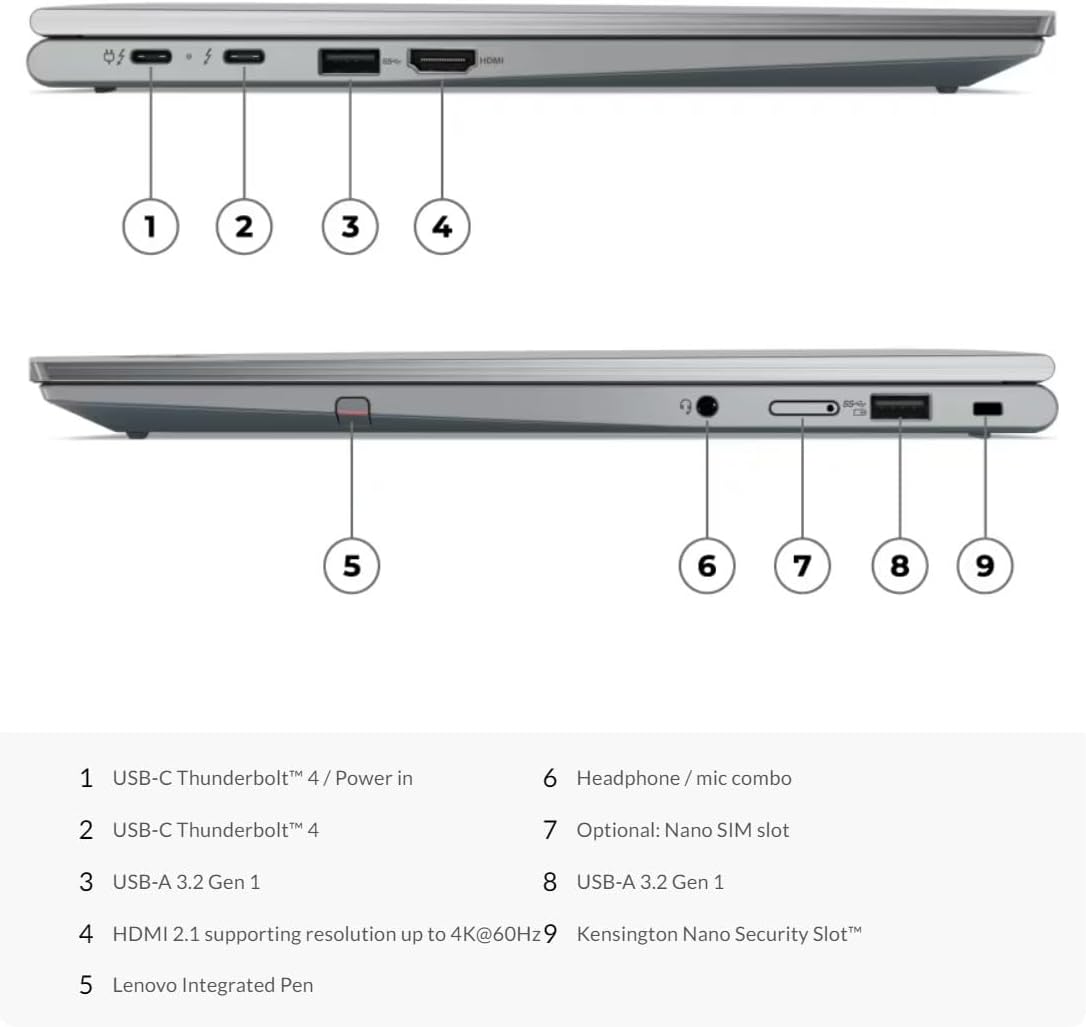
Figure 2.1: Port layout of the Lenovo ThinkPad X1 Yoga Gen 8.
- USB-C Thunderbolt 4 (x2): For power delivery, data transfer (up to 40Gbps), and DisplayPort 1.4a output.
- USB 3.2 Gen 1 (x2): For connecting USB devices such as external drives, keyboards, or mice. One port supports Always On charging.
- HDMI: Connect to external displays or projectors, supporting up to 4K/60Hz.
- Headphone/Microphone Combo Jack (3.5mm): For audio input/output.
- Lenovo Integrated Pen: Stored within the chassis for easy access and charging.
- Kensington Nano Security Slot: For securing your device with a compatible lock.
3. Operating Instructions
3.1 Basic Navigation
Your ThinkPad X1 Yoga Gen 8 offers multiple ways to interact with the system:
- Keyboard: The backlit keyboard provides a comfortable typing experience. Use the function keys (Fn) in combination with F1-F12 for quick access to system controls like volume, brightness, and wireless settings.
- TrackPoint and Trackpad: Navigate using the iconic TrackPoint pointing stick in the center of the keyboard or the precision glass trackpad below the keyboard.
- Touchscreen: Interact directly with the 14-inch OLED display using multi-touch gestures.
- Fingerprint Reader: For secure and convenient login, use the integrated fingerprint reader.

Figure 3.1: Keyboard and TrackPoint/Trackpad for navigation.
3.2 Using the Integrated Pen
The Lenovo Integrated Pen is stored and charged within the laptop chassis. It allows for precise input, drawing, and note-taking directly on the touchscreen. Simply pull the pen out from its slot to begin using it. It automatically charges when stored.
3.3 Display Modes (Yoga Functionality)
The 360-degree hinge allows the ThinkPad X1 Yoga Gen 8 to transform into various modes:
- Laptop Mode: Standard laptop configuration for typing and traditional computing.
- Tent Mode: Fold the display back to form a tent shape, ideal for watching videos or presentations in confined spaces.
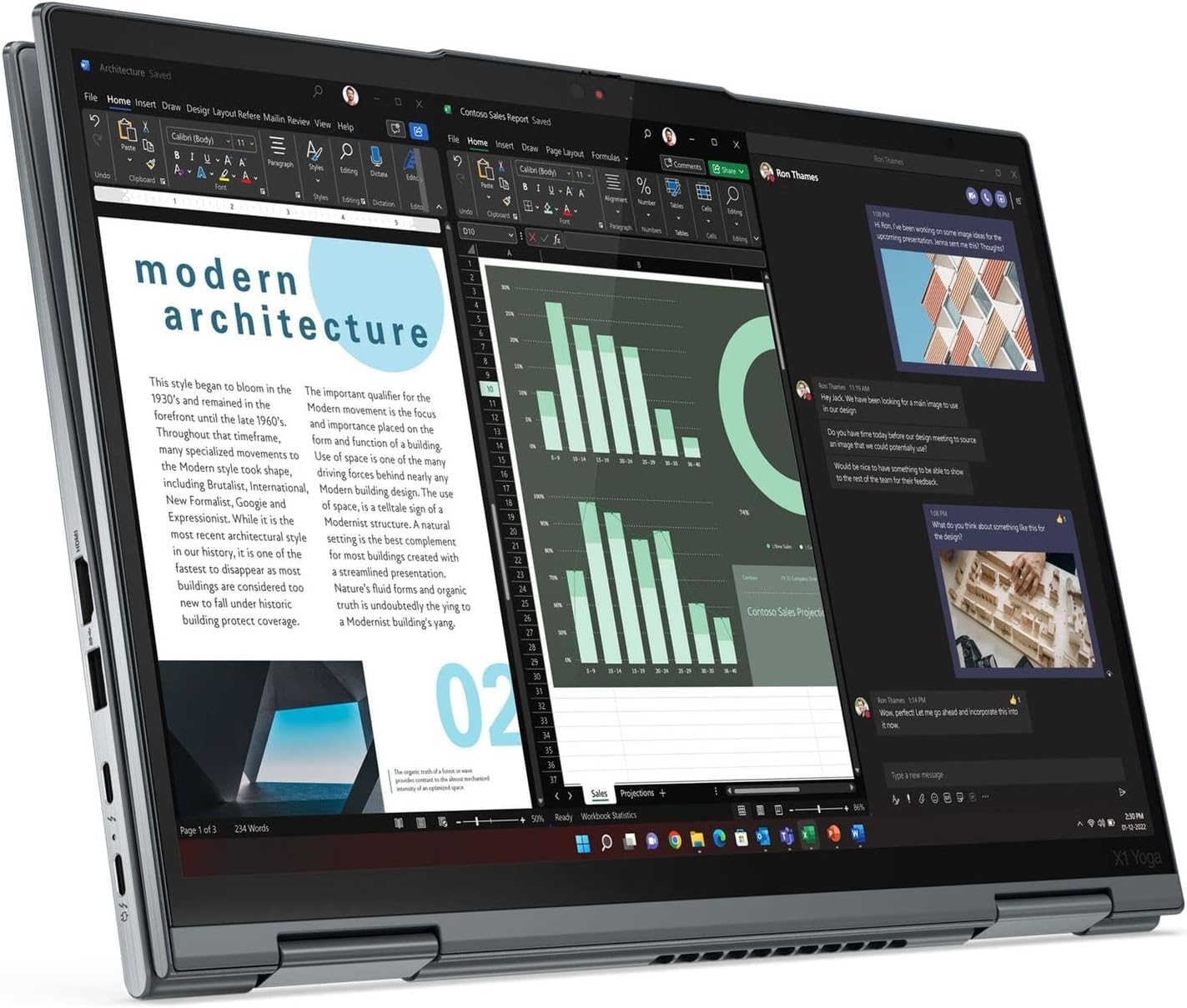
Figure 3.2: Laptop in Tent Mode.
- Stand Mode: Fold the keyboard completely behind the display, allowing the screen to stand upright, perfect for touch-based interactions or media consumption.
- Tablet Mode: Fold the display completely back against the base, transforming the device into a powerful tablet for on-the-go use.
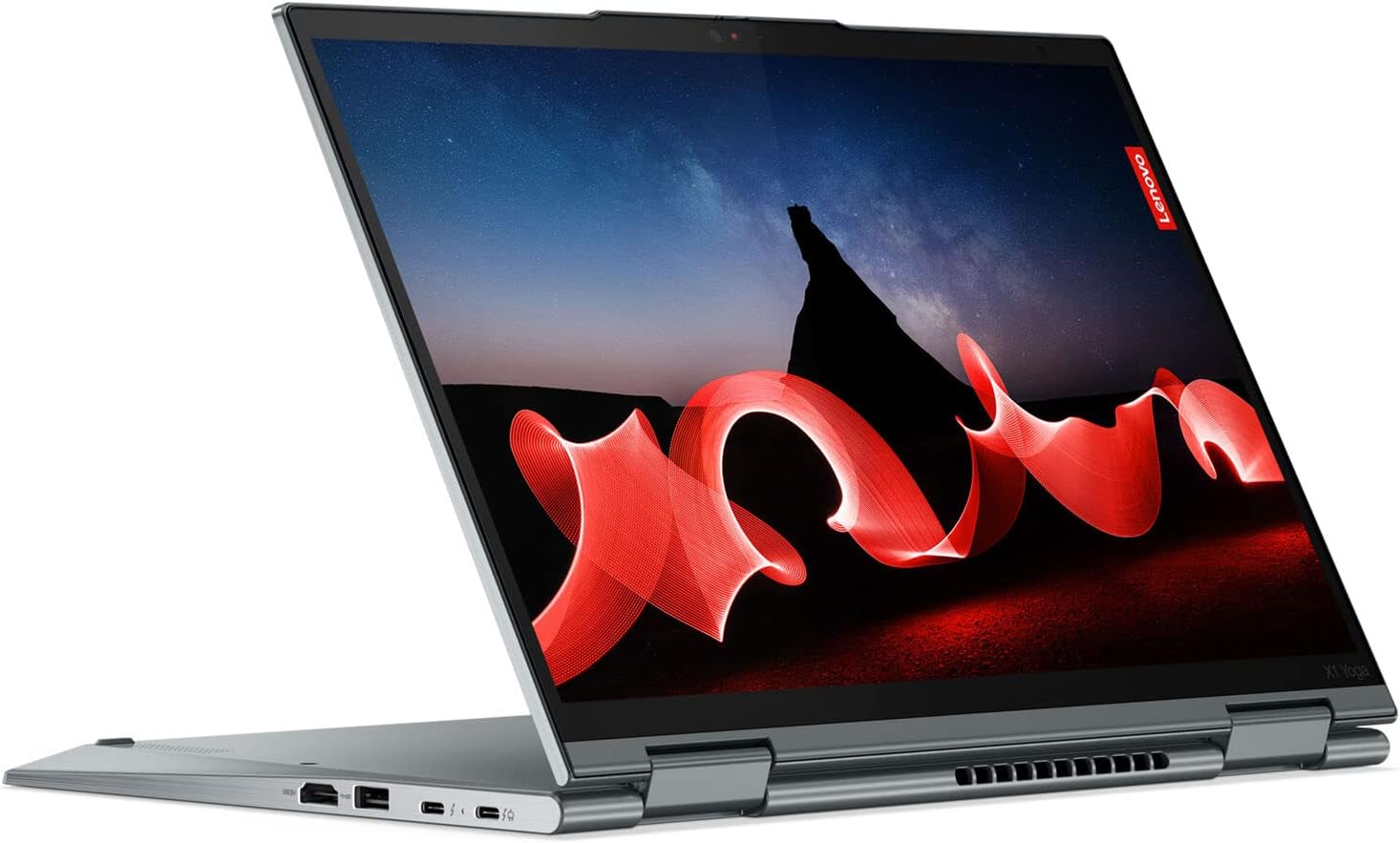
Figure 3.3: Laptop in Tablet Mode.
4. Maintenance and Care
4.1 Cleaning the Device
- Screen: Use a soft, lint-free cloth slightly dampened with water or a screen-cleaning solution. Do not spray liquid directly onto the screen.
- Keyboard and Chassis: Use a soft, dry cloth. For stubborn dirt, a slightly damp cloth with mild soap can be used, ensuring no liquid enters openings.
- Ports: Keep ports free of dust and debris. Use compressed air if necessary, but avoid inserting objects into the ports.
4.2 Battery Care
To maximize battery lifespan:
- Avoid extreme temperatures.
- Do not fully discharge the battery frequently.
- If storing the laptop for an extended period, ensure the battery is charged to about 50-60%.
4.3 Software Updates
Regularly update your operating system (Windows 11 Pro) and drivers to ensure optimal performance, security, and compatibility. Lenovo Vantage software can assist with driver updates.
5. Troubleshooting
This section addresses common issues you might encounter with your ThinkPad X1 Yoga Gen 8.
| Problem | Possible Cause | Solution |
|---|---|---|
| Laptop does not power on | No power, discharged battery, hardware issue | Ensure power adapter is connected and working. Try a different outlet. If battery is fully drained, allow it to charge for a few minutes before attempting to power on. |
| Display is blank or flickering | Display driver issue, external display conflict, hardware issue | Restart the laptop. Update graphics drivers. Disconnect any external monitors. If problem persists, contact support. |
| Wi-Fi or Bluetooth connectivity issues | Driver issue, adapter disabled, interference | Check Wi-Fi/Bluetooth settings in Windows. Ensure airplane mode is off. Update wireless drivers. Restart router/modem. |
| System performance is slow | Too many applications open, low storage, malware, outdated drivers | Close unnecessary applications. Free up disk space. Run a malware scan. Update drivers and Windows. |
6. Technical Specifications
Key specifications for the Lenovo ThinkPad X1 Yoga Gen 8:
| Feature | Specification |
|---|---|
| Processor | Intel Core i7-1370P (14C/20T, up to 5.2GHz) |
| Graphics | Integrated Intel Iris Xe Graphics |
| Memory | 64GB Soldered LPDDR5X-7500MHz |
| Storage | 2TB SSD M.2 2280 PCIe 4.0x4 Performance NVMe |
| Display | 14" WQUXGA (3840 x 2400) OLED, Ani-Reflective/Anti-Smudge, 500 nits, 100% DCI-P3, HDR400 Touch |
| Operating System | Windows 11 Pro |
| Ports | 2x USB-C Thunderbolt 4, 2x USB 3.2 Gen 1, 1x HDMI, 1x Headphone/Mic Combo Jack |
| Wireless | Intel Wi-Fi 6E AX211, 11ax 2x2 + BT5.1 |
| Camera | FHD 1080p + IR |
| Battery | Integrated 57Wh |
| Dimensions (WxDxH) | 314.4 x 222.3 x 15.53 mm (12.38 x 8.75 x 0.61 inches) |
| Weight | Starting at 1.38 kg (3.04 lbs) |
7. Warranty and Support
Your Lenovo ThinkPad X1 Yoga Gen 8 comes with a standard limited warranty. For specific warranty terms and conditions, please refer to the warranty card included with your product or visit the official Lenovo support website. For technical assistance, driver downloads, and service requests, please visit the Lenovo Support website.