
zealsound BKD-11 Pro
zealsound BKD-11 Pro USB Gaming Microphone User Manual
Model: BKD-11 Pro
Introduction
Thank you for choosing the zealsound BKD-11 Pro USB Gaming Microphone. This high-quality desktop condenser microphone is designed to provide crystal clear audio for gaming, streaming, podcasting, voice recording, video calls, and more. With its plug-and-play functionality, RGB lighting, and versatile compatibility, it's an ideal tool for content creators and gamers alike. This manual will guide you through the setup, operation, and maintenance of your new microphone.

The zealsound BKD-11 Pro USB Gaming Microphone, showcasing its design and included adapters.
What's in the Box
Before you begin, please ensure all components are present in the package:
- 1x zealsound A68/BKD-11 Pro RGB Desktop USB Gaming Microphone
- 1x USB-A Cable (2m long)
- 1x Lightning Adapter
- 1x USB-C Adapter
- 1x Shock Mount
- 1x Metal Pop Filter
- 1x Tripod Stand
- 1x User Manual

All components included in the zealsound BKD-11 Pro microphone package.
Setup
The zealsound BKD-11 Pro microphone is designed for plug-and-play convenience across a wide range of devices.
1. Assemble the Microphone
- Attach the microphone to the shock mount.
- Secure the shock mount to the tripod stand.
- Attach the metal pop filter to the microphone assembly.
2. Connect to Your Device
The microphone offers broad compatibility with various operating systems and devices:
- PC/Laptop/Mac: Connect the USB-A cable directly to an available USB port on your computer.
- iPhone (6-16): Use the provided Lightning adapter with the USB-A cable.
- iPad (4-Air): Use the provided Lightning adapter with the USB-A cable.
- Android Phone/Tablet (OTG compatible): Use the provided USB-C adapter with the USB-A cable.
- PS4/PS5: Connect the USB-A cable directly to an available USB port on your console.
No additional drivers are required. Your device should automatically recognize the microphone.

The microphone supports plug-and-play functionality across multiple platforms including PS4/PS5, Mac, Windows, and Android.
Operating Instructions
RGB Lighting Control
The microphone features dynamic solid-color gradient RGB lighting to enhance your setup. To control the lighting:
- Turn On/Off RGB: Long press the mute button located on the microphone.
- Switch RGB Modes: Continue to long press the mute button to cycle through different RGB lighting modes.

Long press the mute button to turn the RGB light on or off, or to cycle through lighting modes.
Mute Function
The microphone is equipped with a quick mute button and an RGB status indicator for instant control:
- Mute/Unmute: Tap the mute button.
- Status Indicator: The RGB indicator will change color to show whether the microphone is active or muted.
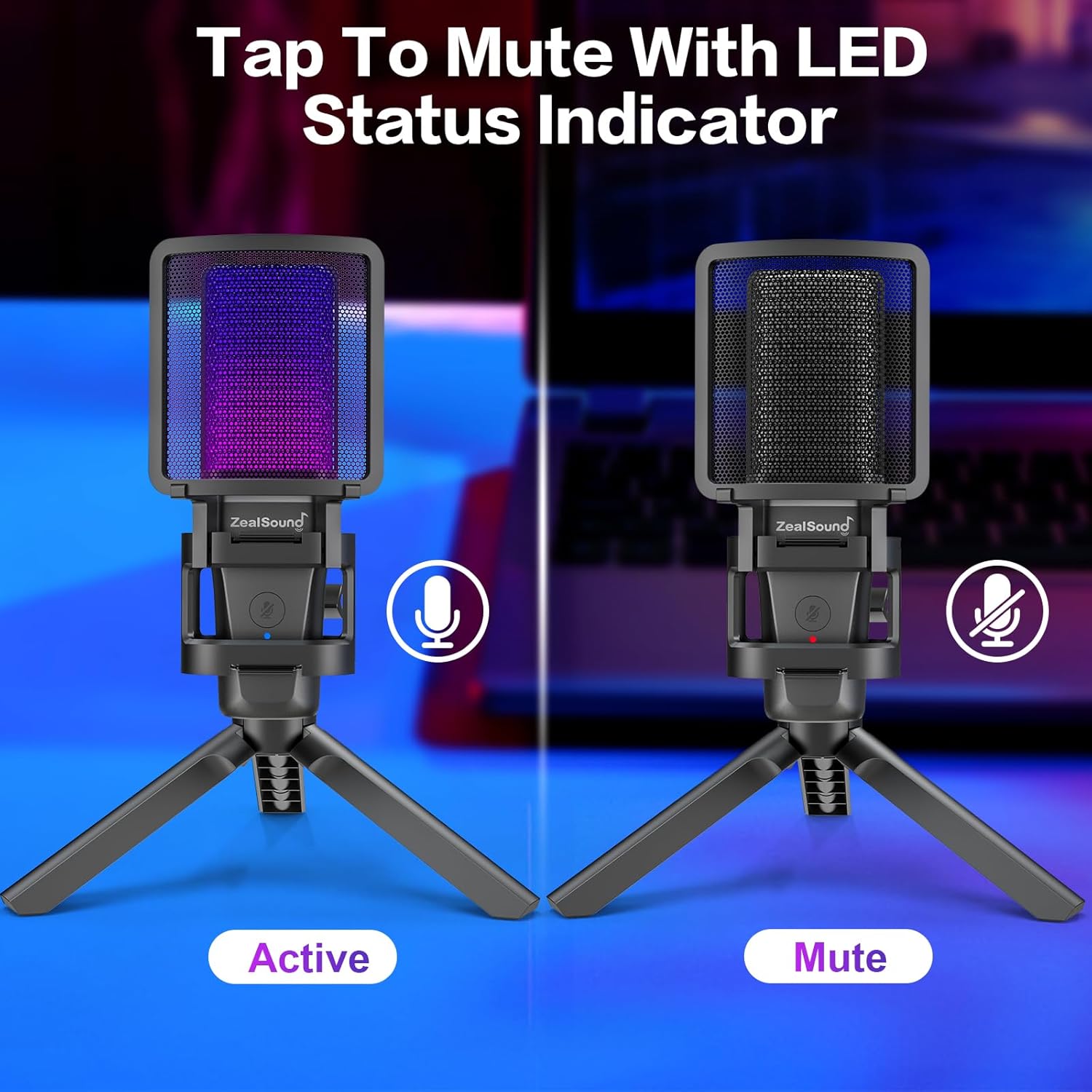
The microphone's LED indicator shows whether it is active (blue) or muted (red).
Real-Time Monitoring and Gain Control
For optimal audio control, the microphone features a 3.5mm headphone jack for zero-latency monitoring and an integrated gain knob.
- Zero-Latency Monitoring: Plug your headphones into the 3.5mm jack to hear your voice in real-time without delay. This allows you to fine-tune your settings and ensure clear audio.
- Gain Knob: Adjust the volume gain knob to control the microphone's sensitivity and input level.
Tip: For playback monitoring, use the headphone jack on the microphone. To listen to audio through your device's speakers or headphones, simply unplug the microphone from the device.
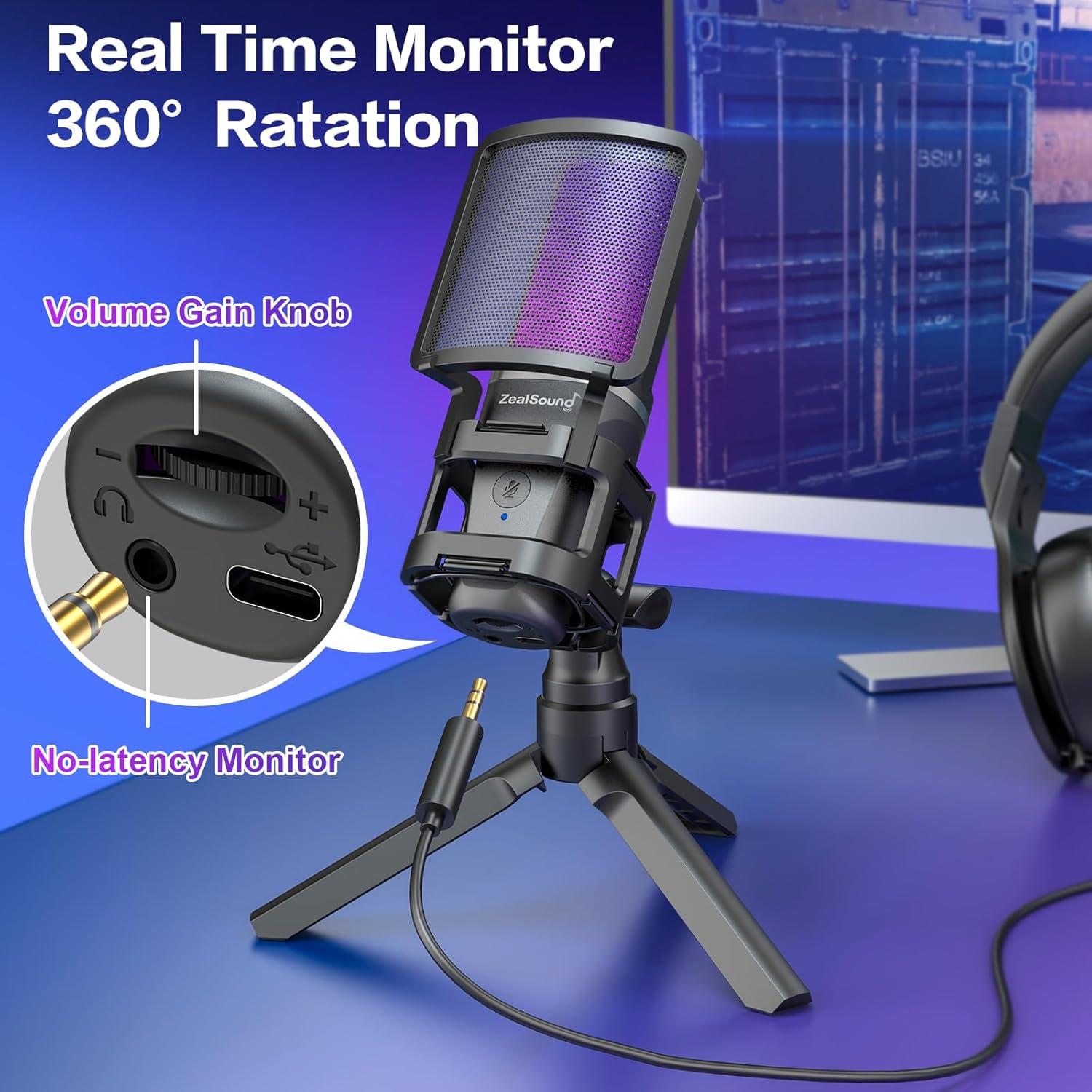
The microphone features a volume gain knob and a 3.5mm headphone jack for real-time monitoring.
Cardioid Polar Pattern
The BKD-11 Pro utilizes a cardioid polar pattern, which means it primarily picks up sound from the front of the microphone while minimizing sound from the sides and rear. This design is ideal for:
- Voice Clarity: Focuses on your voice, ensuring it is captured accurately and clearly.
- Background Noise Reduction: Helps to reduce unwanted ambient noise, making your recordings and streams sound professional.

The cardioid polar pattern ensures clear voice capture by focusing on sound from the front.
Pop Filter and Shock Mount
The included accessories are crucial for optimal audio quality:
- Pop Filter: The metal pop filter helps to eliminate plosive sounds (harsh 'p' and 'b' sounds) and sibilance, ensuring smoother and clearer vocal recordings.
- Shock Mount: The shock mount isolates the microphone from vibrations and handling noise, preventing unwanted thumps and rumbles from being picked up.
Maintenance
To ensure the longevity and optimal performance of your zealsound BKD-11 Pro microphone, follow these maintenance guidelines:
- Cleaning: Use a soft, dry cloth to wipe down the microphone body and stand. Avoid using harsh chemicals or abrasive materials, which can damage the finish.
- Storage: When not in use, store the microphone in a clean, dry place away from direct sunlight and extreme temperatures.
- Handling: Handle the microphone with care. Avoid dropping it or subjecting it to strong impacts, as this can damage internal components.
- Cable Care: Do not bend or crimp the USB cable excessively. Store it neatly to prevent tangles and damage.
Troubleshooting
If you encounter any issues with your zealsound BKD-11 Pro microphone, please refer to the following common troubleshooting steps:
No Sound / Microphone Not Detected
- Check Connections: Ensure the USB cable is securely plugged into both the microphone and your device. If using adapters (Lightning/USB-C), ensure they are properly connected.
- Verify Device Settings: On your computer or console, check the audio input settings. Make sure the zealsound microphone is selected as the default input device.
- Try Another Port: Connect the microphone to a different USB port on your device.
- Restart Device: Sometimes, a simple restart of your computer or console can resolve detection issues.
Poor Sound Quality / Background Noise
- Adjust Gain: Use the gain knob on the microphone to adjust the input sensitivity. If the sound is distorted, lower the gain. If it's too quiet, increase it.
- Microphone Placement: Ensure the microphone is positioned correctly, facing you directly. The cardioid pattern picks up sound best from the front.
- Use Pop Filter: Make sure the metal pop filter is correctly positioned in front of the microphone to reduce plosives and sibilance.
- Check Environment: Minimize background noise in your recording environment. The shock mount helps with vibrations, but external noise will still be picked up.
- Monitor Audio: Use the 3.5mm headphone jack for real-time monitoring to identify and correct audio issues as they occur.
RGB Lights Not Working
- Long Press Mute Button: Ensure you are long-pressing the mute button to cycle through RGB modes or turn the lights on/off, not just tapping it.
- Power Supply: Ensure the microphone is properly connected to a powered USB port.
Specifications
| Brand | zealsound |
| Model Name | BKD-11 Pro |
| Item Model Number | BKD-11 Pro |
| Microphone Form Factor | Desktop, RGB Gaming Microphone |
| Connectivity Technology | USB |
| Connector Type | USB Type A, USB-C Adapter, Lightning Adapter |
| Polar Pattern | Unidirectional (Cardioid) |
| Audio Sensitivity | 40 Decibels |
| Impedance | 2.2 Kiloohms |
| Signal-to-Noise Ratio | 95 dB |
| Frequency Response | 96 KHz |
| Number of Channels | 1 |
| Power Source | Corded Electric |
| Material | Metal Aluminum |
| Color | Black |
| Item Dimensions L x W x H | 15 x 4.5 x 1.5 centimeters |
| Hardware Platform | Computer, Laptop, PC, Smartphone |
| Compatible Devices | Laptop, PC, Desktop, Mac, Type-C Android Phone with OTG function, new iPad with Type-C interface |
| Recommended Uses for Product | Video Gaming, Gaming, Gamer, Player, Streaming on Switch, Twitch, Discord Chat, Game Studio, Home Studio, Content Creator, Voice Over, Podcasts, Live Broadcast, Streaming, Online Singing, TikTok Streaming, Recording, Voice/Singing/Audio/Video Recording, ASMR Artist, ASMR Recording, Online Meeting, Zoom Meeting, Online Course, Online Class, Podcasting, Broadcasting, Online Chat, Skype Chat, Voice Over, Voice Recognition, Singing on Smule, YouTube, Zoom, Skype, TikTok, Twitch |
Warranty & Support
The zealsound BKD-11 Pro microphone is manufactured by zealsound. For any warranty claims, technical support, or inquiries regarding spare parts, please contact zealsound customer service directly. Refer to the contact information provided with your product packaging or visit the official zealsound website for support details.
Ask a question about this manual
Ask about setup, troubleshooting, compatibility, parts, safety, or missing instructions. Manuals+ will review the question and use this page’s manual context to help answer it.