
1. Product Overview
The DJI Osmo Mobile 6 is a lightweight, ultra-compact, and intelligent 3-axis phone gimbal designed to stabilize your smartphone for smooth, dynamic footage. It features optimized ActiveTrack 6.0 for precise subject tracking, a built-in extension rod for versatile shooting angles, and a host of intelligent features like ShotGuides and Timelapse. The device is designed to unleash the full potential of your smartphone for content creation.
2. What's in the Box

Image: The DJI Osmo Mobile 6 package contents laid out, showing the gimbal, magnetic phone clamp, grip tripod, power cable, and storage pouch.
- DJI Osmo Mobile 6 (Platinum Gray) x1
- DJI OM Magnetic Phone Clamp 3 x1
- Grip Tripod x1
- Power Cable x1
- Storage Pouch x1
3. Setup
3.1 Unfolding and Powering On
To power on the DJI Osmo Mobile 6, simply unfold the gimbal. It will automatically power on and beep, then begin to stabilize. The system status indicator will change from red to solid yellow, and the gimbal mode icon will light up.

Image: A visual guide demonstrating the unfolding process of the Osmo Mobile 6 and the attachment of the magnetic phone clamp.
3.2 Attaching Your Smartphone
Attach the DJI OM Magnetic Phone Clamp 3 to the center of your smartphone. Ensure the clamp is positioned correctly, paying attention to the camera's location. Then, attach the clamped phone to the magnetic dot on the gimbal. The gimbal will automatically balance itself.
3.3 Connecting to the DJI Mimo App
Ensure your smartphone has an internet connection and Bluetooth is enabled. Launch the DJI Mimo app. Select 'Osmo Mobile 6' from the device list and tap 'Authorize' to connect via Bluetooth. For iPhone users, enabling Quick Launch in the DJI Mimo app settings can speed up future launches.
Video: A detailed guide on the first use of the DJI Osmo Mobile 6, covering unboxing, unfolding, phone attachment, and app connection steps.
4. Operating Instructions
4.1 Gimbal Modes and Controls
The DJI Osmo Mobile 6 offers various modes and controls for flexible shooting:
- M Button: Press once to switch between gimbal modes (Follow, Tilt Locked, FPV, SpinShot). The status panel will update accordingly.
- Joystick: Gently push to control the gimbal's pan and tilt direction.
- Shutter/Record Button: Press once to start or stop recording video. In photo mode, press and hold to shoot bursts.
- Switch Button: Press once to switch between front and back cameras. Double-click to switch between horizontal and vertical shooting. Press three times to switch between photo and video modes when connected to the DJI Mimo app.
- Side Wheel: By default, rotate to control zoom. Press the side wheel once to switch to focus control. In MF mode, rotate to change focus distance. Rotate fast to switch between lenses of different focal lengths.
- Trigger: Press once to enable or disable ActiveTrack. Press twice to recenter the gimbal. Press and hold to enter Lock mode.
Video: An instructional video demonstrating the functions of various buttons and controls on the DJI Osmo Mobile 6 gimbal.
4.2 ActiveTrack 6.0
ActiveTrack 6.0 provides enhanced subject tracking, keeping your chosen subject in the center of the shot even if obstructed or moving dynamically. It also supports pet tracking and zoom tracking.
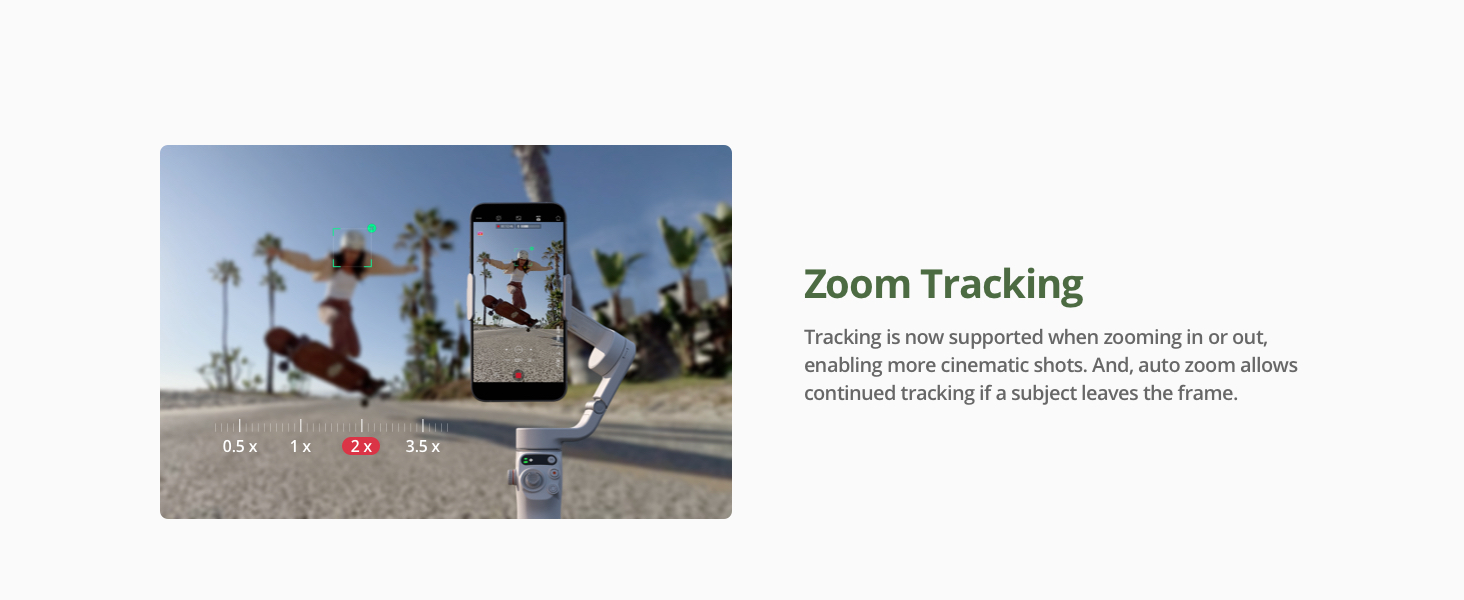
Image: A collage illustrating the capabilities of ActiveTrack 6.0, including keeping subjects centered, intelligent re-tracking, pet tracking, and zoom tracking.
4.3 Built-in Extension Rod
The integrated 215mm extension rod allows for versatile shooting needs, including group selfies, low-angle shots, and high-angle shots, without needing additional accessories.

Image: The DJI Osmo Mobile 6 with its extension rod fully extended, demonstrating its use for capturing wider and higher-angle shots.
5. Maintenance
5.1 Charging
When the battery level indicator turns red (below 20%), charge the gimbal using the included USB-A to USB-C charging cable. The USB-C side connects to the gimbal. The indicator will turn solid yellow when the battery is between 20% and 60%, and solid green when above 60%.
5.2 Storage
To store the Osmo Mobile 6, retract the extension rod, detach the smartphone and magnetic phone clamp. Rotate the gimbal to a proper angle and fold it. The gimbal powers off automatically for storage. You can rotate it 180 degrees until the lock icons align and you hear a click to lock the axis arm.
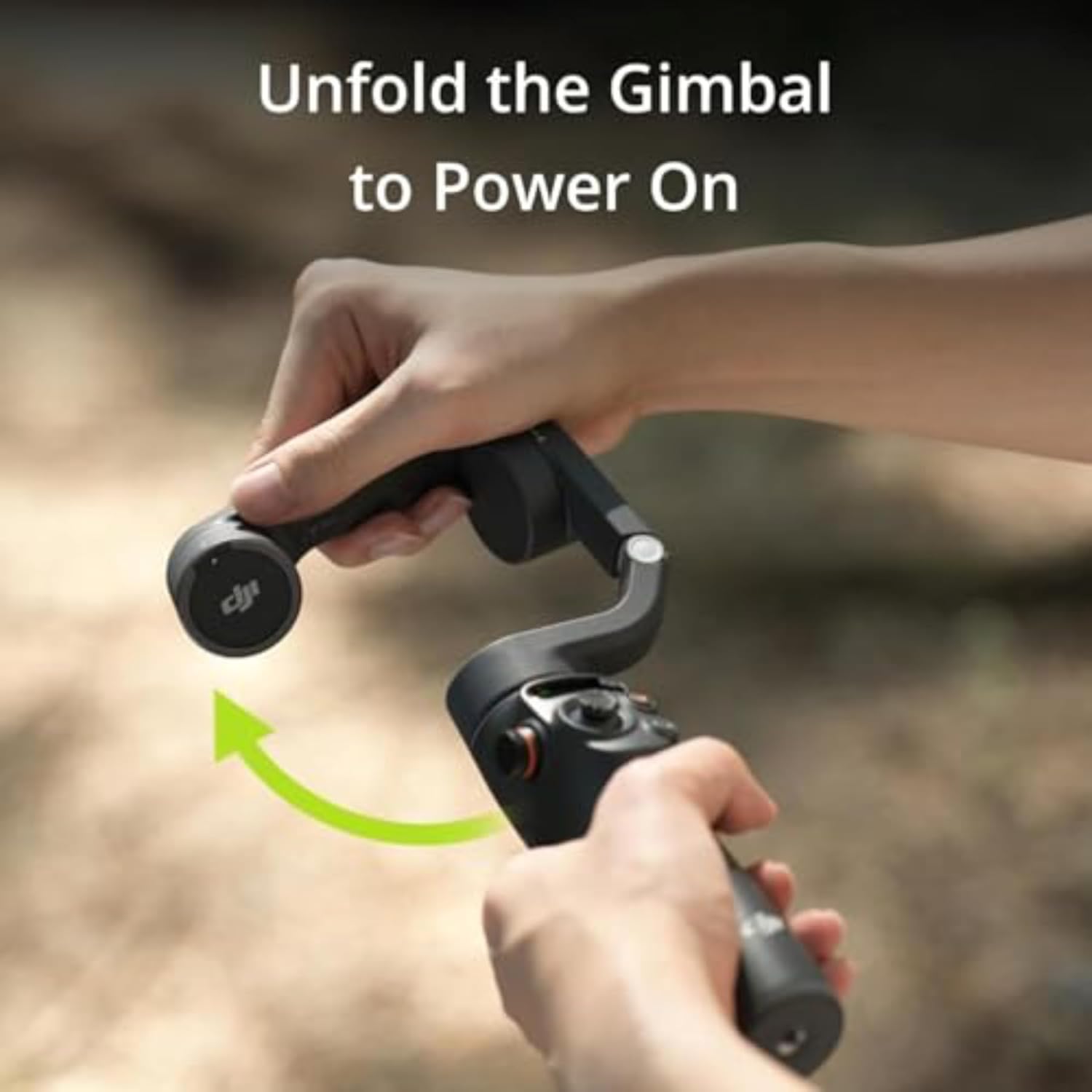
Image: The DJI Osmo Mobile 6 shown in its folded, portable configuration, highlighting its compact design for easy storage.
6. Troubleshooting and Tips
- DJI Mimo App on Android: Due to platform compatibility issues, the DJI Mimo app may not be available on Google Play. Please download the latest version from the DJI official website for optimal product usage.
- iOS Quick Launch: Auto pop-ups on the DJI Mimo app for Quick Launch are only supported on iPhone and depend on actual circumstances. Ensure Quick Launch is enabled in the app and authorization is completed.
- ActiveTrack Performance: ActiveTrack 6.0 is tested when following a single subject.
- LightCut App: LightCut is a smartphone editing app recommended by DJI for post-production.
- Apple Watch Compatibility: Remote control with Apple Watch is currently supported on Apple Watch Series 7/8/9, Apple Watch SE 2, and Apple Watch Ultra 1/2, with watchOS 9 or later.
- Side Wheel Material: The Platinum Gray version features a plastic side wheel, while the Slate Gray version has a metal side wheel. This is a cosmetic difference and does not affect functionality.
7. Specifications
| Specification | Detail |
|---|---|
| Brand | DJI |
| Model Number | CP.OS.00000284.01 |
| Color | Platinum Gray |
| Product Dimensions | 10.87 x 4.39 x 3.9 inches (27.61 x 11.15 x 9.91 cm) |
| Folded Size | 189 × 84.5 × 44 mm |
| Item Weight | 10.8 ounces (305 Grams) |
| Batteries | 1 C batteries required (included) |
| Compatible Devices | Cellphone |
| Date First Available | July 5, 2023 |
| Global Trade Identification Number | 06941565965387 |
7.1 Mobile Phone Compatibility List

Image: A detailed table outlining the compatibility of various smartphone models (iPhone, Samsung Galaxy, Google Pixel) with the DJI Osmo Mobile 6, specifying supported cameras, zoom ratios, video resolutions, tracking modes, and slow-motion features.
8. Warranty and Support
DJI provides an official warranty and one-stop technical support for its products. For detailed warranty information and support, please refer to the documentation included with your product or visit the official DJI website. The DJI Mimo app also offers support resources and tutorials.


