
1. Introduction
The DDPAI Z50 Dual 4K Dash Cam is a high-definition front and rear vehicle recording system designed to capture clear footage of your journeys. Featuring a 4K front camera with a Sony IMX415 sensor and a 1080P rear camera, it provides comprehensive coverage for accident evidence and driving insights. This manual provides detailed instructions for installation, operation, and maintenance of your dash cam.

Image: The DDPAI Z50 Dual 4K Dash Cam main unit, a separate rear camera, and a smartphone displaying the dash cam's live view and map data.
2. Package Contents
Please check the box for the following items:
- DDPAI Z50 4K Dash Cam (Main Unit)
- 1080P Rear Cam
- Car Charger
- Power Cable (9.84ft)
- Rear Cam Cable (18ft/5.49m)
- Installation Tool
- User Manual
- 3M Sticker *2
- Electrostatic Sticker
- Snapshot Button (if included with specific model variant)
- Hardwire Kit (if included with specific model variant, otherwise sold separately for 24H Parking Mode)
3. Product Overview
The DDPAI Z50 features a compact design with a 2.3-inch LCD screen for easy viewing and control. It includes a front camera with a 7-glass lens and a separate rear camera for dual-channel recording. Key controls are located on the main unit.

Image: An exploded view diagram of the DDPAI Z50 dash cam, highlighting the 7-glass lens, main unit with control buttons (Set, Mic, Album, Lock), and the 360-degree rotatable rear camera.
4. Setup
4.1 MicroSD Card Installation
The DDPAI Z50 requires a MicroSD card (not included) for recording. It supports up to 128GB. We recommend using a SAMSUNG SD Card for optimal performance. Insert the MicroSD card into the designated slot on the dash cam until it clicks into place.
4.2 Dash Cam Installation
The dash cam is designed for easy and discreet installation. Use the provided 3M adhesive sticker and electrostatic sticker to mount the front camera on your windshield, ensuring it does not obstruct your view. Position the rear camera on your rear window using its adhesive. Route the power cable and rear camera cable neatly to the car charger and main unit.

Image: Visual guide for installing the front dash cam near the rearview mirror and the rear camera on the back window, showing cable routing to the car charger.
5. Operating Instructions
5.1 Power On/Off and Recording
Once connected to your vehicle's power supply, the dash cam will automatically power on and begin recording when the vehicle starts. It will power off automatically when the vehicle is turned off.
5.2 Built-in WiFi & App Control
The DDPAI Z50 features built-in WiFi for seamless connection to the DDPAI App on your smartphone. This allows you to:
- Preview: View live footage from both cameras.
- Playback: Review recorded videos directly on your phone.
- Download: Save important video clips to your device.
- Share: Easily share recordings with police or insurance companies if an accident occurs.
- Settings: Adjust various dash cam settings.

Image: A hand holding a smartphone showing the DDPAI app, with a live view from the dash cam and a map displaying the vehicle's location, indicating easy preview, download, and control via WiFi.
5.3 Built-in GPS and SR 2.0 Vision
The integrated GPS module records your driving route, deviation, altitude, and speed. The SR 2.0 Vision feature enhances the driving experience by overlaying real-time data onto your video footage, providing a comprehensive record of your journey.
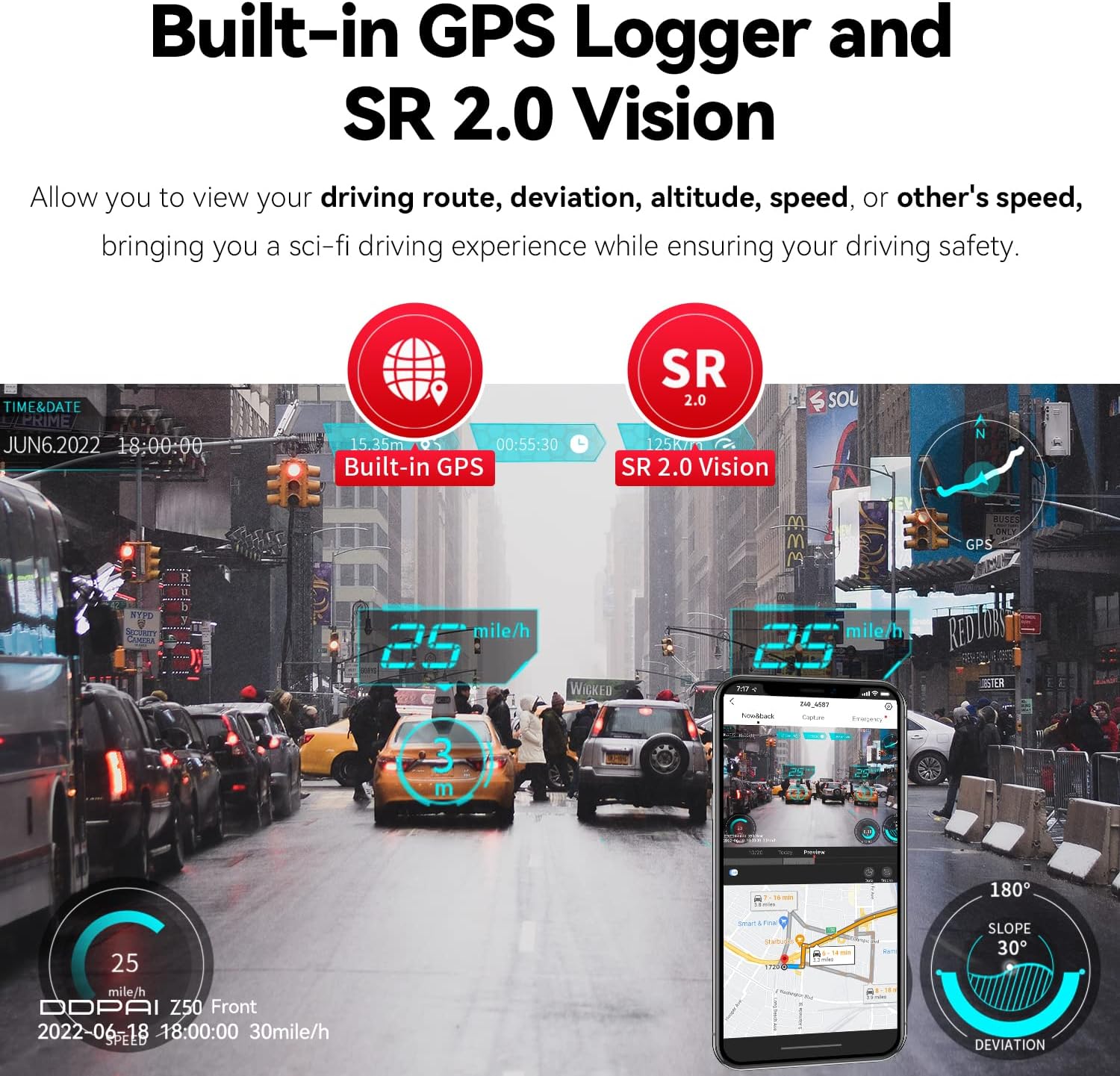
Image: A smartphone screen displaying dash cam footage with an overlay of GPS data, including speed, altitude, and a map, demonstrating the SR 2.0 Vision feature.
6. Key Features
6.1 High Definition Dual 4K Recording
The front camera records in true 4K (3840x2160P @30fps) utilizing an 8MP CMOS SONY IMX415 Sensor, capturing license plates and road signs with exceptional clarity up to 59 feet away. The rear camera records in 1080P, providing crucial evidence for rear-end incidents.

Image: Split image showing the clarity of 4K front camera footage (bottom) and 1080P rear camera footage (top), highlighting the readability of license plates from a distance.
6.2 Night Vision (NightVIS Technology)
Equipped with Sony IMX415, a 7-optical lens, and F1.75 aperture, combined with DDPAI's unique NightVIS technology, the Z50 enhances nightscape views. It captures more light and image information, producing ultra-clear nighttime videos and pictures.
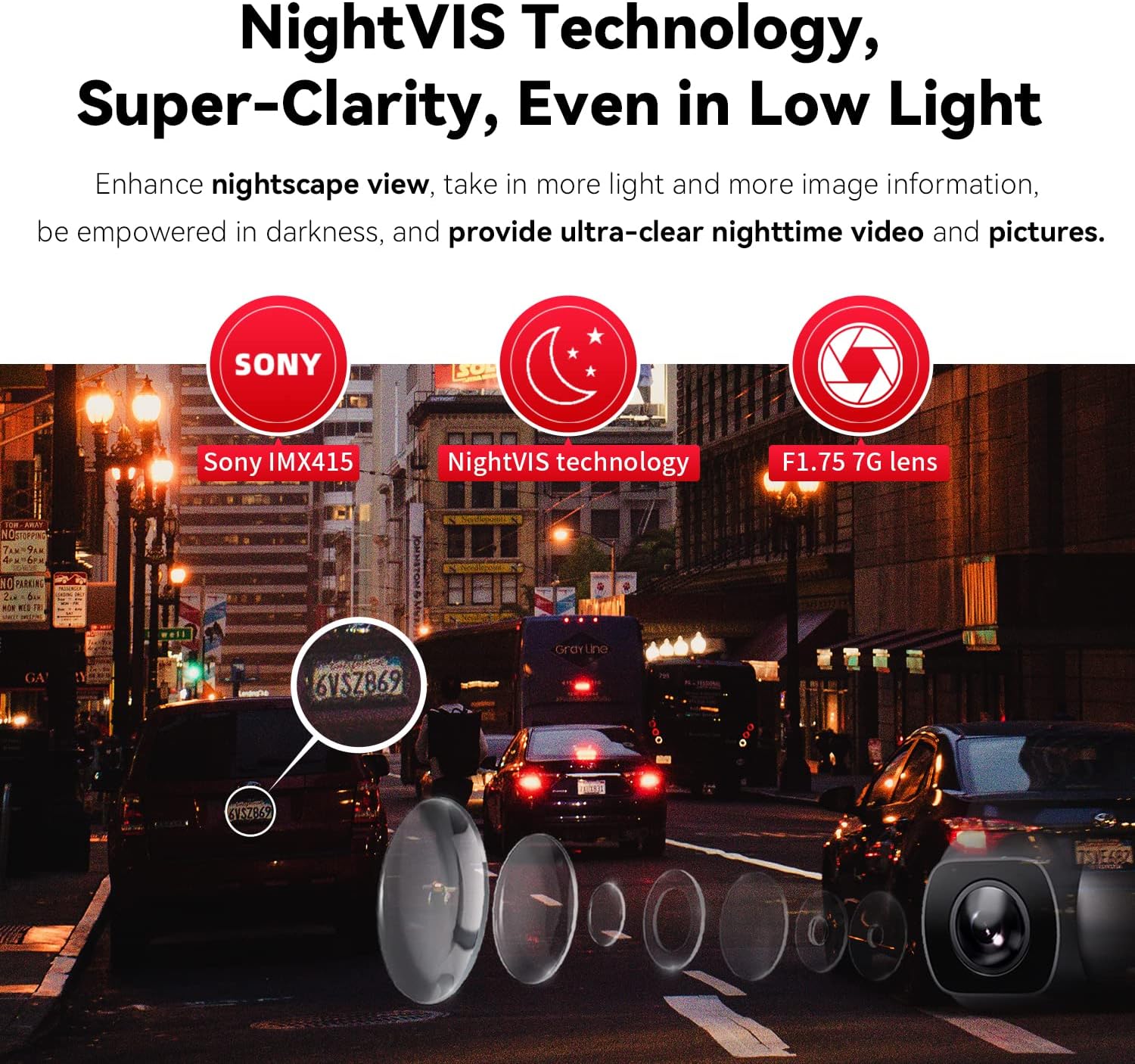
Image: An illustration demonstrating the NightVIS technology, showing how the Sony IMX415 sensor, F1.75 aperture, and 7-glass lens contribute to clear nighttime recording, with a focus on license plate readability in low light.
6.3 G-sensor & Parking Monitor
The built-in G-sensor automatically detects sudden shocks or collisions, locking the video files to a separate folder to prevent overwriting. The IPS power management system intelligently monitors car voltage to prevent battery drain, enabling 24-hour parking surveillance. For 24H Parking Mode, an optional hardwire kit (ASIN: B08LL4L87C) is required.
6.4 Loop Recording
The dash cam continuously records in a loop. When the MicroSD card is full, the oldest non-locked files will be automatically overwritten by new recordings, ensuring continuous operation without manual intervention.

Image: Three distinct illustrations: a car accident scene representing G-sensor activation, a car in a parking lot with a '24h' icon for Parking Monitor, and a film strip with arrows indicating loop recording.
6.5 D2 Save Dual Emergency Storage
In the event of an SD card error, the system automatically switches to NAND Flash storage and repairs damaged files. This ensures that important footage is not lost, providing a reliable backup mechanism.
Image: A visual representation of the D2 Save system, showing a TF card and NAND Flash chip, with an alert icon indicating automatic switch to NAND Flash upon SD card error to save footage.
6.6 Super Capacitor
The DDPAI Z50 utilizes supercapacitors instead of traditional lithium batteries. This design allows the dash cam to operate reliably in extreme weather conditions, from -4°F to 158°F (-20°C to 70°C), extending its lifespan and eliminating concerns about battery bulging.
7. Maintenance
- Clean Lenses: Regularly clean the front and rear camera lenses with a soft, lint-free cloth to ensure clear recording quality.
- MicroSD Card: Periodically format the MicroSD card (at least once a month) within the dash cam's settings to maintain optimal performance and prevent data corruption. Back up any important files before formatting.
- Firmware Updates: Check the DDPAI App for available firmware updates to ensure your dash cam has the latest features and bug fixes.
- Operating Temperature: Avoid exposing the dash cam to temperatures outside its specified operating range (-4°F to 158°F) for prolonged periods.
8. Troubleshooting
| Problem | Possible Cause | Solution |
|---|---|---|
| Dash cam does not power on. | No power supply; faulty power cable/car charger. | Check car charger connection. Ensure vehicle's power outlet is working. Try a different power source if available. |
| Recording stops or footage is corrupted. | MicroSD card issue (full, corrupted, incompatible); faulty card. | Format the MicroSD card via the dash cam settings. Try a new, recommended MicroSD card (e.g., Samsung, 128GB Max). |
| Rear camera not working. | Loose cable connection; faulty rear camera. | Ensure the rear camera cable is securely connected to both the rear camera and the main unit. |
| WiFi connection issues. | Incorrect password; app issues; interference. | Ensure correct WiFi password. Restart dash cam and smartphone. Reinstall DDPAI App. |
| "Sensor abnormal" message. | Internal sensor error. | Restart the device. If the issue persists, contact customer support. |
9. Specifications
| Feature | Detail |
|---|---|
| Model Name | Z50 Dual GPS |
| Product Dimensions | 3.23 x 2.05 x 3.23 inches |
| Item Weight | 5.3 ounces |
| Video Capture Resolution | Front: 4K (3840x2160P @30fps); Rear: 1080P |
| Sensor | Sony IMX415 (Front) |
| Lens | 7 Optical Lens, F1.75 Aperture |
| Storage | Supports up to 128GB MicroSD Card (not included), NAND Flash emergency storage |
| Connectivity | Built-In WiFi, USB |
| Special Features | Built-In WiFi, G-Sensor, App Control, Built-In GPS, NightVIS Technology, Super Capacitor, Loop Recording, 24H Parking Monitor (with optional hardwire kit) |
| Operating Temperature | -4°F to 158°F (-20°C to 70°C) |
| Mounting Type | Windshield Mount |
10. Warranty and Support
For warranty information and technical support, please refer to the official DDPAI website or contact DDPAI customer service directly. Keep your purchase receipt as proof of purchase for warranty claims.
Official DDPAI Website: www.ddpai.com


