Introduction
This manual provides detailed instructions for the installation, operation, and maintenance of your ESSGOO Portable Carplay System. Please read this manual thoroughly before using the device to ensure proper function and safety.
The ESSGOO Portable Carplay System features a 10.26-inch touch screen with wireless Apple Carplay and Android Auto compatibility, Bluetooth hands-free calling, Mirror Link, and AUX connectivity. It is designed to enhance your driving experience with smart navigation, communication, and entertainment options.
1. Setup and Installation
The ESSGOO Portable Carplay System is designed for easy installation, requiring no specialized skills. Follow these steps to set up your device.
1.1 Package Contents
Before installation, verify that all components are present in the package:
- ESSGOO Portable Carplay Device
- Dashboard Mount
- Suction Cup Mount
- Power Cable (for cigarette lighter)
- AUX Cable
- User Manual
- Warranty Card

Image: All components included in the ESSGOO Portable Carplay System package.
1.2 Mounting the Device
Choose between the dashboard mount or the suction cup mount based on your vehicle's interior and preference for optimal viewing and accessibility.
- Dashboard Mount: Attach the dashboard mount to a flat, clean surface on your dashboard. Ensure it is securely fixed.
- Suction Cup Mount: Attach the suction cup mount to your windshield or a smooth dashboard surface. Press firmly and engage the locking mechanism for stability.
- Once the mount is secure, attach the ESSGOO Carplay device to the mount.

Image: The ESSGOO system offers simple installation compared to traditional car stereo setups.
1.3 Power Connection
Connect the provided power cable to the device and plug the other end into your vehicle's cigarette lighter socket. The device will power on automatically.
2. Operating Instructions
This section details how to use the various features of your ESSGOO Portable Carplay System.
2.1 Initial Power On and Interface
Upon powering on, the device will display its main interface. The 10.26-inch touch screen allows for intuitive navigation through menus and applications.

Image: Main interface of the ESSGOO Portable Carplay System.
2.2 Wireless Apple Carplay / Android Auto
Connect your smartphone wirelessly to access Apple Carplay or Android Auto features.
- Ensure Bluetooth and Wi-Fi are enabled on your smartphone.
- On the Carplay system, select the Apple Carplay or Android Auto icon.
- Follow the on-screen prompts to pair your phone. Once paired, your phone's compatible apps will appear on the Carplay screen.
2.3 Smart Brightness Adjustment
The device features an intelligent light-sensing design that automatically adjusts screen brightness based on ambient light conditions. This ensures optimal visibility during both day and night driving and reduces glare.
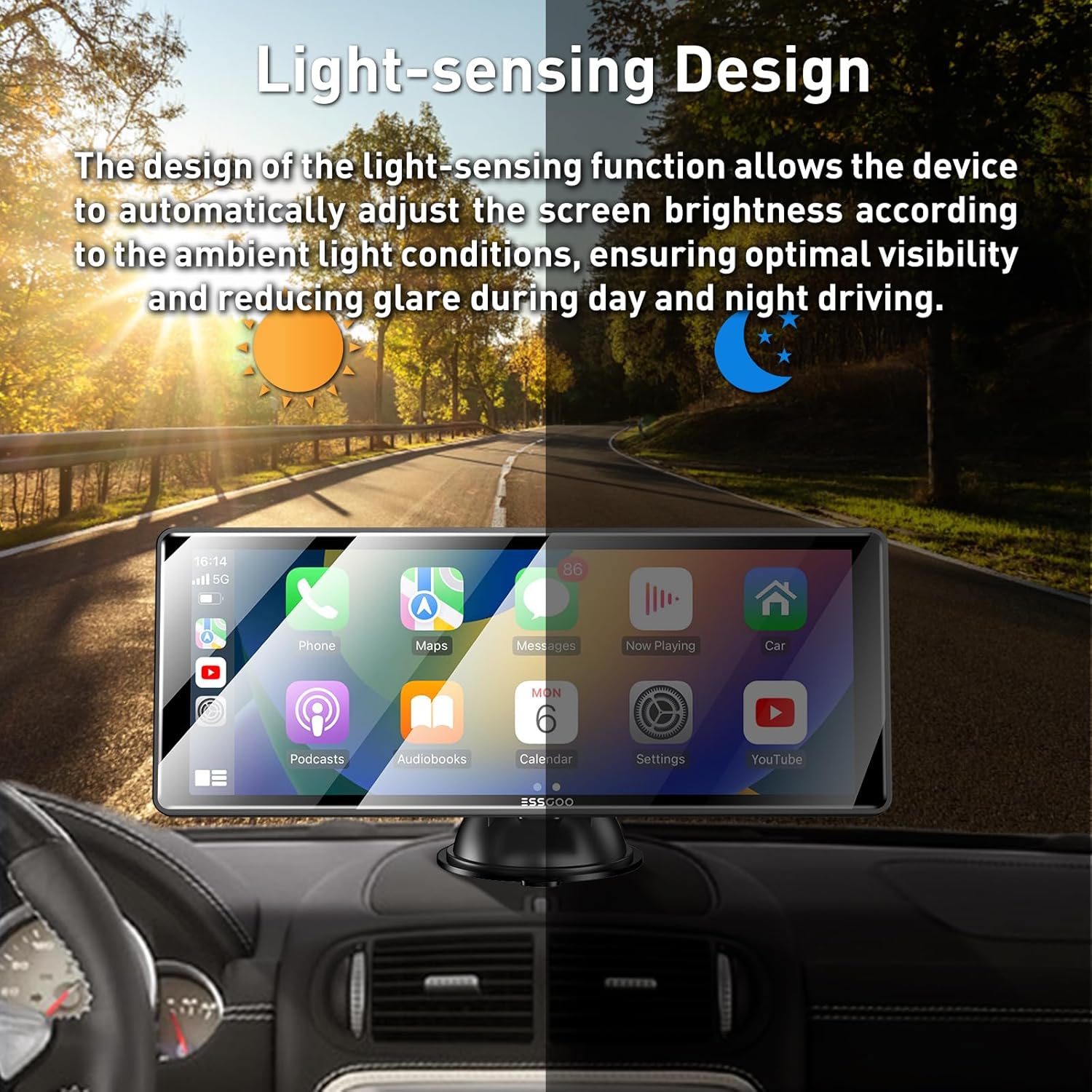
Image: Automatic brightness adjustment feature for optimal visibility.
2.4 Audio Output Options
The ESSGOO system offers multiple ways to output audio to your car's sound system:
- Bluetooth: Connect the Carplay system to your car's Bluetooth for audio output.
- AUX Connection: Use the provided AUX cable to connect the Carplay system to your car's AUX input.
- FM Transmitter: Tune the Carplay system to an unused FM frequency, then tune your car's radio to the same frequency to transmit audio.
- Built-in Speaker: The device has a built-in speaker for direct audio output.

Image: Various audio output methods available.
2.5 Voice Control
Utilize voice commands for safer driving. The system supports Siri Assistant and Google Assistant.
- Activate Siri or Google Assistant through the Carplay/Android Auto interface or by using the designated voice command button (if available).
- Examples: "Hey Siri, call [Contact Name]", "Hey Google, play music", "Hey Siri, show me the map".

Image: Voice control functionality for hands-free operation.
2.6 Other Features
- Mirror Link / AirPlay: Connect your phone to mirror its screen content directly onto the Carplay display.
- High-Resolution Display: Enjoy a clear visual experience with the 1600x600 resolution IPS display.

Image: High-resolution display for superior visual clarity.
3. Maintenance
Proper maintenance ensures the longevity and optimal performance of your ESSGOO Portable Carplay System.
- Screen Cleaning: Use a soft, lint-free cloth to gently wipe the touch screen. For stubborn smudges, slightly dampen the cloth with water or a screen-safe cleaner. Avoid harsh chemicals or abrasive materials.
- Device Cleaning: Keep the device body free from dust and debris. Use a dry, soft cloth.
- Cable Care: Ensure all cables are connected securely and are not pinched or bent sharply, which can cause damage.
- Temperature: Avoid exposing the device to extreme temperatures, both hot and cold, for extended periods.
4. Troubleshooting
If you encounter issues with your ESSGOO Portable Carplay System, refer to the following common solutions.
4.1 No Power
- Check Power Connection: Ensure the power cable is securely plugged into the device and the vehicle's cigarette lighter socket.
- Vehicle Power: Verify that the cigarette lighter socket in your vehicle is functional. Test with another device if possible.
- Fuse: Check your vehicle's fuse box for a blown fuse related to the cigarette lighter socket.
4.2 Cannot Connect to Apple Carplay / Android Auto
- Bluetooth & Wi-Fi: Ensure both Bluetooth and Wi-Fi are enabled on your smartphone.
- Forget Device: On your phone, go to Bluetooth settings and "forget" the Carplay device, then attempt to pair again.
- Restart Devices: Restart both your smartphone and the Carplay system.
- Software Update: Ensure your smartphone's operating system is up to date.
4.3 No Audio Output
- Volume Levels: Check the volume settings on both the Carplay system and your car's audio system.
- Audio Output Mode: Verify that the correct audio output mode (Bluetooth, AUX, FM Transmitter, Built-in Speaker) is selected on the Carplay system and your car's stereo.
- AUX Cable: If using AUX, ensure the cable is fully inserted into both the Carplay device and your car's AUX input.
- FM Transmitter: If using FM, ensure the Carplay system and your car radio are tuned to the exact same, clear FM frequency.
4.4 Touch Screen Unresponsive
- Restart Device: Power off and then power on the Carplay system.
- Clean Screen: Ensure the screen is clean and free from dirt or moisture.
5. Specifications
| Feature | Detail |
|---|---|
| Brand | ESSGOO |
| Model | cdb84775-1c2e-4fc8-9905-d8619db2c26e |
| Screen Size | 10.26 Inches |
| Resolution | 1600 x 600 (IPS Display) |
| Special Features | Touch Screen, Automatic Brightness Adjustment |
| Connectivity Technology | Auxiliary, Bluetooth, Wireless (for Carplay/Android Auto) |
| Compatible Devices | Smartphone, Car Speakers |
| Audio Output Mode | Stereo |
| Product Weight | 1.2 Kilograms |
| Color | Black |
| Power Input | 12-24V (Compatible with most car models) |

Image: Wide compatibility with different vehicle types.
6. Warranty and Support
6.1 Product Warranty
The ESSGOO Portable Carplay System comes with a one-year warranty from the date of purchase. This warranty covers manufacturing defects and unforeseen issues. Please retain your proof of purchase for warranty claims.
6.2 Customer Support
For any questions, concerns, or technical assistance, please contact ESSGOO customer support. Refer to the contact information provided on the warranty card or the official ESSGOO website. Our support team is dedicated to resolving your concerns promptly and ensuring your satisfaction.