
EWO'S BN1312A
EWO'S Voice Remote Control User Manual
Model: BN1312A
Introduction
This user manual provides comprehensive instructions for the EWO'S Voice Remote Control, designed as a replacement for various Samsung Smart TV voice remotes. It covers setup, operation, maintenance, and troubleshooting to ensure optimal performance and user experience.

Image: The EWO'S Voice Remote Control, a sleek black remote with a microphone button for voice commands, and dedicated shortcut keys for popular streaming services.
Setup
1. Battery Installation
The remote control requires two (2) AA batteries for operation. Ensure correct polarity when inserting the batteries.
- Locate the battery compartment cover on the back of the remote.
- Slide the cover open.
- Insert two AA batteries, matching the (+) and (-) indicators inside the compartment.
- Close the battery compartment cover securely.
2. Pairing Instructions
To pair the EWO'S Voice Remote Control with your Samsung Smart TV, follow these steps:
- Ensure your Samsung Smart TV is turned on.
- Point the remote control directly at your TV's remote control sensor.
- Simultaneously press and hold the Return/Exit button (
 ) and the Play/Pause button (
 ) for approximately 5 to 8 seconds.
 - Release both buttons when a pairing icon or message, such as "Connecting to the Smart Control" or "Pairing Complete," appears on your TV screen.
- Your TV will then begin the pairing process with the remote. Once completed, a confirmation message will be displayed.
If pairing fails, please repeat these steps. Ensure there are no obstructions between the remote and the TV sensor.
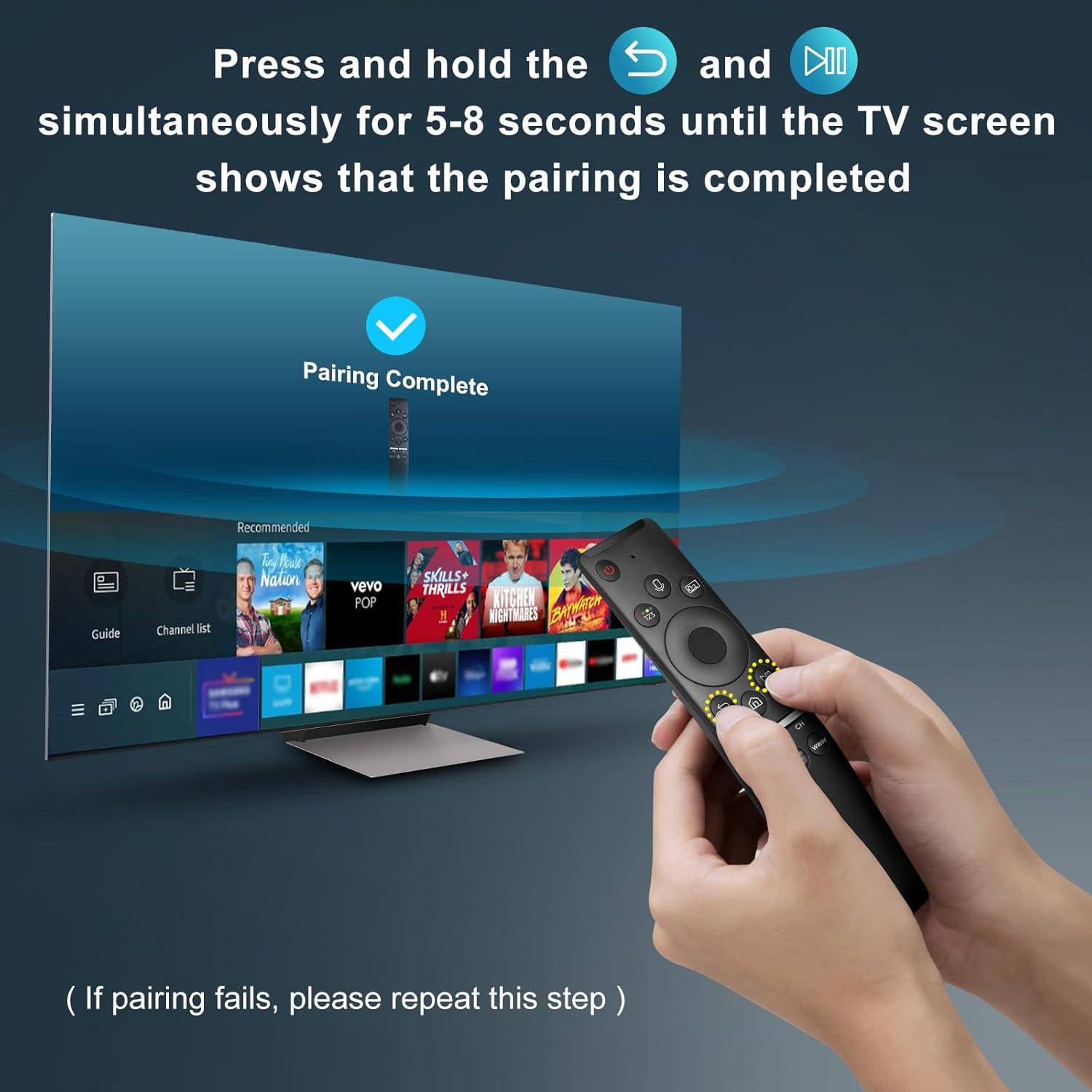
Image: A visual representation of the remote pairing process, showing a hand holding the remote and pressing the Return/Exit and Play/Pause buttons, with a TV screen displaying "Pairing Complete".
Operating Instructions
Key Features
- Voice Control: Enables hands-free control of your TV, including volume adjustment, app launching, and content search. A network connection is required for voice recognition.
- Shortcut Keys: Dedicated buttons for quick access to popular streaming services.
- Ergonomic Design: Lightweight and comfortable to hold for extended use.
- Multi-angle Induction: Provides precise and farther transmitting distance for reliable control from various positions.

Image: The remote control highlighting the microphone button for voice function and the three dedicated shortcut keys for streaming services (NFLX, p.video, WWW).
Button Functions
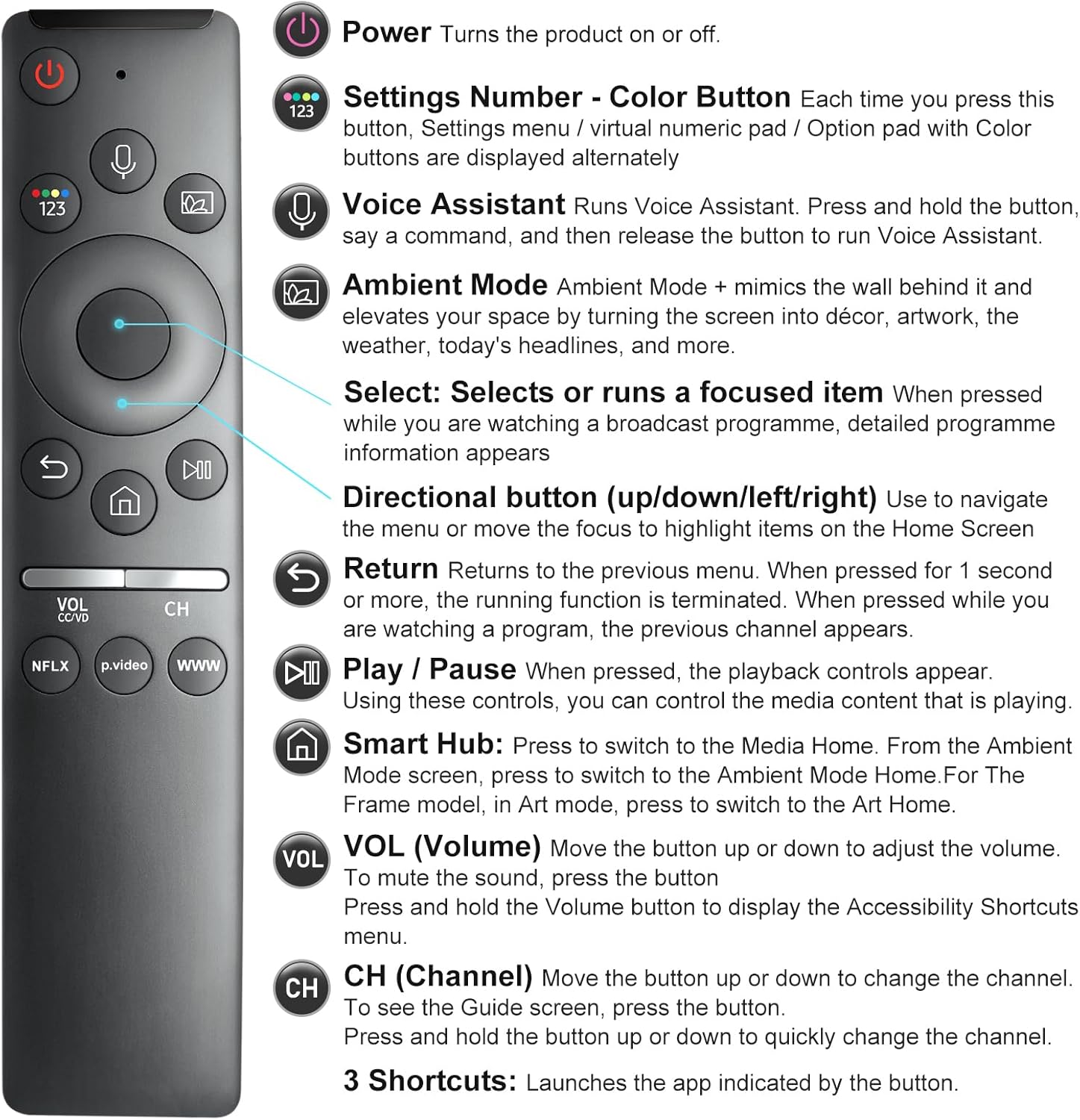
Image: A detailed diagram illustrating each button on the remote control and its corresponding function, such as Power, Voice Assistant, Volume, and Channel.
- Power (
 ): Turns the TV on or off.
 - Settings Number - Color Button (
 ): Each press cycles through settings menu, virtual numeric pad, or option pad with color buttons.
 - Voice Assistant (
 ): Press and hold to activate voice commands. Release to execute.
 - Ambient Mode: Mimics the wall behind it and elevates your space by turning the screen into décor, artwork, weather, or headlines.
- Select (Center Button): Selects or runs a focused item. Displays detailed program information when watching broadcast.
- Directional Buttons (Up/Down/Left/Right): Used to navigate menus or move focus on the Home Screen.
- Return (): Returns to the previous menu. If pressed for 1 second or more, the running function is terminated.
- Play / Pause (): Controls playback of media content.
- Smart Hub (
 ): Press to switch to Media Home. Also used to access Ambient Mode or Art Mode depending on TV model.
 - Volume (VOL): Move up or down to adjust volume. Press to mute. Press and hold to display Accessibility Shortcuts menu.
- Channel (CH): Move up or down to change channels. Press to see the Guide screen. Press and hold to quickly change channels.
- 3 Shortcuts (NFLX, p.video, WWW): Launches the indicated application directly.
Compatibility
This remote control is designed for specific Samsung Smart TV models and voice remote models. Please verify compatibility before use.
Supported Samsung Smart TV Models (with Voice Functions):
TU8000, TU8200, TU8300, TU850D, TU9000, TU7000, TU700D, Q60T, Q70T, Q80T, Q90T, Q800T, Q900TS, Q950TS, LS03, LS05, LST7, RU8000, CU7000, CU8000, DU7200, DU8000, Q50, Q60, Q70, Q80, Q90, Q900, NU8000, NU8500, MU8000, MU630, MU650, MU700, MU800, MU850, MU6300, MU6500, MU7000, MU7500, MU8000, MU9000, Q6F, Q7F, Q7C, Q8F, Q9F Series etc.

Image: An illustration detailing the types of Samsung Smart TVs compatible with this remote, including OLED 4K, Crystal UHD 4K, Neo QLED 4K/8K, The Frame QLED HDR, and QLED UHD HDR 4K/8K Smart TVs.
Supported Samsung Voice Remote Models:
BN59-01266A/RMCSPM1AP1, BN59-01312A, BN59-01312G, BN59-01330A, BN59-01329A, BN59-01298A, BN59-01298H, BN59-01298E, BN59-01292A, BN59-01241A, BN59-01293A, BN59-01274A, BN59-01357A, BN59-01357F, BN59-01363A, BN59-01354A, BN59-01385A, BN59-01391A etc.

Image: A visual guide displaying several Samsung voice remote models that are compatible and can be replaced by this EWO'S remote.
Not Compatible With:
This remote is not compatible with BN59-01315A, BN59-01199F, and AA59-00784C remote models.

Image: An image clearly indicating three specific Samsung remote models (BN59-01315A, BN59-01199F, AA59-00784C) that are not compatible with this replacement remote.
Maintenance
- Cleaning: Use a soft, dry cloth to clean the remote. Do not use liquid cleaners or sprays.
- Handling: Avoid dropping the remote or exposing it to extreme temperatures or humidity.
- Battery Replacement: Replace batteries when the remote's performance degrades or it stops responding. Always replace both batteries at the same time with new AA batteries.
Troubleshooting
| Problem | Possible Cause | Solution |
|---|---|---|
| Remote not responding or pairing fails. | Incorrect pairing procedure, low batteries, or obstruction. |
|
| Voice function not working. | No network connection, TV model does not support voice functions, or Bixby not enabled. |
|
| Buttons are unresponsive or behave erratically. | Temporary software glitch or interference. |
|
Specifications
- Model Number: BN1312A
- Product Dimensions: 6.2 x 1.37 x 0.78 inches
- Item Weight: 1.44 ounces
- Batteries: 2 AA batteries (not included)
- Color: Black
- Max Number of Supported Devices: 1
- Compatible Devices: Television (specifically compatible Samsung Smart TVs with voice functions)
- Special Features: Easy Pairing, Universal (for specified Samsung models), Ergonomic, Extremely Long Life, Voice Search
Warranty and Support
EWO'S is committed to customer satisfaction. If you encounter any issues or have questions regarding your EWO'S Voice Remote Control, please contact our customer service team.
- After-Sale Service: We strive for 100% customer satisfaction. For any questions or concerns about your order, please contact us before leaving feedback. We aim to respond within 12 hours.
- Contact Information: Please refer to your purchase platform or product packaging for specific contact details for EWOS Direct.
Ask a question about this manual
Ask about setup, troubleshooting, compatibility, parts, safety, or missing instructions. Manuals+ will review the question and use this page’s manual context to help answer it.