
1. Introduction
Thank you for choosing the Anweller F3C Smart Electronic Drawer Lock. This device provides enhanced security and convenience for your cabinets, drawers, lockers, and mailboxes. It features multiple unlocking methods including Bluetooth App, RFID/IC cards, and NFC. Please read this manual carefully before installation and use to ensure proper operation and longevity of the product.
2. Product Overview and Package Contents
The Anweller F3C Smart Electronic Drawer Lock is designed for invisible installation, maintaining the aesthetic of your furniture while providing robust security. It is suitable for a wide range of applications, from child safety to securing personal belongings.
Key Features:
- Multiple Unlocking Methods: Bluetooth App, RFID/IC Card, and NFC for flexible access.
- Invisible Installation: No drilling or disassembly required for most installations, preserving furniture appearance.
- High Security: Designed with anti-lever and anti-vandalism features.
- Low Battery Warning: Alerts you when batteries are low and automatically unlocks to prevent being locked out.
- Automatic Locking & Passage Mode: Configurable locking behavior.
Package Contents:
- 1 x Anweller F3C Smart Electronic Lock Unit
- 1 x Lock Catch
- 2 x RFID Cards
- 1 x Adhesive Tape Set
- 1 x Screw Set (for optional screw installation)
- 1 x User Manual

Image: Components included in the Anweller F3C Smart Electronic Drawer Lock package.
3. Safety Information
- Do not expose the lock unit to water or extreme temperatures.
- Use only recommended battery types (2 x AA batteries, not included).
- Ensure proper battery polarity during installation.
- Keep RFID cards and NFC-enabled devices away from strong magnetic fields.
- This lock is designed for indoor use on furniture.
4. Setup and Installation
The Anweller F3C lock offers two primary installation methods: adhesive mounting and screw mounting. Choose the method best suited for your furniture and needs.
4.1 Battery Installation
- Open the battery compartment cover on the lock unit.
- Insert 2 AA batteries (not included), ensuring correct polarity (+/-).
- Close the battery compartment cover securely.
4.2 Installation Methods
The lock is designed for invisible installation, preserving the original appearance of your furniture. It is compatible with most drawer and cabinet types.

Image: Easy installation methods, highlighting adhesive and screw options without drilling.
Method 1: Adhesive Mounting (No Drilling)
- Clean the inner surface of the drawer/cabinet and the lock catch mounting area thoroughly. Ensure they are dry and free of dust or grease.
- Peel off the protective film from the high-viscosity double-sided adhesive tape and attach it to the back of the lock unit and the lock catch.
- Position the lock unit inside the drawer/cabinet, ensuring it aligns with the closing mechanism. Press firmly for 30 seconds.
- Attach the lock catch to the corresponding position on the drawer/cabinet frame, ensuring proper alignment with the lock unit. Press firmly.
- Allow the adhesive to cure for at least 24 hours before regular use for maximum strength.
Method 2: Screw Mounting (Optional)
- Follow steps 1-3 of the adhesive mounting to temporarily position the lock unit and lock catch.
- Using the provided screws, secure the lock unit and lock catch to the furniture through the designated screw holes.
- Ensure all screws are tightened securely.
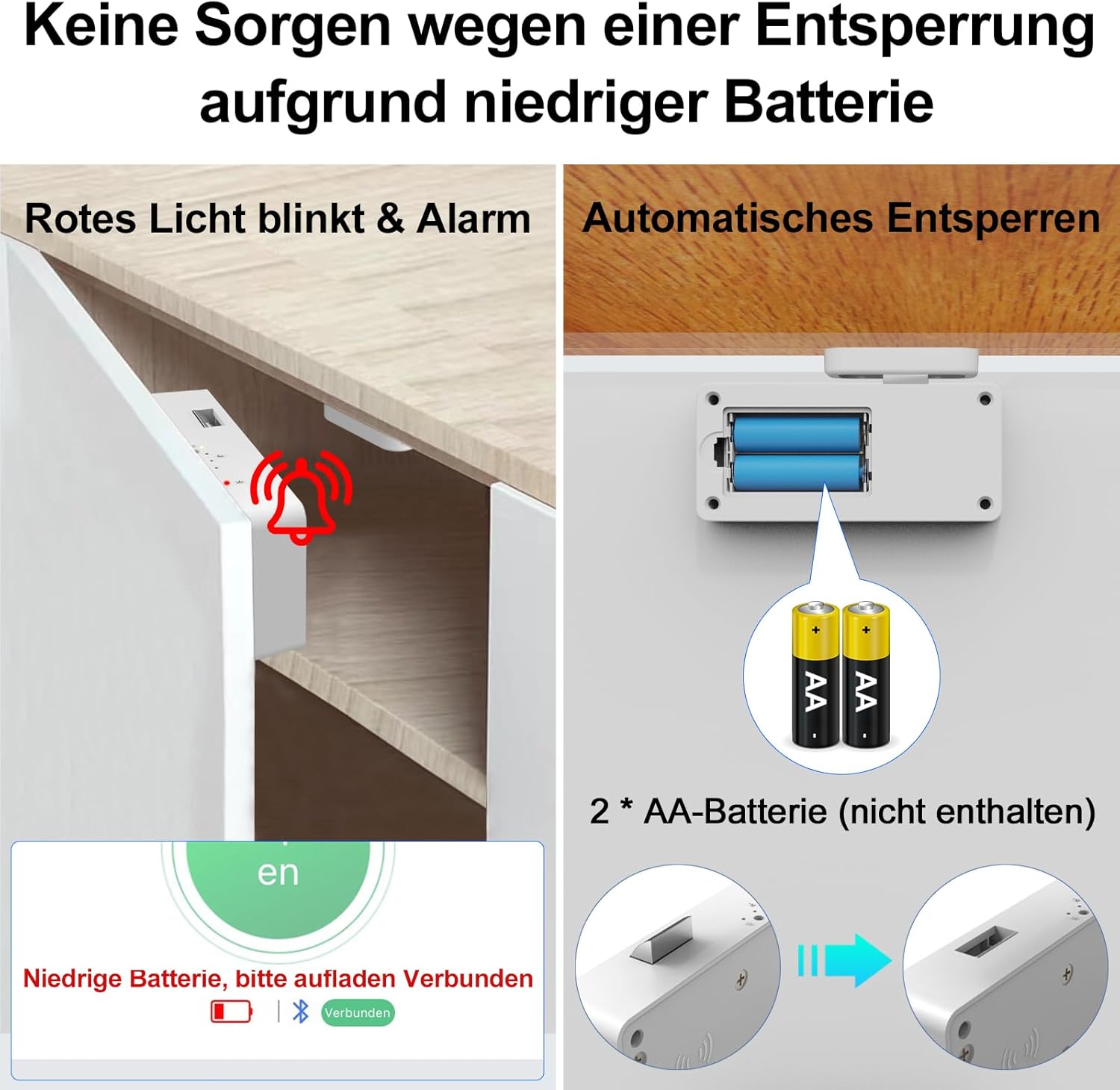
Image: Dimensions of the lock unit and strike plate for installation planning.

Image: Examples of the lock installed in different furniture types, demonstrating its versatility.
5. Operating Instructions
The Anweller F3C lock offers three convenient ways to unlock your furniture.

Image: Overview of the three unlocking methods: Bluetooth App, RFID/IC Card, and NFC.
5.1 Unlocking via Bluetooth App
- Download the official Anweller App from your smartphone's app store.
- Enable Bluetooth on your smartphone and open the Anweller App.
- Follow the in-app instructions to pair your lock. You may need to press the reset button on the lock to enter pairing mode.
- Once paired, you can unlock the drawer/cabinet directly from the app interface.

Image: Unlocking the smart lock using the dedicated mobile application.
5.2 Unlocking via RFID/IC Card
- Ensure the RFID/IC cards are registered with your lock (refer to the app for card management).
- Hold a registered RFID/IC card near the designated sensing area on the outside of the furniture where the lock is installed.
- The lock will emit a sound and unlock.

Image: Using an RFID card to unlock the smart cabinet lock.
5.3 Unlocking via NFC
- Ensure your smartphone or NFC-enabled device has NFC activated and is registered with the lock via the Anweller App.
- Hold your NFC-enabled device near the sensing area on the outside of the furniture.
- The lock will unlock automatically.

Image: Unlocking the smart lock using NFC functionality on a smartphone.
5.4 Automatic Locking and Passage Mode
The lock is set to automatically lock by default when the drawer/cabinet is closed. You can configure a 'Passage Mode' via the Anweller App, which keeps the lock unlocked for continuous access when needed.
6. Maintenance
6.1 Battery Replacement
The lock is powered by 2 AA batteries. When the battery level is low, the lock will provide a visual and audible warning (red light blinking and alarm). It will also automatically unlock to prevent you from being locked out.

Image: Low battery warning (red light, alarm) and automatic unlocking feature.
To replace batteries:
- Ensure the lock is in an unlocked state.
- Open the battery compartment cover.
- Remove the old batteries and insert new 2 AA batteries, observing correct polarity.
- Close the battery compartment cover.
6.2 Cleaning
Wipe the exterior of the lock with a soft, dry cloth. Do not use abrasive cleaners or solvents.
7. Troubleshooting
- Lock not responding:
Check battery level and replace if necessary. Ensure Bluetooth is enabled on your device and the app is open. - RFID/NFC not unlocking:
Ensure the card/device is registered with the lock via the app. Hold the card/device directly over the sensing area. Avoid metal obstructions between the lock and the sensing area. - Lock not pairing with App:
Ensure the lock is in pairing mode (usually indicated by a blinking light after pressing the reset button). Restart the app and try again. Ensure your phone's Bluetooth is on. - Lock opens unexpectedly:
Check if the lock is in 'Passage Mode' via the app. If not, contact customer support. - Lock is stuck:
If the lock is stuck in a locked position and batteries are dead, the lock is designed to automatically unlock when critically low. If this does not occur, you may need to manually access the battery compartment if possible, or contact support.

Image: Location of the Reset Button on the lock unit.
8. Specifications
| Feature | Specification |
|---|---|
| Model Number | F3C |
| Manufacturer | Anweller |
| Product Dimensions (L x W x H) | 5.3 x 2.4 x 11.8 cm |
| Weight | 200 grams |
| Color | White |
| Material | Acrylonitrile Butadiene Styrene (ABS) |
| Finish Type | Lacquered |
| Special Features | Battery Indicator |
| Lock Type | Keyless, Bluetooth, RFID, Smart |
| Power Source | 2 x AA Batteries (not included) |
| Recommended Use | Cabinet Lock, Drawer Lock, Locker Lock, Mailbox Lock |
9. Warranty and Support
Anweller provides a 6-month warranty for this product. Additionally, we offer free lifetime technical support. Should you encounter any issues or have questions, please do not hesitate to contact us for hassle-free refunds or replacements. When returning a product, please restore it to factory settings if possible.
For support, please visit the official Anweller website or contact our customer service team through the contact information provided with your purchase.