
Introduction
This manual provides instructions for the safe and effective use of your Pritom K7 Pro Kids Education Tablet PC. Please read this manual thoroughly before using the device and retain it for future reference. This tablet is designed with children in mind, featuring a durable case and a dedicated educational platform.
Package Contents
Verify that all items listed below are included in your package:
- 1 x Pritom K7 Pro Tablet PC
- 1 x User Manual
- 1 x Silicone Protective Case
- 1 x US Plug Charger
- 1 x Type-C Cable
Product Overview
The Pritom K7 Pro is a 7-inch tablet featuring a robust design suitable for children. It includes a protective silicone case for enhanced durability.
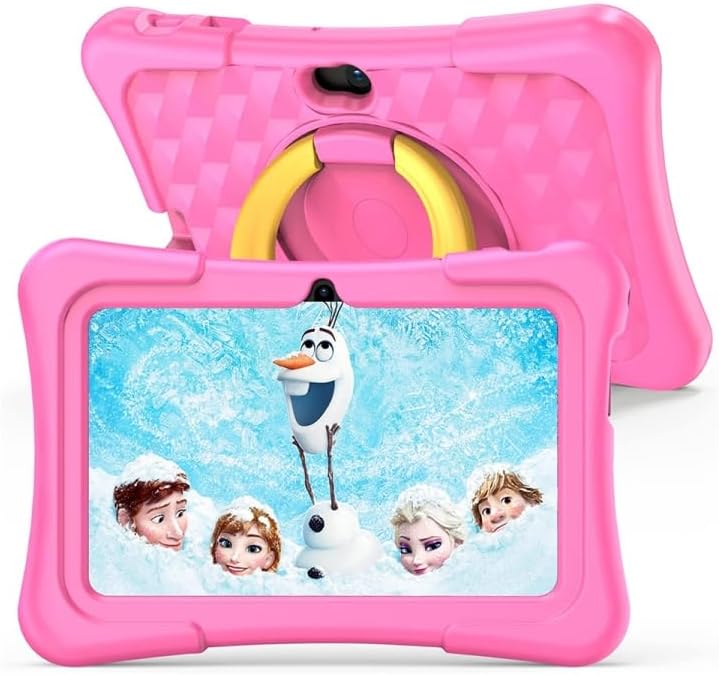
Image: The Pritom K7 Pro tablet in its pink silicone protective case, displaying a vibrant image on its screen. The case is designed for child-friendly use and protection.
Key physical features and components:
- 7.0-inch HD G+P Screen: Provides clear visuals with 1024x600 pixel resolution.
- Front Camera (0.3 MP): Located on the front bezel for video calls and selfies.
- Rear Camera (2.0 MP): Located on the back for capturing photos and videos.
- Type-C Port: Used for charging the tablet and connecting to a computer for data transfer.
- 3.5mm Earphone Port: For connecting headphones or external speakers.
- TF Card Slot: Allows for expandable storage up to 32GB (TF card not included).

Image: A pink Pritom K7 Pro tablet, emphasizing its soft silicone case and anti-drop design, which provides protection against accidental impacts.
Setup
Initial Charging
Before first use, fully charge the tablet. Connect the provided Type-C cable to the tablet's charging port and the US Plug Charger to a power outlet. The battery indicator on the screen will show the charging status. A full charge is recommended for optimal battery performance.
Power On/Off
- To Power On: Press and hold the power button (usually located on the side or top edge) until the screen lights up and the Pritom logo appears.
- To Power Off: Press and hold the power button until a menu appears on the screen. Select "Power off" from the options.
Initial Configuration
Upon first power-on, you will be guided through the initial setup process:
- Language Selection: Choose your preferred language for the tablet's interface.
- Wi-Fi Connection: Select your Wi-Fi network from the list and enter the password to connect. The tablet supports 802.11 b/g/n 2.4GHz Wi-Fi.
- Google Account: You may be prompted to sign in with an existing Google account or create a new one. This is necessary for accessing the Google Play Store and other Google services.
- Date and Time: Set the correct date and time, or allow the network to set it automatically.
Operating the Tablet
Android 11 Operating System
The Pritom K7 Pro runs on Android 11, offering a user-friendly and intuitive interface. Navigation is primarily touch-based:
- Tap: To select an item or open an application.
- Swipe: To scroll through lists, pages, or switch between home screens.
- Pinch: To zoom in or out on images and web pages.

Image: A blue Pritom K7 Pro tablet, showcasing its screen with various application icons, demonstrating the tablet's interface.
iWawa Educational Application
The tablet comes pre-installed with iWawa, a dedicated educational application designed for children. iWawa provides a curated environment with various games, puzzles, and learning activities suitable for different age groups.

Image: The Pritom K7 Pro tablet showcasing the iWawa software interface, which includes various educational and puzzle applications for children.
Parental Control System
The Pritom K7 Pro includes a comprehensive parental control system to help manage your child's tablet usage. This system allows you to:
- Child Lock: Restrict access to specific features or applications outside the child-friendly environment.
- Application Filtering: Control which applications your child can access and use.
- Safe Websites: Manage and approve a list of safe websites your child can visit, blocking inappropriate content.
- Time Limited: Set daily time limits for tablet usage to promote healthy screen time habits.

Image: A child interacting with the blue Pritom K7 Pro tablet, which is supported by a yellow kickstand. This image highlights the parental control system features, including child lock, app filtering, safe websites, and time limits.
Maintenance
Cleaning
To clean the tablet, use a soft, dry, lint-free cloth. For stubborn smudges on the screen, a slightly damp cloth with water can be used, followed by a dry cloth. Avoid using harsh chemicals, abrasive cleaners, or aerosol sprays, as these can damage the screen and finish.
Battery Care
To maximize the lifespan of your tablet's battery:
- Avoid exposing the tablet to extreme temperatures (very hot or very cold).
- Do not allow the battery to fully discharge frequently. It is best to recharge before the battery level drops too low.
- Use only the provided charger and cable.
Software Updates
Periodically check for system software updates. Updates can improve performance, add new features, and enhance security. You can usually find update options in the tablet's "Settings" menu under "System" or "About tablet".
Troubleshooting
This section addresses common issues you might encounter with your Pritom K7 Pro tablet.
Tablet Not Turning On
- Ensure the tablet is sufficiently charged. Connect it to the charger for at least 30 minutes before attempting to power it on again.
- If the battery is completely drained, it may take a few minutes for the charging indicator to appear.
Screen Unresponsive
- Try restarting the tablet. Press and hold the power button for approximately 10 seconds to force a shutdown, then power it on normally.
- Ensure the screen is clean and free of debris or moisture.
Wi-Fi Connection Issues
- Verify that other devices can connect to your Wi-Fi network.
- Restart your Wi-Fi router and the tablet.
- Go to Settings > Network & internet > Wi-Fi and ensure the correct network is selected and the password is entered accurately.
Applications Crashing or Freezing
- Clear the cache of the problematic application. Go to Settings > Apps & notifications > [App Name] > Storage & cache > Clear cache.
- If the issue persists, consider uninstalling and reinstalling the application.
- Ensure the tablet's software is up to date.
Specifications
Detailed technical specifications for the Pritom K7 Pro Kids Education Tablet PC:
| Feature | Specification |
|---|---|
| Operating System | Android 11 |
| CPU | Allwinner A100 Quad Core Arm Cortex-A53 1.5 GHz-1.7 GHz |
| GPU | IMG PowerVR GE8300 |
| RAM | 2 GB |
| ROM | 32 GB |
| Display | 7.0 inch HD G+P Screen, 1024 x 600 pixels Resolution |
| Wi-Fi | 802.11 b/g/n 2.4GHz |
| Bluetooth | V4.0 |
| Battery | 3.7V Lithium 3000mAh |
| Front Camera | 0.3 MP |
| Rear Camera | 2.0 MP |
| External Memory | TF card up to 32GB (not included) |
| Interfaces | 1 x TF Card Slot, 1 x 3.5mm Earphone Port, 1 x Type-C |
| Dimensions (Tablet) | 184 x 121 x 10 mm |
| Dimensions (with Case) | 210 x 149 x 20 mm |
Warranty and Support
The Pritom K7 Pro Kids Education Tablet PC comes with a 2-year commercial warranty. This warranty covers manufacturing defects and ensures the product meets quality standards.
For technical support, warranty claims, or any product-related inquiries, please contact your retailer or the manufacturer directly. Refer to your purchase documentation or the product packaging for specific contact details and warranty terms.

