
VILTROX SB-299-CXX
VILTROX Sprite 15C RGB LED Video Light User Manual
Model: SB-299-CXX
Product Overview
The VILTROX Sprite 15C is a portable RGB LED video light designed for various photography and videography applications, including DSLR cameras, streaming, YouTube, and TikTok. It features adjustable color temperature, full RGB color, and multiple special effects.

Image: The VILTROX Sprite 15C RGB LED Video Light, showcasing its compact design, the included NP-F550 battery, USB-C charging cable, and a smartphone displaying the control app interface.
Package Contents
Please verify that all items are present in the package before proceeding with setup.
- VILTROX Sprite 15C LED Video Light
- NP-F550 Battery (1 piece)
- Type-C Charging Cable
- Cold Shoe Adapter
- User Manual

Image: A visual representation of the package contents, including the Sprite 15C light, NP-F550 battery, Type-C cable, and cold shoe adapter, along with their respective quantities.
Setup Guide
1. Battery Installation and Charging
The Sprite 15C is powered by an NP-F550 battery or via a Type-C power source. Ensure the battery is fully charged before first use.
- Locate the battery compartment on the rear of the light.
- Insert the NP-F550 battery into the compartment, ensuring correct polarity, until it clicks into place.
- To charge, connect the provided Type-C cable to the Type-C port (5V/9V 2A) on the side of the light and to a suitable USB power adapter. The LCD screen will indicate charging status.

Image: Demonstrates the dual power supply options for the Sprite 15C, showing how to insert the NP-F550 battery for outdoor use and connect the Type-C cable for indoor power or charging.
2. Mounting the Light
The Sprite 15C can be mounted on various camera accessories using its 1/4-inch screw hole and cold shoe adapter.
- Attach the cold shoe adapter to the 1/4-inch screw hole at the bottom of the light.
- Secure the light onto a camera's hot shoe, a tripod, or a light stand using the cold shoe adapter. The adapter allows for 180° pivot adjustment.
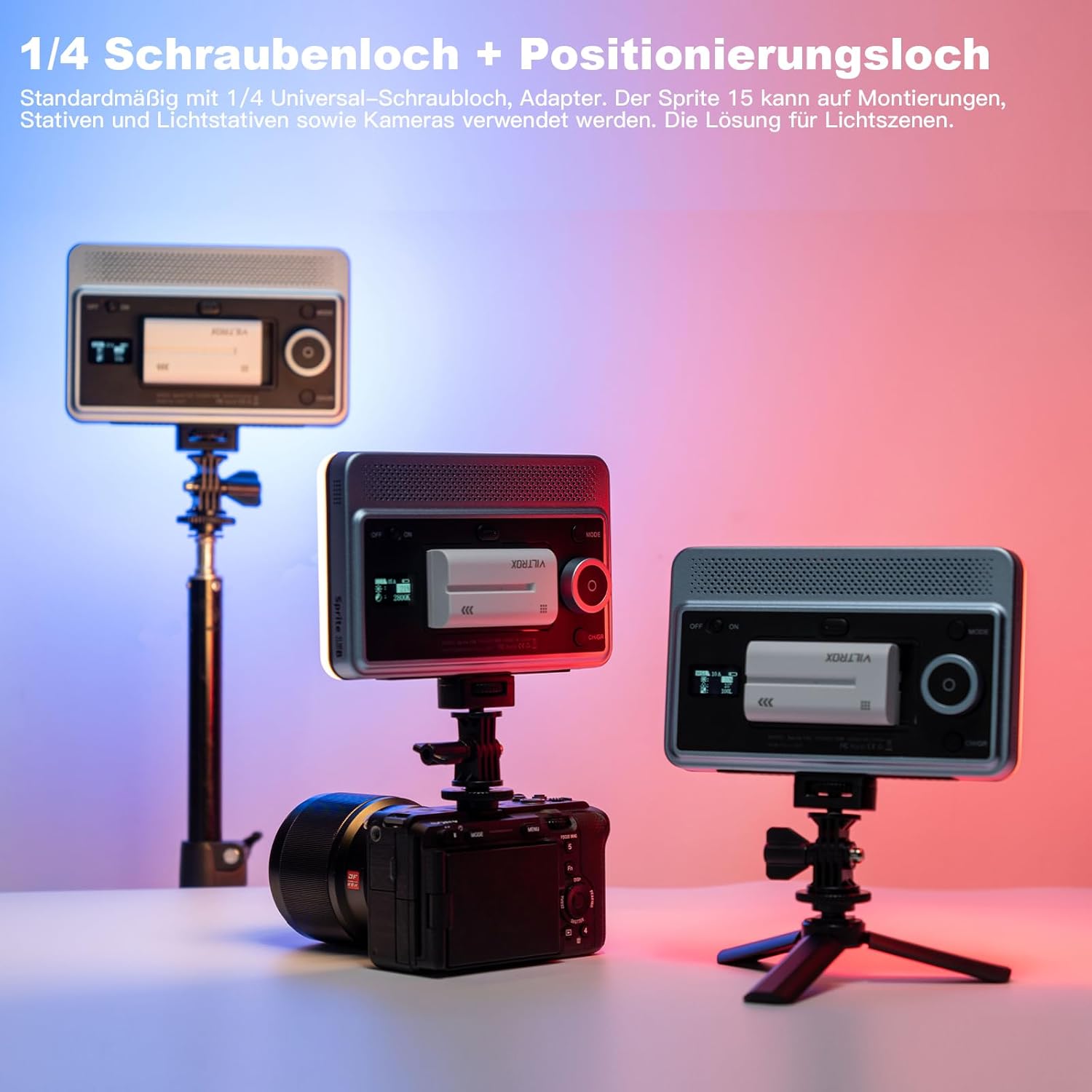
Image: Illustrates the versatility of the Sprite 15C's mounting options, showing it attached to a DSLR camera and a small tripod using its 1/4-inch screw hole and cold shoe adapter.
Operating Instructions
1. Basic Controls
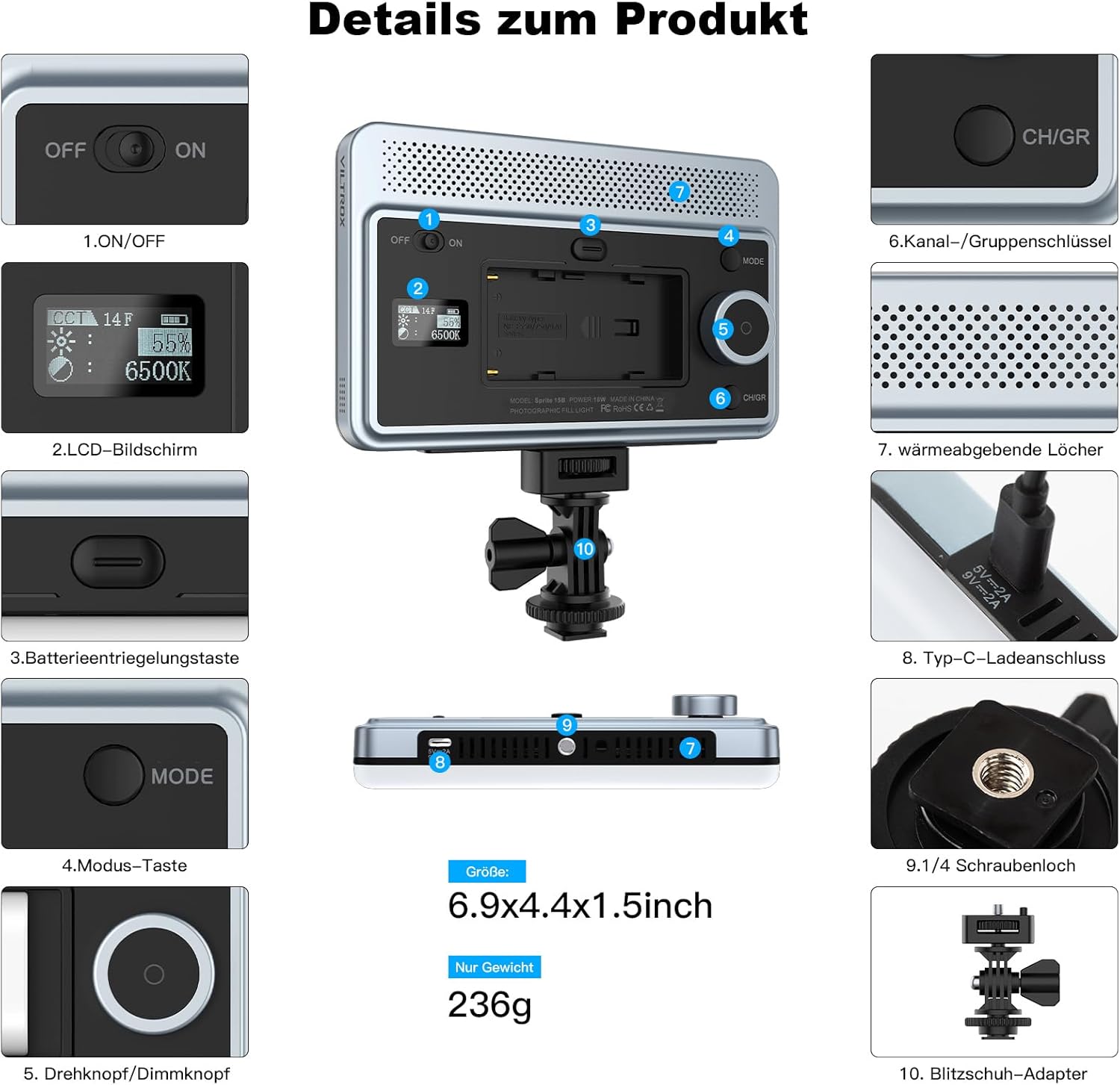
Image: A detailed diagram highlighting the various control buttons and ports on the VILTROX Sprite 15C, including the ON/OFF switch, LCD screen, battery release, mode button, rotary knob, and Type-C port.
- ON/OFF Switch: Located on the top panel. Slide to turn the light on or off.
- LCD Screen: Displays current settings such as color temperature, brightness, battery level, and mode.
- Mode Button: Press to cycle through different lighting modes (e.g., CCT, HSI, FX effects).
- Rotary Knob/Dimming Knob: Rotate to adjust parameters like brightness, color temperature, hue, or saturation depending on the selected mode. Press to confirm selections or switch between adjustment parameters.
- CH/GR Button (Channel/Group Key): Used for setting channels and groups when controlling multiple lights.
2. Adjusting Light Settings
The Sprite 15C offers comprehensive control over its lighting output.
- Color Temperature (CCT Mode): Adjust from 2800K (warm) to 6800K (cool) using the rotary knob.
- Brightness: In any mode, rotate the knob to adjust brightness from 0% to 100%.
- RGB Full Color (HSI Mode): Access 360° full color adjustment. Use the rotary knob to select hue, saturation, and intensity.
- FX Effects: The light features 26 built-in FX lighting effects. Press the Mode button to cycle to FX mode, then use the rotary knob to select and adjust specific effects (e.g., lightning, fire, police car).

Image: Demonstrates the adjustable color temperature range (2800K-6800K) and brightness levels (0-100%) of the Sprite 15C, showing various lighting effects on a model.

Image: Illustrates the 26 FX scenario lighting effects available on the Sprite 15C, such as lightning, explosion, candlelight, and police car, for creative shooting.
3. App Control (weeylitePro)
For advanced control and convenience, download the "weeylitePro" app on your iOS or Android device.
- Download "weeylitePro" from your device's app store.
- Ensure Bluetooth is enabled on your smartphone.
- Open the app and follow the on-screen instructions to connect to your Sprite 15C light.
- The app allows for remote adjustment of all light parameters, including color, brightness, and effects, and supports grouping multiple lights.

Image: Shows the "weeylitePro" app interface on a smartphone, demonstrating its ability to control the Sprite 15C light, including group and channel settings.

Image: Highlights the intelligent linking capabilities of the Sprite 15 series, supporting main device control, WeeylitePro app, and optional wireless remote control for HSL/RGB/Color mixing adjustments.
Note: An optional weeylite RC-11 remote control (sold separately) can also be used for remote operation.
Maintenance
- Cleaning: Use a soft, dry cloth to clean the light panel and body. Do not use harsh chemicals or abrasive materials.
- Storage: Store the light in a cool, dry place away from direct sunlight and extreme temperatures. Remove the battery if storing for extended periods.
- Heat Dissipation: The light is designed with heat-dissipating holes. Ensure these are not obstructed during operation to maintain optimal performance and longevity.
Troubleshooting
| Problem | Possible Cause | Solution |
|---|---|---|
| Light does not turn on. | Battery is depleted or not installed correctly. Power switch is off. | Charge or replace the battery. Ensure the ON/OFF switch is in the "ON" position. |
| Light output is weak or inconsistent. | Brightness setting is too low. Battery is low. | Increase brightness using the rotary knob or app. Charge the battery. |
| App cannot connect to the light. | Bluetooth is off. App is not updated. Light is too far. | Ensure Bluetooth is enabled on your device. Update the "weeylitePro" app. Move closer to the light. |
| Light overheats. | Heat dissipation holes are blocked. Prolonged use at maximum brightness. | Ensure heat dissipation holes are clear. Reduce brightness or allow the unit to cool down. |
If the problem persists after attempting these solutions, please contact customer support.
Specifications
| Feature | Detail |
|---|---|
| Model | SB-299-CXX |
| Dimensions (L x W x H) | 17.6 x 11.2 x 3.9 cm (6.9 x 4.4 x 1.5 inches) |
| Weight | Approximately 236g (0.6 lbs) |
| Power | 15W |
| Max. Illuminance | 1550Lux@0.5m |
| Color Temperature Range | 2800K - 6800K (Adjustable) |
| Brightness Range | 0% - 100% (Adjustable) |
| Color Rendering Index (CRI) | RA≥95, TLCI≥95 |
| RGB Color | 360° Full Color |
| FX Effects | 26 built-in effects |
| Power Supply | NP-F550 Battery / Type-C (5V/9V 2A) |
| Battery Life (NP-F550) | Approx. 120 minutes (at 100% brightness) |
| Connectivity | Bluetooth (for app control) |
| Mounting | 1/4-inch screw hole, 180° Cold Shoe Adapter |
Image: A diagram detailing the dimensions and key specifications of the VILTROX Sprite 15C, including power, maximum illuminance, color temperature range, and battery life.
Warranty and Support
VILTROX products purchased through official channels come with a manufacturer's warranty.
- Warranty Period: All VILTROX products distributed by PhoZoom E come with a 1-year warranty.
- Customer Support: For any questions, technical assistance, or issues, please contact the PhoZoom E support team. Emails are typically responded to within 2 hours.
- Contact Information: Refer to your purchase documentation or the official VILTROX website for specific contact details.
For more information and product updates, visit the official VILTROX store: VILTROX Official Store
Related documentsSB-299-CXX


Ask a question about this manual
Ask about setup, troubleshooting, compatibility, parts, safety, or missing instructions. Manuals+ will review the question and use this page’s manual context to help answer it.