
1. Product Overview
The BYINTEK P70 is a compact and versatile mini portable projector designed for a wide range of applications, from home cinema to outdoor entertainment and business presentations. It features a durable metal body, runs on Android 9.0, and supports Full HD DLP projection with 4K input. Key functionalities include automatic focus, 6D keystone correction, dual-band WiFi 6, Bluetooth 5.0, and integrated 3D capabilities. Its built-in 8000mAh battery provides extended usage, making it ideal for travel and outdoor use.

Image 1.1: The BYINTEK P70 projector in a home environment, showcasing its projection capabilities.
2. Package Contents
Upon unboxing, please verify that all the following components are included in your package:
- BYINTEK P70 Mini Portable Projector
- Remote Control
- Power Adapter (Type-C)
- User Manual
- Storage Bag
- Tripod

Image 2.1: All components included in the BYINTEK P70 package.
3. Setup Guide
3.1 Powering On and Charging
- Connect Power: Use the provided Type-C power adapter to connect the projector to a power outlet. The projector can also be charged via a power bank with a Type-C output.
- Initial Charge: For optimal performance, fully charge the projector before its first use. The built-in 8000mAh battery provides approximately 2-4 hours of operation on a full charge.
- Power On: Press and hold the power button on the projector or the remote control to turn on the device.

Image 3.1: Charging the BYINTEK P70 projector using a Type-C cable.

Image 3.2: The projector's battery allows for portable outdoor use.
3.2 Placement and Focus
Place the projector on a stable, flat surface. For optimal image quality, ensure the projection surface is smooth and light-colored. The projector features automatic focus and keystone correction.
- Automatic Focus: The BYINTEK P70 is equipped with TOF laser autofocus. It will automatically adjust the image sharpness within 1-3 seconds upon startup or movement.
- 6D Keystone Correction: The projector automatically corrects image distortion (trapezoid effect) from various angles, including side projection. This ensures a perfectly rectangular image without manual adjustments.

Image 3.3: The projector's automatic focus system in action.
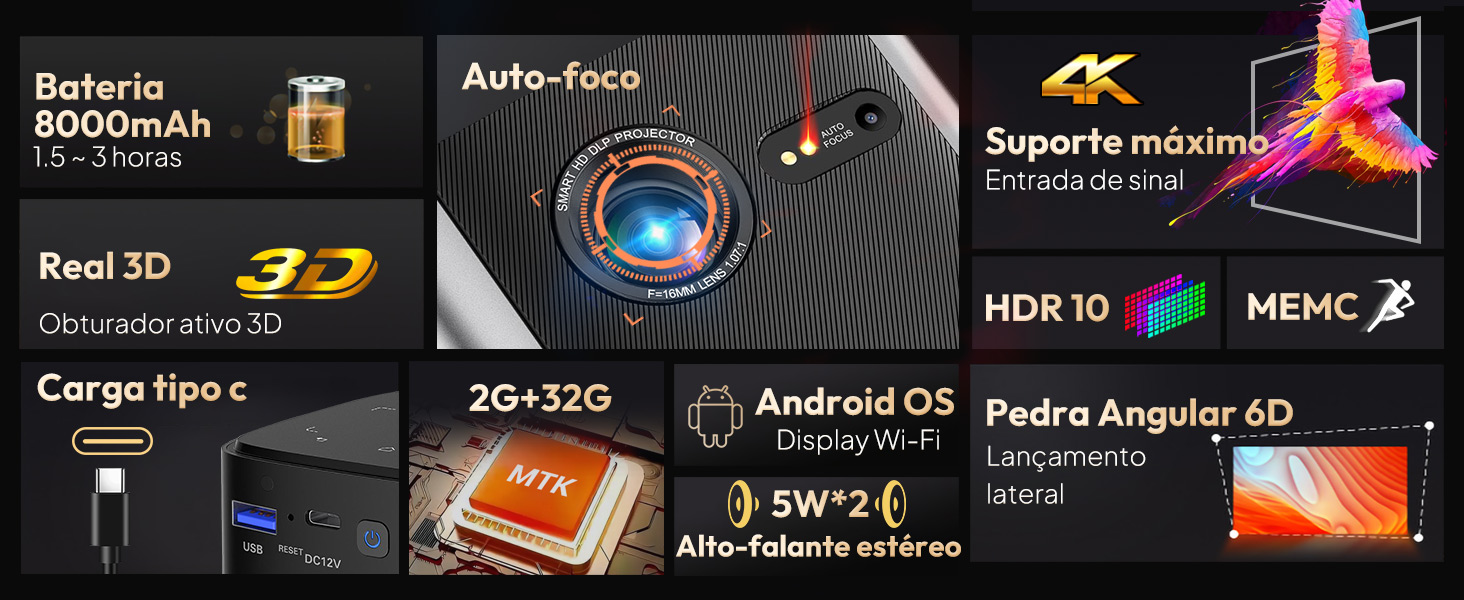
Image 3.4: Automatic 6D keystone correction for a perfectly rectangular image.
4. Operating Instructions
4.1 User Interface and Navigation
The BYINTEK P70 runs on Android 9.0, providing a user-friendly interface. Navigate using the included remote control. The home screen provides access to pre-installed applications and settings.
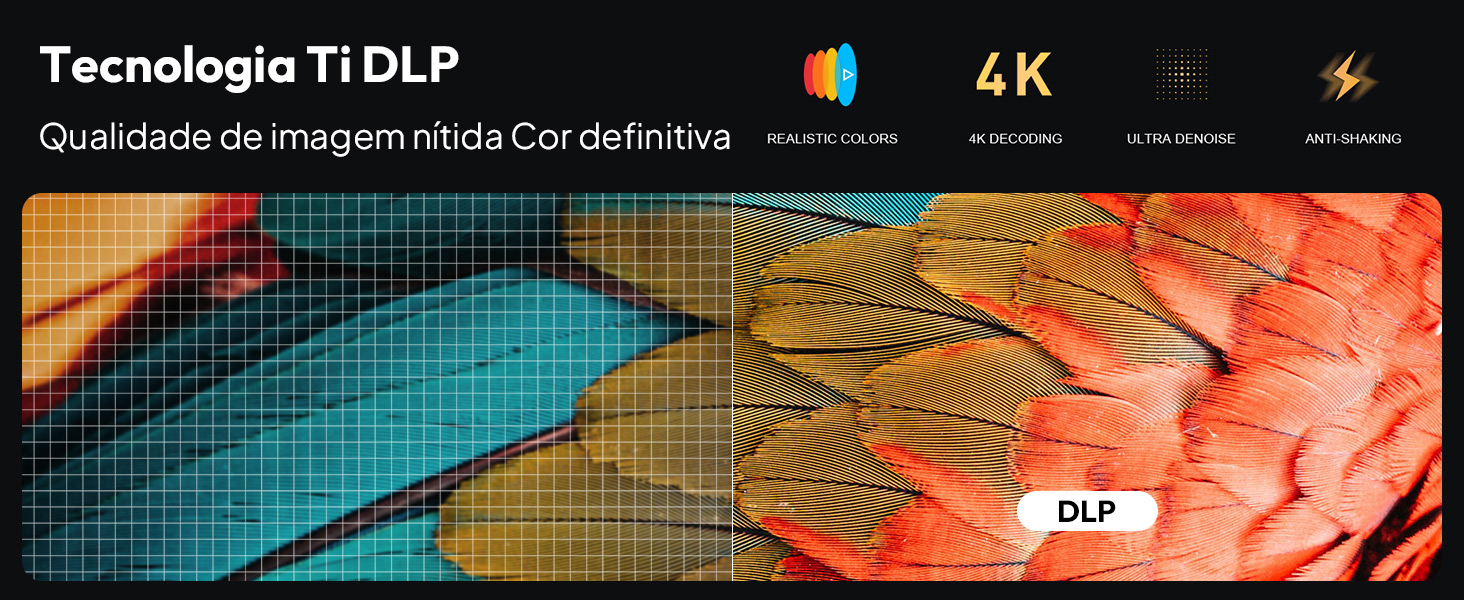
Image 4.1: The Android interface of the BYINTEK P70, showing available applications.
4.2 Connectivity
The projector offers multiple connectivity options:
- Wi-Fi (2.4G/5G): Connect to your wireless network for internet access and online streaming.
- Bluetooth 5.0: Pair with external Bluetooth speakers or headphones for enhanced audio.
- HDMI: Connect external devices such as laptops, game consoles, or Blu-ray players.
- USB 2.0: Play media directly from USB flash drives or external hard drives.
- Wireless Screen Mirroring: Cast content from your smartphone or computer wirelessly using compatible protocols (e.g., AirPlay, Miracast).
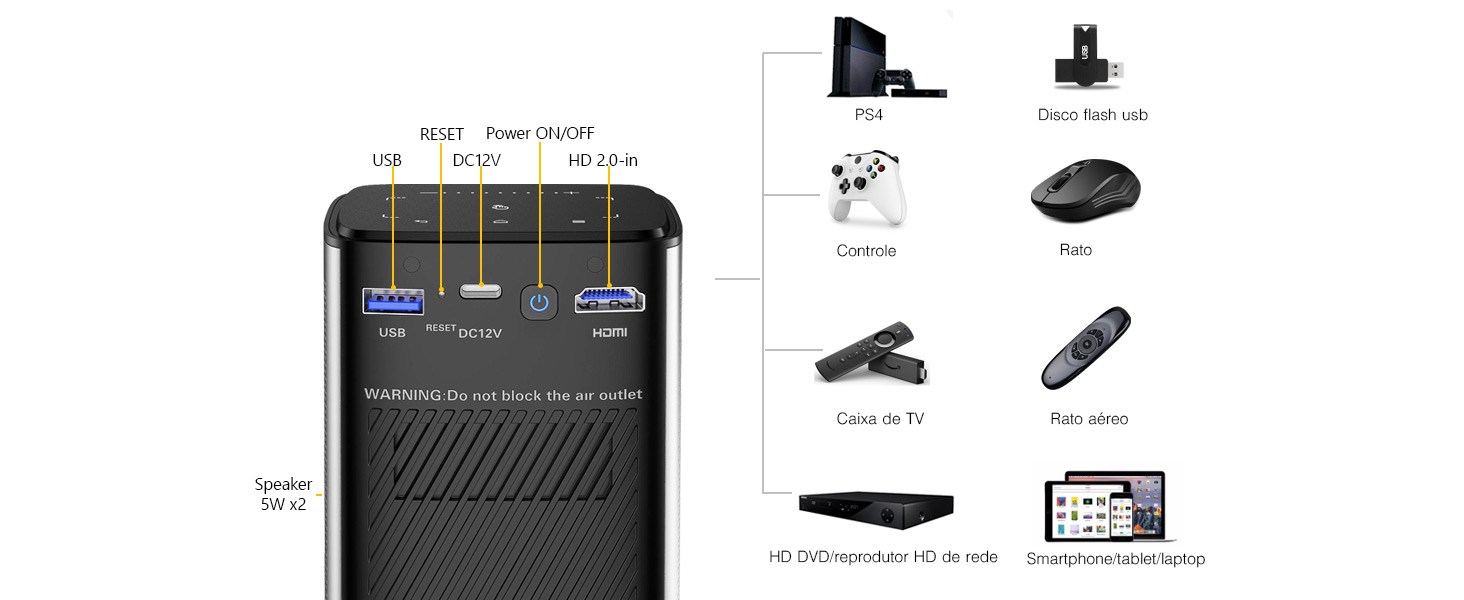
Image 4.2: Overview of the projector's connectivity ports and compatible devices.
4.3 3D Projection
The BYINTEK P70 supports active shutter 3D projection. To enjoy 3D content:
- Ensure your 3D content is in a compatible format (e.g., Blu-ray 3D, Side-by-Side, Top-and-Bottom).
- Play the 3D content through a connected device or directly from a USB drive.
- Wear active shutter 3D glasses (sold separately) for the immersive 3D experience.

Image 4.3: Enjoying 3D cinema with the BYINTEK P70 projector.
5. Maintenance
Proper maintenance ensures the longevity and optimal performance of your projector.
- Cleaning the Lens: Use a soft, lint-free cloth specifically designed for optical lenses. Gently wipe the lens to remove dust or smudges. Avoid abrasive materials or harsh chemicals.
- Cleaning the Exterior: Wipe the projector's exterior with a soft, dry cloth. Do not use liquid cleaners directly on the device.
- Ventilation: Ensure the projector's ventilation openings are clear and unobstructed to prevent overheating. Do not block the air outlet.
- Storage: When not in use, store the projector in its provided storage bag in a cool, dry place, away from direct sunlight and extreme temperatures.
6. Troubleshooting
If you encounter issues with your BYINTEK P70 projector, refer to the following common problems and solutions:
| Problem | Possible Cause | Solution |
|---|---|---|
| No image or blurry image | Projector not powered on, lens cap on, out of focus, incorrect keystone. |
|
| No sound | Volume too low, external speaker not connected, incorrect audio output setting. |
|
| Cannot connect to Wi-Fi/Bluetooth | Incorrect password, out of range, interference. |
|
| Remote control not working | Low battery, obstructed signal, pairing issue. |
|
7. Technical Specifications
| Brand | Byintek |
| Model Name | P70 |
| Display Technology | DLP |
| Native Resolution | 960 x 540 (Supports 1080P input) |
| Maximum Screen Resolution | 960 x 540 Pixels |
| Brightness | 380 ANSI Lumens |
| Contrast Ratio | 5000:1 |
| Light Source Life | 50,000 Hours |
| Maximum Projection Distance | 4.71 Meters |
| Maximum Image Size | 200 Inches |
| Minimum Image Size | 11 Inches |
| Connectivity Technology | Bluetooth 5.0, HDMI, USB 2.0, Wi-Fi (2.4G/5G) |
| Special Features | Integrated 3D, Built-in Speaker (2x 5W), Autofocus, Portable, Integrated Wi-Fi, Android 9.0 OS, HDR, MEMC |
| Internal Storage | 32GB (2GB RAM) |
| Battery Capacity | 8000mAh (2-4 hours runtime) |
| Power | 20 Watts, 12 Volts |
| Control Type | Remote Control |
| Compatible Devices | Speaker, Laptop, Game Console, Smartphone, Tablet |
| UPC | 725889901001 |
8. Warranty and Support
The BYINTEK P70 projector comes with a 1-year warranty. BYINTEK provides dedicated local technical support and after-sales service. Should you encounter any issues with your device, you can access convenient repair services at authorized local service points in Brazil.
For any questions or support needs, please contact our customer service team. They are committed to providing prompt assistance and resolution.
Image 8.1: BYINTEK's commitment to local warranty and support.


