
SIKAI CASE B0C5CTS4VY
Contents
SIKAI CASE Foldable Bluetooth Keyboard User Manual
Model: B0C5CTS4VY
Introduction
This manual provides detailed instructions for the SIKAI CASE Foldable Bluetooth Keyboard. This ergonomic, foldable mini Bluetooth keyboard features a 60-key format and touch buttons with a matte finish for comfortable typing. Its horizontal fold design makes it highly portable. It includes a hidden magnetic bracket for device placement, enhancing usability.
The keyboard is designed for portability and efficiency, allowing users to connect to multiple devices across various operating systems. It is equipped with a rechargeable battery for extended use.

Image: The SIKAI CASE Foldable Bluetooth Keyboard shown in both its unfolded, ready-to-use state with a smartphone, and its compact, folded state.

Image: The keyboard's compact size is highlighted as it easily fits into a travel bag, making it ideal for on-the-go use.
Setup
Charging the Keyboard
The keyboard has a built-in rechargeable lithium battery. A full charge provides up to 45 hours of continuous typing or up to 90 days of standby time. To charge:
- Connect the provided USB cable to the keyboard's charging port.
- Connect the other end of the USB cable to a USB power source (e.g., computer, wall adapter).
- Charging time is approximately 2 hours.
Initial Bluetooth Pairing
Follow these steps to pair your SIKAI CASE keyboard with your device:
- Ensure the keyboard is open and powered on.
- Press the Fn key and one of the Bluetooth channel keys (Bluetooth 1, Bluetooth 2, or Bluetooth 3) simultaneously to put the keyboard into pairing mode. The corresponding indicator light will flash blue.
- On your device (phone, tablet, laptop), turn on Bluetooth.
- In the Bluetooth device list, look for and click on the name of this keyboard, typically "B.O.W".
- Once the Bluetooth connection is established, your device will display a "Connected" message.
Note: For some Android phones, the Bluetooth name might appear as a code (e.g., "19:16:4A:77:9E:D3"). In such cases, identify the code that has a keyboard icon or similar indicator next to it to ensure you are connecting to the correct device.

Image: Visual guide for connecting the keyboard via Bluetooth, showing how the device name might appear on different operating systems.
Operating Instructions
Multi-Device Switching
The SIKAI CASE keyboard allows you to connect and switch between up to three devices seamlessly:
- After pairing with multiple devices on Bluetooth 1, 2, and 3, you can instantly switch between them by pressing Fn + Bluetooth 1, Fn + Bluetooth 2, or Fn + Bluetooth 3.
- This feature is ideal for users who work across a smartphone, tablet, and laptop.
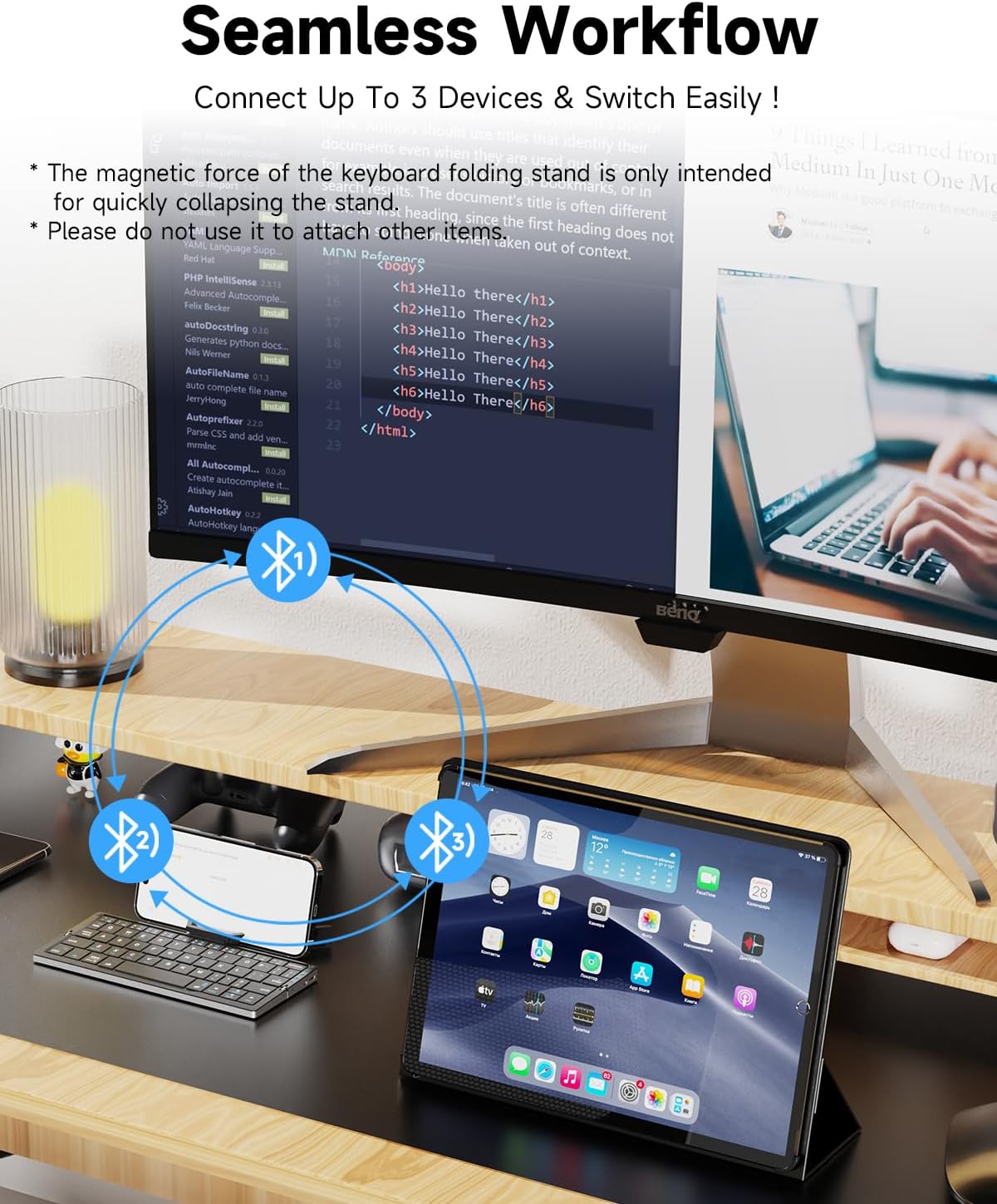
Image: Demonstrates the keyboard's ability to connect to and switch between multiple devices, such as a monitor, tablet, and smartphone, for a seamless workflow.
Keyboard Shortcuts and Functions
The keyboard includes various function keys and shortcuts to enhance productivity:
| Function | Apple Devices (iOS/macOS) | Android Devices |
|---|---|---|
| English and Chinese Input Method Switching | Ctrl+Spacebar | Ctrl+Spacebar |
| Select All | Cmd+A | Cmd+A |
| Copy | Cmd+C | Cmd+C |
| Paste | Cmd+V | Cmd+V |
| Cut | Cmd+X | Cmd+X |
Note: This is a Windows keyboard layout, not an iOS keyboard. Some key combinations may differ. The keyboard does not include numeric keys.

Image: An overview of the keyboard's layout, highlighting various function keys and their uses for different operating systems.
Ergonomics and Usage
The keyboard's design promotes comfortable typing. When using the magnetic stand, ensure your device is positioned for optimal viewing and typing posture.
Important: The magnetic stand is primarily for quickly collapsing the stand and is not designed for strong magnetic adhesion. Do not attempt to use it to adsorb other heavy items. The maximum supported iPad size for the stand is 11 inches. Larger iPads can connect via Bluetooth but may not fit the stand.
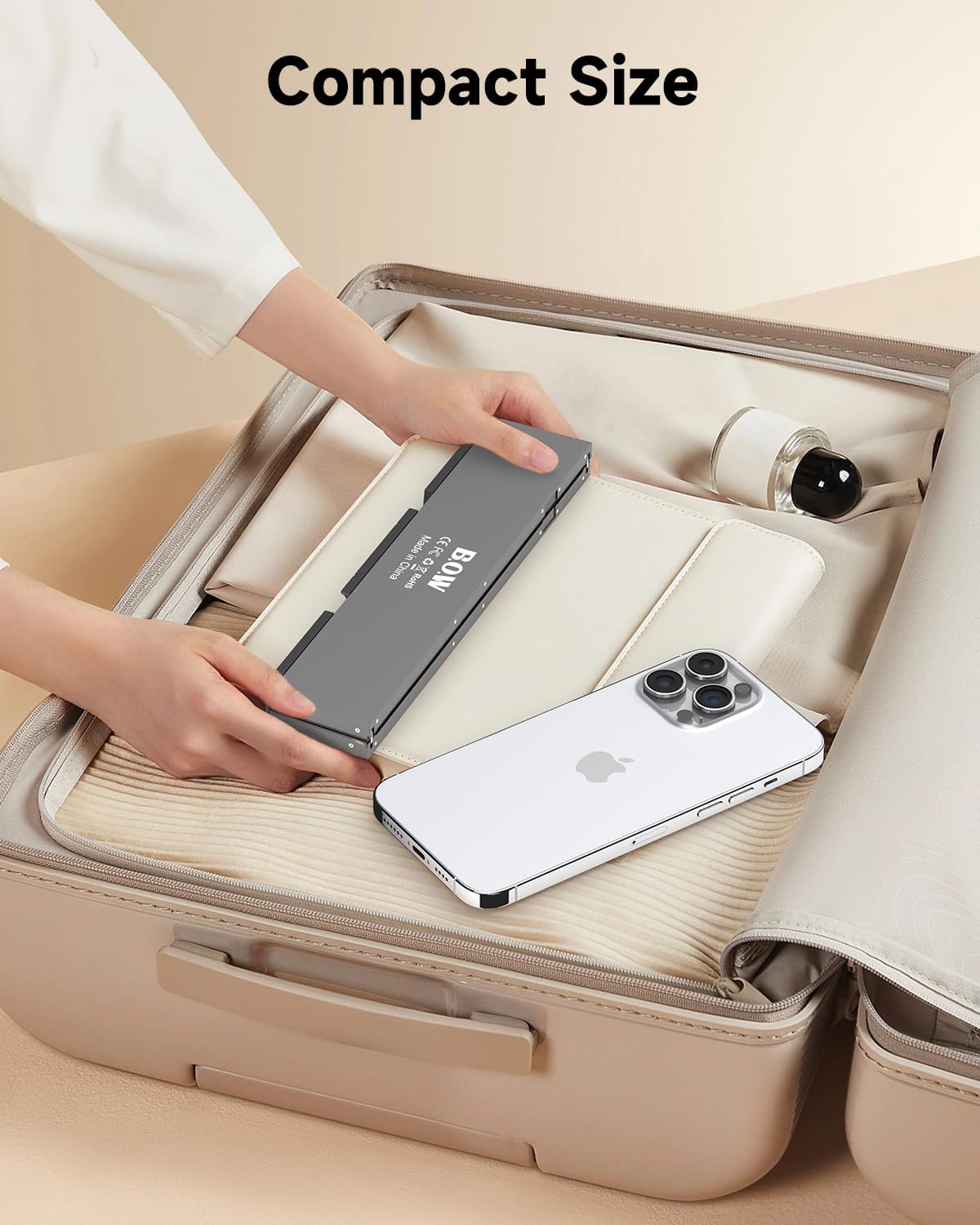
Image: Visual guidance on maintaining proper posture while using the keyboard with a device, promoting ergonomic benefits.
Maintenance
To ensure the longevity and optimal performance of your SIKAI CASE Foldable Bluetooth Keyboard, follow these maintenance guidelines:
- Cleaning: Use a soft, dry, lint-free cloth to wipe the keyboard surface. For stubborn dirt, slightly dampen the cloth with water or a mild cleaning solution. Avoid excessive moisture.
- Storage: When not in use, fold the keyboard to protect the keys and store it in a cool, dry place away from direct sunlight and extreme temperatures.
- Battery Care: To preserve battery life, avoid fully discharging the battery frequently. Charge the keyboard regularly, especially if it will be stored for an extended period.
- Handling: Handle the keyboard with care. Avoid dropping it or exposing it to strong impacts, which could damage internal components or the folding mechanism.
- Liquid Exposure: Keep the keyboard away from liquids. In case of accidental spills, immediately power off the keyboard and allow it to dry completely before attempting to use it again.
Troubleshooting
Bluetooth Connection Issues
If you encounter problems connecting your keyboard via Bluetooth:
- Keyboard Not Found: Ensure the keyboard is in pairing mode (Fn + Bluetooth channel key, indicator light flashing).
- Incorrect Device Name: As noted in the setup section, some Android phones may display a hexadecimal code instead of "B.O.W". Verify the code corresponds to a keyboard device.
- Interference: Move closer to your device and away from other wireless devices that might cause interference.
- Restart Devices: Try turning off and on both the keyboard and your device's Bluetooth.
- Forget Device: If previously paired, try "forgetting" or "unpairing" the keyboard from your device's Bluetooth settings and then re-attempt the pairing process.
Typing Issues
- Unresponsive Keys: Ensure the keyboard is fully charged.
- Lag or Disconnects: Check for strong Bluetooth signal. Ensure no other devices are actively trying to connect to the same Bluetooth channel.
Magnetic Stand Limitations
- The magnetic stand is designed for stability, not strong magnetic adhesion. Do not attempt to use it to adsorb other heavy items.
- The stand supports iPads up to 11 inches. Thicker phone or iPad cases may prevent proper seating on the stand.
Specifications
| Feature | Detail |
|---|---|
| Product Dimensions (Folded) | 7.97 x 1.83 inches |
| Product Dimensions (Open) | 7.97 x 3.51 inches |
| Item Weight | 8.8 ounces (approx. 250 grams) |
| Case Material | PC+ABS |
| Bottom Case Material | Aluminum Alloy |
| Connectivity Technology | Bluetooth |
| Compatible Devices | Laptop, Smartphone, Tablet (iOS, Android, Windows, macOS, HMS) |
| Number of Keys | 60 |
| Battery Capacity | 160mAh |
| Charging Time | ≤ 2 Hours |
| Working Hours | ≥ 45 Hours (continuous typing) |
| Standby Time | ≥ 90 Days |
| Interface Type | MICRO interface (Micro USB) |
| Special Features | Foldable, Lightweight, Portable, Magnetic Stand |
| Color | Black |

Image: Detailed specifications and dimensions of the keyboard.
Warranty and Support
For any questions or assistance, please do not hesitate to contact SIKAI CASE customer service. We aim to reply within 24 hours.
A digital version of this user manual is available for download: Download User Manual (PDF)
What's in the Box:
- SIKAI CASE Foldable Bluetooth Keyboard
- USB Cable
Ask a question about this manual
Ask about setup, troubleshooting, compatibility, parts, safety, or missing instructions. Manuals+ will review the question and use this page’s manual context to help answer it.