1. Product Overview
The SIKAI CASE Foldable Bluetooth Keyboard is a compact, portable, and versatile input device designed for seamless integration with various operating systems and devices. Its ergonomic design and magnetic stand enhance productivity on the go.

1.1 Key Features
- Ergonomic & Foldable Design: Features a 60-key format with a matte finish for comfortable typing. Horizontal fold for convenient portability.
- Integrated Magnetic Stand: Includes a hidden bracket to securely hold your device (supports iPads up to 11 inches).
- Multi-OS Compatibility: Perfectly compatible with iOS, Android, Windows, MacOS, and HMS operating systems.
- Stable Bluetooth Connectivity: Provides fast and reliable wireless connection.
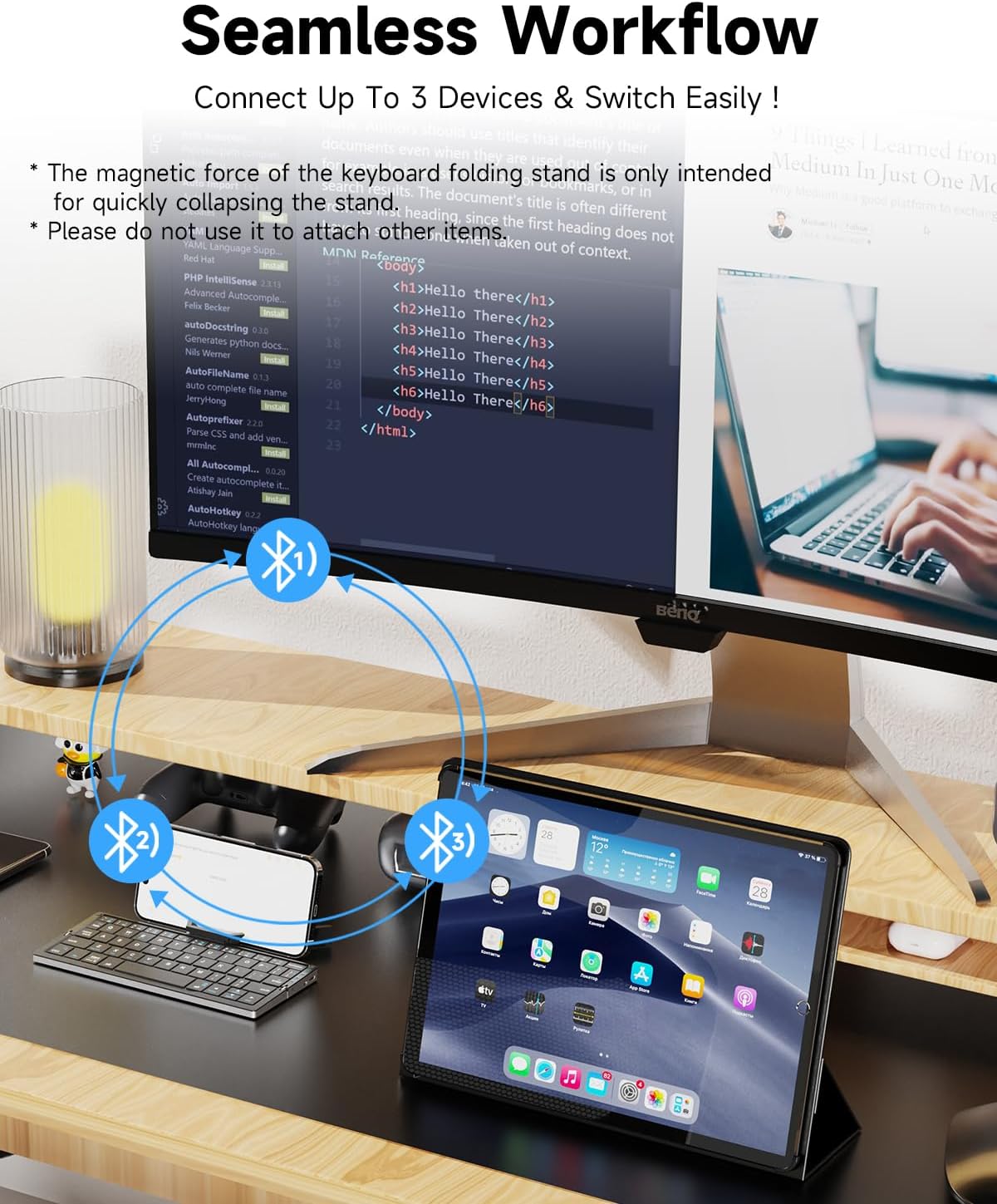
- Multi-Device Switching: Instantly switch between up to three registered devices using dedicated function keys.
- Rechargeable Battery: Built-in 160mAh lithium battery offers up to 45 hours of continuous typing or 90 days of standby time on a 2-hour charge.
- Energy-Saving Mode: Automatically enters sleep mode after ten minutes of inactivity and wakes with a single click.
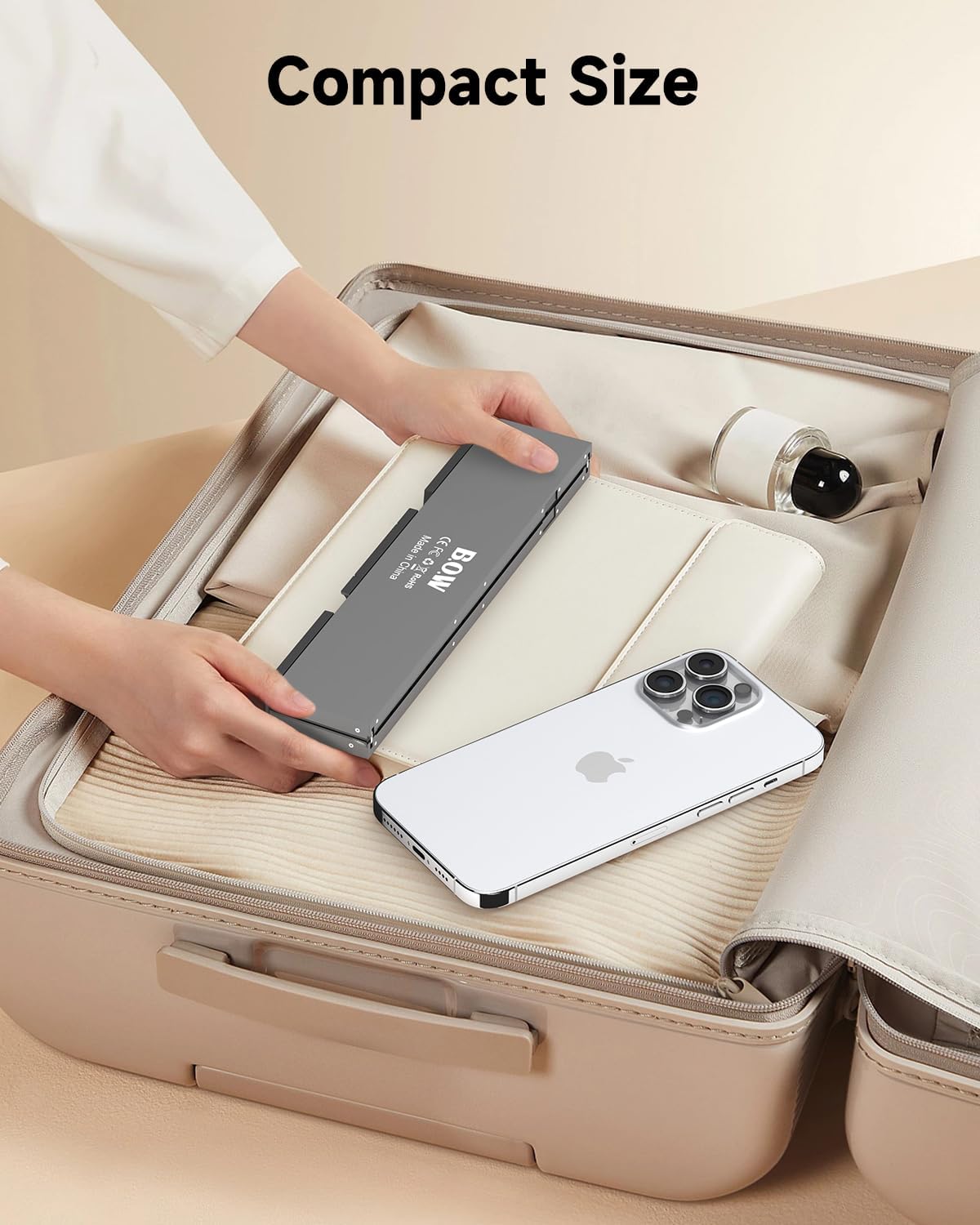
- Lightweight & Portable: Weighs only 250 grams, with folded dimensions of 7.97"x1.83" and open dimensions of 7.97"x3.51".
2. Setup and Connection
Follow these steps to connect your SIKAI CASE Foldable Bluetooth Keyboard to your device.
2.1 Initial Pairing
- Open the Keyboard: Ensure the keyboard is unfolded and powered on.
- Enter Pairing Mode: Simultaneously press the Fn key and one of the Bluetooth channel keys (Bluetooth 1, Bluetooth 2, or Bluetooth 3). The corresponding indicator light will flash blue, indicating pairing mode.
- Enable Bluetooth on Your Device: Go to your device's Bluetooth settings.
- Select Keyboard: Look for "B.O.W" in the list of available Bluetooth devices and click to connect.
- Confirm Connection: Once connected, the message "Connected" will be displayed on your device, and the keyboard's indicator light will become steady blue.
Note for Android Users: While most devices will show "B.O.W", some Android phones may display a MAC address (e.g., 19:16:4A:77:9E:D3). Identify the correct device by looking for a keyboard icon or similar indicator next to the code.


3. Operating Instructions
3.1 Multi-Device Switching
The keyboard supports connecting to up to three devices simultaneously. To switch between connected devices, simply press Fn + Bluetooth 1, Bluetooth 2, or Bluetooth 3, depending on which channel your device is paired to.
3.2 Using the Magnetic Stand
The keyboard features a hidden magnetic stand for your smartphone or tablet. Simply unfold the stand to prop up your device. Please note that the magnetic stand is designed to support devices up to 11 inches. Devices larger than 11 inches may not fit securely in the stand, though they can still be connected via Bluetooth.
Important: The magnetic force of the stand is primarily for holding the device in place and is not intended for attaching other items or for strong magnetic adhesion.
3.3 Ergonomics and Portability
The keyboard's design promotes a comfortable typing posture, helping to reduce strain during extended use. Its compact, foldable nature makes it ideal for travel and use in various environments.

3.4 Energy-Saving Mode
To conserve battery life, the keyboard will automatically enter an energy-saving sleep mode after ten minutes of inactivity. To wake the keyboard, simply press any key.
3.5 Official Product Video
Watch this video for a visual demonstration of the SIKAI CASE Foldable Bluetooth Keyboard's features and usage.
This video showcases the SIKAI CASE Foldable Bluetooth Keyboard, highlighting its pocket size, folding mechanism, charging capabilities, multi-device connectivity, and typing experience.
4. Maintenance
4.1 Charging the Keyboard
To charge the keyboard, connect the included USB cable to the charging port on the keyboard and a power source. A full charge takes approximately 2 hours and provides up to 45 hours of continuous typing or 90 days of standby time.
The package includes a USB Cable for charging.
5. Troubleshooting
- Keyboard not connecting: Ensure Bluetooth is enabled on your device and the keyboard is in pairing mode (Fn + Bluetooth 1/2/3). Check if the keyboard name "B.O.W" or its MAC address appears in your device's Bluetooth list.
- Android device shows MAC address instead of "B.O.W": This is normal for some Android phones. Look for a keyboard icon or similar identifier next to the code (e.g., 19:16:4A:77:9E:D3) to identify the keyboard.
- Device not fitting in stand: The magnetic stand supports devices up to 11 inches. Ensure your device is within this size limit.
- Issues with thick phone/tablet cases: The stand may not be suitable for devices with excessively thick cases. Consider removing the case for better stability.
- Keys feel small: This is a mini portable keyboard. The keys are designed to be compact for portability. If you prefer larger keys, this model might not be ideal.
6. Specifications
| Feature | Detail |
|---|---|
| Package Dimensions | 9.33 x 4.33 x 0.94 inches |
| Item Weight | 8.8 ounces |
| Manufacturer | B.O.W |
| ASIN | B0C5CT4P8H |
| Date First Available | May 16, 2023 |
| Brand | SIKAI CASE |
| Compatible Devices | Laptop, Tablet, Phone |
| Connectivity Technology | Bluetooth |
| Keyboard Description | Wireless |
| Recommended Uses | Travel |
| Special Features | Lightweight, Magnetic, Travel |
| Color | White |
| Number of Keys | 60 |
| Keyboard Backlighting | Single Color (Not applicable for this model) |
| Style | Modern |
| Battery Capacity | 160mAh |
| Charging Time | Less than 2 Hours |
| Working Hours | Greater than or equal to 50 Hours |

7. Warranty and Support
For any questions or assistance with your SIKAI CASE Foldable Bluetooth Keyboard, please do not hesitate to contact us. We are committed to providing prompt support and will reply within 24 hours.
While specific warranty details are not provided in this manual, please retain your proof of purchase for any potential warranty claims.


