
1. Introduction
The TXQ G6 Global-PTT 4G POC Walkie Talkie is designed for reliable, long-range communication using 4G LTE networks. This device facilitates instant push-to-talk communication over extended distances, making it suitable for various professional and recreational applications. This manual provides essential information for the proper setup, operation, maintenance, and troubleshooting of your G6 walkie-talkie.
2. Product Overview
The TXQ G6 walkie-talkie features a compact and durable design, equipped with advanced audio technology for clear voice transmission. It supports group communication and offers a range of up to 5000 miles nationwide through 4G LTE connectivity.
2.1 Key Features
- Long-Range Communication: Utilizes 4G LTE technology for extensive coverage.
- Rugged Design: Constructed with durable materials for challenging environments.
- Group Communication: Enables efficient coordination with multiple users.
- Clear Audio Quality: Ensures crisp and clear voice transmission.
- Compact and Portable: Lightweight for easy carrying and operation.
2.2 Device Components
Familiarize yourself with the main components of your TXQ G6 walkie-talkie:

Figure 1: TXQ G6 Walkie Talkie Key Explanation. This diagram illustrates the location and function of the antenna, PTT2 buttons, switch knob, MENU button, power button, screen, headset port, SIM card slot, and speaker.

Figure 2: Multiple Views of the TXQ G6 Walkie Talkie. This image displays the front, left side (showing USB port and SIM card slot), back, and right side (showing PTT and power buttons) of the device.
3. Setup
Before using your TXQ G6 walkie-talkie, follow these steps for initial setup.
3.1 Unpacking and Assembly
Your package should contain the following items:
- Host unit (walkie-talkie)
- Battery
- Antenna
- Back clip
- Lanyard
- Charger (USB cable and power adapter)

Figure 3: TXQ G6 Walkie Talkie and Included Accessories. This image shows two silver G6 units along with their respective back clips, USB charging cables, power adapters, and lanyards.
- Install the Battery: Open the battery compartment cover on the back of the device. Insert the provided Lithium Ion battery, ensuring proper alignment of the contacts. Close the cover securely.
- Attach the Antenna: Screw the antenna clockwise into the connector on the top of the walkie-talkie until it is finger-tight.
- Attach the Back Clip: Align the back clip with the designated slots on the rear of the device and slide it into place until it clicks.
- Insert SIM Card: Locate the SIM card slot, typically on the side of the device (refer to Figure 2). Insert a compatible 4G SIM card into the slot. Ensure the SIM card is correctly oriented as indicated on the device.
- Attach Lanyard (Optional): Thread the lanyard through the designated loop on the device for convenient carrying.
3.2 Charging the Battery
Before first use, fully charge the battery.
- Connect the USB charging cable to the walkie-talkie's charging port.
- Connect the other end of the USB cable to the power adapter, then plug the adapter into a standard electrical outlet.
- The charging indicator on the device will show the charging status. Once fully charged, disconnect the charger.
4. Operation
This section details the basic operation of your TXQ G6 walkie-talkie.
4.1 Powering On/Off
- To Power On: Press and hold the Power button (refer to Figure 1) until the screen illuminates and the device starts up.
- To Power Off: Press and hold the Power button until a power-off prompt appears on the screen, then confirm.
4.2 Basic Communication (Push-to-Talk)
The G6 uses a Push-to-Talk (PTT) system for communication.
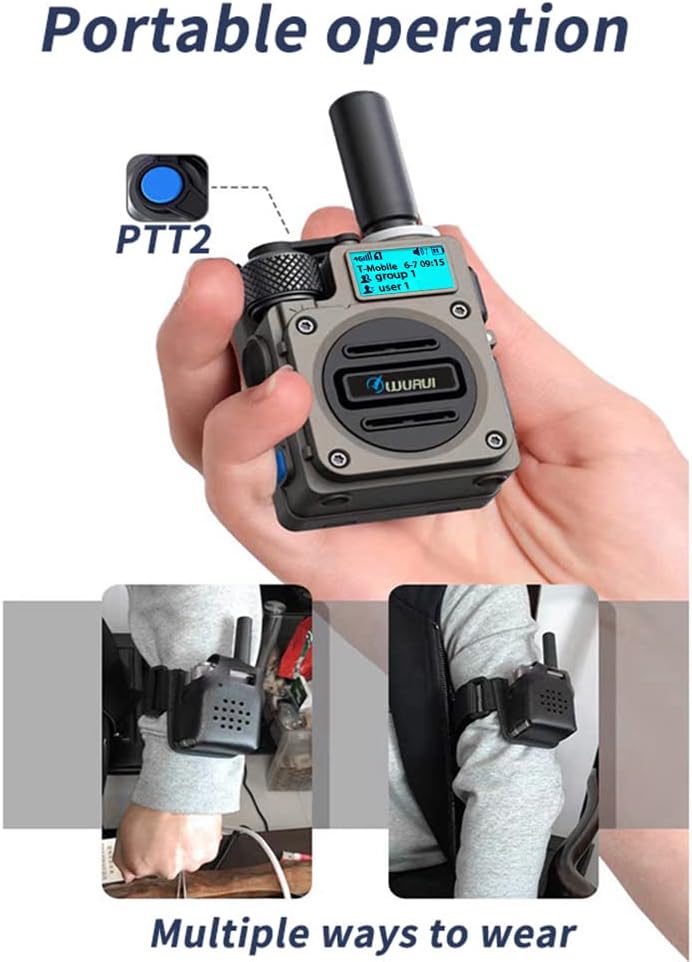
Figure 4: Portable Operation and Wearing Options. This image shows the TXQ G6 being held for communication and various ways to wear it, including on the wrist and attached to a backpack strap.
- Ensure the device is powered on and connected to the network (indicated on the screen).
- Select the desired group or contact using the MENU button and switch knob.
- To transmit, press and hold the PTT button (refer to Figure 1) on the side of the device. Speak clearly into the microphone.
- Release the PTT button to listen for a response.
4.3 Adjusting Volume
Rotate the Switch knob (refer to Figure 1) clockwise to increase volume and counter-clockwise to decrease volume.
4.4 Menu Navigation
Use the MENU button to access various settings and features. The switch knob can be used to scroll through options, and the PTT button or a dedicated selection button may be used to confirm selections.
5. Maintenance
Proper maintenance ensures the longevity and optimal performance of your TXQ G6 walkie-talkie.
- Cleaning: Wipe the device with a soft, damp cloth. Do not use harsh chemicals or abrasive cleaners.
- Water Resistance: The device is water repellent. Avoid submerging it in water. If it gets wet, dry it thoroughly before use.
- Battery Care: Store the battery in a cool, dry place. Avoid extreme temperatures. If the device will not be used for an extended period, charge the battery periodically to maintain its health.
- Antenna: Ensure the antenna is securely attached. Do not bend or force the antenna, as this can damage the device's signal performance.
6. Troubleshooting
If you encounter issues with your TXQ G6, refer to the following troubleshooting tips.
- No Network Connection / "Network Registration Failed":
- Ensure a valid and active 4G SIM card is properly inserted.
- Check if you are in an area with 4G LTE network coverage.
- Restart the device. If the issue persists, try reinserting the SIM card.
- Verify with your SIM card provider that the SIM is provisioned for data and voice services.
- Poor Audio Quality / No Sound:
- Adjust the volume using the switch knob.
- Ensure the antenna is securely attached.
- Check for obstructions around the microphone and speaker.
- Verify network signal strength.
- Device Not Powering On:
- Ensure the battery is fully charged.
- Check that the battery is correctly inserted.
- If using a charger, ensure it is functioning correctly and the charging cable is not damaged.
- Software or Connectivity Issues:
- If experiencing persistent software issues, try a factory reset (refer to the device's menu settings for this option, if available).
- For advanced connectivity problems, contact your service provider or the manufacturer's support.
7. Specifications
| Feature | Specification |
|---|---|
| Model Number | G6 |
| Item Weight | 10.3 ounces (293 Grams) |
| Battery Type | 1 Lithium Ion battery required |
| Voltage | 3.7 Volts (DC) |
| Number of Channels | 1 |
| Frequency Range | LTE |
| Talking Range Maximum | 10000 Kilometer (approximately 6200 miles) |
| Special Features | Battery Saver Mode, Dust Proof, Long Range, Noise Reduction |
| Water Resistance Level | Water Repellent |
8. Warranty and Support
The TXQ G6 walkie-talkie comes with a 1-year manufacturer's warranty from the date of purchase. This warranty covers defects in materials and workmanship under normal use.
For warranty claims, technical support, or further assistance, please contact your retailer or the manufacturer directly. Keep your proof of purchase for warranty validation.


