
Relndoo T88
Relndoo Kids Tablet T88 User Manual
Model: T88
1. Introduction and Overview
The Relndoo Kids Tablet T88 is a 7-inch tablet running on Android 11, specifically designed for children. It features 3GB of RAM and 32GB of internal storage, expandable up to 128GB, providing ample space for educational apps, games, music, and videos. The tablet comes equipped with dual cameras and a durable, shockproof silicone case with handles, making it easy for small hands to hold and protecting it from accidental drops. Integrated parental controls allow for content filtering, screen time management, and safe browsing, ensuring a secure digital environment for children.

Image: Front and back view of the Relndoo Kids Tablet T88 in its green shockproof case, highlighting its child-friendly design.
2. What's in the Box
Upon unboxing your Relndoo Kids Tablet T88, please ensure all the following items are present:
- 1 x Relndoo Kids Tablet T88
- 1 x Protective Silicone Case (pre-installed)
- 1 x Screen Protector
- 1 x Type-C Charging Cable
- 1 x User Manual
Video: An unboxing and overview of the Relndoo Kids Tablet T88, demonstrating the contents of the package and initial impressions of the device and its protective case.
3. Setup Guide
3.1 Initial Charge
Before first use, fully charge the tablet using the provided Type-C cable and a compatible power adapter (not included). The charging port is located on the side of the tablet. A full charge ensures optimal battery performance.
3.2 Power On/Off
- To Power On: Press and hold the power button (located on the side) for a few seconds until the screen lights up.
- To Power Off: Press and hold the power button until a power-off menu appears. Select 'Power off' to shut down the device.
3.3 Wi-Fi Connection
To access online content and download apps, connect the tablet to a Wi-Fi network:
- Go to Settings > Network & internet > Wi-Fi.
- Toggle Wi-Fi On.
- Select your desired Wi-Fi network from the list.
- Enter the password if prompted and tap Connect.
3.4 Google Account Setup
The tablet supports Google Mobile Services (GMS). To download apps from the Google Play Store, you will need to add a Google account:
- Go to Settings > Accounts > Add account > Google.
- Follow the on-screen prompts to sign in with an existing Google account or create a new one.
3.5 Parental Control Setup (iWaWa App)
The tablet comes with the iWaWa app pre-installed, designed for parental control. This app allows you to manage content, control screen time, and ensure safe browsing for your children (appropriate for children over 3 years old).
- Open the iWaWa app.
- Follow the initial setup instructions to create a child profile.
- Configure settings for content filtering, time limits, and app access as desired.
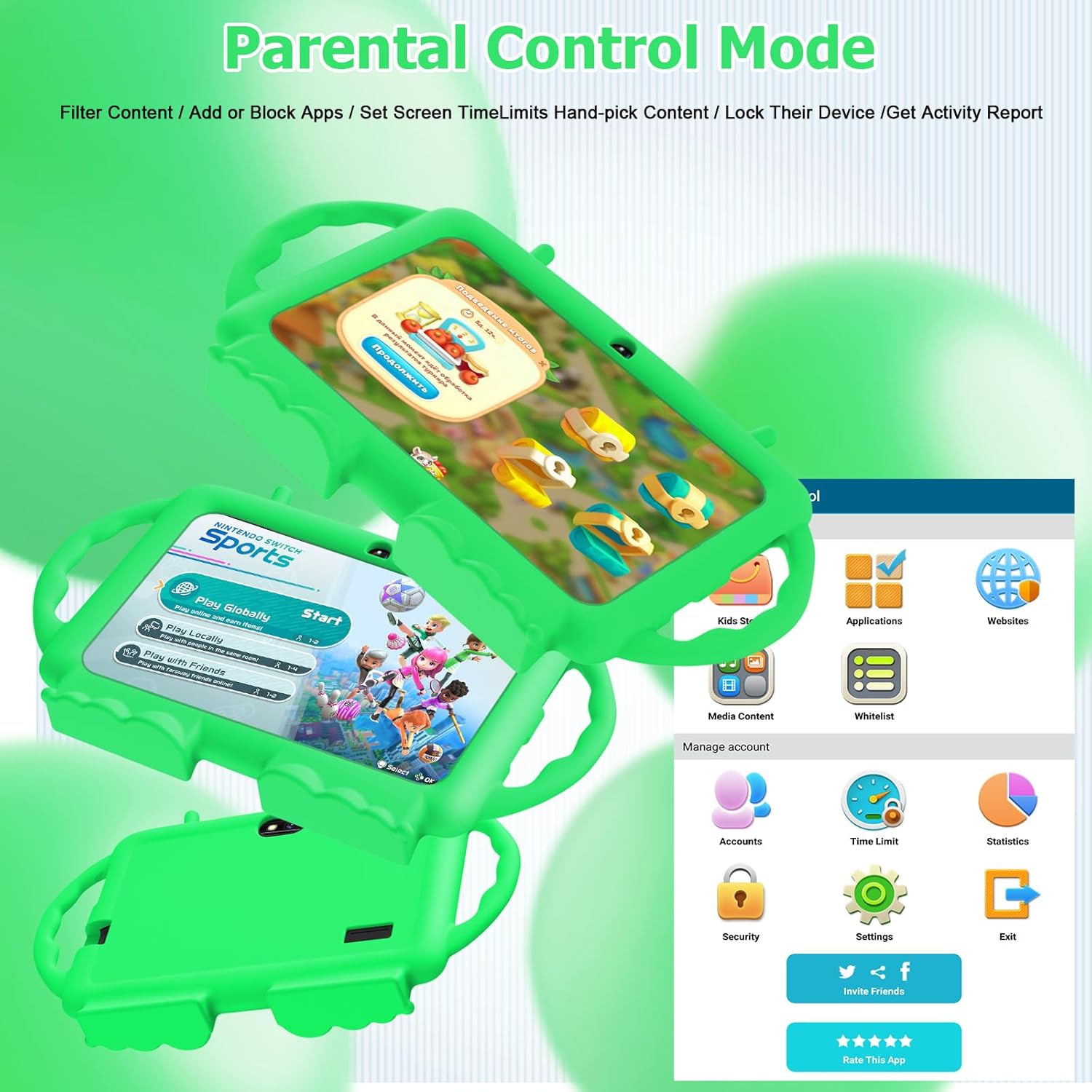
Image: A visual representation of the parental control mode interface, showing options for content filtering, time limits, and app management.
4. Operating Instructions
4.1 Navigation
The tablet operates on Android 11, offering an intuitive user interface. Swipe up from the bottom to access the app drawer, swipe down from the top for quick settings and notifications, and use the navigation buttons (Back, Home, Recent Apps) at the bottom of the screen.
4.2 App Management
You can download a wide variety of applications from the Google Play Store. The tablet's 3GB RAM ensures smooth performance for most apps. Pre-installed kids' apps are available through the iWaWa interface.

Image: The tablet screen showing a selection of pre-installed and downloadable applications, demonstrating its versatility for entertainment and learning.
4.3 Camera Usage
The tablet features dual cameras, allowing children to capture photos and videos. Open the Camera app to switch between front and rear cameras, take pictures, or record videos.
4.4 Media Playback
Enjoy music and videos on the tablet. The large battery capacity supports extended playback times, making it suitable for travel. You can store media on the internal 32GB ROM or an expandable 128GB microSD card (not included).
4.5 Connectivity
The tablet supports Wi-Fi (802.11n) for internet access and Bluetooth for connecting to compatible accessories like headphones or speakers.
5. Maintenance
5.1 Cleaning
To clean the tablet screen, use a soft, lint-free cloth. For the silicone case, a damp cloth with mild soap can be used. Avoid harsh chemicals or abrasive materials.
5.2 Software Updates
Periodically check for system updates to ensure optimal performance and security. Go to Settings > System > System update.
5.3 Battery Care
To prolong battery life, avoid extreme temperatures and do not let the battery completely drain frequently. Charge the tablet when the battery level is low.
5.4 Storage Management
Regularly review and delete unnecessary files or apps to free up storage space. Consider using a microSD card for additional storage if needed.
5.5 Protective Case
The included silicone case is designed to protect the tablet from scratches, bumps, and drops. While durable, excessive force or sharp objects can still cause damage. The case also features handles for easy carrying and a standable design for hands-free viewing.

Image: Children interacting with the Relndoo Kids Tablet, showcasing the ergonomic handles and the protective nature of the silicone case during play and learning.
6. Troubleshooting
If you encounter issues with your tablet, try the following common troubleshooting steps:
- Tablet is Slow/Unresponsive:
- Close unused apps running in the background.
- Clear cache for frequently used apps (Settings > Apps > [App Name] > Storage & cache > Clear cache).
- Restart the tablet.
- Ensure sufficient storage space is available.
- Battery Drains Quickly:
- Reduce screen brightness.
- Disable Wi-Fi or Bluetooth when not in use.
- Close background apps.
- Check for app updates or problematic apps.
- Cannot Connect to Wi-Fi:
- Ensure Wi-Fi is enabled on the tablet.
- Restart your Wi-Fi router.
- Forget the network and reconnect.
- Ensure you are within range of the Wi-Fi signal.
- Apps Crashing/Not Loading:
- Clear the app's cache and data (Settings > Apps > [App Name] > Storage & cache > Clear storage/Clear cache).
- Uninstall and reinstall the app.
- Ensure the tablet's software is up to date.
7. Specifications
| Feature | Specification |
|---|---|
| Brand | Relndoo |
| Model Name | T88 |
| Operating System | Android 11 |
| Screen Size | 7 Inches |
| Screen Resolution | 1024x600 Pixels |
| RAM | 3 GB |
| Internal Storage (ROM) | 32 GB |
| Expandable Storage | Up to 128 GB (Flash Memory Size) |
| Rear Webcam Resolution | 2 MP |
| Wireless Type | 802.11n (Wi-Fi) |
| Average Battery Life | 8.5 Hours |
| Item Weight | 1.83 ounces |
| Product Dimensions | 7 x 3 x 1 inches |
| Color | Green |
8. Warranty and Support
For warranty information and technical support, please refer to the contact details provided on the product packaging or the official Relndoo website. Keep your purchase receipt as proof of purchase for any warranty claims.
Ask a question about this manual
Ask about setup, troubleshooting, compatibility, parts, safety, or missing instructions. Manuals+ will review the question and use this page’s manual context to help answer it.