
Introduction
This manual provides detailed instructions for the setup, operation, and maintenance of your SHYSKY X96 Max Plus Ultra TV Box. Please read this manual thoroughly before using the device to ensure proper functionality and to maximize your user experience. The X96 Max Plus Ultra is an Android 11-based TV Box featuring an Amlogic S905X4 64-bit Quad Core ARM Cortex A55 CPU and ARM Mali-G31 MP2 GPU, designed for high-performance media streaming.
Safety Information
- Ensure the device is placed on a stable, flat surface to prevent accidental falls.
- Do not expose the device to water, moisture, or extreme temperatures.
- Use only the provided power adapter. Using unauthorized adapters may damage the device and void the warranty.
- Avoid blocking ventilation openings to prevent overheating.
- Do not attempt to open or repair the device yourself. Refer all servicing to qualified personnel.
- Keep the device away from strong magnetic fields.
Package Contents

Figure 1: Contents of the X96 Max Plus Ultra package, including the TV box, power adapter, HD cable, IR remote control, and user manual.
Please check the package contents carefully. If any items are missing or damaged, contact your retailer.
- 1 x X96 Max Plus Ultra TV Box
- 1 x HD Cable
- 1 x IR Remote Control
- 1 x Power Adapter
- 1 x User Manual (English)
Product Overview
Familiarize yourself with the various ports and interfaces on your X96 Max Plus Ultra TV Box.
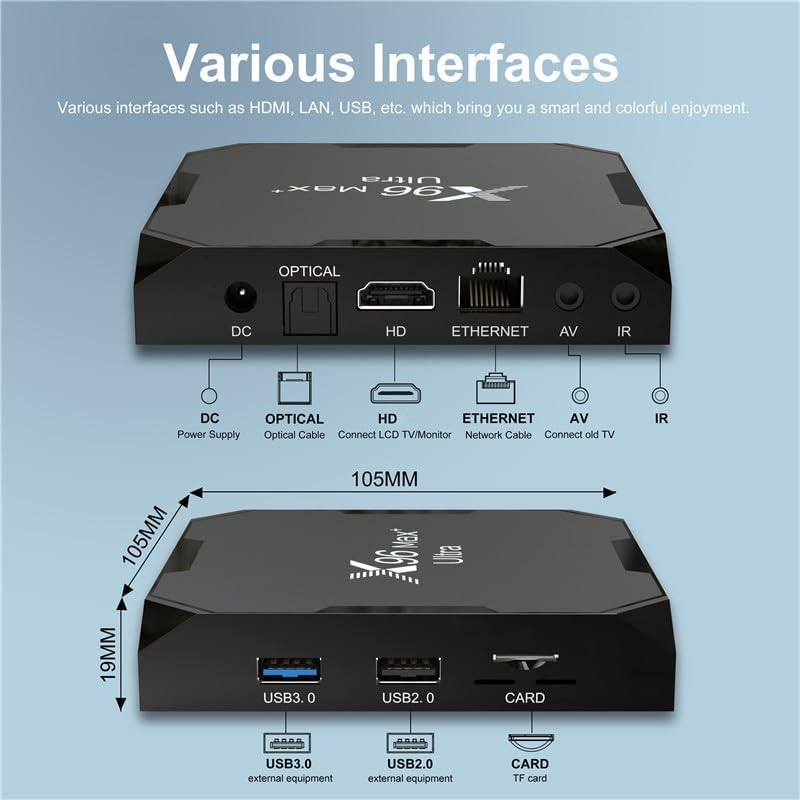
Figure 2: Front and side views of the X96 Max Plus Ultra TV Box, highlighting its various connection ports and their functions.
- DC (Power Supply): Connect the power adapter here.
- OPTICAL: Digital audio output for connecting to an audio receiver.
- HD (HDMI): Connect to your TV or monitor using the provided HD cable.
- ETHERNET: Connect to your router for a wired internet connection.
- AV: Analog video/audio output for connecting to older TVs.
- IR: Infrared receiver for the remote control.
- USB 3.0: High-speed USB port for external storage or peripherals.
- USB 2.0: Standard USB port for external storage or peripherals.
- CARD: MicroSD card slot for expandable storage.
Setup
1. Connecting to Your TV
- Connect one end of the HD cable to the HD port on the TV Box.
- Connect the other end of the HD cable to an available HDMI input on your television.
- If using an older TV, connect an AV cable (not included) to the AV port on the TV Box and the corresponding inputs on your TV.
2. Powering On
- Connect the power adapter to the DC port on the TV Box.
- Plug the power adapter into a wall outlet.
- The device should power on automatically. If not, press the power button on the remote control.
- Switch your TV's input source to the corresponding HDMI or AV input you used.
3. Initial Setup Wizard
Upon first boot, the TV Box will guide you through an initial setup process. Follow the on-screen instructions to:
- Select your preferred language.
- Connect to a network (Wi-Fi or Ethernet).
- Sign in with your Google account (optional, but recommended for app downloads).
- Set date and time.
4. Network Connection
Wi-Fi Connection:
- Go to Settings > Network & Internet > Wi-Fi.
- Select your Wi-Fi network from the list.
- Enter the Wi-Fi password and select Connect.
Ethernet Connection:
- Connect an Ethernet cable from your router to the ETHERNET port on the TV Box.
- The device should automatically detect and connect to the wired network.
5. Connecting Peripherals
You can connect a USB mouse and keyboard to the USB 2.0 or USB 3.0 ports for easier navigation and text input. Wireless 2.4G mice and keyboards can be connected via their USB dongle.
Operating
1. Navigating the Interface
Use the provided IR remote control to navigate the Android TV interface.
- Directional Pad (D-Pad): Move up, down, left, and right.
- OK Button: Select an item or confirm an action.
- Back Button: Return to the previous screen.
- Home Button: Go directly to the home screen.
- Menu Button: Access context-sensitive menus (if available).
2. Installing and Uninstalling Applications
Installing Apps:
- Open the Google Play Store application from the home screen.
- Search for the desired application.
- Select the app and click Install.
Uninstalling Apps:
- Go to Settings > Apps.
- Select the application you wish to uninstall.
- Choose Uninstall and confirm.
3. Media Playback
The X96 Max Plus Ultra supports various video and audio formats. You can play media from:
- USB Drives: Connect a USB flash drive or external hard drive to the USB ports.
- MicroSD Cards: Insert a MicroSD card into the CARD slot.
- Network Storage: Access media from network-attached storage (NAS) or shared folders on your local network.
- Streaming Services: Use pre-installed or downloaded streaming apps like YouTube.
4. System Settings
Access the Settings menu to configure various aspects of your TV Box:
- Display: Adjust screen resolution (up to 8Kx4K @ 60fps), screen zoom, and HDR settings.
- Sound: Configure audio output, including digital audio (Optical).
- Network & Internet: Manage Wi-Fi and Ethernet connections.
- Apps: View, manage, and uninstall applications.
- Device Preferences: Set date & time, language, keyboard, storage, and reset options.
5. Firmware Wireless Upgrade (OTA)
The device supports Over-The-Air (OTA) firmware updates. It is recommended to keep your device's software up to date for optimal performance and security.
- Ensure your TV Box is connected to the internet.
- Go to Settings > Device Preferences > About > System update.
- The system will check for available updates. Follow the on-screen prompts to download and install any updates.
Maintenance
- Cleaning: Use a soft, dry cloth to clean the exterior of the device. Do not use liquid cleaners or abrasive materials.
- Storage: If storing the device for an extended period, disconnect it from power and store it in a cool, dry place.
- Software Maintenance: Regularly clear cache for apps that consume a lot of storage. This can be done in Settings > Apps.
Troubleshooting
| Problem | Possible Cause | Solution |
|---|---|---|
| No power | Power adapter not connected or faulty. | Ensure the power adapter is securely connected to the device and a working power outlet. Try a different outlet. |
| No display on TV | Incorrect TV input selected; HD cable loose or faulty. | Check if your TV is set to the correct HDMI/AV input. Ensure the HD cable is securely connected at both ends. Try a different HD cable if available. |
| No internet connection | Wi-Fi password incorrect; Ethernet cable loose; Router issue. | For Wi-Fi, re-enter the password. For Ethernet, ensure the cable is connected. Restart your router and the TV Box. |
| Remote control not working | Batteries low or inserted incorrectly; Obstruction between remote and device. | Replace batteries. Ensure there are no obstructions between the remote and the TV Box's IR receiver. |
| Apps crashing or slow performance | Too many apps running; Low storage; Outdated firmware. | Close background apps. Clear app caches. Check for and install system updates (OTA). Consider a factory reset if issues persist (backup data first). |
Specifications
| Feature | Detail |
|---|---|
| Model | X96 Max Plus Ultra |
| Operating System | Android 11.0 |
| CPU | Amlogic S905X4 64-bit Quad Core ARM Cortex A55 |
| GPU | ARM Mali-G31 MP2 |
| RAM | 4 GB DDR3 |
| Internal Storage | 32 GB eMMC |
| Video Decoding | AV1, H.265 HEVC, VP9 Profile-2 (up to 8Kx4K @ 60fps), AVS2-P2 (up to 8Kx4K @ 24 fps), H.264 AVC (up to 4Kx2K @ 30 fps), MPEG-4 ASP (up to 1080P @ 60 fps) |
| Video Output Resolution | Up to 8Kx4K (7680x4320 pixels) |
| Audio Support | MP3, AAC, WMA, RM, FLAC, Ogg (with 7.1/5.1 down-mixing) |
| Connectivity | 2.4G/5G Dual Wi-Fi, Bluetooth 4.0, 10/100M Ethernet |
| Ports | 1x USB 3.0, 1x USB 2.0, 1x HD (HDMI 2.1), 1x Optical, 1x Ethernet, 1x AV, 1x DC, 1x MicroSD Card Slot |
| Dimensions (L x W x H) | 8.38 x 8.38 x 1.78 cm |
| Weight | 380 g |
Warranty and Support
Warranty Information
The SHYSKY X96 Max Plus Ultra TV Box comes with a standard manufacturer's warranty. Please refer to the warranty card included in your package or contact your retailer for specific warranty terms and conditions. Keep your proof of purchase for warranty claims.
Customer Support
For technical assistance, troubleshooting, or further inquiries, please contact your point of purchase or visit the official SHYSKY support website (if available).