
1. Product Overview
The EDUP Intel AX210HMW is a high-performance Wi-Fi 6E network card designed for laptops and mini PCs. It provides tri-band wireless connectivity (2.4GHz, 5GHz, and 6GHz) with a maximum speed of up to 5400Mbps, and integrates Bluetooth 5.3 for seamless device connections. This module is ideal for upgrading older systems to the latest wireless standards, offering enhanced speed, lower latency, and improved security.
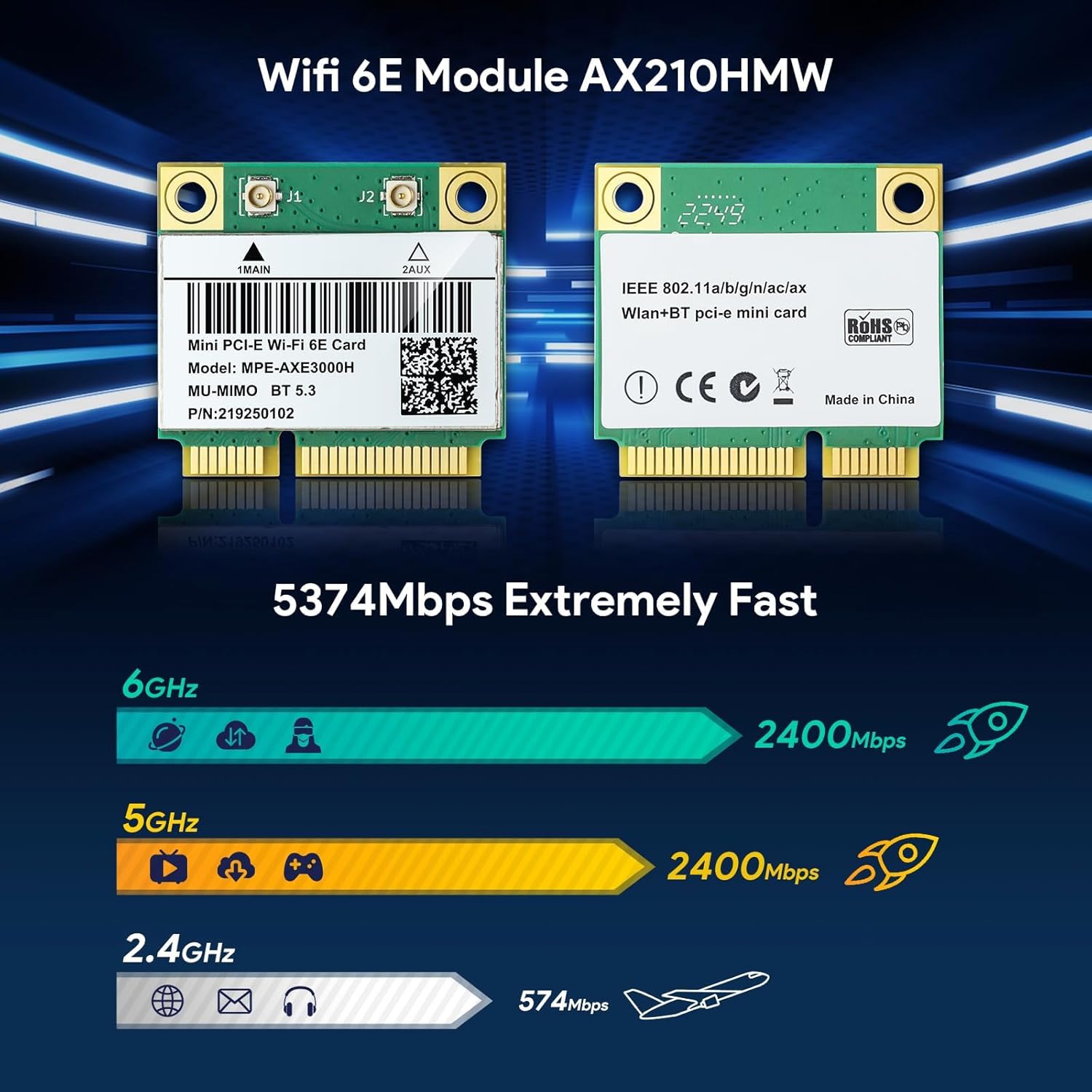
Image: The EDUP Intel AX210HMW WiFi 6E Mini PCIe Wireless Card, showing its compact design and antenna connectors.
2. Key Features
- Wi-Fi 6E Tri-Band Connectivity: Supports 2.4GHz, 5GHz, and 6GHz bands for optimal performance.
- High Speed: Up to 574Mbps on 2.4GHz, 2400Mbps on 5GHz, and 2400Mbps on 6GHz, totaling 5400Mbps.
- Bluetooth 5.3: Advanced Bluetooth technology for connecting various peripherals.
- Mini PCIe Interface: Designed for easy installation in compatible laptops and mini PCs.
- MU-MIMO Support: Enhances network efficiency in multi-device environments.
- WPA3 Security: Provides robust network security.
- Operating System Support: Compatible with Windows 10 (64-bit), Windows 11 (64-bit), and Linux Kernel 5.10+.

Image: Overview of the AX210HMW Wireless Network Card's key features, including WiFi 6E, 5400Mbps speed, WPA3, OFDMA, Bluetooth 5.3, and power saving.
3. Package Contents
Verify that all items are present in the package:
- 1x EDUP Intel AX210HMW WiFi 6E Card
- 1x Screwdriver
- 1x Screw
- 1x Metal clip

Image: The EDUP Intel AX210HMW WiFi 6E Card, screwdriver, screw, and metal clip included in the package.
4. System Compatibility
This Wi-Fi card is designed for systems with a Mini PCI-E interface. Please check your device's specifications before installation.
- Compatible Interfaces: Mini PCI-E (Half Mini PCIe).
- Supported Operating Systems: Windows 10 (64-bit), Windows 11 (64-bit), Linux Kernel 5.10+ (requires compilation).
- Known Incompatibilities: Not compatible with all IBM/Thinkpad/Lenovo/HP laptops and AMD Motherboards. Ensure your laptop does not have a BIOS whitelist that restricts third-party Wi-Fi cards.
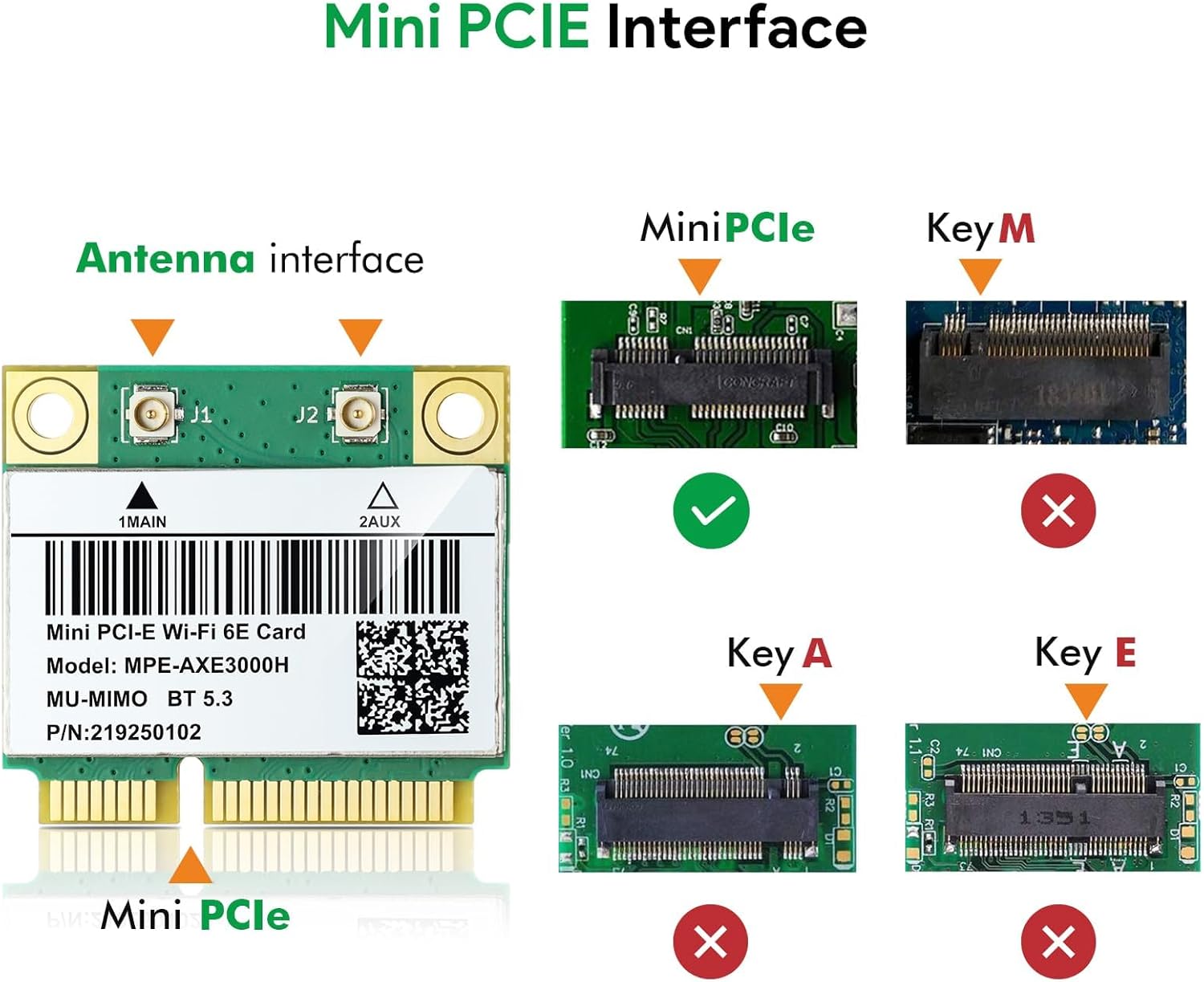
Image: Diagram illustrating the compatible Mini PCIe interface and incompatible Key M, Key A, and Key E interfaces.

Image: Icons representing supported operating systems: Linux 5.10+, Windows 10 64bit, and Windows 11 64bit, alongside the AX210HMW card and a laptop running Windows 11.
5. Installation Guide
Important: Before proceeding, power off your computer and disconnect it from the power source. It is recommended to wear an anti-static wrist strap to prevent electrostatic discharge.
- Open the Laptop Casing: Carefully open your laptop's back panel or keyboard area to access the internal components. Refer to your laptop's specific service manual for instructions on how to safely open it.
- Locate the Existing Wi-Fi Card: Identify the current wireless card, typically a small module with two antenna cables connected.
- Disconnect Antenna Cables: Gently disconnect the two antenna cables (MAIN and AUX) from the existing Wi-Fi card. Note their positions.
- Remove the Old Card: Unscrew the retaining screw holding the old Wi-Fi card in place. The card may pop up slightly. Carefully slide it out of the Mini PCIe slot.
- Insert the New Card: Align the EDUP AX210HMW card with the Mini PCIe slot. Insert it at an angle and press down until it clicks into place. Secure it with the provided screw.
- Attach Antenna Cables: Reconnect the antenna cables to the corresponding connectors on the new AX210HMW card (MAIN and AUX). Ensure a secure connection.
- Close the Casing: Carefully reassemble your laptop, ensuring all screws are tightened and the casing is properly closed.

Image: A four-step visual guide showing the process of opening a laptop, unscrewing the old card, removing it, and installing the new card.
6. Driver Installation
After physical installation, drivers must be installed for the card to function correctly.
- Download Drivers: Visit the official Intel website or the EDUP website (szedup.com/search/AX210) to download the latest drivers for the Intel AX210HMW card. You will need separate drivers for Wi-Fi and Bluetooth.
- Transfer Drivers: If your computer does not have internet access after installation, download the drivers on another device and transfer them via USB drive.
- Install Drivers: Run the downloaded driver setup files. Follow the on-screen instructions to complete the installation for both Wi-Fi and Bluetooth.
- Restart System: After installation, restart your computer to ensure all changes take effect.
For Linux Users: The card supports Linux Kernel 5.10+. Driver compilation may be required. Refer to Intel's official Linux driver documentation for detailed instructions.
7. Operating Instructions
7.1 Wi-Fi Connectivity
- Enable Wi-Fi: Ensure Wi-Fi is enabled in your operating system settings.
- Connect to Network: Open your network settings, select your desired Wi-Fi network (SSID), and enter the password if prompted.
- Verify Connection: Once connected, you should have internet access. The AX210HMW supports 2.4GHz, 5GHz, and 6GHz bands, automatically connecting to the optimal band based on your router's capabilities.
7.2 Bluetooth Connectivity
- Enable Bluetooth: Ensure Bluetooth is enabled in your operating system settings.
- Pair Device: Put your Bluetooth device (e.g., headphones, mouse, keyboard) into pairing mode.
- Add Device: In your computer's Bluetooth settings, search for new devices and select your device from the list to pair.
- Confirm Connection: Follow any on-screen prompts to complete the pairing process.

Image: The AX210HMW card highlighting Bluetooth 5.3, with icons representing compatible devices such as earphones, audio speakers, gamepads, printers, cell phones, tablets, mice, and keyboards.
8. Troubleshooting
- No Wi-Fi or Bluetooth after installation:
- Ensure drivers are correctly installed. Check Device Manager (Windows) for any unknown devices or error symbols.
- Verify antenna cables are securely connected to the card.
- Check if your laptop has a BIOS whitelist. Some older laptops may require a modified BIOS to accept non-original Wi-Fi cards.
- Slow Wi-Fi speeds:
- Ensure your router supports Wi-Fi 6E and is configured for optimal performance.
- Check for interference from other devices or networks.
- Update your router's firmware.
- Bluetooth device not pairing:
- Ensure the Bluetooth device is in pairing mode and within range.
- Remove any previous pairings of the device from your computer and try again.
- Restart your computer and the Bluetooth device.
9. Specifications
| Brand | EDUP |
| Model | AX210HMW |
| Hardware Interface | Mini PCI-E |
| Wireless Standard | Wi-Fi 6E (802.11ax) |
| Frequency Bands | 2.4GHz, 5GHz, 6GHz (Tri-Band) |
| Max Data Transfer Rate | 5400 Mbps (574Mbps @2.4GHz + 2400Mbps @5GHz + 2400Mbps @6GHz) |
| Bluetooth Version | Bluetooth 5.3 |
| Compatible Devices | Laptop, Mini PC (with Mini PCI-E slot) |
| Supported OS | Windows 10 (64bit), Windows 11 (64bit), Linux Kernel 5.10+ |
| Item Weight | 1.76 Ounces |
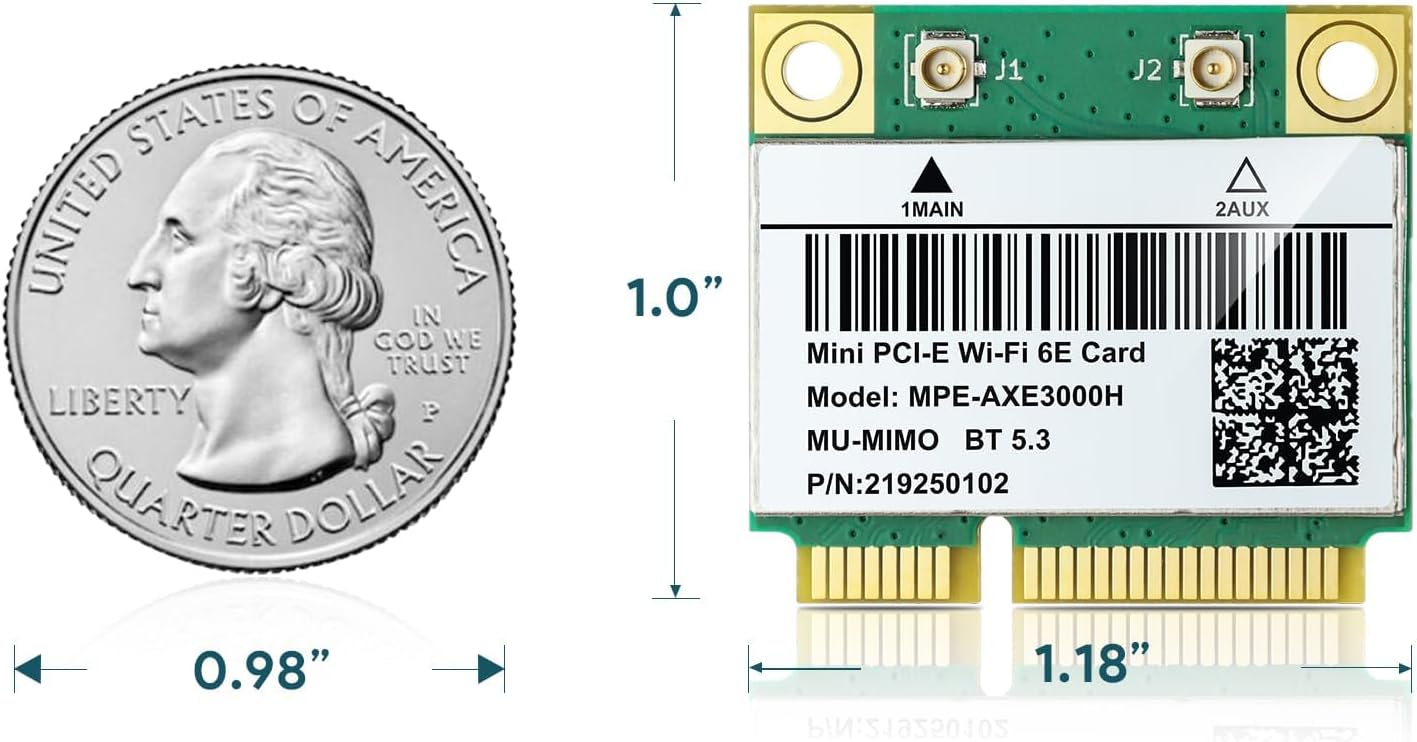
Image: The AX210HMW WiFi card next to a US quarter coin, illustrating its compact dimensions of approximately 1.18 inches by 1.0 inch.
10. Warranty and Support
EDUP provides a one-year warranty for the AX210HMW WiFi card. Lifetime technical support is also available. For assistance, please contact EDUP customer service through their official website or the platform where the product was purchased.