
Lenovo Lenovo Thinkpad X1
Lenovo ThinkPad X1 Carbon Gen 10 User Manual
Comprehensive guide for setup, operation, and maintenance of your business laptop.
Introduction
Welcome to the user manual for your Lenovo ThinkPad X1 Carbon Gen 10. This document provides essential information to help you set up, operate, and maintain your new business laptop. Please read through this manual carefully to ensure optimal performance and longevity of your device.
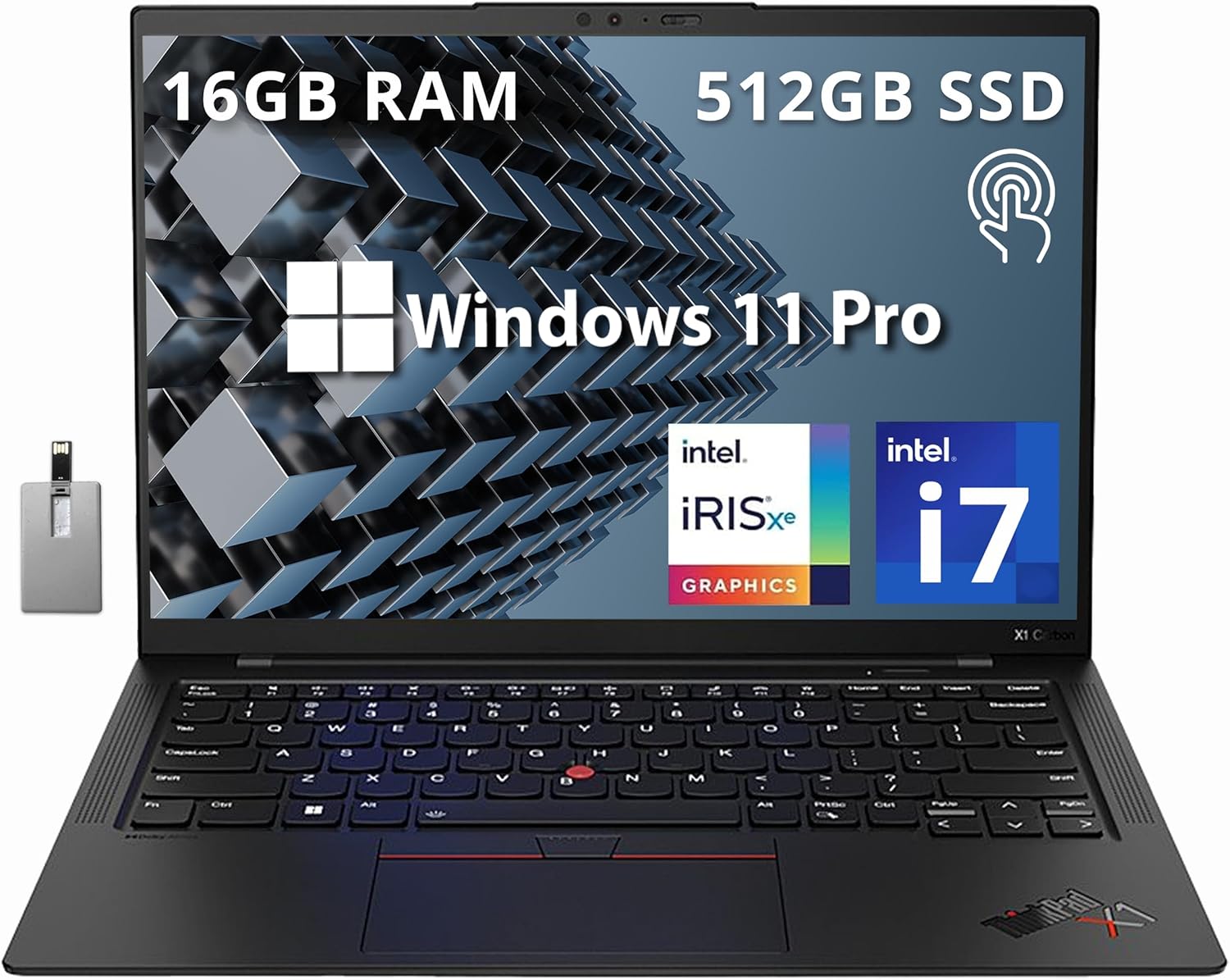
Figure 1: The Lenovo ThinkPad X1 Carbon Gen 10 laptop, showcasing its key specifications and features on the display.
What's in the Box
Before you begin, ensure all items are present in your product packaging:
- Lenovo ThinkPad X1 Carbon Gen 10 Laptop
- Power Adapter and Cable
- 32GB Hotface USB Card
- Documentation (Quick Start Guide, Safety Information)
Setup Guide
Initial Power On
- Charge the Battery: Connect the power adapter to the laptop's USB-C port and plug it into a power outlet. Allow the battery to charge sufficiently before first use.
- Power On: Open the laptop lid or press the power button located on the side of the device.
- Initial Windows Setup: Follow the on-screen prompts to complete the Windows 11 Pro setup, including language selection, network connection, and user account creation.
Connecting Peripherals
The ThinkPad X1 Carbon Gen 10 offers a variety of ports for connecting external devices:
- USB 2.0 Type-A Ports (x2): For connecting standard USB devices like mice, keyboards, or external drives.
- USB 3.2 Type-C Ports (x2): For high-speed data transfer, power delivery, and display output.
- HDMI 2.0b Port (x1): For connecting to external displays or projectors.
- Headphone / Mic Combo Jack (x1): For audio input and output.
- Kensington Lock Slot (x1): For physical security.

Figure 2: Overview of the multi-port configuration on the Lenovo ThinkPad X1 Carbon Gen 10.
Network Connection
- Wi-Fi 6E: Connect to wireless networks for internet access. Navigate to Windows Settings > Network & Internet > Wi-Fi to select and connect to your desired network.
- Bluetooth 5.2: Pair with Bluetooth-enabled devices such as headphones, speakers, or external input devices. Access Bluetooth settings via Windows Settings > Bluetooth & devices.
Operating Instructions
Basic Operation
- Power On/Off: Press the power button to turn on the laptop. To shut down, click the Start button, then Power > Shut down.
- Sleep Mode: Close the lid or press the power button briefly to put the laptop into sleep mode.
Using the Touchscreen
The 14.0" WUXGA (1920 x 1200) touchscreen allows for intuitive interaction with Windows 11 Pro. Use gestures such as tap, swipe, pinch-to-zoom, and scroll directly on the display.

Figure 3: The laptop's display showcasing its high resolution and clarity for dynamic visualization.
Keyboard and Touchpad
- Backlit Keyboard: The keyboard features backlighting for comfortable typing in low-light conditions. Adjust brightness using the dedicated function keys (Fn + Spacebar).
- TrackPoint and Touchpad: Utilize the iconic TrackPoint pointing stick or the precision touchpad for navigation.
Fingerprint Reader
Enhance security and convenience with the integrated fingerprint reader. Set up Windows Hello Fingerprint in Windows Settings > Accounts > Sign-in options to log in with a touch.

Figure 4: Key features for staying connected and secure, including the fingerprint reader and backlit keyboard.
Display Features
- WUXGA Touchscreen: Enjoy crisp visuals and responsive touch input on the 1920 x 1200 resolution display with 400 nits brightness.
- 180-degree Hinge: The display can be rotated up to 180 degrees, allowing for flexible viewing angles and collaborative presentations.

Figure 5: The laptop's 180-degree hinge provides versatility for various usage scenarios.
Software Environment
Your laptop comes pre-installed with Windows 11 Pro, offering advanced features for business and productivity. Regularly check for Windows updates to ensure optimal performance and security.
Maintenance and Care
Cleaning
- Screen: Use a soft, lint-free cloth slightly dampened with water or a screen cleaner. Avoid harsh chemicals.
- Keyboard and Chassis: Use a soft, dry cloth. For stubborn dirt, a slightly damp cloth can be used, ensuring no liquid enters openings.
Battery Care
- Avoid extreme temperatures.
- Do not fully discharge the battery frequently.
- For long-term storage, charge the battery to about 50-60%.
Software Updates
Regularly check for and install updates for Windows 11 Pro and Lenovo drivers to ensure system stability, security, and performance. Access Windows updates via Settings > Windows Update.
Troubleshooting
This section addresses common issues you might encounter. For more complex problems, refer to Lenovo's official support resources.
No Power / Laptop Not Turning On
- Ensure the power adapter is securely connected to both the laptop and a working power outlet.
- Verify the power outlet is functional by plugging in another device.
- If the battery is completely drained, allow it to charge for at least 30 minutes before attempting to power on.
Display Issues
- If the screen is blank, try pressing Fn + F7 (or the display toggle key) to ensure the display is not turned off.
- Adjust screen brightness using the function keys (e.g., Fn + F5/F6).
- If connected to an external monitor, ensure the correct display mode is selected (e.g., Duplicate, Extend).
Connectivity Problems (Wi-Fi/Bluetooth)
- Ensure Wi-Fi or Bluetooth is enabled in Windows Settings.
- Restart your router/modem for Wi-Fi issues.
- For Bluetooth, ensure the device you are trying to connect to is in pairing mode and within range.
Technical Specifications
Below are the detailed technical specifications for the Lenovo ThinkPad X1 Carbon Gen 10:

Figure 6: Visual summary of key specifications for the laptop.
| Feature | Specification |
|---|---|
| Model Name | Lenovo Thinkpad X1 |
| Processor | Intel Core i7-1260P (2.1 GHz) |
| RAM | 16 GB DDR4 |
| Storage | 512 GB PCIe SSD |
| Graphics | Intel Iris Xe Graphics (Integrated) |
| Display | 14.0" WUXGA (1920 x 1200) Touchscreen, 400 nits |
| Operating System | Windows 11 Pro |
| Wireless Connectivity | Wi-Fi 6E, Bluetooth 5.2 |
| Ports | 2x USB 2.0 Type-A, 2x USB 3.2 Type-C, 1x HDMI 2.0b, 1x Headphone / mic combo, 1x Kensington Lock |
| Weight | 2.55 pounds |
| Dimensions (LxWxH) | 12.9 x 8.9 x 0.7 inches |
| Special Features | Backlit Keyboard, Fingerprint Reader |
Warranty and Support
For detailed information regarding your product's warranty, please refer to the documentation included with your purchase or visit the official Lenovo support website. Lenovo provides various support resources, including drivers, software updates, and troubleshooting guides.
Online Support: For the most up-to-date support information, drivers, and troubleshooting guides, please visit the official Lenovo support website. You can typically find support by searching for your specific model number.
Contact Support: If you require further assistance, contact Lenovo customer support through their official channels, which can be found on their website.