
1. Introduction
This manual provides detailed instructions for the installation, operation, and maintenance of your Yasorn eMylo Smart Single-Phase Electric Meter. This device is designed to monitor electricity usage, offering remote control and scheduling features via a smartphone application. Please read this manual thoroughly before use to ensure safe and efficient operation.

Image 1: Yasorn eMylo Smart Single-Phase Electric Meter.
2. Safety Information
- Installation should only be performed by qualified personnel to prevent electric shock or damage to the device.
- Ensure the power supply is disconnected before any installation or wiring work.
- Do not expose the device to moisture, extreme temperatures, or corrosive environments.
- Verify all connections are secure and correct according to the wiring diagram before applying power.
- The device is designed for indoor use only.
3. Product Features
- Highest Accuracy: Utilizes a high-quality chipset and SMT technology for precise measurement, with an error margin within 0.3%.
- Remote and Voice Control: Control devices remotely via the “Smart Life/Tuya“ APP and compatible with Alexa and Google Home for voice commands.
- Power Consumption Monitoring: Real-time monitoring of voltage, current, power, and total consumption on your smartphone or tablet app with a visual digital LCD display.
- Timing and Schedule Feature: Set schedules for appliances to automatically turn on/off, optimizing energy usage.
- Safety Flame Retardant Material: Constructed from eco-friendly flame-resistant ABS for enhanced safety and durability, offering good anti-electromagnetic interference and low power consumption.
4. Specifications
| Specification | Value |
|---|---|
| Accuracy | Level 1 |
| WiFi Support | 2.4 GHz (5G routers not supported) |
| Rated Current | 5 A |
| Material | ABS |
| Voltage | AC 90-250V / 50Hz |
| Maximum Current | 60A |
| Pulse Frequency | 1200imp/kwh |
| Installation | 35mm DIN Rail |
| Power Rate | 1W/6VA |
| Product Dimensions | 100 x 36 x 66 cm |
| Weight | 175 g |
| Ambient Temperature | -45℃ ~ 75℃ |
5. Package Contents
- 1 x WiFi Smart Meter
- 1 x Instruction Manual
- 1 Set Accessories (for installation)
6. Installation
The eMylo Smart Electric Meter is designed for 35mm DIN-rail installation. Ensure the main power supply is turned off before beginning installation. Connect the device according to the wiring diagram provided in this manual and on the device itself.
6.1 Wiring Diagram
Refer to the diagram below for correct wiring. The wiring does not distinguish between L (Live) and N (Neutral) lines for the input voltage. However, ensure the Current Transformer (CT) is correctly installed around one of the load wires (either L or N) to measure current accurately. Do not connect the corresponding terminals incorrectly.

Image 2: eMylo Smart Meter showing wiring terminals and diagram.
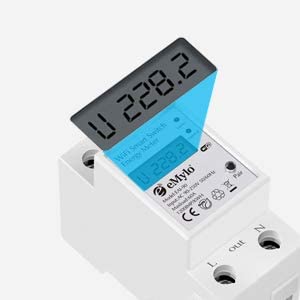
Image 3: Close-up of the meter's display and connection points.
6.2 Wiring Demonstration (General)
Video 1: A general demonstration of wiring a similar digital meter with a CT coil. Note that specific models and wiring might vary slightly, always refer to your product's diagram.
7. Operation
7.1 Initial Power-Up and App Connection
- After successful wiring, turn on the main power supply. The meter's display will illuminate.
- Download the “Smart Life” or “Tuya” app from your smartphone's app store.
- Register or log in to your account.
- Follow the in-app instructions to add a new device. Ensure your phone is connected to a 2.4GHz Wi-Fi network.
- The app will guide you through connecting the meter to your Wi-Fi network.
7.2 Remote Control and Monitoring
Once connected, you can use the app to:
- Turn connected appliances on or off remotely from anywhere.
- Monitor real-time voltage, current, active power, and total energy consumption.
- View historical energy consumption data to track usage patterns.
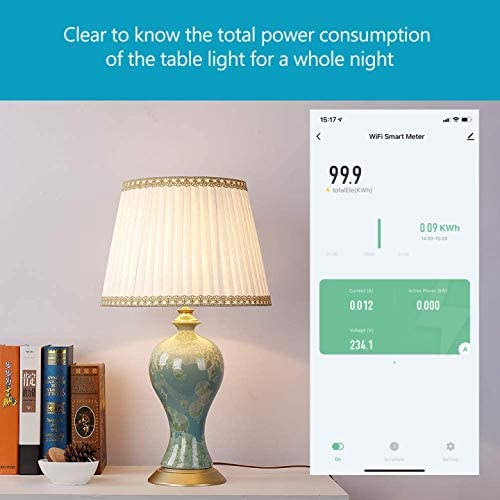
Image 4: App interface displaying real-time power consumption.

Image 5: Remote control of appliances via the smartphone app.
7.3 Scheduling and Timer Functions
Set up custom schedules and timers within the app to automate appliance operation. This feature helps in energy saving and convenience.

Image 6: Setting a schedule for a water heater in the app.
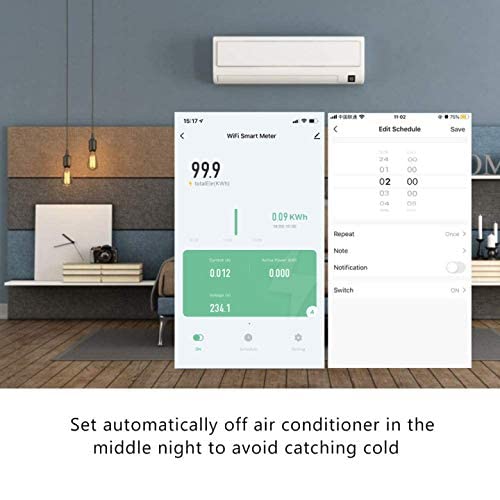
Image 7: Configuring an automatic off schedule for an air conditioner.
7.4 Voice Control
Integrate the eMylo Smart Meter with Amazon Alexa or Google Home for convenient voice control of connected devices.
7.5 Data Storage and Reset
The meter stores energy data even when power is off. To reset the energy consumption data, use the designated key or button on the device (refer to the specific model's physical interface for location).
8. Maintenance
- Keep the device clean and free from dust. Use a dry, soft cloth for cleaning.
- Do not use abrasive cleaners or solvents.
- Regularly check wiring connections for tightness and signs of wear.
- Ensure the operating environment remains within the specified temperature and humidity ranges.
9. Troubleshooting
- No Display: Check the power supply and ensure all input voltage connections are secure.
- Incorrect Readings: Verify the CT coil is correctly installed around a single load wire and that the wiring matches the diagram. Ensure the CT is not damaged.
- App Connection Issues: Ensure your smartphone is on a 2.4GHz Wi-Fi network. Restart the meter and your router. Re-attempt the pairing process in the app.
- Remote Control Not Working: Check your internet connection and the meter's Wi-Fi status in the app. Ensure the app is updated to the latest version.
10. Warranty and Support
For warranty information and technical support, please refer to the documentation included with your purchase or contact Yasorn customer service directly. Details can typically be found on the product packaging or the official Yasorn website.