
Bewinner Wireless Vertical Ergonomic Mouse User Manual
Model: Bewinnerh1va7douwn
Brand: Bewinner
1. Introduction
This manual provides comprehensive instructions for the setup, operation, maintenance, and troubleshooting of your Bewinner Wireless Vertical Ergonomic Mouse. Designed for comfort and efficiency, this mouse aims to reduce muscle strain and wrist pain associated with traditional mouse usage. Please read this manual carefully before using the product to ensure optimal performance and longevity.
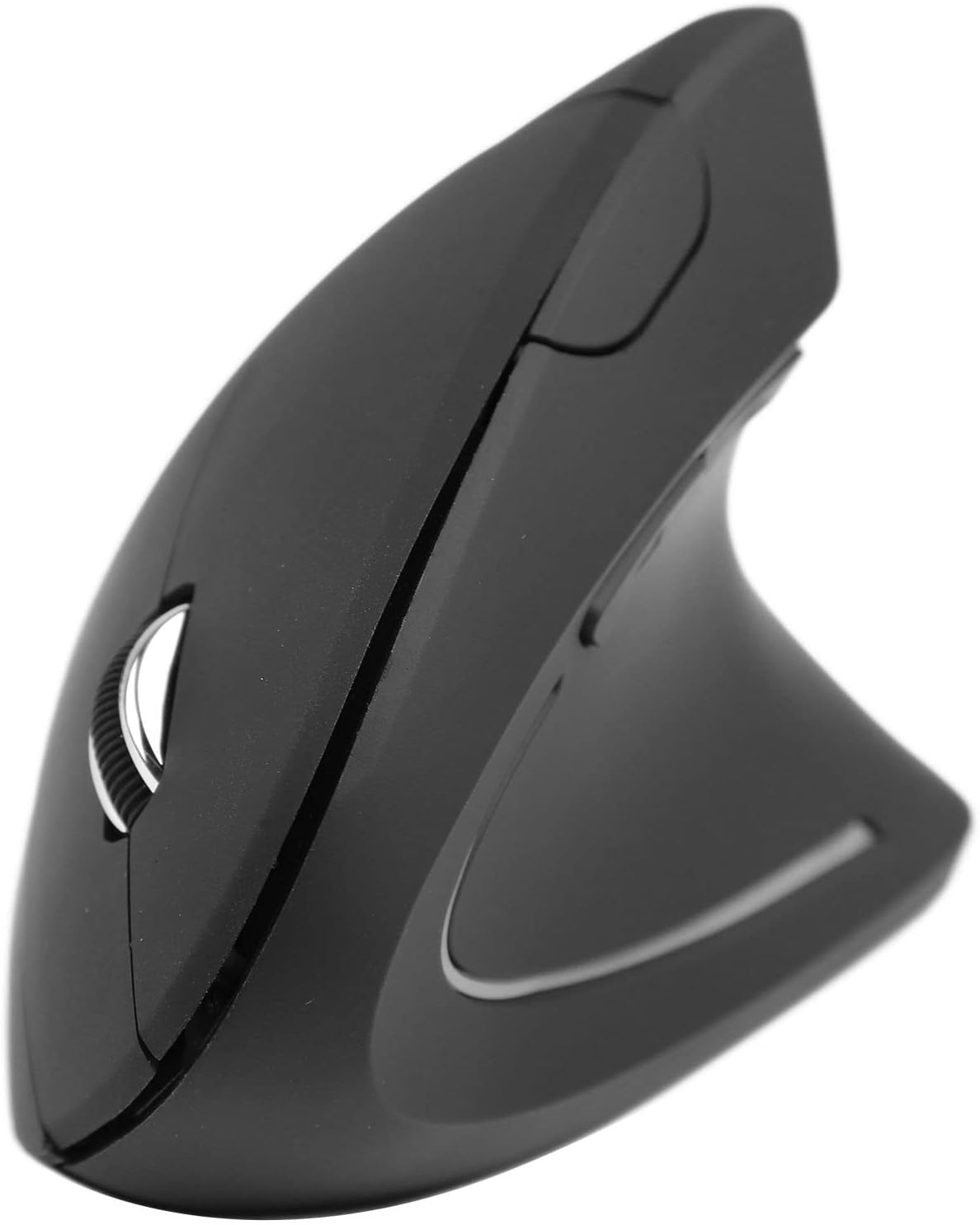
Side view of the Bewinner Wireless Vertical Ergonomic Mouse, highlighting its unique upright design.
2. Product Features
- Adjustable DPI: Supports DPI adjustment to meet various needs for work, gaming, and entertainment.
- Battery Powered: Operates on 2 AAA batteries, offering convenience for users.
- Ergonomic Design: Vertical design reduces muscle tension and wrist pain, fitting comfortably in your palm and maintaining a natural hand and arm position.
- 2.4G Wireless Connectivity: Ensures fast response and precise movement with reliable 2.4G wireless transmission.
- Multiple Buttons: Equipped with left/right click, scroll wheel, and forward/backward buttons for enhanced functionality.

A hand gripping the Bewinner Wireless Vertical Ergonomic Mouse, showcasing the natural, handshake-like grip that promotes ergonomic posture and reduces wrist strain.
3. Package Contents
Please check the package contents upon unboxing. If any items are missing or damaged, please contact customer support.
- Bewinner Wireless Vertical Ergonomic Mouse
- USB Receiver
- User Manual
4. Setup Guide
4.1. Installing Batteries
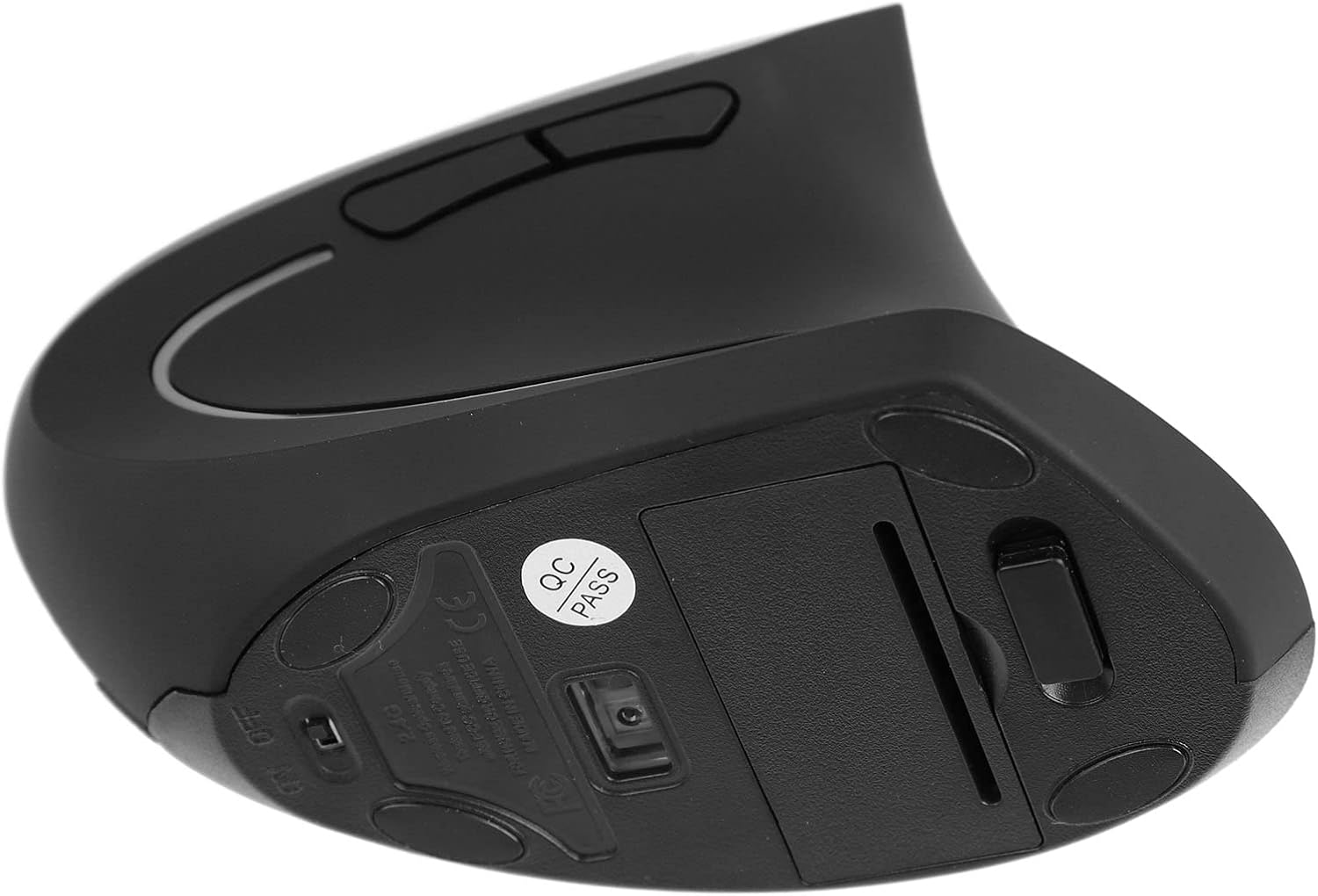
- Locate the battery compartment on the underside of the mouse.
- Open the battery compartment cover.
- Insert 2 AAA batteries, ensuring correct polarity (+/-).
- Close the battery compartment cover securely.

Underside view of the Bewinner Wireless Vertical Ergonomic Mouse, revealing the battery compartment and optical sensor.
4.2. Connecting the USB Receiver
- Take out the USB receiver from its storage slot, usually located near the battery compartment.
- Plug the USB receiver into an available USB port on your computer.
- The computer should automatically detect and install the necessary drivers. This may take a few moments.
- Once installed, the mouse is ready for use.
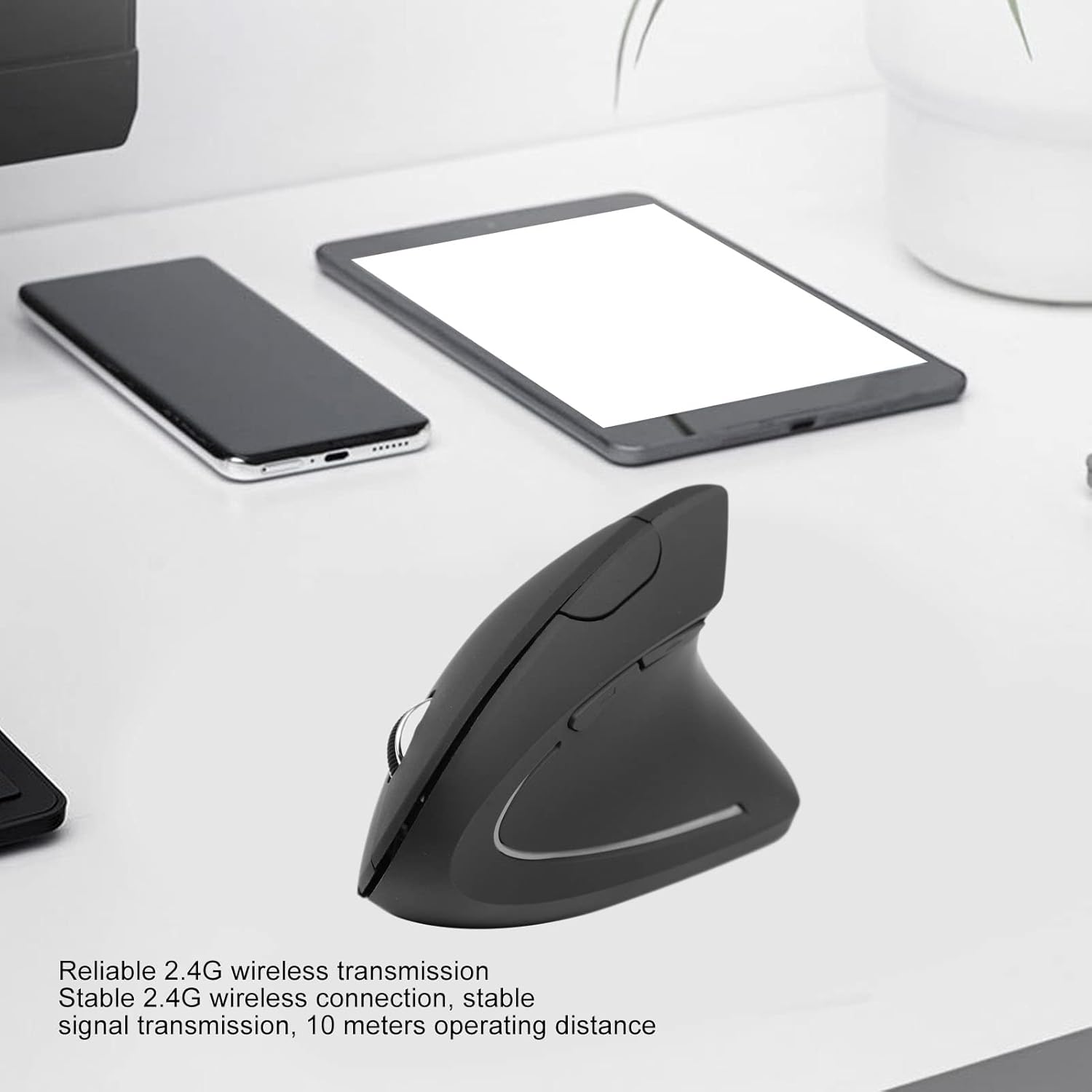
The Bewinner Wireless Vertical Ergonomic Mouse on a desk, demonstrating its wireless connectivity and compact size alongside other devices. This image illustrates the 2.4G wireless transmission capability.
5. Operating Instructions
5.1. Basic Functions
- Left Click: Primary button for selecting items and interacting with software.
- Right Click: Secondary button for context menus and additional options.
- Scroll Wheel: Roll up or down to scroll through documents and web pages. Press down for middle-click functionality (if supported by software).
Top-down view of the Bewinner Wireless Vertical Ergonomic Mouse, clearly showing the left/right click buttons and the scroll wheel.
5.2. DPI Adjustment
The mouse features an adjustable DPI setting, allowing you to change cursor sensitivity. Locate the DPI button, usually positioned near the scroll wheel or on the top of the mouse. Pressing this button will cycle through different DPI levels. Choose the sensitivity that best suits your task, whether it's precise graphic design or fast-paced gaming.
5.3. Forward/Backward Buttons
The forward and backward buttons, typically located on the side of the mouse accessible by your thumb, allow for quick navigation in web browsers and file explorers. Press the forward button to go to the next page/folder, and the backward button to return to the previous one.

A user operating the Bewinner Wireless Vertical Ergonomic Mouse with a laptop, illustrating how the ergonomic design helps reduce muscle strain and wrist pain by maintaining a comfortable hand and arm position.
6. Maintenance
- Cleaning: Use a soft, dry cloth to clean the mouse. For stubborn dirt, slightly dampen the cloth with water or a mild cleaning solution. Avoid harsh chemicals or abrasive materials.
- Battery Replacement: Replace batteries when the mouse performance degrades or it stops responding. Always use new AAA batteries and dispose of old ones responsibly.
- Storage: When not in use for extended periods, remove the batteries to prevent leakage. Store the mouse in a cool, dry place away from direct sunlight and extreme temperatures.
- USB Receiver: Keep the USB receiver in a safe place when not plugged into your computer, preferably in its designated storage slot on the mouse.
7. Troubleshooting
| Problem | Possible Cause | Solution |
|---|---|---|
| Mouse not responding | Low or dead batteries; USB receiver not connected; Driver issue. | Replace batteries; Ensure USB receiver is firmly plugged in; Try a different USB port; Restart your computer. |
| Cursor movement is erratic or jumpy | Dirty optical sensor; Uneven surface; Interference. | Clean the optical sensor with a soft cloth; Use the mouse on a clean, flat surface or mouse pad; Move closer to the USB receiver or away from other wireless devices. |
| Buttons not working | Software conflict; Physical damage. | Restart your computer; Test on another computer; If physically damaged, contact support. |
| Wireless connection issues | Distance from receiver; Interference; Receiver not paired. | Ensure mouse is within 10 meters of receiver; Reduce interference from other 2.4GHz devices; Re-pair the mouse if a pairing button is available (refer to specific pairing instructions if provided with product). |
8. Specifications
| Feature | Detail |
|---|---|
| Brand | Bewinner |
| Item Model Number | Bewinnerh1va7douwn |
| ASIN | B0C4Z1WN1Q |
| Connectivity | 2.4G Wireless |
| Power Source | 2 x AAA Batteries |
| DPI Adjustment | Supported |
| Country of Origin | China |
| Manufacturer | Bewinner |
| Spare Parts Availability | Information unavailable |
| Guaranteed Software Updates Until | Information unavailable |
9. Warranty and Support
For warranty information and customer support, please refer to the documentation included with your purchase or contact the seller directly. Keep your proof of purchase for any warranty claims.
While specific software update guarantees and spare parts availability information are not provided, Bewinner is committed to providing quality products. For any operational issues or technical assistance, please reach out to the retailer or manufacturer's support channels.