
Logitech MX Master 2S
Logitech MX Master 2S Bluetooth Wireless Mouse User Manual
Model: MX Master 2S (910-007219)
1. Introduction
This manual provides comprehensive instructions for the Logitech MX Master 2S Bluetooth Wireless Mouse. Designed for multi-device productivity, this ergonomic mouse offers advanced features such as Darkfield High Precision tracking, hyper-fast scrolling, and multi-computer control with Logitech Flow. Please read this manual thoroughly to ensure optimal use and longevity of your device.

Figure 1: The Logitech MX Master 2S Bluetooth Wireless Mouse in graphite color, showcasing its ergonomic design.
2. Setup
2.1. What's in the Box
Before you begin, ensure all components are present:
- Logitech MX Master 2S Wireless Mouse
- Charging Cable (USB-A to Micro-USB)
- User Documentation

Figure 2: The Logitech MX Master 2S mouse and its included USB charging cable, illustrating the product packaging.
2.2. Charging the Mouse
The MX Master 2S features a fast-rechargeable battery. Connect the included Micro-USB cable to the charging port on the front of the mouse and the other end to a USB power source (e.g., computer USB port, USB wall adapter). A full charge can last up to 70 days, and a 3-minute charge provides enough power for a full day of use.

Figure 3: The Logitech MX Master 2S mouse shown connected to its charging cable, highlighting its fast rechargeable battery feature.
2.3. Connecting to Your Computer
The MX Master 2S can connect to up to three devices via Bluetooth. Follow these steps to pair your mouse:
- Turn on the mouse using the On/Off switch located on the bottom.
- Press the Easy-Switch button (labeled 1, 2, or 3) on the bottom of the mouse to select a channel. The LED indicator for the selected channel will blink rapidly, indicating it's in pairing mode.
- On your computer (Mac or PC), open Bluetooth settings and search for new devices.
- Select "Logitech MX Master 2S" from the list of available devices to complete the pairing.
- Repeat for up to two additional devices, using different Easy-Switch channels.

Figure 4: The Logitech MX Master 2S mouse illustrating its compatibility with Bluetooth, Apple macOS, and Windows operating systems.

Figure 5: A diagram of the Logitech MX Master 2S mouse's underside, highlighting the Easy-Switch button for connecting to up to three different devices across various operating systems.
2.4. Installing Logitech Options Software (Recommended)
To unlock the full potential of your MX Master 2S, including button customization and Logitech Flow, download and install the Logitech Options software from the official Logitech website (www.logitech.com/options).

Figure 6: The Logitech Flow feature in action, demonstrating seamless cursor, text, and file transfer between multiple computers with different operating systems.
3. Operating the Mouse
3.1. Ergonomic Design
The MX Master 2S is crafted to support your hand and wrist in a comfortable, natural position, reducing strain during extended use.

Figure 7: Images depicting the meticulous design process, emphasizing how the Logitech MX Master 2S is crafted for ultimate comfort and ergonomic support.
3.2. Buttons and Wheels
The MX Master 2S features 7 customizable buttons and 2 wheels for enhanced control:
- Main Scroll Wheel: Speed-adaptive, switches between click-to-click and hyper-fast scrolling.
- Thumb Wheel: Provides side-to-side scrolling, useful for large spreadsheets or timelines.
- Customizable Buttons: Program buttons for specific functions using Logitech Options software.

Figure 8: The Logitech Options software interface, demonstrating how users can customize the 7 buttons and 2 wheels of the MX Master 2S mouse to suit their workflow.

Figure 9: A detailed diagram labeling key features of the Logitech MX Master 2S mouse, including Bluetooth connectivity, thumb wheel, thumb support, SmartShift hyper-fast scroll wheel, customizable buttons, and ergonomic design.
3.3. Darkfield High Precision Tracking
The MX Master 2S utilizes Darkfield High Precision tracking, allowing for flawless control on virtually any surface, including glass (minimum 4mm thickness).

Figure 10: The Logitech MX Master 2S mouse being used on a glass surface, demonstrating its Darkfield High Precision tracking capability.
3.4. Hyper-Fast Scrolling
The speed-adaptive scroll wheel automatically shifts between precise click-to-click scrolling and hyper-fast scrolling, allowing you to navigate long documents and web pages with ease.

Figure 11: A hand operating the Logitech MX Master 2S mouse, highlighting the hyper-fast scrolling wheel for quick navigation.
4. Maintenance
4.1. Cleaning
To maintain optimal performance, periodically clean your mouse. Use a soft, lint-free cloth slightly dampened with water or an electronics-safe cleaning solution. Avoid harsh chemicals or abrasive materials. Ensure no liquid enters the mouse openings.
4.2. Battery Care
The MX Master 2S uses a Lithium Polymer battery. For best battery life, avoid fully discharging the mouse frequently. Recharge when the battery indicator lights show low power. Store the mouse in a cool, dry place when not in use for extended periods.
5. Troubleshooting
5.1. Connectivity Issues
- Mouse not connecting: Ensure the mouse is turned on and the correct Easy-Switch channel is selected. Check your computer's Bluetooth settings to confirm the mouse is paired. Try re-pairing the mouse.
- Intermittent connection: Move the mouse closer to your computer. Ensure there are no large metal objects or other wireless devices interfering with the Bluetooth signal.
5.2. Lag or Unresponsive Mouse
- Mouse goes to sleep: The MX Master 2S may enter a low-power state after a period of inactivity. A slight movement should wake it up. If there's a noticeable delay (3-5 seconds), ensure your computer's Bluetooth drivers are up to date and consider installing Logitech Options software to manage power settings.
- Cursor erratic or not moving: Check the battery level and recharge if necessary. Ensure the optical sensor on the bottom of the mouse is clean and free of debris. Try using the mouse on a different surface.
5.3. Logitech Flow Not Working
- Ensure Logitech Options software is installed on all computers you wish to use with Flow.
- Verify that all computers are on the same network.
- Check firewall settings on all computers; they might be blocking Flow communication.
6. Specifications
| Feature | Detail |
|---|---|
| Brand | Logitech |
| Model Number | 910-007219 |
| Connectivity Technology | Bluetooth |
| Movement Detection Technology | Optical (Darkfield High Precision) |
| DPI Range | Up to 4,000 DPI |
| Special Features | Wireless, Hyper-Fast Scrolling, Ergonomic Design, Rechargeable, Multi-Device (Logitech Flow) |
| Battery Type | 1 Lithium Polymer battery (included) |
| Average Battery Life | Up to 70 days (2 months) |
| Item Weight | 5.1 ounces (145 g) |
| Product Dimensions (LxWxH) | 4.96 x 3.37 x 1.91 inches (12.6 x 8.57 x 4.84 cm) |
| Hardware Platform | PC |
| Operating System Compatibility | Mac OS, Windows |
| Color | Graphite |
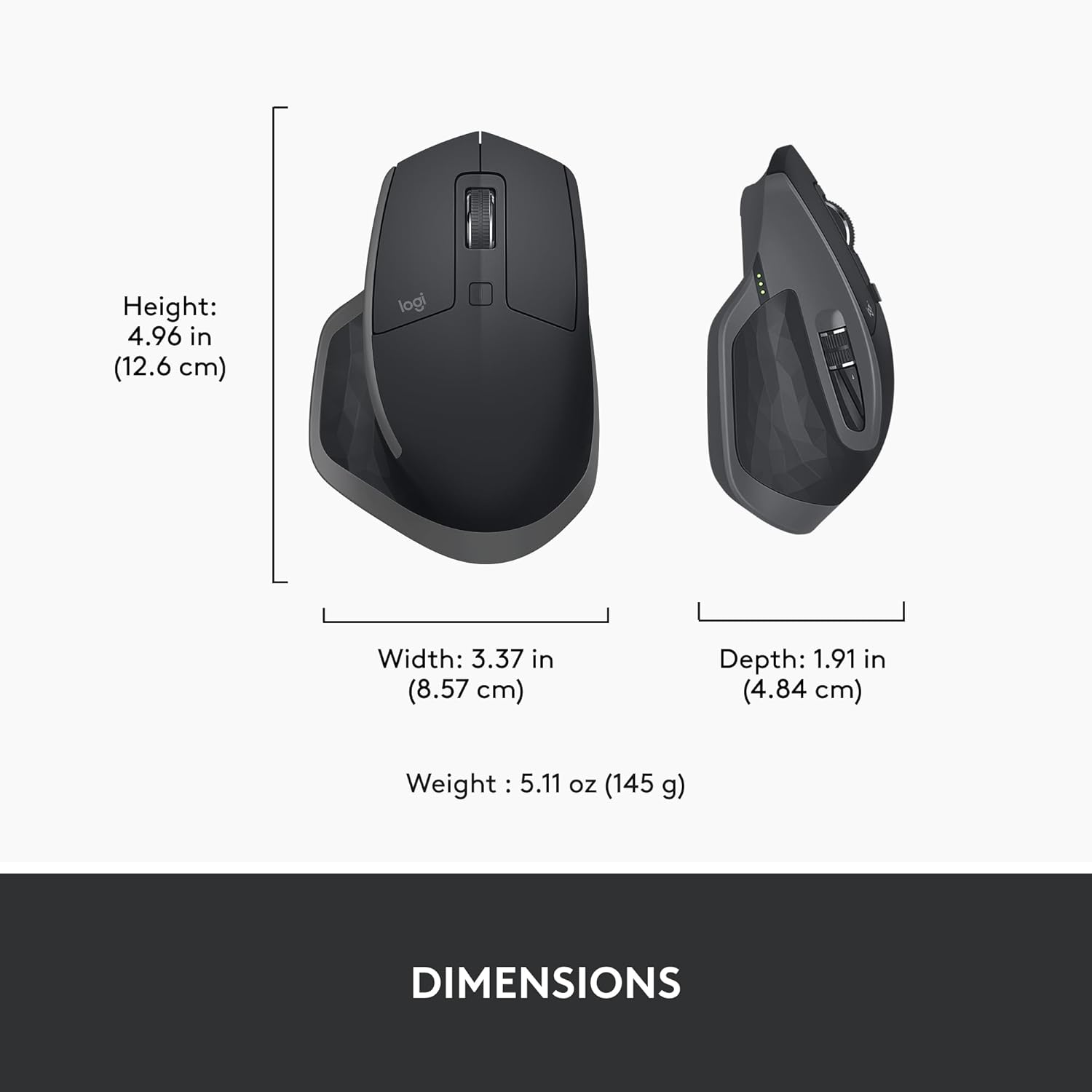
Figure 12: A diagram illustrating the height, width, depth, and weight of the Logitech MX Master 2S mouse.
7. Warranty and Support
7.1. Warranty Information
Logitech products typically come with a limited hardware warranty. For specific warranty terms and conditions applicable to your region and product, please refer to the warranty card included with your purchase or visit the official Logitech support website.
7.2. Customer Support
For further assistance, technical support, or to access FAQs and driver downloads, please visit the Logitech support website:
Related documentsMX Master 2S


Ask a question about this manual
Ask about setup, troubleshooting, compatibility, parts, safety, or missing instructions. Manuals+ will review the question and use this page’s manual context to help answer it.