
DOGAIN G-US-1st Pen-08-BK
DOGAIN Active Stylus Pen User Manual
Brand: DOGAIN | Model: G-US-1st Pen-08-BK
1. Introduction
Thank you for choosing the DOGAIN Active Stylus Pen. This manual provides detailed instructions for setting up, operating, and maintaining your stylus to ensure optimal performance across various touch screen devices. Please read these instructions carefully before use and retain them for future reference.
2. Package Contents
Please check the package for the following items:
- DOGAIN Active Stylus Pen
- USB-C Charging Cable
- Replacement Nibs (3 extra)
3. Product Overview
Familiarize yourself with the key features and components of your DOGAIN Active Stylus Pen.
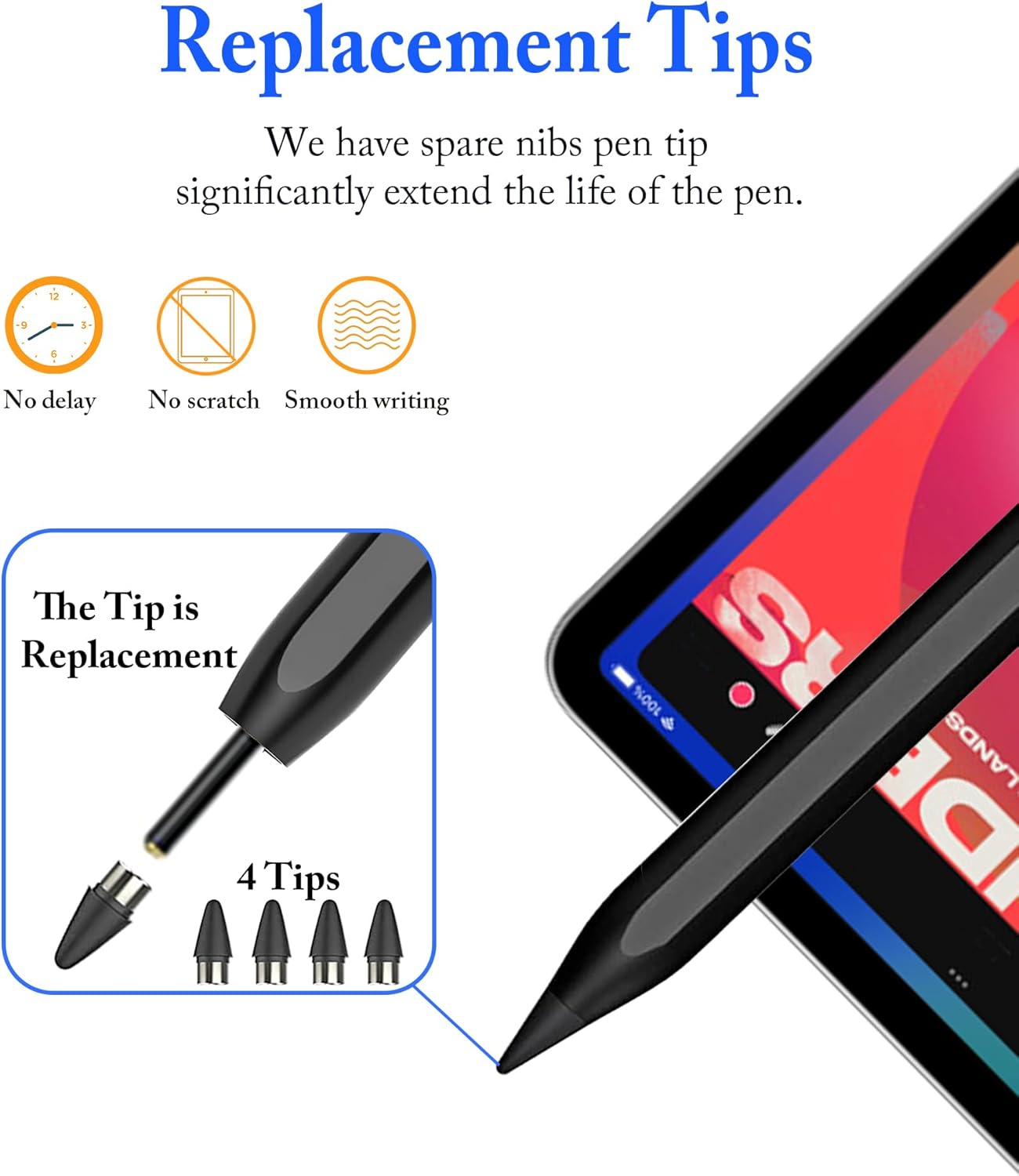
Figure 1: Stylus Pen Features. The pen includes a touch switch, Type-C charging port, indicator lights, aluminum alloy body, magnetic attraction, and a 1.5mm fine tip.
- Touch Switch: Double-tap the top to power on/off.
- Type-C Charging Port: For fast and convenient charging.
- Indicator Lights: Display battery level and charging status.
- Aluminum Alloy Body: Durable and comfortable design.
- Magnetic Attraction: Allows attachment to compatible tablet sides.
- 1.5mm Fine Tip: Provides precise and smooth writing/drawing.
4. Setup
4.1 Charging the Stylus
The stylus features a built-in lithium battery. For first-time use or when the battery is low, please charge the stylus:
- Connect the included USB-C charging cable to the Type-C charging port on the stylus.
- Connect the other end of the USB-C cable to a compatible USB power source (e.g., computer, wall adapter).
- A full charge takes approximately 60 minutes and provides up to 10 hours of continuous usage. The LED indicator lights will show the charging progress and current battery level.

Figure 2: Charging and Battery Display. The image illustrates the USB-C charging port and the LED indicators for battery status.
4.2 Power On/Off
The stylus is equipped with a smart touch switch:
- To turn on: Double-tap the top of the stylus (touch switch). The indicator lights will turn blue.
- To turn off: Double-tap the top of the stylus again. The indicator lights will turn off.
Video 1: Demonstrating how to turn the DOGAIN Stylus on and off by double-tapping the top.
4.3 Pairing
The DOGAIN Active Stylus Pen does not require Bluetooth pairing or any special drivers. Simply turn it on and it's ready to use with your compatible touch screen device.
5. Operating Instructions
5.1 Writing and Drawing
The 1.5mm POM tip is designed for a smooth, precise, and unhindered writing and drawing experience. Its high sensitivity and wear resistance ensure excellent performance for various tasks.

Figure 3: High Sensitivity and Smooth Writing. The stylus provides a fluid experience for writing and drawing.
5.2 Magnetic Attachment
The stylus features a magnetic design, allowing it to attach to the side of compatible tablets for convenient storage. This prevents the stylus from rolling away and helps keep it easily accessible.
6. Compatibility
The DOGAIN Active Stylus Pen is designed for wide compatibility with most capacitive touch screen devices.
6.1 Compatible Devices
Compatible with almost all models of:
- iPad Air/iPad Mini/iPad Pro/iPhone Pro/MAX
- Lenovo, Huawei, and other iOS and Android smartphones and tablet devices.
6.2 Devices Supporting Magnetic Adsorption
The magnetic adsorption function is supported by:
- iPad Pro 12.9" (3rd/4th/5th generation)
- iPad Pro 11"
- iPad Air 4
- iPad Mini 6
6.3 Not Compatible With
Please note the following incompatibilities:
- Xiaomi Pad 5/6
- Windows system laptops (may experience response delays and incompatibilities).

Figure 4: Compatible and Incompatible Models. A visual guide to device compatibility.
7. Maintenance
7.1 Replacing Nibs
The stylus comes with three additional wear-resistant replaceable plastic nibs to ensure long-term use. To replace a nib:
- Gently twist the old tip counter-clockwise to remove it.
- Insert a new tip and twist it clockwise until it is securely in place.

Figure 5: Replacing the Stylus Tip. The image demonstrates the simple process of changing the nib.
7.2 Cleaning
To clean your stylus, gently wipe the body with a soft, dry cloth. Avoid using harsh chemicals, abrasive cleaners, or submerging the stylus in water.
8. Troubleshooting
If you encounter any issues with your DOGAIN Active Stylus Pen, please refer to the following common solutions:
- Stylus not responding:
a. Ensure the stylus is fully charged. Check the indicator lights.
b. Confirm the stylus is turned on by double-tapping the top.
c. Restart your tablet or smartphone.
d. If using on a Windows device, be aware that some response delays or incompatibilities may occur. - Inaccurate or inconsistent input:
a. Check if the nib is securely attached and not worn. Replace it with a new one if necessary.
b. Ensure your device's screen is clean and free of any debris or smudges.
c. Verify that your device is listed as compatible in Section 6. - Magnetic attachment not working:
a. Confirm your tablet model supports magnetic adsorption (e.g., iPad Pro 12.9" (3rd/4th/5th gen), iPad Pro 11", iPad Air 4, iPad mini 6).
If the problem persists after trying these steps, please contact customer support.
9. Specifications
| Model Number | G-US-1st Pen-08-BK |
| Length | 165 mm |
| Diameter | 9.00 mm |
| Nib Size | 1.5 mm |
| Weight | 13.5 g |
| Charging Interface | Type-C USB |
| Charging Specification | 5V/0.2A |
| Charging Time | Approx. 60 minutes |
| Continuous Use Time | Up to 10 hours |
| Standby Time | Up to 65 days |
| Battery Type | Built-in Lithium-Ion |
| Material | Copper |
10. Warranty & Support
10.1 Warranty Information
The DOGAIN Active Stylus Pen comes with a 6-month warranty from the date of purchase. This warranty covers manufacturing defects under normal use. It does not cover damage caused by misuse, accidents, unauthorized modifications, or normal wear and tear.
10.2 Customer Support
For any questions, technical assistance, or warranty claims, please contact DOGAIN customer support. Our team is dedicated to providing you with the best possible service.
Thank you for choosing DOGAIN.
Ask a question about this manual
Ask about setup, troubleshooting, compatibility, parts, safety, or missing instructions. Manuals+ will review the question and use this page’s manual context to help answer it.