
Rii RK801
Contents
Rii Wireless Bluetooth and 2.4GHz Backlight Slim Keyboard Instruction Manual
Model: RK801

The Rii Wireless Bluetooth and 2.4GHz Backlight Slim Keyboard, featuring a phone holder and multi-device connectivity.
Introduction
Thank you for choosing the Rii Wireless Bluetooth and 2.4GHz Backlight Slim Keyboard. This versatile keyboard is designed for seamless connectivity across multiple devices, offering a comfortable typing experience with its ergonomic design and vibrant RGB backlighting. This manual provides detailed instructions for setup, operation, maintenance, and troubleshooting to ensure optimal performance.
Package Contents
- Rii Wireless Bluetooth and 2.4GHz Backlight Slim Keyboard
- USB Charging Cable
- 2.4G USB Receiver (stored in the keyboard)
- Keycap Puller
- User Manual (this document)
Setup Guide
1. Initial Charging
Before first use, ensure the keyboard is fully charged. The built-in 2700mA battery can be fully charged in 2-3 hours. A full charge provides approximately 18 hours of use with backlighting or 180 hours without backlighting.
- Locate the charging port on the keyboard (refer to the diagram in the Specifications section).
- Connect the provided USB charging cable to the keyboard and a power source (e.g., computer USB port, USB wall adapter).
- The charging indicator light will show charging status and turn off when fully charged.

This diagram illustrates the location of the charging port and other features.
2. Connecting Your Devices (3 Connection Modes)
The Rii keyboard supports three connection modes: one 2.4G USB connection for PCs/laptops and two Bluetooth 5.0 connections (BT1 and BT2) for mobile phones, tablets, or other Bluetooth-enabled devices. You can switch between connected devices at any time.

Visual representation of the three connection modes: 2.4G USB for laptops/PCs, and Bluetooth 5.0 (BT1/BT2) for smartphones/tablets.
2.1. 2.4GHz USB Connection (for PC/Laptop)
- Locate the 2.4G USB receiver, usually stored in a magnetic slot on the keyboard (refer to the diagram in the Specifications section).
- Plug the 2.4G USB receiver into an available USB port on your PC or laptop.
- Turn on the keyboard using the ON/OFF switch.
- Press the 2.4G key on the keyboard to activate the 2.4G mode. The indicator light will confirm the connection.
- Your keyboard should now be ready for use.
2.2. Bluetooth 5.0 Connection (for Smartphone/Tablet/Laptop)
The keyboard offers two independent Bluetooth channels (BT1 and BT2) for connecting to different devices.
- Turn on the keyboard using the ON/OFF switch.
- Press and hold either the BT1 or BT2 key for 3-5 seconds until the corresponding indicator light flashes rapidly. This indicates pairing mode.
- On your device (smartphone, tablet, or laptop), go to Bluetooth settings and search for new devices.
- Select "BLE Keyboard" from the list of available devices.
- Once connected, the indicator light on the keyboard will stop flashing and remain solid.
- Repeat the process for the other Bluetooth channel (BT1 or BT2) to connect a second device.
Note: For iOS devices, ensure AssistiveTouch function is turned on before pairing.
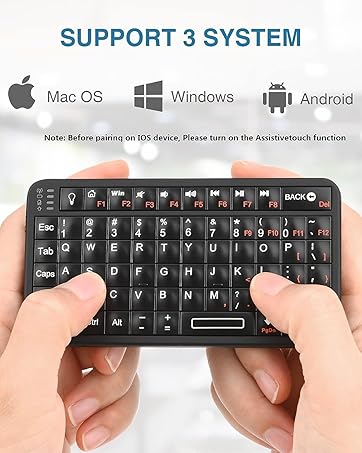
The keyboard is compatible with Mac OS, Windows, and Android systems.
This video demonstrates the Rii Bluetooth Keyboard's features, including its multi-device connectivity and the integrated phone holder. It shows how to connect to different devices and highlights the keyboard's design.
Operating Instructions
1. Switching Between Devices
To switch between connected devices, simply press the corresponding connection key:
- Press 2.4G to switch to the device connected via the USB receiver.
- Press BT1 to switch to the device connected via Bluetooth Channel 1.
- Press BT2 to switch to the device connected via Bluetooth Channel 2.
2. Backlight Control
The keyboard features a vibrant RGB backlight with multiple colors and display modes.

This image illustrates the colorful RGB backlight and the keys used for control.
- To turn the backlight ON/OFF: Long press the RGB key.
- To switch light color/mode: Short press the RGB key. There are 7 solid colors and 3 mixed color ripple backlight modes (mixed color breathing light, left-to-right wave, click flicker).
- To adjust brightness: Press Fn + UP/DOWN arrow keys. There are 3 adjustable brightness levels.
Tip: The backlight and indicator lights will automatically extinguish after 3 minutes of inactivity to save power. Press any key to wake them up.
3. Integrated Phone/Tablet Holder
The keyboard includes a convenient, adjustable hidden bracket for holding your smartphone or tablet, enhancing your multi-device workflow.

The hidden phone and tablet holder can be easily pulled out for use and retracted when not needed.
- Gently pull out the hidden bracket from the top edge of the keyboard.
- Adjust the bracket to one of the two available levels for optimal viewing angle.
- Place your smartphone or tablet into the holder.
- When not in use, push the bracket back into the keyboard until it is flush.
4. Typing Experience
The Rii keyboard is designed for comfortable and quiet typing.
- Spherical Keycaps: The keycaps are spherically dished to fit the shape of your fingertips, providing a comfortable typing experience.
- Mechanical Scissor Keys: Utilizes scissor-switch mechanisms for a more solid feel, shorter key travel, and reduced noise compared to ordinary key structures. This results in a more responsive and comfortable typing experience.

Close-up of a spherical keycap, designed for comfortable typing.

Illustration of the mechanical scissor key mechanism for quiet and responsive typing.
Maintenance
- Cleaning: Use a soft, dry cloth to wipe the keyboard surface. For deeper cleaning, use a slightly damp cloth with mild soap, ensuring no liquid enters the keys or ports.
- Battery Care: To prolong battery life, avoid fully discharging the keyboard frequently. Recharge when the low battery indicator appears. If storing for a long period, charge the keyboard to about 50% and turn it off.
- Storage: Store the keyboard in a cool, dry place away from direct sunlight and extreme temperatures.
- USB Receiver: Always store the 2.4G USB receiver in its magnetic slot when not in use to prevent loss.
Troubleshooting
- Keyboard not connecting/unstable connection:
- Ensure the keyboard is fully charged. Low battery can cause connection issues.
- Make sure the correct connection mode (2.4G, BT1, or BT2) is selected on the keyboard.
- For Bluetooth, ensure your device's Bluetooth is enabled and "BLE Keyboard" is selected. Try unpairing and re-pairing.
- For 2.4G, try plugging the USB receiver into a different USB port on your computer.
- Restart both the keyboard (turn off/on) and your connecting device.
- Backlight not working or dim:
- Ensure the keyboard is charged. Backlight consumes more power.
- Long press the RGB key to ensure the backlight is turned on.
- Adjust brightness using Fn + UP/DOWN arrow keys.
- Keys not responding or double typing:
- Ensure the keyboard is fully charged and connected stably.
- If the keyboard has been idle, press any key to wake it up before typing.
- Clean around the affected keys with compressed air to remove any debris.
Product Specifications
| Feature | Detail |
|---|---|
| Product Dimensions | 17.4 x 5.4 x 0.8 inches |
| Item Weight | 1.65 pounds |
| Manufacturer | Rii |
| Model Number | RK801 |
| Batteries | 1 Lithium Polymer battery (included) |
| Connectivity Technology | 2.4Ghz, Bluetooth 5.0 (BT1, BT2) |
| Compatible Devices | Laptop, PC, Smartphone, Tablet (Mac/Windows/Chrome/Linux/iPad OS) |
| Keyboard Description | Multi Functional |
| Special Features | Backlit (RGB), Hotkeys and Media Keys, Multi-mode, Phone Holder, Rechargeable |
| Color | Black |
| Number of Keys | 110 |
| Keyboard Backlighting Color Support | RGB |
Warranty and Support
Rii is committed to providing high-quality products. This keyboard comes with a 12-month warranty against product breakdown caused by quality defectiveness, excluding artificial damage or abnormal operation.
For any product inquiries, technical support, or warranty claims, please contact Rii customer service through the platform where you purchased the product or visit the official Rii website for contact information.
Ask a question about this manual
Ask about setup, troubleshooting, compatibility, parts, safety, or missing instructions. Manuals+ will review the question and use this page’s manual context to help answer it.