
1. Introduction
This manual provides essential information for the safe and efficient use of your Panasonic TX-55MX700E 55-inch 4K Ultra HD LED Smart TV. This television integrates Google TV, offering access to a wide range of streaming services and applications. It supports advanced visual technologies like HDR10, Dolby Vision, and HLG, alongside immersive audio with Dolby Atmos. For gaming, features such as Auto Low Latency Mode (ALLM) and Variable Refresh Rate (VRR) are included via HDMI 2.1.
2. Safety Information
Please read all safety instructions before operating the television. Keep this manual for future reference.
- Power Supply: Connect the TV only to an AC 220-240V, 50Hz power outlet. Ensure the power cord is not damaged or pinched.
- Ventilation: Do not block ventilation openings. Allow adequate space around the TV for proper airflow to prevent overheating.
- Liquids: Do not expose the TV to rain or moisture. Do not place objects filled with liquids, such as vases, on the TV.
- Cleaning: Unplug the TV before cleaning. Use a soft, dry cloth. Avoid liquid cleaners or aerosol sprays.
- Mounting: Ensure the TV is installed on a stable surface or securely mounted to a wall using a VESA-compatible bracket (200 x 200 mm).
- Batteries: The remote control requires 2 AA batteries. Ensure correct polarity when inserting.
3. Package Contents
Verify that all items are present in the box:
- Panasonic TX-55MX700E 55-inch 4K Ultra HD LED Smart TV
- Remote Control
- TV Stand (Central)
- Power Cable
- 2 x AA Batteries
- User Manual (this document)
4. Setup
4.1 Physical Setup
You can set up your TV using the included central stand or by wall-mounting it.
Attaching the Central Stand
- Carefully place the TV screen-down on a soft, flat surface to prevent damage.
- Align the central stand with the mounting holes on the bottom of the TV.
- Secure the stand using the provided screws. Ensure it is firmly attached.
- Carefully lift the TV to its upright position on a stable, level surface.
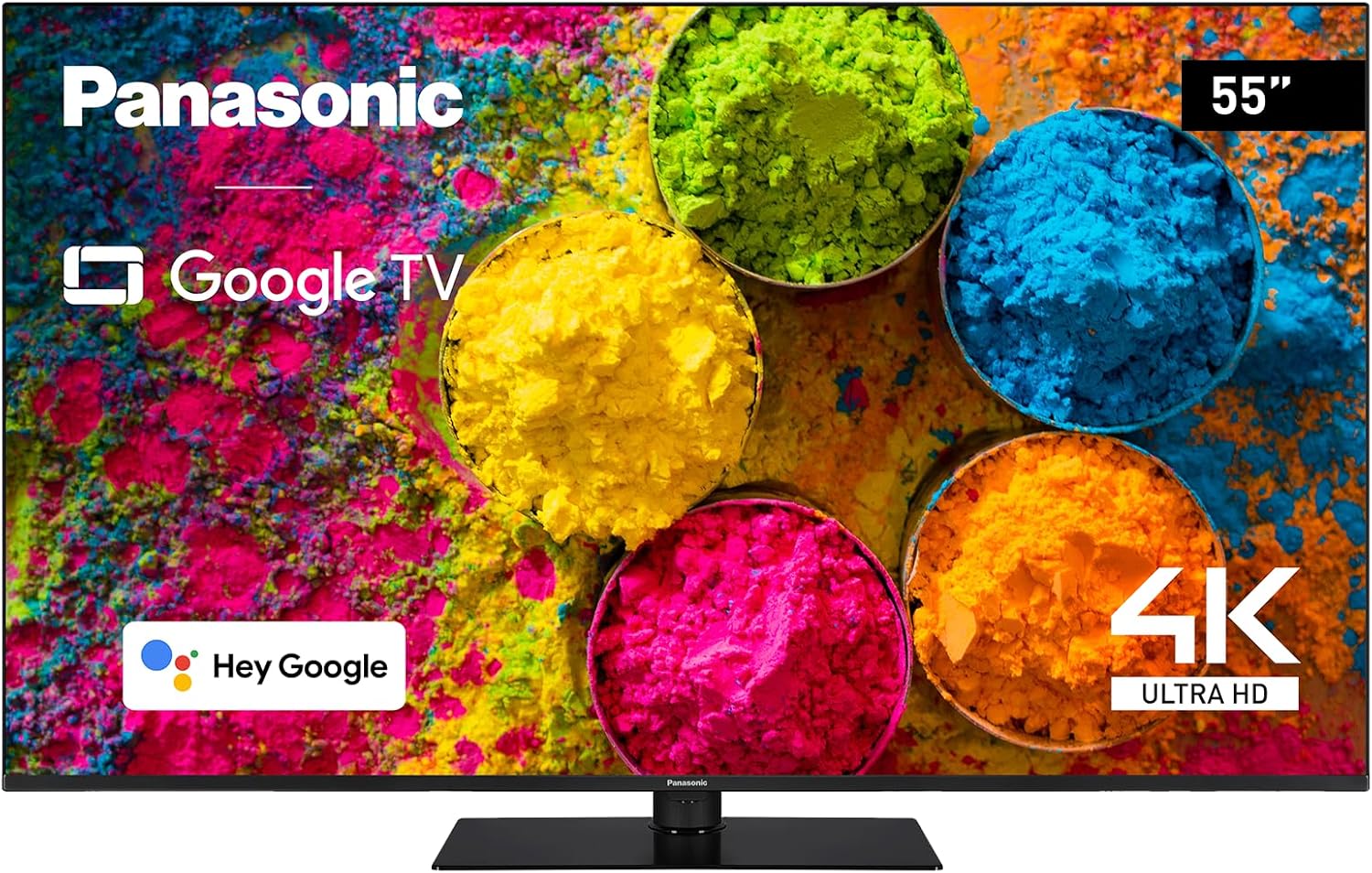
Figure 4.1: Front view of the Panasonic TX-55MX700E with central stand.
Wall Mounting
If you choose to wall-mount the TV, use a VESA-compatible wall mount (200 x 200 mm) and follow the instructions provided with your wall mount. Professional installation is recommended.
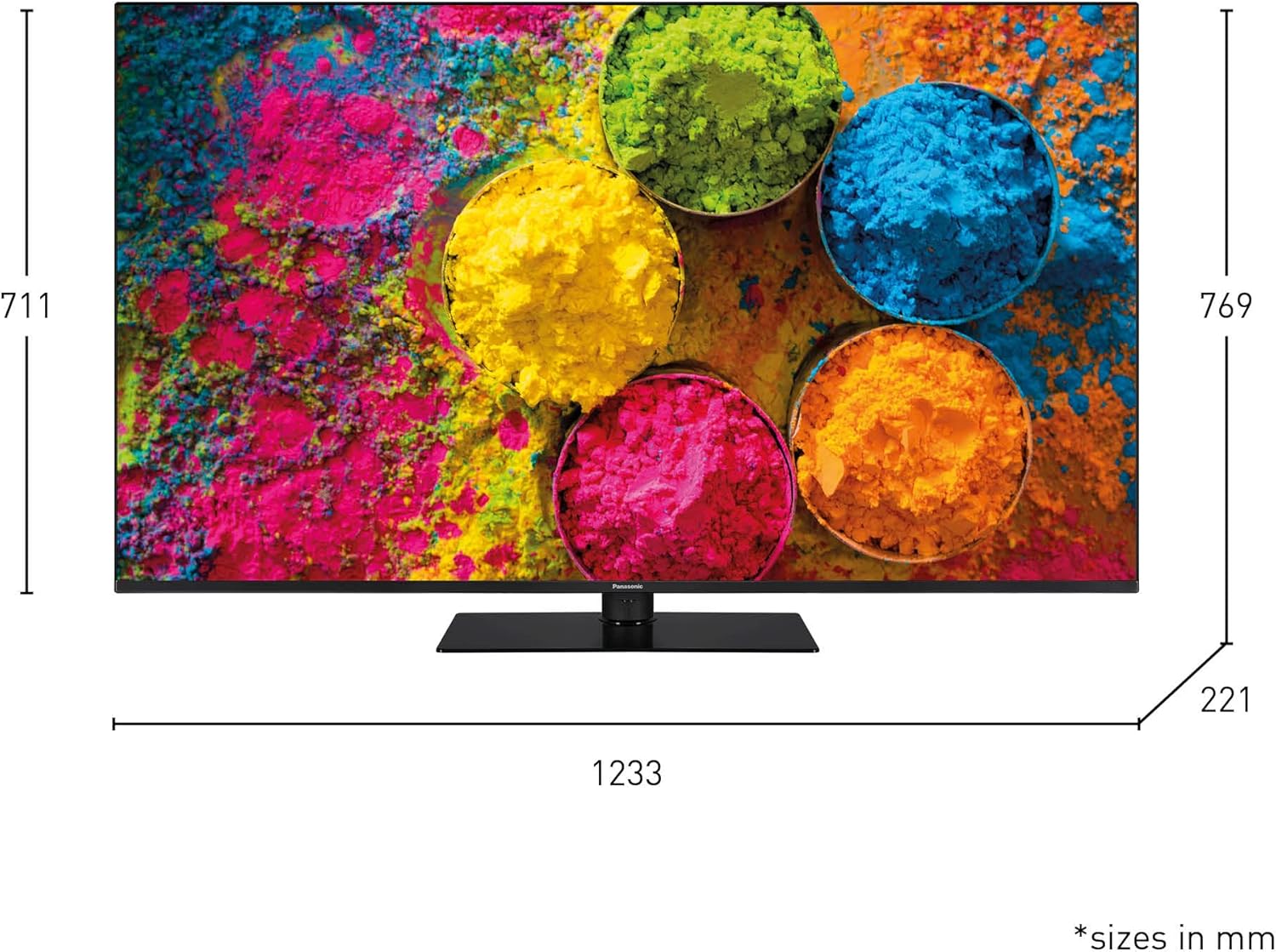
Figure 4.2: TV dimensions (in mm) for mounting reference.
4.2 Connections
Connect your external devices to the appropriate ports on the back of the TV.
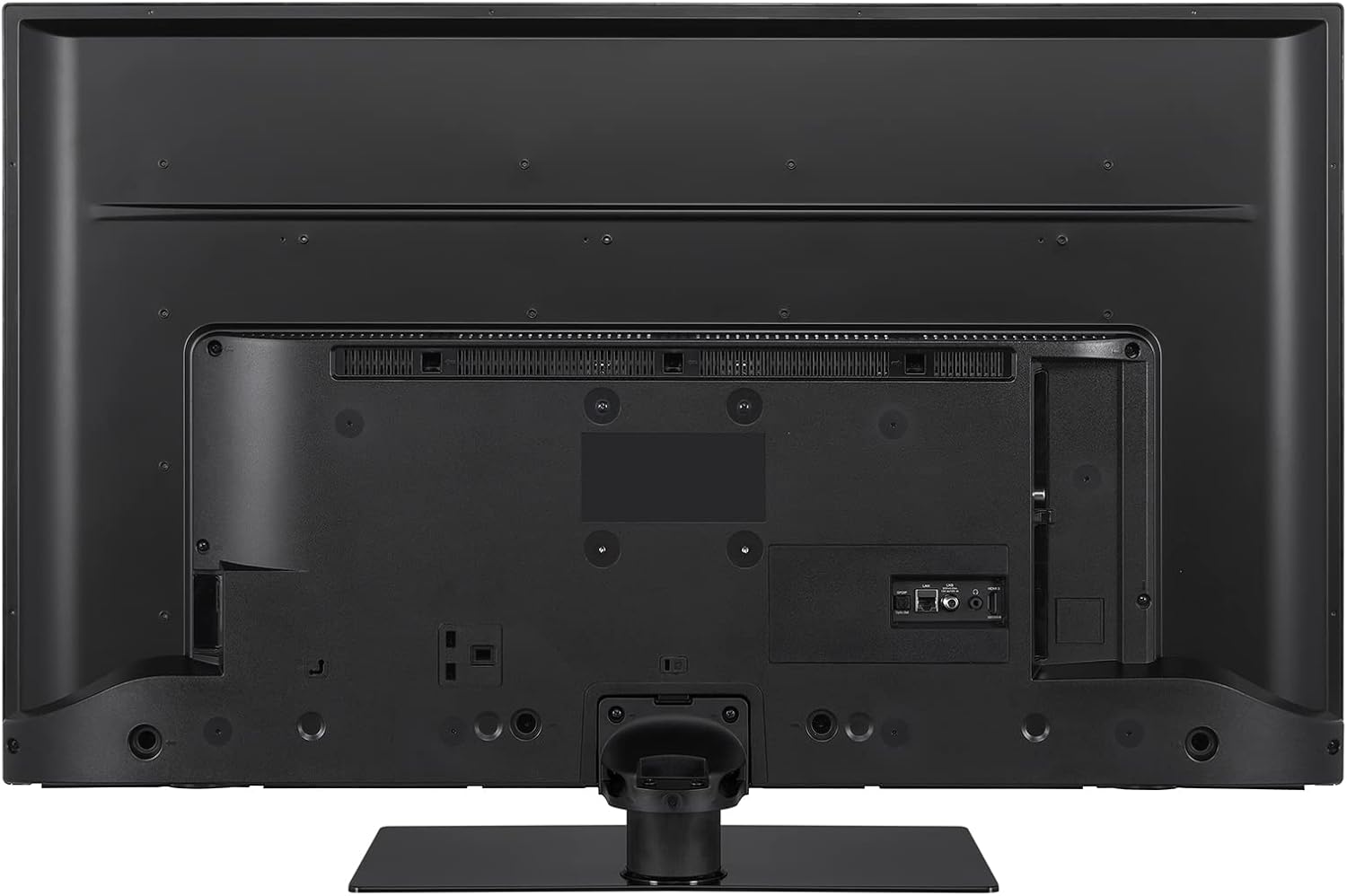
Figure 4.3: Rear view of the TV with port locations.
- HDMI Ports: Connect Blu-ray players, game consoles, and other HDMI-enabled devices. This model supports HDMI 2.1 features like ALLM and VRR.
- USB Ports: Connect USB storage devices for media playback.
- Optical Digital Audio Out (SPDIF): For connecting to a soundbar or AV receiver.
- Ethernet (RJ45): For a wired internet connection.
- CI Slot: For Conditional Access Modules (CAM) from your broadcast provider.
- Headphone Output: For connecting headphones.
4.3 Initial Power On and Configuration
- Plug the power cable into the TV and then into a wall outlet.
- Press the power button on the remote control or on the TV.
- Follow the on-screen instructions to select your language, country, and connect to your Wi-Fi network.
- Sign in with your Google account to access Google TV features, download apps, and personalize your experience.
- Complete the channel scan for over-the-air or cable broadcasts.
5. Operating the TV
5.1 Remote Control
The included remote control allows you to navigate the TV's interface. It features dedicated buttons for popular streaming services and a microphone for voice commands.
- Voice Control: Press the Google Assistant button on your remote and speak into the microphone to search for content, control smart home devices, or get information.
- Navigation: Use the directional pad and OK button to move through menus and select options.
5.2 Google TV Interface
Google TV organizes movies, shows, and live TV from your various apps and subscriptions into a single, personalized interface. You can discover new content based on your viewing habits and interests.
- Home Screen: Provides personalized recommendations, quick access to your favorite apps, and a watchlist.
- Apps: Download and manage applications from the Google Play Store.
5.3 Smart Features
- Google Assistant: Built-in voice assistant for hands-free control and information retrieval.
- Chromecast Built-in: Cast movies, shows, photos, and more from your phone, tablet, or laptop directly to your TV.
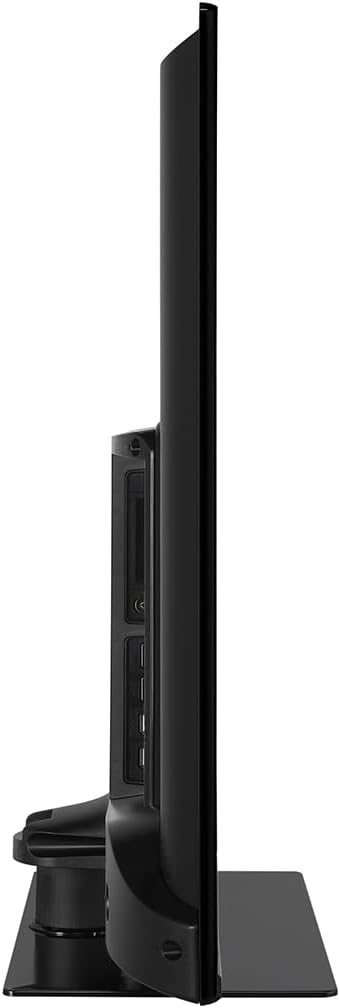
Figure 5.1: Using Chromecast to display content from a mobile device.
5.4 Picture and Sound Settings
Access the TV settings menu to adjust picture and sound to your preference.
- HDR Support: The TV supports HDR10, Dolby Vision, and HLG for enhanced contrast and color. Ensure your content source also supports these formats for optimal viewing.
- Dolby Atmos: Integrated speakers with Dolby Atmos technology provide immersive, multi-dimensional sound.
5.5 Gaming Features
For an optimized gaming experience, the TV includes:
- Auto Low Latency Mode (ALLM): Automatically switches the TV to a low-latency mode when a game console is detected, reducing input lag.
- Variable Refresh Rate (VRR): Synchronizes the TV's refresh rate with the game console's frame rate to eliminate screen tearing and stuttering.
6. Maintenance
6.1 Cleaning
- Screen: Gently wipe the screen with a soft, dry, lint-free cloth. For stubborn marks, slightly dampen the cloth with water (do not spray directly on the screen).
- Cabinet: Wipe the TV cabinet with a soft, dry cloth.
- Avoid: Do not use abrasive cleaners, waxes, or solvents as they can damage the TV's finish.
6.2 Software Updates
Your TV may receive software updates periodically to improve performance and add new features. Ensure your TV is connected to the internet to receive these updates automatically or check for them manually in the settings menu.
7. Troubleshooting
If you encounter issues, refer to the following common solutions:
| Problem | Possible Solution |
|---|---|
| No power | Check if the power cable is securely connected to the TV and the wall outlet. Ensure the outlet has power. Try a different outlet. |
| No picture, but sound is present | Check the input source. Ensure external devices are powered on and connected correctly. Try restarting the TV. |
| No sound, but picture is present | Check the volume level and mute status. Verify audio output settings (e.g., internal speakers, external soundbar). |
| Remote control not working | Replace the batteries. Ensure there are no obstructions between the remote and the TV. Re-pair the remote if it's a Bluetooth model. |
| Cannot connect to Wi-Fi | Check your router and modem. Ensure the Wi-Fi password is correct. Try restarting the TV and your network equipment. |
| Slow performance or app crashes | Restart the TV. Clear cache for problematic apps. Ensure the TV software is up to date. |
If the problem persists after trying these solutions, please contact Panasonic customer support.
8. Specifications
| Feature | Detail |
|---|---|
| Model Number | TX-55MX700E |
| Screen Size | 55 Inches |
| Display Technology | LED |
| Resolution | 4K Ultra HD (3840 x 2160) |
| Refresh Rate | 60 Hz |
| HDR Formats Supported | HDR10, Dolby Vision, HLG |
| Audio Output Mode | Dolby Atmos |
| Operating System | Google TV |
| Connectivity | Wi-Fi, Bluetooth, HDMI (multiple), USB (multiple), Ethernet, Optical Audio Out |
| Special Features | Chromecast Built-in, Google Assistant, ALLM, VRR |
| Dimensions (W x H x D) with Stand | 123.3 cm x 76.9 cm x 22.1 cm |
| Weight (without stand) | 17 Kilograms |
| VESA Mounting Standard | 200 x 200 mm |
| Power Consumption | 64 kWh (typical) |
9. Warranty Information
This Panasonic TX-55MX700E television comes with a Standard warranty. Please refer to the warranty card included in your product packaging or visit the official Panasonic website for detailed terms and conditions specific to your region.
10. Support
For further assistance, technical support, or service inquiries, please visit the official Panasonic support website or contact your local Panasonic customer service center. You can find contact details and FAQs on the Panasonic website: