
1. Introduction
This manual provides comprehensive instructions for the JRHC 1D HC-652WL Wireless Laser Barcode Scanner. This device offers both 2.4GHz wireless and USB wired connectivity, designed for efficient 1D barcode scanning in various environments such as retail, warehouses, and offices. Please read this manual thoroughly before operating the scanner to ensure proper use and optimal performance.

Image: The JRHC 1D Wireless Barcode Scanner with its charging base, highlighting its dual connectivity options: 2.4GHz Wireless and USB 2.0 Wired.
2. Product Features
- Dual Connectivity: Supports both 2.4GHz wireless and USB wired connections for versatile use. The USB connecting base acts as a receiver, eliminating the need for Bluetooth pairing.
- Plug and Play: No software or driver installation required. Connect via USB cable or receiver to a computer or POS system.
- Vibration Function: Provides tactile feedback, useful in noisy environments where audible beeps may be missed.
- Smart Charging Stand: The included base charges the scanner's 2000mAh Li-Ion battery and facilitates wireless transmission. A full charge provides up to 48 hours of continuous scanning.
- Durable Design: Constructed with tough plastic and anti-shock silicone (IP54 rated) to withstand drops up to 5 ft (1.5m).
- High Performance Scanning: Equipped with a 32-bit CPU, offering a scanning speed of up to 300 scans per second. Accurately reads 1D barcodes from paper and products, including code128, UPC/EAN Add on 2 or 5, and even deformed, smudged, damaged, fuzzy, or reflective codes.
- Ergonomic Design: Light and comfortable to hold, with an ergonomically designed handle for extended use.
- Multiple Configuration Options: Customizable settings include hiding barcode characters, adding prefixes or suffixes, and adjusting volume.
- Wide Compatibility: Compatible with Windows, Mac, and Linux operating systems, and works with common software like Quickbook, Word, Excel, and Novell.
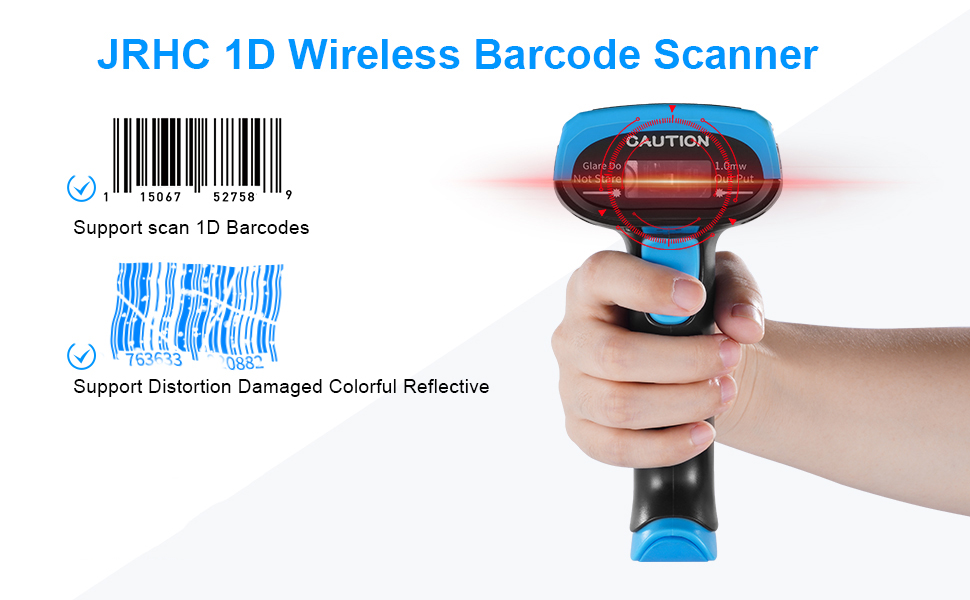
Image: The JRHC 1D Wireless Barcode Scanner demonstrating its ability to scan various 1D barcodes, including those that are distorted, damaged, or reflective. Examples of scannable barcodes include 0004679678447 and 3763633920882.

Image: The barcode scanner featuring anti-shock silicone (IP54) to prevent damage from collisions or drops, illustrating its robust construction.
3. Setup
3.1 Charging the Scanner
Before first use, fully charge the scanner. Place the scanner into its charging stand. Connect the charging stand to a power source using the provided USB cable. The indicator light on the scanner will show charging status.

Image: The barcode scanner securely placed in its charging stand, ready for charging or wireless operation.
3.2 Connecting via USB Wired Mode
- Connect the USB cable directly from the scanner to an available USB port on your computer or POS system.
- The system will automatically detect and install the necessary drivers.
- Once installed, the scanner is ready for use.
3.3 Connecting via 2.4GHz Wireless Mode
- Ensure the scanner is charged.
- Plug the USB receiver (integrated into the charging stand) into an available USB port on your computer or POS system.
- The system will automatically detect and install the necessary drivers for the receiver.
- The scanner and receiver are pre-paired from the factory. If re-pairing is needed, refer to the troubleshooting section or the quick setup guide included in the packaging.
- The scanner is now ready for wireless operation.
4. Operating Instructions
4.1 Basic Scanning
Point the scanner's laser beam at the barcode you wish to scan. Press the trigger button. A successful scan will typically result in a beep (if enabled) and/or vibration, and the data will be transmitted to your connected device.
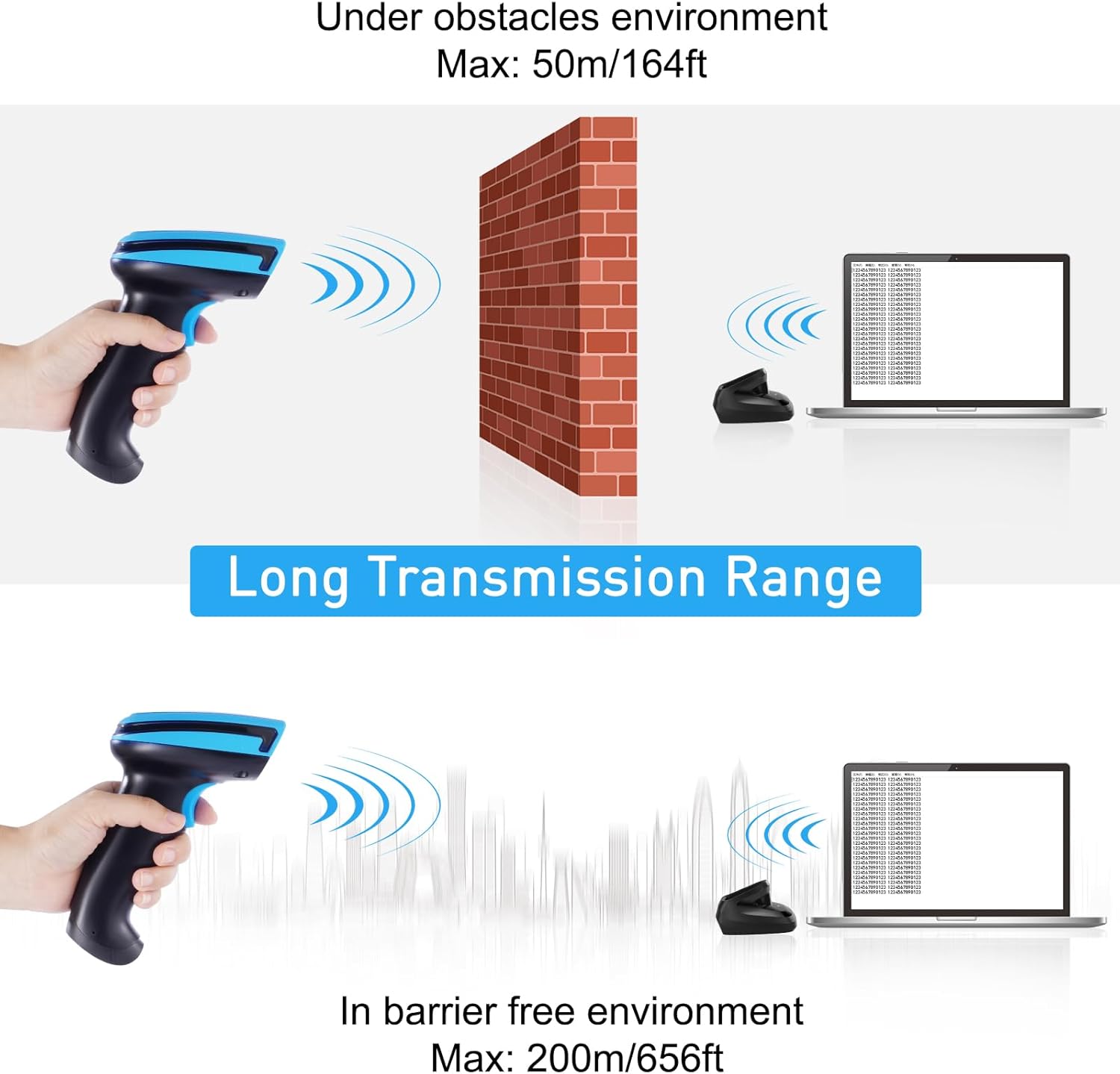
Image: A hand holding the JRHC barcode scanner, demonstrating the typical grip and scanning posture.
4.2 Scanning Modes
The scanner supports three primary scanning modes:
- Manual Trigger Mode: Press the trigger button to activate the laser and scan a barcode. The laser turns off after a successful scan or if the button is released.
- Continuous Scan Mode: The laser remains active continuously, scanning any barcode that passes within its range without needing to press the trigger.
- Auto-sensing Scan Mode: The scanner automatically detects a barcode in its field of view and activates the laser to scan it. The laser turns off after a successful scan or if no barcode is detected for a period.

Image: Visual representation of the three available scanning modes: Manual Trigger, Continuous Scan, and Auto-sensing Scan.
4.3 Beep Settings
You can enable or disable the audible beep sound for scan confirmations. Refer to the quick setup guide or scan the specific configuration barcodes provided in the full manual to adjust this setting.

Image: Illustration of the beep setting options, allowing users to turn the scan confirmation sound on or off.
4.4 Powerful Edit Functions
The scanner offers advanced data editing capabilities:
- Add Prefix: Insert characters before the scanned barcode data (e.g., "ABC" + 1234567890).
- Add Suffix: Insert characters after the scanned barcode data (e.g., 123456789ABC).
- Insert In The Middle: Add characters at a specific position within the barcode data (e.g., 12345 + "ABC" + 67890).
- Hide Front/End: Conceal a specified number of characters from the beginning or end of the scanned data.
These functions are configured by scanning specific setup barcodes found in the detailed programming guide.

Image: Examples of powerful edit functions, including adding prefixes (e.g., ABC1234567890), inserting characters in the middle (e.g., 12345ABC67890), adding suffixes (e.g., 123456789ABC), and hiding front/end characters.
5. Maintenance
5.1 Cleaning
To maintain optimal performance, keep the scanner's scanning window clean. Use a soft, lint-free cloth, slightly dampened with water or a mild cleaning solution. Avoid abrasive cleaners or solvents that could damage the device.
5.2 Battery Care
The scanner uses a rechargeable Li-Ion battery. For best battery life, avoid fully discharging the battery frequently. Charge the scanner regularly using the provided charging stand and USB cable. If the scanner will not be used for an extended period, charge it to about 50% and store it in a cool, dry place.
5.3 Durability and Handling
The scanner is designed with anti-shock silicone and is IP54 rated for protection against dust and splashing water. While durable, avoid intentional drops or harsh impacts. Handle the device with care to ensure its longevity.
6. Troubleshooting
- Scanner not connecting/not recognized:
- Ensure the USB cable is securely connected to both the scanner/stand and the computer.
- For wireless mode, ensure the USB receiver is properly plugged in and the scanner is within range.
- Try connecting to a different USB port on your computer.
- Restart your computer.
- If using wireless, try re-pairing the scanner with the receiver. This usually involves scanning a specific pairing barcode (refer to the quick setup guide).
- Scanner not charging:
- Ensure the charging stand is properly connected to a working power source via the USB cable.
- Verify the scanner is correctly seated in the charging stand, ensuring the charging contacts align.
- Try using a different USB cable or power adapter.
- If the battery is completely depleted, it may take a few minutes for the charging indicator to appear.
- Scanner not reading barcodes:
- Ensure the barcode is 1D and not a 2D code (e.g., QR code), as this model is a 1D scanner.
- Check that the scanning window is clean and free from obstructions.
- Ensure the barcode is not excessively damaged, smudged, or poorly printed.
- Adjust the distance and angle of the scanner to the barcode.
- Verify the scanner is in the correct scanning mode (e.g., Manual Trigger mode requires pressing the button).
- Data transmission issues (e.g., incorrect characters):
- Ensure your keyboard layout settings on the computer match the scanner's default settings (usually US English).
- Reset the scanner to factory defaults by scanning the appropriate barcode (refer to the quick setup guide).
7. Specifications
| Feature | Specification |
|---|---|
| Model | HC-652WL |
| Connectivity Technology | 2.4GHz Wireless & USB Wired |
| Barcode Type Support | 1D Laser (e.g., Code128, UPC/EAN Add on 2 or 5) |
| CPU | 32-bit High-Speed CPU |
| Scanning Speed | Up to 300 scans/second |
| Battery Capacity | 2000mAh Li-Ion (rechargeable) |
| Continuous Working Time | Up to 48 hours |
| Drop Resistance | Withstands drops up to 5 ft (1.5m) |
| IP Rating | IP54 (Dust and splashing water resistant) |
| Compatible Devices | Desktop, Laptop |
| Operating Systems | Windows, Mac, Linux |
| Item Weight | 13.7 ounces |
| Package Dimensions | 8.66 x 3.86 x 3.5 inches |
| Date First Available | May 17, 2023 |
8. Warranty and Support
For warranty information, technical support, or service inquiries, please refer to the contact details provided with your product packaging or visit the official JRHC website. Keep your purchase receipt as proof of purchase for warranty claims.
