1. Product Overview
The Sanpyl 15-Key 3-Dial Macro Programmable Keyboard is a versatile input device designed to enhance workflow and gaming experiences. It features 15 customizable keys and 3 rotary dials, offering extensive programming capabilities for macros, shortcuts, and specific functions. This keyboard supports three connection modes: wired USB, Bluetooth, and 2.4G wireless, ensuring broad compatibility across various operating systems and devices.

Image 1.1: The Sanpyl 15-Key 3-Dial Macro Programmable Keyboard, showcasing its compact design with 15 keys and three rotary dials.
Key features include hot-swappable mechanical blue switches for tactile feedback, on-board memory for configuration retention, and driverless plug-and-play functionality. The device is compatible with Windows, Linux, and OS X systems.

Image 1.2: The macro programmable keyboard highlighting its customizable keypad, suitable for various applications like graphic design and video editing.
2. Setup Instructions
2.1 Package Contents
- Sanpyl 15-Key 3-Dial Macro Programmable Keyboard
- USB Cable
- 2.4G Wireless Receiver (USB Dongle)
- Anti-slip rubber feet

Image 2.1: Contents of the package, including the keyboard, USB cable, 2.4G wireless receiver, and anti-slip feet.
2.2 Connecting the Keyboard
The keyboard offers three connectivity options:
- Wired Connection: Connect the provided USB cable to the USB-C port on the keyboard and the other end to an available USB port on your computer. The keyboard will be recognized automatically.
- 2.4G Wireless Connection: Insert the 2.4G wireless USB receiver into an available USB port on your computer. Ensure the switch on the keyboard is set to the 'ON' position for 2.4G mode. The keyboard should connect automatically.
- Bluetooth Connection: Ensure the keyboard is powered on and in Bluetooth pairing mode (refer to the operating section for specific instructions on entering pairing mode). On your computer or device, navigate to Bluetooth settings and select the keyboard from the list of available devices to pair.
No additional drivers or software installations are required for basic functionality. The keyboard is designed for driverless plug-and-play use.

Image 2.2: The keyboard connected to a laptop, emphasizing its driver-free operation and built-in memory for configurations.

Image 2.3: A detailed view of the USB-C port on the keyboard, used for wired connection and charging.
3. Operating Instructions
3.1 Key and Dial Functions
The 15 keys and 3 dials can be programmed for various functions, including single keystrokes, key combinations, mouse buttons, time delays, and launching applications. The keyboard supports multiple layers of configurations, allowing for different sets of functions to be assigned and switched between.

Image 3.1: Examples of customizable key scenes, such as one-button game operations, music switching, multimedia control, and quick password entry.
3.2 Programming Macros and Layers
To program the keys and dials, dedicated software is typically used. While the keyboard is driverless for basic use, advanced customization requires the manufacturer's programming software. This software allows you to:
- Assign single keys or complex macros to any of the 15 keys.
- Configure the functions of the three rotary dials (e.g., volume control, zoom, scroll).
- Create and switch between up to three different configuration layers.
- Store configurations directly on the keyboard's on-board memory, ensuring settings are retained even when connected to different computers.
Please refer to the manufacturer's website for the latest version of the programming software and detailed instructions on its use. Some users have noted that the software might require specific versions or updates for optimal functionality.
3.3 RGB Lighting
The keyboard features RGB lighting with several color options and effects. Note that the RGB lighting functionality may be limited when operating in wireless modes (Bluetooth or 2.4G) and might only be fully functional when connected via USB cable. The lighting effects and colors can typically be adjusted through the programming software.

Image 3.2: Overview of key features including multi-layer functionality, RGB lighting, and 2.4G wireless, wired, and Bluetooth connectivity options.
4. Maintenance
4.1 Cleaning
To clean the keyboard, power it off and disconnect it from your computer. Use a soft, dry cloth to wipe down the surface. For stubborn dirt, a slightly damp cloth with mild soap can be used, ensuring no liquid enters the keyboard's internal components. Avoid abrasive cleaners or solvents.
4.2 Switch Replacement
This keyboard features hot-swappable mechanical blue switches. If a switch malfunctions or you wish to customize the typing feel, individual switches can be replaced without soldering. Use a switch puller tool (not included) to carefully remove the old switch and press a new compatible 3-pin or 5-pin mechanical switch into place. Ensure the pins align correctly before pressing firmly.
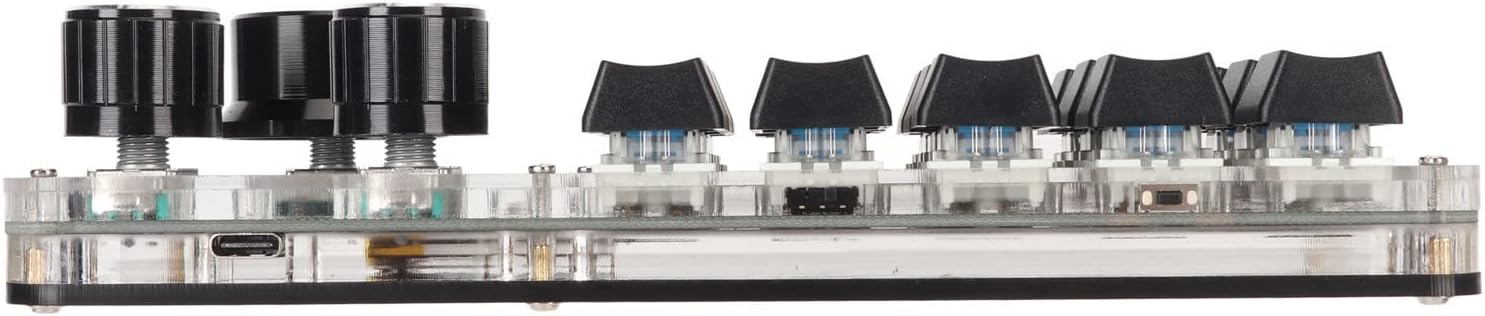
Image 4.1: Side profile of the keyboard, illustrating the mechanical switches and the transparent acrylic casing.
5. Troubleshooting
5.1 Connectivity Issues
- Wired: Ensure the USB cable is securely connected to both the keyboard and the computer. Try a different USB port or cable.
- 2.4G Wireless: Verify the 2.4G receiver is plugged in and the keyboard's switch is set to 2.4G mode. Ensure the keyboard is charged.
- Bluetooth: Confirm the keyboard is in pairing mode and visible in your device's Bluetooth settings. Remove any previous pairings and attempt to re-pair. Ensure the keyboard is charged.
5.2 Macro Programming Not Working
- Ensure you are using the correct and latest version of the programming software from the manufacturer's website.
- Verify that the programmed settings have been saved to the keyboard's on-board memory.
- Check if you are on the correct layer if you have multiple configurations.
5.3 RGB Lighting Not Functioning
- If RGB is not working in wireless mode, connect the keyboard via USB cable, as some lighting features may require a wired connection.
- Check lighting settings within the programming software.
6. Specifications
| Brand | Sanpyl |
| Model Number | Sanpylfpde9xu50h |
| Connectivity Technology | Bluetooth, USB, 2.4G Wireless |
| Keyboard Description | Gaming, Macro Programmable |
| Special Feature | Backlit, Hot-swappable switches, On-board memory |
| Switch Type | Mechanical Blue Switches |
| Compatible Devices | Laptop, PC (Windows, Linux, OS X) |
| Material | Acrylic, Acrylonitrile Butadiene Styrene |
| Item Weight | 11.3 ounces |
| Package Dimensions | 9.72 x 8.31 x 1.85 inches |

Image 6.1: Top-down view of the keyboard, showing the layout of keys and dials.
7. Warranty and Support
7.1 Return Policy
This product is typically covered by a 30-day return policy from the date of purchase. Please refer to your retailer's specific return policy for detailed terms and conditions regarding refunds or replacements.
7.2 Technical Support
For technical assistance, programming software downloads, or further inquiries, please visit the official Sanpyl brand store or contact their customer support channels. Contact information can usually be found on the product packaging or the brand's official website.