
ASHATA TH3P4G3
ASHATA TH3P4G3 Graphics Docking Station User Manual
Model: TH3P4G3
Introduction
This manual provides detailed instructions for the installation, operation, and maintenance of the ASHATA TH3P4G3 Graphics Docking Station. Please read this manual thoroughly before using the product to ensure proper functionality and to prevent damage.
Product Overview
The ASHATA TH3P4G3 is an external graphics card docking station designed to enhance the graphics capabilities of Thunderbolt 3/4 compatible laptops and PCs. It supports various power supplies including ATX and SFX, and offers 60W Power Delivery (PD) charging.
Key Features:
- Easy Installation: Equipped with SFX and ATX brackets for straightforward setup.
- GPU Dock Compatibility: Connect external graphics cards to improve gaming or professional application performance.
- Versatile Power Support: Compatible with ATX, SFX, and FLEX power supplies.
- Power Delivery (PD) Charging: Provides up to 60W PD charging for connected laptops.
- Daisy Chain Support: The Thunderbolt port supports daisy chain functionality.
- High Data Transfer: Enables 32Gbps data transfer with PCIE3.0X4.
- Advanced Chipset: Utilizes the JHL7440 device chip for enhanced performance over previous generations.
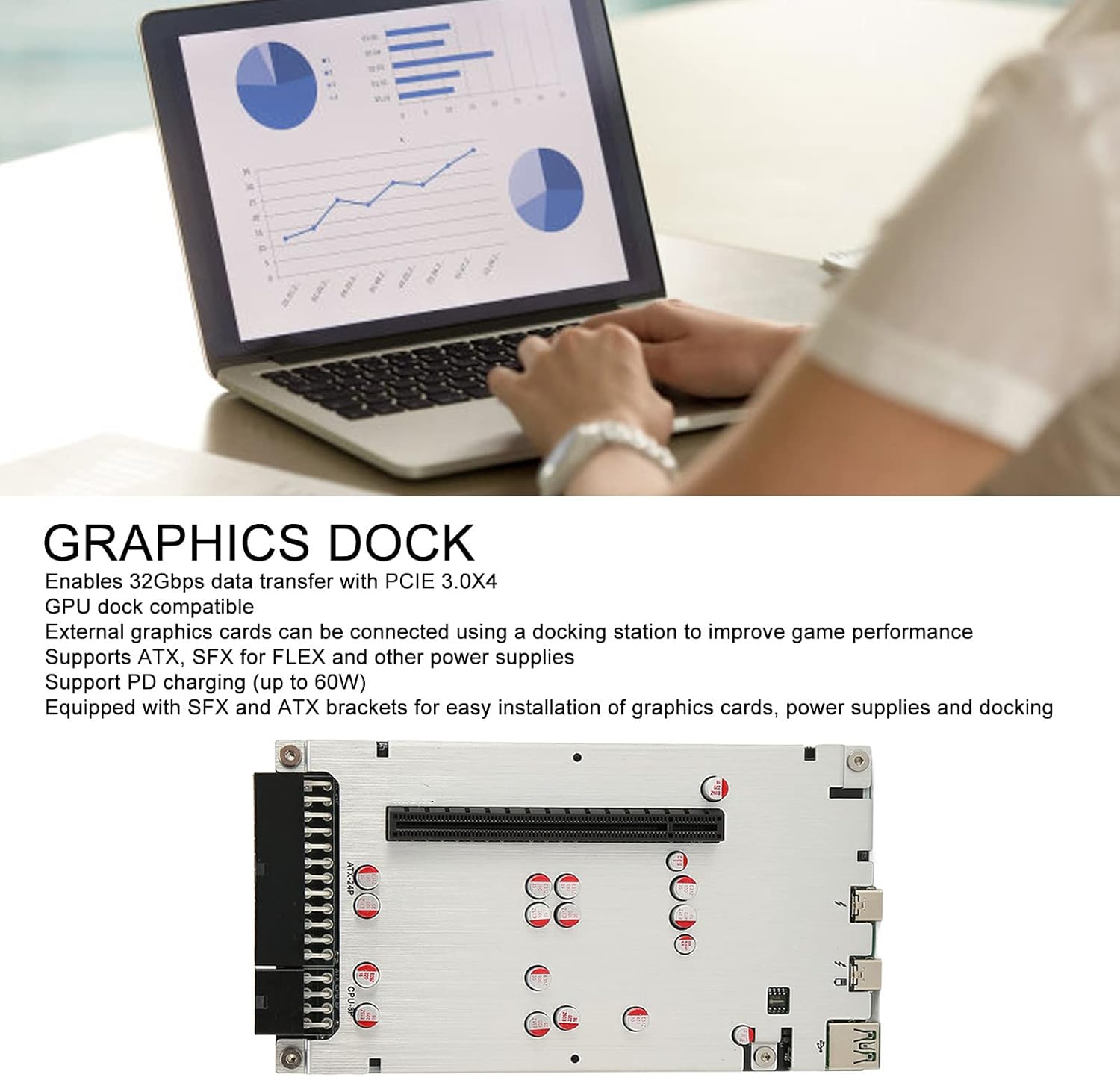
Image: The ASHATA TH3P4G3 Graphics Docking Station connected to a laptop, illustrating its use in a professional setting.
Package Contents
Please verify that all items listed below are present in your package:
- TH3P4G3 Graphics Docking Station Unit
- SFX Bracket
- ATX Bracket
- Thunderbolt Cable
- Screwdriver
- Mounting Screws and Silicone Pads

Image: All components included in the TH3P4G3 package, showing the main unit, various brackets, connection cable, and installation tools.
Setup Instructions
1. Preparing the Docking Station
- Choose a Power Supply: The TH3P4G3 supports ATX, SFX, and FLEX power supplies. Select a power supply appropriate for your external graphics card.
- Install the Graphics Card:
- Carefully insert your external graphics card into the PCIE X16 interface on the docking station.
- Secure the graphics card using the provided screws and the appropriate ATX or SFX bracket.

Image: Detailed diagram of the TH3P4G3 unit, highlighting the PCIE X16 interface for graphics card installation, CPU 8P power supply, ATX 24P power supply, and expansion bracket options.
- Connect Power:
- Connect the 24-pin ATX power supply cable to the ATX 24P power supply port on the docking station.
- If your graphics card requires additional power, connect the 8-pin CPU power supply cable to the CPU 8P power supply port.
- Ensure all power connections are secure.
2. Connecting to Your Laptop/PC
- Connect Thunderbolt Cable: Use the provided Thunderbolt cable to connect the TH3P4G3 docking station to a Thunderbolt 3 or Thunderbolt 4 port on your laptop or PC.
- Power On:
- First, power on the external power supply connected to the docking station.
- Then, power on your laptop or PC.
- Driver Installation: Your operating system should automatically detect the new hardware. If not, you may need to install the latest drivers for your external graphics card from the manufacturer's website.
Operating Instructions
Using the External Graphics Card
Once the docking station and graphics card are successfully installed and recognized by your system, your operating system should allow you to select the external GPU for graphics-intensive tasks. This is typically managed through your graphics card's control panel (e.g., NVIDIA Control Panel, AMD Radeon Software) or your operating system's display settings.
- Display Output: Connect your monitor(s) directly to the output ports of the external graphics card installed in the TH3P4G3.
- Power Delivery: The docking station provides up to 60W PD charging to your connected laptop via the Thunderbolt cable. Ensure your laptop supports PD charging for this feature to work.
- Daisy Chain: The Thunderbolt port on the TH3P4G3 supports daisy-chaining other Thunderbolt devices. Refer to your operating system and device documentation for proper daisy chain configuration.
Maintenance
- Cleaning: Use a soft, dry cloth to clean the exterior of the docking station. Do not use liquid cleaners or solvents.
- Ventilation: Ensure the docking station and the installed graphics card have adequate ventilation to prevent overheating. Do not block any vents.
- Firmware Updates: Periodically check the ASHATA website or the graphics card manufacturer's website for any firmware or driver updates for optimal performance and compatibility.
- Cable Management: Keep cables organized and free from kinks or excessive bending to prevent damage.
Troubleshooting
| Problem | Possible Cause | Solution |
|---|---|---|
| Docking station not detected by laptop/PC. |
|
|
| External graphics card not recognized. |
|
|
| No display output from external graphics card. |
|
|
| Laptop not charging via PD. |
|
|
Specifications
| Feature | Detail |
|---|---|
| Model Number | ASHATA9wf4exmr3i (TH3P4G3) |
| Hardware Interface | Thunderbolt, USB 3.0 |
| Compatible Devices | Laptop (with Thunderbolt 3/4 port) |
| Total USB Ports | 2 |
| Total HDMI Ports | 1 (via installed GPU) |
| Power Delivery (PD) | Up to 60W |
| Supported Power Supplies | ATX, SFX, FLEX |
| Data Transfer Rate | 32Gbps (PCIE3.0X4) |
| Product Dimensions | 6.5 x 3.6 x 0.04 inches (166 x 91 x 28 mm) |
| Item Weight | 1.16 pounds (0.53 Kilograms) |

Image: The TH3P4G3 docking station, illustrating its compact dimensions of approximately 166 x 91 x 28 mm.
Warranty Information
ASHATA products are designed and manufactured to the highest quality standards. For specific warranty terms and conditions, please refer to the warranty card included with your product or visit the official ASHATA website. Keep your purchase receipt as proof of purchase for warranty claims.
Customer Support
If you encounter any issues or have questions regarding your ASHATA TH3P4G3 Graphics Docking Station, please contact ASHATA customer support through their official website or the contact information provided in your product packaging. Please have your model number (TH3P4G3) and purchase details ready when contacting support.
Ask a question about this manual
Ask about setup, troubleshooting, compatibility, parts, safety, or missing instructions. Manuals+ will review the question and use this page’s manual context to help answer it.