Introduction
Thank you for choosing the Doohoeek Bluetooth Shortcut Keyboard for Adobe Photoshop. This manual provides essential information for setting up, operating, and maintaining your device to enhance your creative workflow. Please read this manual thoroughly before use.
Setup
1. Charging the Keyboard
Before initial use, ensure your keyboard is fully charged. Use the provided USB Cable to connect the keyboard to a power source.

Image: The keyboard's USB-C charging port and indicators for battery life and Bluetooth connection.
The keyboard features a built-in 1100 mAh battery, offering up to 220 hours of continuous working time without backlighting. Battery life may vary based on usage and computing conditions.
2. Bluetooth Connection
The keyboard utilizes a reliable 5.1 Bluetooth connection with a range of up to 10 meters.
- Ensure the keyboard is charged and powered on.
- Press the 'CONNECT' button on the keyboard to enter Bluetooth pairing mode.
- On your device (PC, Desktop, iPad, MacBook), navigate to Bluetooth settings.
- Search for and select 'Doohoeek Keyboard' to pair.
3. Compatibility
The keypad is compatible with Windows, macOS, and iOS devices. This wide compatibility allows you to use the shortcut keyboard on iPad, iMac, MacBook, and Windows PC computers.
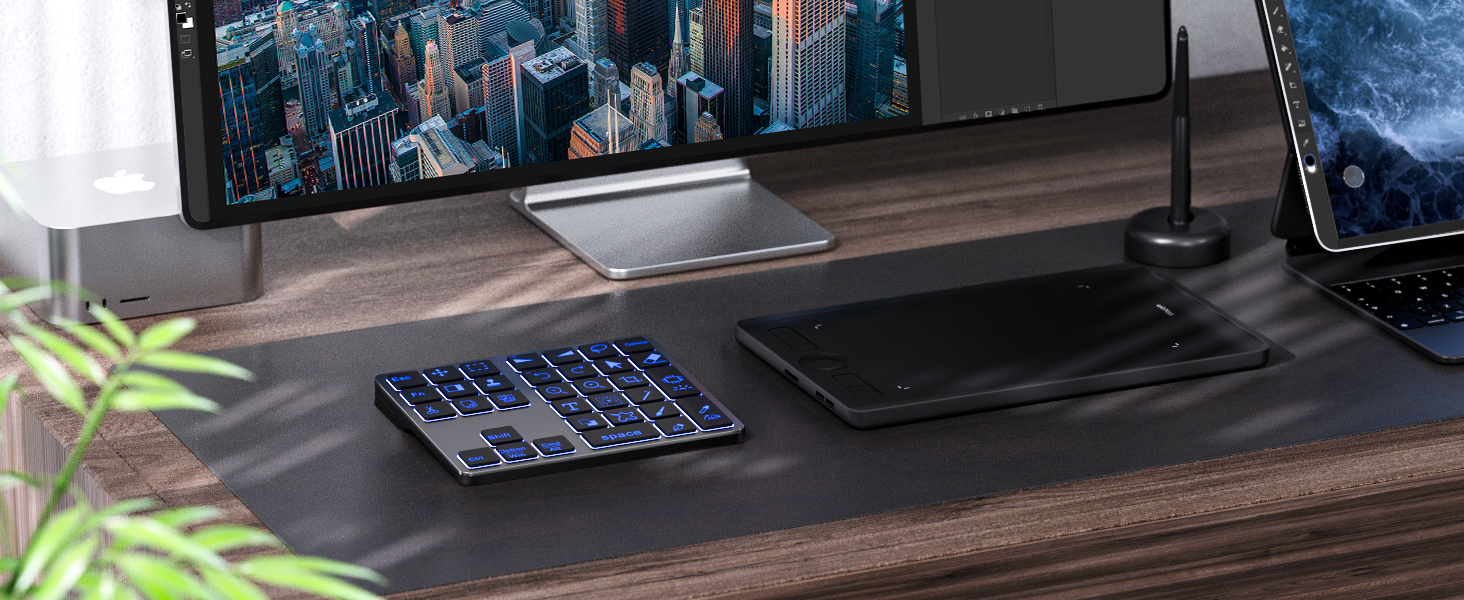
Image: The keyboard seamlessly integrates with various operating systems for diverse creative setups.
Note:
- Please make sure your device is under English (US) configuration for proper keyboard functionality.
- The keyboard is designed for full versions of Windows, macOS, or Linux. It is not compatible with gaming consoles (Xbox, PlayStation) or untested Linux systems like Raspberry Pi.
Operating Instructions
1. Shortcut Keys for Adobe Photoshop
The keyboard features commonly used shortcuts for Adobe Photoshop, allowing you to perform actions like Free Transform and Pen tool with a single click. This eliminates the need to navigate through on-screen menus.

Image: The keyboard streamlines Photoshop tasks with dedicated shortcut keys.

Image: Key functions are pre-assigned for essential Photoshop tools.
2. Backlit Keys
The keyboard features 7-color backlighting with 3 levels of brightness, allowing for comfortable use in various lighting conditions. You can manually adjust the color and brightness of the keys.

Image: Customize your keyboard's backlight to suit your environment.
3. Customization
The keyboard's functions can be customized via dedicated software (if available from the manufacturer) to suit your specific workflow. This includes assigning different functions to the dial and individual keys, and even creating application-specific profiles.
The software allows you to:
- Add applications to the application row for custom settings.
- Customize dial modes for functions like scroll, zoom, rotate, or brush size.
- Assign various functions (mouse clicks, keystrokes, modifiers, navigation, application launches, eraser, disable) to individual buttons.
- Name your shortcuts, which may be displayed on the keyboard's screen (if applicable).
Maintenance
1. Cleaning
To clean the keyboard, gently wipe it with a soft, dry cloth. Avoid using harsh chemicals or abrasive materials that could damage the surface or keys.
2. Battery Care
To prolong battery life, avoid extreme temperatures and store the keyboard in a cool, dry place. If not in use for an extended period, fully charge the battery before storing and recharge periodically.
Troubleshooting
1. Connection Issues
- Ensure Bluetooth is enabled on your device and the keyboard is in pairing mode.
- Verify your device's operating system meets the compatibility requirements (full version of Windows, macOS, or Linux).
- If connection fails, try restarting both the keyboard and your device.
2. Key Functionality
- Ensure your device's language setting is English (US) for optimal performance.
- Check the customization software to confirm correct key assignments for the active application.
- If a specific key (e.g., eyedropper tool) is not working, ensure your software (e.g., Procreate) is updated to the latest version.
3. Physical Durability
While designed for portability, frequent travel may impact the keyboard's physical integrity. Consider using a padded carrying case if you transport the device regularly.
4. Resetting to Default
If you encounter issues with customized settings, you can reset the keyboard to its factory defaults via the customization software. This allows you to start over with programming your buttons.
Specifications
| Feature | Detail |
|---|---|
| Brand | Doohoeek |
| Model | B0C4JKD8ZN |
| Connectivity Technology | Bluetooth 5.1 |
| Compatible Devices | PC, Desktop, iPad, MacBook (Windows, macOS, iOS) |
| Keyboard Description | Wireless Shortcut Keyboard |
| Special Features | Backlit (7-color, 3-level brightness), Portable, Rechargeable, Photoshop Shortcuts |
| Battery | 1 Lithium Ion battery (included), 1100 mAh |
| Battery Life (without backlight) | Up to 220 hours |
| Item Weight | 9.5 ounces |
| Package Dimensions | 6.26 x 4.96 x 1.3 inches |
| Material | Plastic |
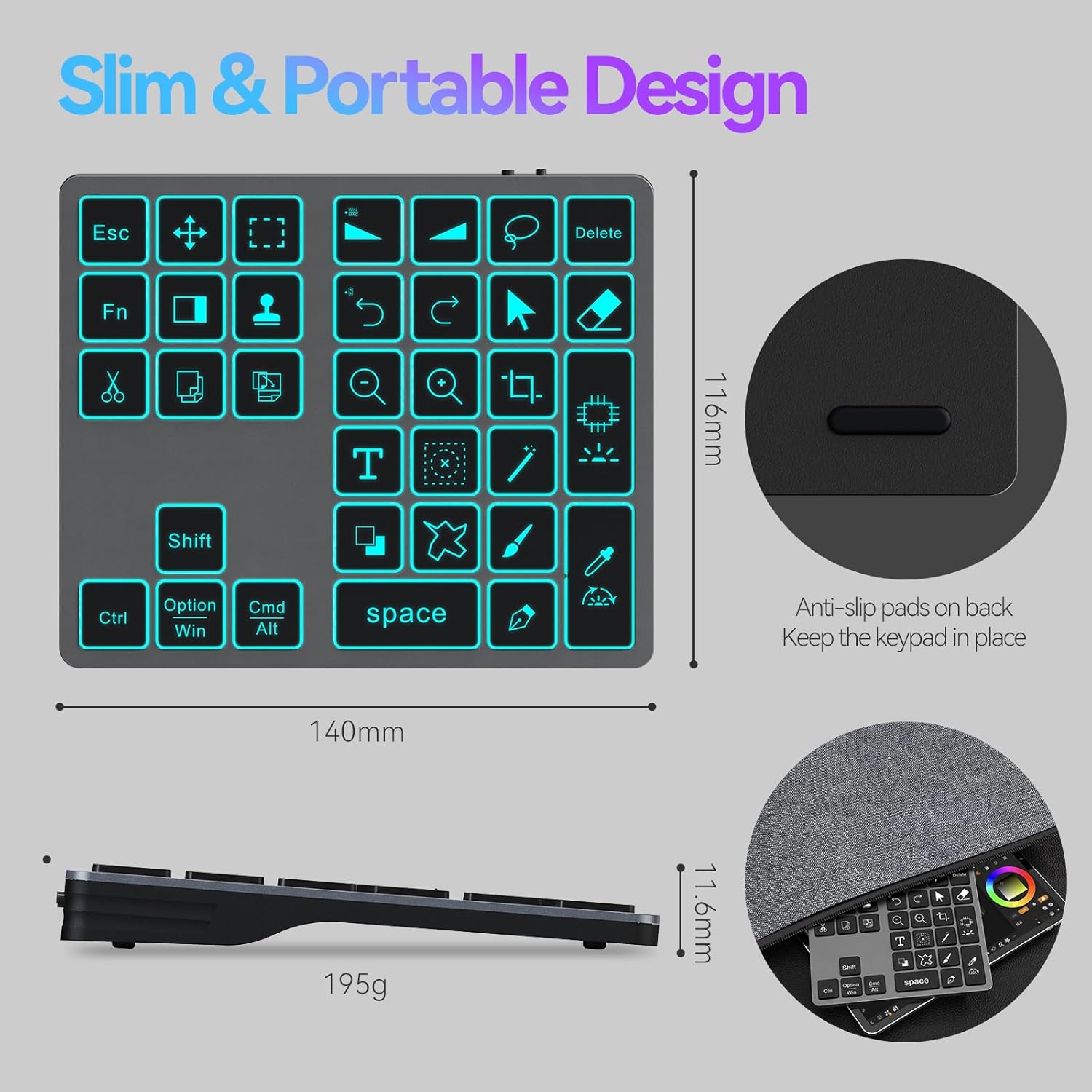
Image: Slim and portable design with anti-slip features for stable use.
Warranty Information
Specific warranty details are not provided in the product information. Please refer to the product packaging or contact Doohoeek customer support for warranty terms and conditions.
Support
For further assistance or inquiries, please refer to the official Doohoeek website or contact their customer support. Contact information is typically available on the product packaging or within the included documentation.

