1. Introduction
Thank you for choosing the Aivuidbs RG353PS Handheld Game Console. This device is designed to provide a portable gaming experience with a 3.5-inch IPS screen, powered by a Linux 64-bit system. It supports various game formats, offers multimedia playback, and features advanced connectivity options like 5G Wi-Fi, Bluetooth 4.2, and HDMI output. This manual provides essential information for setting up, operating, and maintaining your device.
2. Safety Information
- Do not expose the device to extreme temperatures, direct sunlight, or high humidity.
- Avoid dropping or subjecting the device to strong impacts.
- Keep the device away from water and other liquids.
- Use only the provided or approved charging cable.
- Do not attempt to disassemble or repair the device yourself. Contact customer support for assistance.
- Prolonged use at high volume may cause hearing damage. Adjust volume to a safe level.
3. Package Contents
Please check the package for the following items:
- Aivuidbs RG353PS Handheld Game Console
- 128GB TF Card (pre-installed or separate)
- USB Type-C Charging Cable
- User Manual (this document)
4. Device Overview
Familiarize yourself with the physical components of your RG353PS console.

Figure 4.1: Front view of the Aivuidbs RG353PS Handheld Game Console, showing the 3.5-inch IPS screen, D-pad, analog sticks, action buttons (A, B, X, Y), and start/select buttons.

Figure 4.2: Overview of the RG353PS console design, highlighting its compact form factor and button layout. Available in various transparent color options.
Key Components:
- 3.5-inch IPS Screen: High-resolution display for clear visuals.
- D-Pad: Directional control for games.
- Analog Sticks: Dual 360-degree joysticks for precise movement.
- Action Buttons (A, B, X, Y): Standard gaming input buttons.
- Start/Select Buttons: Game and system function buttons.
- Power Button: To turn the device on/off.
- Volume Buttons: Adjust audio output.
- USB Type-C Port: For charging and data transfer.
- HDMI Output Port: Connect to external displays.
- TF Card Slots: For game storage and system files.
5. Setup
5.1 Initial Charging
Before first use, fully charge the console. Connect the USB Type-C charging cable to the device's charging port and plug the other end into a compatible USB power adapter (not included) or a computer's USB port. The charging indicator will show the charging status. A full charge typically takes a few hours.
5.2 TF Card Insertion
The console comes with a 128GB TF card, which may be pre-installed. If not, locate the TF card slot(s) and gently insert the card(s) until they click into place. Ensure the card is inserted in the correct orientation.
5.3 Powering On/Off
- To Power On: Press and hold the Power button until the screen illuminates.
- To Power Off: Press and hold the Power button, then select the 'Power Off' option on the screen, or continue holding until the device shuts down.
6. Operating Instructions
6.1 Navigation
The RG353PS runs on a Linux 64-bit system. Use the D-pad or analog sticks to navigate through menus and select options. The A button typically confirms selections, while the B button usually cancels or goes back.
6.2 Game Selection and Launch
From the main menu, navigate to the game library. Select your desired game using the D-pad or analog stick and press the A button to launch it. The console supports various game formats.
6.3 Saving and Loading Games
Most emulators and games allow for in-game saving. Additionally, the system may offer 'save state' functionality, allowing you to save your progress at any point. Refer to specific emulator instructions for detailed saving and loading procedures.
6.4 System Settings
Access the system settings menu to adjust display brightness, volume, Wi-Fi settings, Bluetooth settings, language, and other system preferences.
7. Connectivity
7.1 5G Wi-Fi
The console supports 5G Wi-Fi for online multiplayer gaming and network features. To connect, go to System Settings > Wi-Fi, select your network, and enter the password.

Figure 7.1: The RG353PS supports 5G Wi-Fi for online multiplayer, allowing two consoles to connect for cooperative or competitive play.
7.2 Bluetooth 4.2
Connect Bluetooth gamepads, headsets, or other compatible accessories using Bluetooth 4.2. Go to System Settings > Bluetooth, enable Bluetooth, and pair with your desired device.
7.3 HDMI Output
Connect your RG353PS to a larger screen, such as a TV or monitor, using an HDMI cable (not included). This allows you to enjoy your games on a bigger display. Simply plug the HDMI cable into the console's HDMI port and the display's HDMI input.

Figure 7.2: The console supports HDMI output for connecting to external displays and Bluetooth for wireless gamepad connections, enhancing the gaming experience.
7.4 Moonlight Streaming
The RG353PS supports Moonlight streaming, enabling you to play PC games smoothly on your handheld console. Ensure your PC is set up for streaming and follow the on-screen instructions on the console to connect.
8. Game Management
The console supports downloading games in approximately 20 different game formats. Games are typically stored on the TF card. Users can add or remove game files by connecting the TF card to a computer.
9. Maintenance
9.1 Cleaning
Use a soft, dry cloth to clean the console's exterior. For the screen, use a microfiber cloth specifically designed for electronics. Avoid using harsh chemicals or abrasive materials.
9.2 Battery Care
The built-in 3500mAh Li-polymer battery provides up to 6 hours of game playing time. To prolong battery life, avoid fully discharging the battery frequently and store the device with a partial charge if not used for extended periods. Support for fast charging via USB Type-C is included.
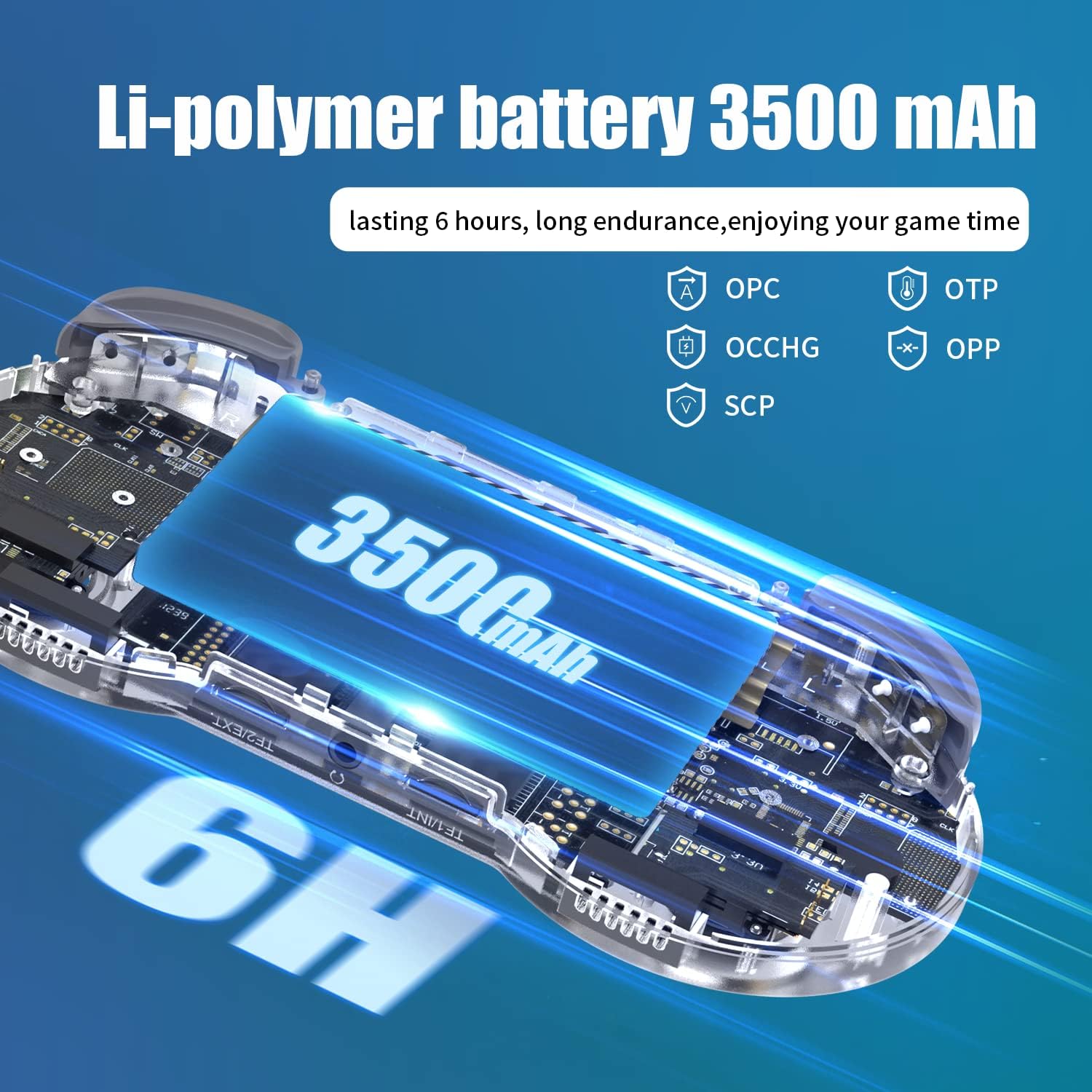
Figure 9.1: The console is equipped with a 3500mAh Li-polymer battery, offering extended playtime and supporting fast charging.
9.3 Storage
Store the console in a cool, dry place, away from dust and direct sunlight. Consider using a protective case when transporting the device.
10. Troubleshooting
- Device not powering on: Ensure the battery is charged. Connect the charger and try again.
- Games not loading: Check if the TF card is properly inserted. Verify that game files are in supported formats and correctly placed on the card.
- No sound: Check the volume settings and ensure headphones are properly connected if in use.
- Connectivity issues (Wi-Fi/Bluetooth): Ensure the feature is enabled in settings. For Wi-Fi, check network password and signal strength. For Bluetooth, ensure the accessory is in pairing mode.
- Screen issues: If the screen is unresponsive or displays artifacts, try restarting the device.
11. Specifications
| Feature | Specification |
|---|---|
| Model | RG353PS |
| Processor | RK3566 Quad-Core 64-bit Cortex-A55, up to 1.8GHz |
| RAM | LPDDR4 2GB |
| Internal Storage | 32GB eMMC 5.1 + 16GB TF (system) |
| External Storage | 128GB TF Card (included) |
| Screen | 3.5-inch IPS, 640*480 resolution, OCA full fit |
| Battery | 3500mAh Li-polymer, up to 6 hours playtime |
| Connectivity | 5G Wi-Fi, Bluetooth 4.2, HDMI Output |
| Operating System | Linux 64-bit |
| Dimensions | 6.85 x 3.19 x 0.79 inches |
| Weight | 13.1 ounces |
| Manufacturer | Aivuidbs |
12. Warranty and Support
For warranty information and technical support, please refer to the documentation provided with your purchase or contact Aivuidbs customer service directly. Keep your purchase receipt as proof of purchase.


