
JYXOIHUB JYX75-2
JYXOIHUB 75-Inch Interactive Smart Whiteboard User Manual
Model: JYX75-2 | Brand: JYXOIHUB
Introduction
The JYXOIHUB 75-Inch Interactive Smart Whiteboard is a versatile display solution designed for enhanced collaboration and presentation in classrooms, conference rooms, and various professional settings. This device integrates dual operating systems, advanced touch technology, and extensive connectivity options to provide a seamless and interactive user experience.
Setup
Proper setup ensures optimal performance and longevity of your interactive smart whiteboard. Please handle the unit with care during unboxing and installation.
Unboxing
The smart whiteboard is securely packaged to prevent damage during transit. Carefully cut the strapping bands and lift the top section of the box. Remove any protective foam or packaging materials surrounding the unit.

Figure 1: JYXOIHUB 75-Inch Interactive Smart Whiteboard on its mobile stand.
Mounting
The smart whiteboard supports wall mounting. Mounting hardware is included with your purchase. Ensure the mounting surface is sturdy enough to support the device's weight (approximately 138 pounds). Follow the instructions provided with the mounting hardware for secure installation.
Initial Power-On
Once securely mounted or placed on a stand, connect the power cable to the device and a suitable power outlet. Press the power button, usually located on the side or bottom of the unit, to turn on the smart whiteboard.
Video: Initial power-on and basic interaction with the JYXOIHUB interactive whiteboard.
Operating Instructions
Dual System Functionality
The JYXOIHUB smart whiteboard features a dual operating system, allowing you to switch between Android 11.0 and Windows environments. This provides flexibility to use a wide range of applications and software.

Figure 2: The smart whiteboard supports a dual operating system with one-key switching.
Video: Demonstration of switching between Android and Windows operating systems.
Interactive Whiteboard Features
The 20-point multi-touch screen allows multiple users to write and interact simultaneously. Utilize a complete collection of digital pens, shapes, lines, and colors for dynamic presentations and brainstorming sessions.
- Writing & Drawing: Use the included stylus or your finger to write, draw, and annotate directly on the screen.
- Gesture Recognition: Easily erase content using the back of your hand.
- Intelligent Annotation: Add notes and highlights to any displayed content.

Figure 3: The 20-point multi-touch screen allows for intuitive and collaborative interaction.
Video: Overview of intelligent whiteboard operations, including writing, drawing, and annotation features.
Multi-Device Function Integration
The smart whiteboard acts as a central hub, integrating functionalities of a projector, computer, tablet, display, sound system, and traditional whiteboard.
- Wireless Screen Projection: Project content wirelessly from up to 4 devices simultaneously (smartphones, tablets, laptops).
- App Access: Access a wide range of applications through the built-in Android OS, including video conferencing tools (Zoom, Google Meet, Microsoft Teams) and productivity apps.

Figure 4: The smart whiteboard consolidates multiple devices into one integrated unit.

Figure 5: Access a variety of applications directly from the smart whiteboard's interface.
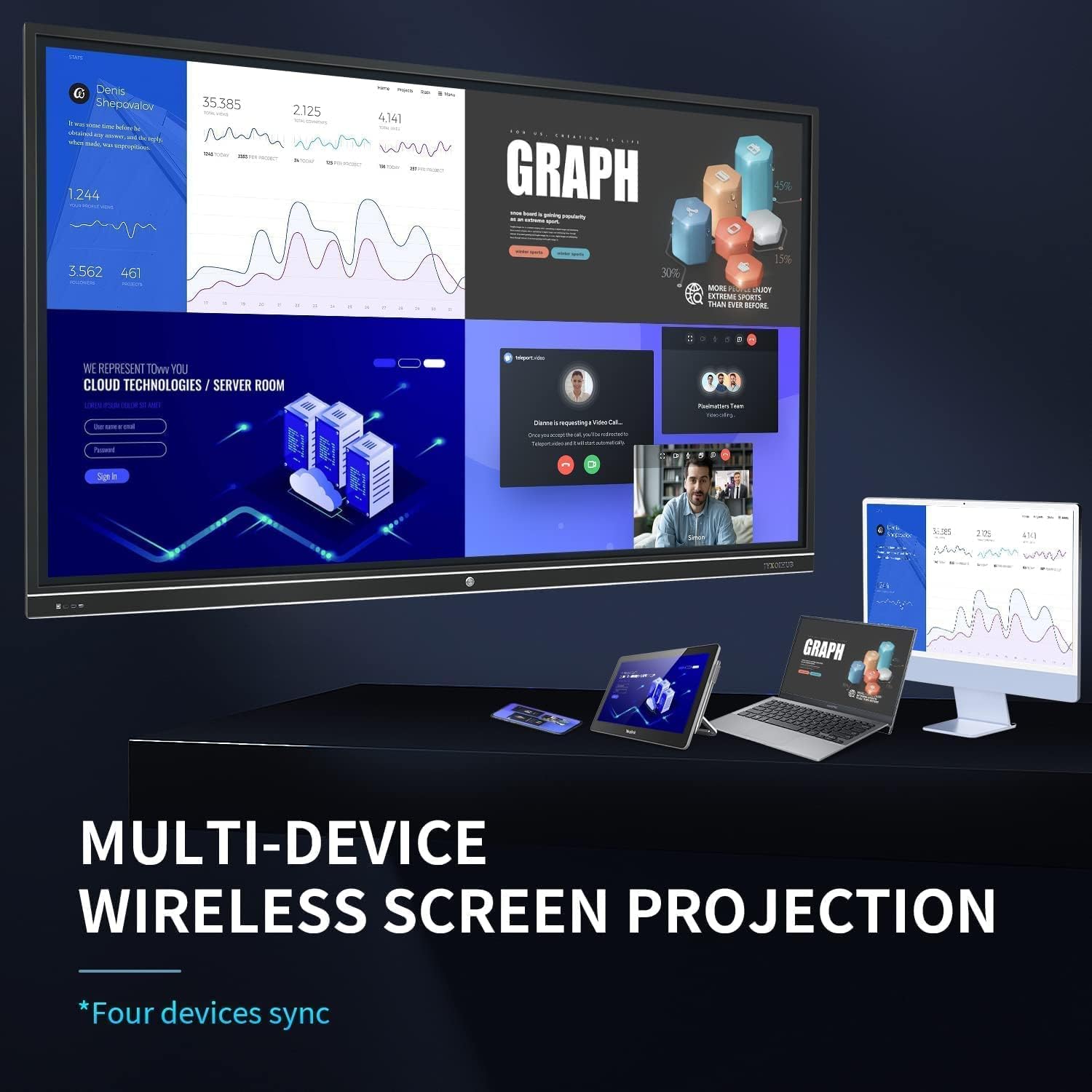
Figure 6: Wirelessly project and interact with content from up to four devices simultaneously.
Video: Demonstration of mobile screen projection to the smart whiteboard.
Remote Video Conferencing
The smart board is compatible with various conferencing software, enabling real-time transmission of conference scenes without delay. It supports popular platforms like Zoom, Google Meet, and Microsoft Teams.

Figure 7: Facilitate remote video conferences with clear audio and visuals.
Saving and Sharing Content
After a meeting or session, you can generate a QR code to easily save and share the content. This allows participants to scan the code with their mobile devices to access the files, ensuring information is readily available.

Figure 8: Generate a QR code to save and share whiteboard content to your cloud storage.
For more details on saving and sharing, visit: Whiteboard Upload Image
Display Quality
The 4K HD anti-glare screen provides an excellent visual experience, ensuring clear and vibrant images, text, and video even in large spaces with high ambient light. The direct-lit LED technology offers incredible brightness, contrast, and color accuracy.

Figure 9: Experience superior visual clarity with the 4K HD anti-glare screen.
Specifications
| Feature | Detail |
|---|---|
| Brand | JYXOIHUB |
| Model Number | JYX75-2 |
| Size | 75 Inch |
| Operating System | Android 11.0 and Windows |
| Touch Points | 20 points multi-touch |
| Display Resolution | 4K HD |
| Material Type | Aluminum |
| Item Weight | 138 pounds |
| Package Dimensions | 67.3 x 40.6 x 7.1 inches |
| Recommended Uses | Office, School |
| Mounting Type | Wall Mount |
| Included Components | Mounting Hardware |
Maintenance
To ensure the longevity and optimal performance of your JYXOIHUB Smart Whiteboard, follow these maintenance guidelines:
- Cleaning the Screen: Use a soft, lint-free cloth and a non-abrasive screen cleaner. Avoid harsh chemicals, alcohol, or ammonia-based cleaners, as these can damage the screen coating.
- General Cleaning: Keep the frame and back of the unit free from dust and debris using a dry, soft cloth.
- Ventilation: Ensure proper airflow around the device. Do not block ventilation openings.
- Storage: If storing the device, ensure it is in a cool, dry environment and protected from extreme temperatures or humidity.
Troubleshooting
If you encounter issues with your smart whiteboard, refer to the following common troubleshooting steps:
- No Power: Ensure the power cable is securely connected to both the device and the power outlet. Check if the power outlet is functional.
- Touchscreen Unresponsive: Restart the device. If the issue persists, check for any physical obstructions on the screen.
- Microphone/Camera Issues: If built-in microphones or cameras are not functioning during video conferencing, verify their status in both the Android and Windows operating system settings. Check privacy settings to ensure applications have permission to access them. Consider connecting external USB microphones or webcams if built-in components remain unresponsive.
- Screen Projection Problems: Ensure all devices are connected to the same Wi-Fi network. Verify the correct input source is selected on the smart whiteboard.
- Image Quality Issues: Check the display settings for resolution and refresh rate. Ensure cables (if used) are securely connected and not damaged.
For further assistance, please contact JYXOIHUB customer support.
Warranty and Support
Your JYXOIHUB 75-Inch Interactive Smart Whiteboard is backed by manufacturer support. For specific warranty details, service requests, or technical assistance, please refer to the documentation included with your product or visit the official JYXOIHUB website. Customer support is available to help with any product-related inquiries.
Related Documents - JYX75-2
 |
VIISAN ViiHub 2 Pro Series Interactive Flat-Panel Display User Guide Comprehensive user guide for the VIISAN ViiHub 2 Pro Series Interactive Flat-Panel Display, detailing installation, features, setup, operation, maintenance, safety, and compliance information. |
 |
i3SIXTY 2 Quick Start Guide | i3-Technologies Get started with your i3SIXTY 2 interactive display. This guide covers unboxing, setup, the i3STUDIO software suite, display rotation, and warranty information from i3-Technologies. |
 |
Dahua Smart Interactive Whiteboard User's Manual Comprehensive user's manual for the Dahua Smart Interactive Whiteboard, detailing its features, operation, installation, and safety guidelines. Learn how to leverage its 4K display, dual OS support, and collaborative tools for enhanced productivity. |
 |
Viisan ViiHub 2 Series Interactive Flat-Panel Display User Guide Comprehensive user guide for the Viisan ViiHub 2 Series Interactive Flat-Panel Display, covering installation, features, operation, maintenance, and safety information. |
 |
Lynx Whiteboard Tips 1-12: Interactive Classroom Tools & Tutorials A comprehensive guide to using Lynx Whiteboard features, including background templates, interactive scenes, layered images, shape splitting, flow quizzes, counters, interactive diagrams, math recognition, screen recording, graph plotting, sound buttons, and general whiteboard usage. |
 |
VIISAN ViiHub 2 Series Interactive Flat Panel Display User Manual Comprehensive user manual for the VIISAN ViiHub 2 Series Interactive Flat Panel Display, detailing setup, features, operation, and maintenance for enhanced collaboration. |