
Philco PJC7000BT-BK
Contents
Philco Portable CD Player Boombox Instruction Manual
Model: PJC7000BT-BK
Brand: Philco
1. Introduction
This manual provides comprehensive instructions for the operation and maintenance of your Philco Portable CD Player Boombox. This versatile audio system integrates a CD player, cassette player, FM radio, Bluetooth connectivity, and USB/AUX input, offering multiple ways to enjoy your audio collection. Please read this manual thoroughly before using the device to ensure proper function and longevity.

Figure 1.1: Philco Portable CD Player Boombox, showcasing its compact design and front controls.
2. Key Features
The Philco Portable CD Player Boombox is designed with a range of features to enhance your listening experience:
- Multi-Format Playback: Play all your music! Rediscover your music collection with this CD Player Boombox, a perfect CD and Cassette Player Combo for endless entertainment and nostalgia. Compatible with MP3 CD, CD-R/RW, Audio CD and books on CD. Plus playback your digital collection via USB Playback.
- Wireless Connectivity: Wirelessly stream your favorite tunes using the Bluetooth feature, or connect your devices to this CD Cassette Player Combo for an immersive audio experience via 3.5mm Aux Input.
- Versatile Design: Enjoy the versatility of a Boombox with CD and Cassette Player, featuring a top-loading CD Player Portable design and cassette playback options.
- FM Radio: Stay connected and informed from the digital FM radio. You can save up to 30 FM stations in memory for quick selection. The telescopic antenna provides maximum signal reception, even in the toughest environments (This product only has FM Radio).
- Cassette Playback: Bring your old tapes back to life using the Cassette Tape Player, adding a touch of sentimentality to your listening sessions.

Figure 2.1: Visual representation of the boombox's versatile features including built-in antenna, CD-R/RW player, FM radio, AUX input, stereo speaker, Bluetooth, and MP3-USB compatibility.
3. Product Components and Controls
Familiarize yourself with the various parts and controls of your boombox for effortless operation.

Figure 3.1: Diagram illustrating the key components and controls of the Philco Boombox, including CD Cabin, Cassette Controls, Fine Tune, Source, LED Display & Audio/MP3 Switch Panel, Cassette Cabin, Speaker, USB Port, ON/OFF, and Volume (+/-).
Key Controls:
- CD Cabin: Top-loading compartment for inserting CDs.
- Cassette Controls: Buttons for Play, Stop, Fast Forward, Rewind, Record for cassette tapes.
- Fine Tune: Dial for precise FM radio tuning.
- Source: Button to switch between different audio sources (CD, Cassette, FM, Bluetooth, USB, AUX).
- LED Display: Shows current mode, track number, FM frequency, etc.
- Cassette Cabin: Front-loading compartment for inserting cassette tapes.
- Speaker: Integrated stereo speakers for audio output.
- USB Port: For playing MP3 files from a USB flash drive.
- ON/OFF: Power button for the unit.
- Volume (+/-): Rotary knob for adjusting audio volume.
- Telescopic Antenna: Extendable antenna for improved FM radio reception, located at the back.
4. Setup and Power Supply
Your Philco Boombox offers dual power supply options for convenience and portability.
4.1. AC Power Operation
For continuous use at home or any location with a power outlet:
- Ensure the unit is turned OFF.
- Insert the AC power cord into the AC IN jack located on the back of the unit.
- Plug the other end of the AC power cord into a standard wall outlet (AC 120V ~ 60Hz).
4.2. Battery Power Operation
For portable use, the boombox can be powered by batteries (not included):
- Ensure the unit is turned OFF and unplugged from AC power.
- Open the battery compartment cover on the bottom of the unit.
- Insert 6 x "C" type batteries (UM-2) into the compartment, ensuring correct polarity (+ and -) as indicated inside the compartment.
- Close the battery compartment cover securely.
Note: Remove batteries if the unit will not be used for an extended period to prevent leakage and damage.

Figure 4.1: Illustration of the boombox operating via AC power (left) and battery power (right), highlighting its portability.
5. Operating Instructions
This section details how to use the various playback modes of your Philco Boombox.
5.1. General Operation
- Power On/Off: Press the ON/OFF button to turn the unit on or off.
- Select Source: Press the SOURCE button repeatedly to cycle through modes: CD, FM, Bluetooth (BT), USB, AUX. The selected mode will appear on the LED display.
- Adjust Volume: Rotate the VOLUME knob to increase or decrease the sound level.
5.2. CD Player Operation
The boombox supports Audio CDs, CD-R/RW, and MP3 CDs.
- Press the SOURCE button to select "CD" mode.
- Open the CD compartment cover by gently lifting it.
- Place a CD onto the spindle with the label side facing up.
- Close the CD compartment cover firmly. The display will show "---" then the total number of tracks.
- Press the PLAY/PAUSE button (►||) to start playback.
- To pause, press PLAY/PAUSE (►||) again. Press again to resume.
- To skip tracks, press the NEXT (►►) or PREVIOUS (◄◄) buttons.
- To fast forward/rewind within a track, press and hold the NEXT (►►) or PREVIOUS (◄◄) buttons.
- To stop playback, press the STOP (■) button.
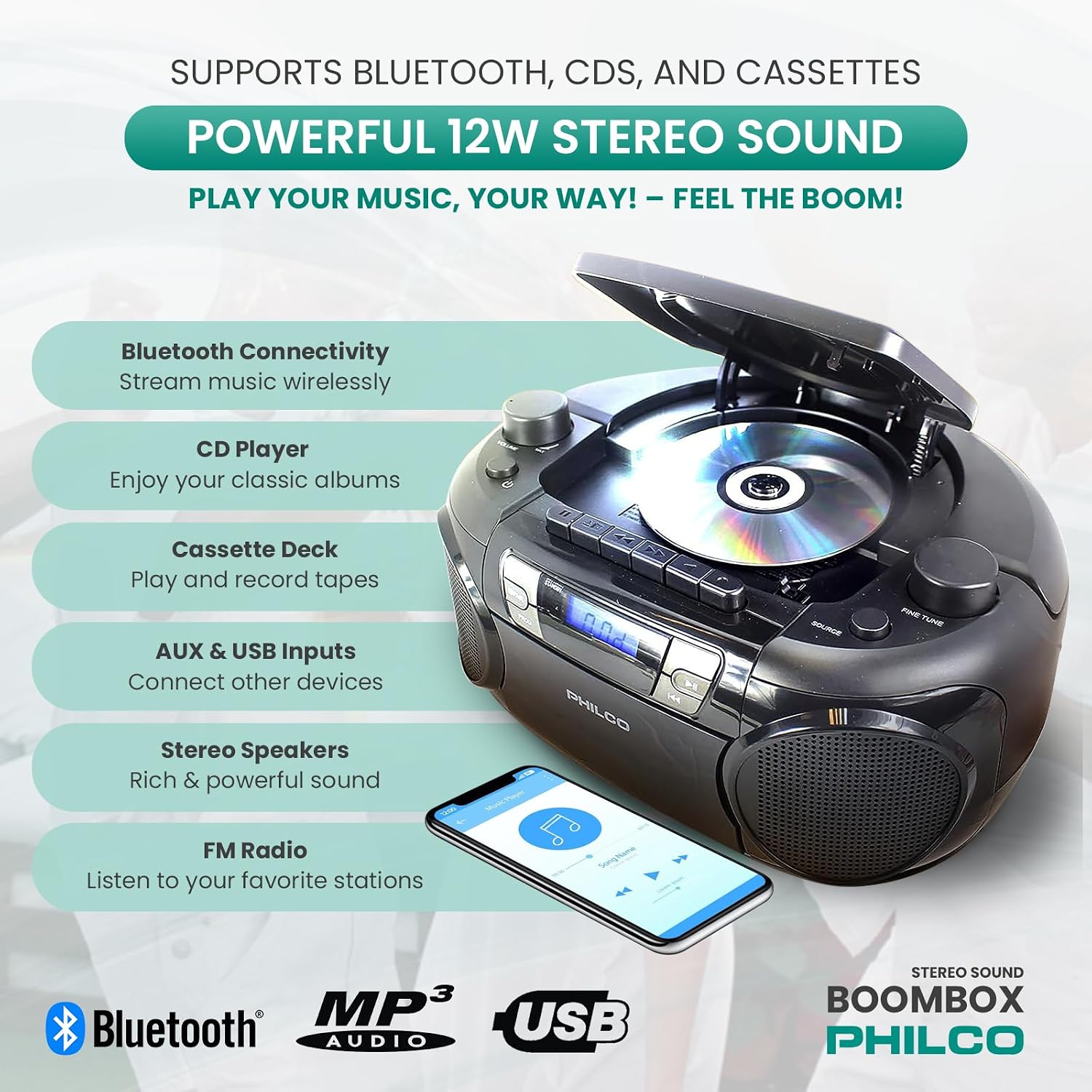
Figure 5.1: The Philco Boombox with its top-loading CD compartment open, ready for disc insertion.
5.3. Cassette Player Operation
- Press the SOURCE button to select "TAPE" mode.
- Open the cassette compartment door by pressing the STOP/EJECT button.
- Insert a cassette tape with the open edge facing upwards.
- Close the cassette compartment door.
- Press the PLAY button (►) to start playback.
- Use the Fast Forward (►►) or Rewind (◄◄) buttons to navigate the tape.
- Press the STOP/EJECT button (■) to stop playback and eject the tape.
- To record, ensure a blank tape is inserted and press the RECORD button (●) while in FM, CD, USB, or AUX mode.
5.4. FM Radio Operation
- Press the SOURCE button to select "FM" mode.
- Extend the telescopic antenna for optimal reception.
- Rotate the FINE TUNE knob to manually tune to your desired FM station. The frequency will be displayed on the LED screen.
- To auto-scan and save stations: Press and hold the PROG button. The radio will scan and store available FM stations automatically. Up to 30 stations can be saved.
- To recall saved stations: Press the PROG button briefly to cycle through the stored stations.
5.5. Bluetooth Operation
- Press the SOURCE button to select "BT" mode. The LED display will show "BT" and flash, indicating it's ready for pairing.
- Enable Bluetooth on your external device (smartphone, tablet, etc.).
- Search for "PHILCO" in your device's Bluetooth settings and select it to pair.
- Once paired, the "BT" indicator on the boombox will stop flashing and remain solid. You can now stream audio wirelessly from your device.
5.6. USB/AUX Input Operation
- USB Playback: Insert a USB flash drive into the USB port. Press the SOURCE button to select "USB" mode. The unit will automatically detect and play compatible MP3 files.
- AUX Input: Connect an external audio device (e.g., MP3 player, smartphone) to the AUX IN jack using a 3.5mm audio cable (not included). Press the SOURCE button to select "AUX" mode. Audio from your external device will now play through the boombox speakers.
6. Maintenance and Care
Proper care ensures the longevity and optimal performance of your boombox.
- Cleaning: Use a soft, dry cloth to clean the exterior of the unit. Do not use abrasive cleaners or solvents.
- CD/Cassette Care: Handle CDs and cassette tapes by their edges to avoid fingerprints and scratches. Store them in their cases when not in use.
- Dust Prevention: Keep the CD and cassette compartments closed when not in use to prevent dust accumulation.
- Battery Replacement: Replace all batteries with new ones of the same type when the sound becomes weak or distorted, or when the unit stops functioning.
- Storage: If storing the unit for a long period, remove all batteries and unplug the AC cord. Store in a cool, dry place.
7. Troubleshooting Guide
If you experience issues with your boombox, consult the following table for common problems and solutions.
| Problem | Possible Cause | Solution |
|---|---|---|
| No power | AC cord not properly connected; Batteries exhausted or incorrectly inserted. | Check AC cord connection; Replace batteries or ensure correct polarity. |
| No sound | Volume too low; Incorrect source selected; Headphones connected. | Increase volume; Press SOURCE button to select correct mode; Disconnect headphones. |
| CD skips or does not play | CD dirty or scratched; CD inserted incorrectly; Unit is subject to excessive vibration. | Clean or replace CD; Insert CD with label side up; Place unit on a stable surface. |
| Poor FM radio reception | Antenna not extended; Weak signal; Interference. | Fully extend and adjust the telescopic antenna; Try relocating the unit; Move away from other electronic devices. |
| Bluetooth pairing failed | Boombox not in BT mode; Device too far; Bluetooth not enabled on external device. | Ensure boombox is in BT mode; Move device closer (within 30 ft); Enable Bluetooth on your device. |
8. Product Specifications
| Feature | Detail |
|---|---|
| Brand | Philco |
| Model Number | PJC7000BT-BK |
| Connectivity Technology | Bluetooth, Auxiliary, USB |
| Speaker Type | Stereo |
| Power Source | Battery Powered (6 x C Type), AC Powered |
| Compatible Devices | Laptop, Tablet, Smartphone |
| Package Dimensions | 14.02 x 10.75 x 6.65 inches |
| Item Weight | 4.66 pounds |
| Manufacturer | PHC Americas, LLC |
| First Available Date | June 1, 2023 |
9. Warranty and Support
For warranty information, technical support, or service inquiries, please refer to the warranty card included with your product or contact PHC Americas, LLC directly. Keep your purchase receipt as proof of purchase for warranty claims.
For further assistance, visit the official Philco website or contact their customer service department.
Ask a question about this manual
Ask about setup, troubleshooting, compatibility, parts, safety, or missing instructions. Manuals+ will review the question and use this page’s manual context to help answer it.