
bopmen STAR 10
Star10 Wireless Bluetooth Karaoke Microphone User Manual
Model: STAR 10 | Brand: bopmen
Introduction
The bopmen Star10 Wireless Bluetooth Karaoke Microphone is a versatile 4-in-1 device designed for singing, acting as a portable handheld microphone, speaker, and featuring an integrated disco light. It offers high-resolution audio quality and extensive compatibility, making it suitable for various entertainment settings including car travel, home parties, and general use for adults and children.

Image: The Star10 Wireless Bluetooth Karaoke Microphone in Rose Gold, showcasing its sleek design and integrated disco ball.
Safety Information
- Do not expose the device to extreme temperatures or humidity.
- Avoid dropping or subjecting the device to strong impacts.
- Keep out of reach of small children to prevent choking hazards from small parts.
- Use only the provided USB C-A cable for charging.
- Do not attempt to disassemble or modify the device.
- Clean the device with a soft, dry cloth. Avoid using harsh chemicals or abrasive cleaners.
Package Contents
Please check the box for the following items:
- 1 x Karaoke microphone (Star10)
- 1 x USB C-A charging cable
- 1 x User manual
Product Overview
Familiarize yourself with the main controls and ports of your Star10 microphone.

Image: Detailed diagram illustrating the main control panel and bottom ports of the Star10 microphone, including Microphone Volume, On/Off/Play/Pause, Reverb On/Off, Volume Up/Down, Next/Previous Song, Tone Mode, Disco Light Control, USB Port, 3.5mm Earphone Jack, and TF Card slot.
Main Controls:
- Microphone Volume / Accompaniment Mode On/Off: Adjusts microphone volume or toggles accompaniment.
- On/Off, Play/Pause: Powers the device on/off and controls music playback.
- Reverb On/Off / Bluetooth & TF Card Mode: Toggles reverb effect and switches between input modes.
- Volume Up/Down: Adjusts overall speaker volume.
- Previous/Next Song: Navigates through tracks.
- Tone Mode: Cycles through different voice effects.
- Disco Light Control / Twins Pairing: Controls the disco light and initiates Twins Mode pairing.
Bottom Ports:
- Indicator Light: Shows device status (e.g., charging, connected).
- 3.5 mm Earphone Jack / Re-Set button inside: For private listening or resetting the device.
- USB Port: For charging the microphone.
- TF Card Slot: For playing music directly from a micro TF card (up to 32GB, not included).
Setup
Charging the Microphone:
- Connect the provided USB C-A cable to the USB port on the bottom of the microphone.
- Connect the other end of the cable to a compatible USB power adapter (not included) or a computer USB port.
- The indicator light will show charging status. A full charge provides up to 10 hours of use (minimum 5 hours).
Power On/Off:
- Press and hold the On/Off/Play/Pause button for a few seconds to power on the microphone. You will hear an audible prompt.
- To power off, press and hold the same button until you hear the power-off prompt.
Operating Instructions
Bluetooth Connection:
The Star10 microphone uses Bluetooth 5.2 for seamless connection to your devices.
- Power on the microphone. It will automatically enter Bluetooth pairing mode.
- On your smartphone, tablet, or other Bluetooth-enabled device, open the Bluetooth settings.
- Search for "STAR 10" in the list of available devices and select it to pair.
- Once connected, you will hear a confirmation prompt. You can now play music from your device through the microphone's speaker and sing along.

Image: The Star10 microphone demonstrating its wide compatibility, connecting wirelessly to smartphones, tablets, and laptops via Bluetooth.
TF Card Mode:
Play music directly from a micro TF card.
- Insert a micro TF card (up to 32GB, not included) with your music files into the TF Card slot on the bottom of the microphone.
- The microphone will automatically switch to TF Card mode. If not, press the Reverb On/Off / Bluetooth & TF Card Mode button to cycle modes.
- Use the Previous/Next Song buttons to navigate tracks and Play/Pause for playback control.
Disco Light Control:
Enhance your karaoke experience with the built-in disco light.
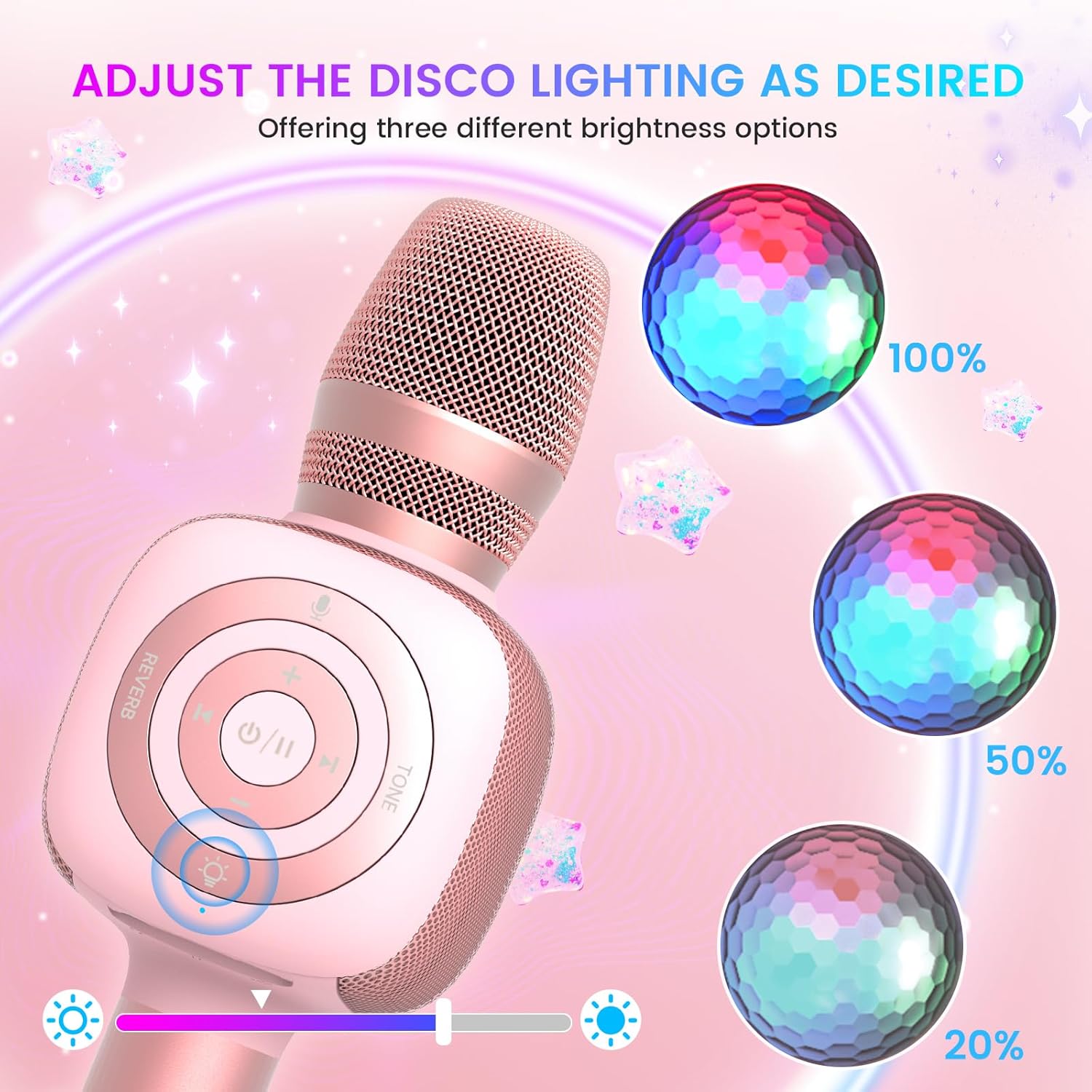
Image: The Star10 microphone's disco light feature, illustrating three adjustable brightness levels (100%, 50%, 20%) to suit different ambiance needs.
- Press the Disco Light Control button (light bulb icon) to cycle through three RGB color modes and brightness levels.
- Press again to turn the disco light off.
Tone Modes (Magic Mode):
Experiment with different voice effects for added fun.

Image: The Star10 microphone's "Magic Mode" feature, depicting icons for Male Voice, Female Voice, Cartoon Voice, and Monster Sound effects.
- Press the Tone Mode button to cycle through various voice effects such as Male Voice, Female Voice, Cartoon Voice, and Monster Sound.
- Continue pressing to return to the original tone.
Twins Mode (Duet Mode):
Pair two Star10 microphones for a duet experience.

Image: Two individuals enjoying a duet, each holding a Star10 microphone, illustrating the "Twins Mode" functionality for shared singing experiences.
- Ensure both Star10 microphones are powered on.
- On one microphone, press and hold the Disco Light Control button for 2 seconds until a prompt tone "LINK CONNECTED" is heard. This microphone is now in Twins Mode pairing.
- On your cellphone/device, perform Bluetooth pairing selection and choose either of the two microphones. Both microphones will now be connected and output audio.
- To exit Twins Mode, press and hold the Disco Light Control button on the paired microphone for 2 seconds.
Maintenance
- Cleaning: Wipe the microphone with a soft, dry cloth. Do not use liquid cleaners or aerosols.
- Storage: Store the microphone in a cool, dry place away from direct sunlight and extreme temperatures.
- Battery Care: For optimal battery life, charge the microphone regularly, even if not in frequent use. Avoid fully discharging the battery for extended periods.
Troubleshooting
| Problem | Possible Cause | Solution |
|---|---|---|
| Microphone does not power on. | Low battery; Power button not held long enough. | Charge the microphone fully; Press and hold the power button for 3-5 seconds. |
| Cannot connect via Bluetooth. | Microphone not in pairing mode; Device Bluetooth off; Interference. | Ensure microphone is on and in pairing mode; Enable Bluetooth on your device; Move closer to the microphone; Restart both devices. |
| No sound from speaker. | Volume too low; Device volume too low; Incorrect mode. | Increase microphone volume; Increase device volume; Ensure correct mode (Bluetooth/TF Card). |
| Voice effects not working. | Incorrect button press. | Press the 'Tone Mode' button repeatedly to cycle through effects. |
| Disco light not working. | Light turned off. | Press the 'Disco Light Control' button to turn on/cycle modes. |
Specifications
- Model: STAR 10
- Brand: bopmen
- Microphone Form Factor: Handheld
- Connectivity Technology: Bluetooth 5.2
- Power Source: Battery Powered (2 Lithium Ion batteries included)
- Battery Life: Up to 10 hours (minimum 5 hours)
- Product Dimensions: 18.7 x 16.54 x 12.2 inches
- Item Weight: 1.19 pounds (540 Grams)
- Signal-to-Noise Ratio: 52 dB
- Frequency Response: 10 KHz
- Compatible Devices: Personal Computer, Smartphone, Karaoke Machine
- Special Feature: Mute Function, Disco Light, Voice Changer, Twins Mode
- Color: Rose Gold
- Recommended Uses: Indoor/Outdoor
Warranty and Support
Your bopmen Star10 Karaoke Microphone comes with a standard manufacturer's warranty. For detailed warranty information, please refer to the warranty card included in your package or visit the official bopmen website.
If you encounter any issues or have questions regarding your product, please do not hesitate to contact our professional customer service team. We are committed to providing support and assistance within 24 hours to ensure your satisfaction.
Contact Information: Please refer to the contact details provided in your product packaging or on the official bopmen support page for the most up-to-date information.
Related documentsSTAR 10

Ask a question about this manual
Ask about setup, troubleshooting, compatibility, parts, safety, or missing instructions. Manuals+ will review the question and use this page’s manual context to help answer it.