
1. Introduction
The Swissvoice S/M510 Emergency SOS Bracelet is an accessory designed to enhance the safety of users of compatible Swissvoice S510 and Amplicomms M510 smartphones. This device allows for quick activation of an emergency call and message system with a single press of a button. It can be worn as a bracelet or a pendant, offering flexibility and convenience.
This manual provides comprehensive instructions for the proper setup, operation, and maintenance of your S/M510 SOS Bracelet. Please read it carefully to ensure optimal performance and safety.

Image 1.1: The Swissvoice S/M510 Emergency SOS Bracelet, shown in black with a red and black strap.
2. Package Contents
Please verify that all items are present in your package:
- Swissvoice S/M510 SOS Button
- Adjustable Bracelet Strap
- Neck Lanyard/Pendant Cord
- CR2025 3V Lithium-ion Battery (pre-installed or separate)
- Quick Start Guide (if included)
3. Setup
3.1 Battery Installation
The S/M510 SOS Button uses a standard CR2025 3V Lithium-ion battery. This battery typically provides up to 3 years of life. If the battery is not pre-installed, or needs replacement:
- Carefully open the battery compartment on the back of the SOS button.
- Insert the CR2025 battery with the positive (+) side facing upwards.
- Close the battery compartment securely.
3.2 Pairing with Your Smartphone
The S/M510 SOS Button must be paired with a compatible Swissvoice S510 or Amplicomms M510 smartphone to function. Follow these steps:
- Ensure your Swissvoice S510 or Amplicomms M510 smartphone is powered on and Bluetooth is enabled.
- On your smartphone, navigate to the dedicated SOS or accessory pairing menu (refer to your smartphone's manual for exact steps).
- Activate pairing mode on the S/M510 SOS Button (specific activation method may vary; typically involves pressing and holding the button until an indicator light flashes).
- On your smartphone, select the S/M510 device from the list of available Bluetooth devices.
- Confirm the pairing. A confirmation message should appear on your smartphone, and the SOS button's indicator light may change.
Note: If you experience difficulty pairing, ensure the SOS button is within 10 meters (33 feet) of the smartphone and that no other Bluetooth devices are interfering. Refer to the troubleshooting section for further assistance.
3.3 Configuring Emergency Contacts
After successful pairing, you must configure the emergency contacts on your Swissvoice S510 or Amplicomms M510 smartphone. The SOS button will trigger the emergency sequence defined in your smartphone's settings.
- Open the dedicated SOS application or settings menu on your smartphone.
- Add the primary helper contact number. This contact will receive an automatic call upon SOS activation.
- Add up to five additional contact numbers. These contacts will receive an SMS message with your GPS location upon SOS activation.
- Save your settings.
3.4 Wearing Options
The S/M510 SOS Button can be worn in two ways:
- As a Bracelet: Attach the SOS button to the provided adjustable strap and wear it on your wrist.
- As a Pendant: Attach the SOS button to the provided neck lanyard and wear it around your neck.
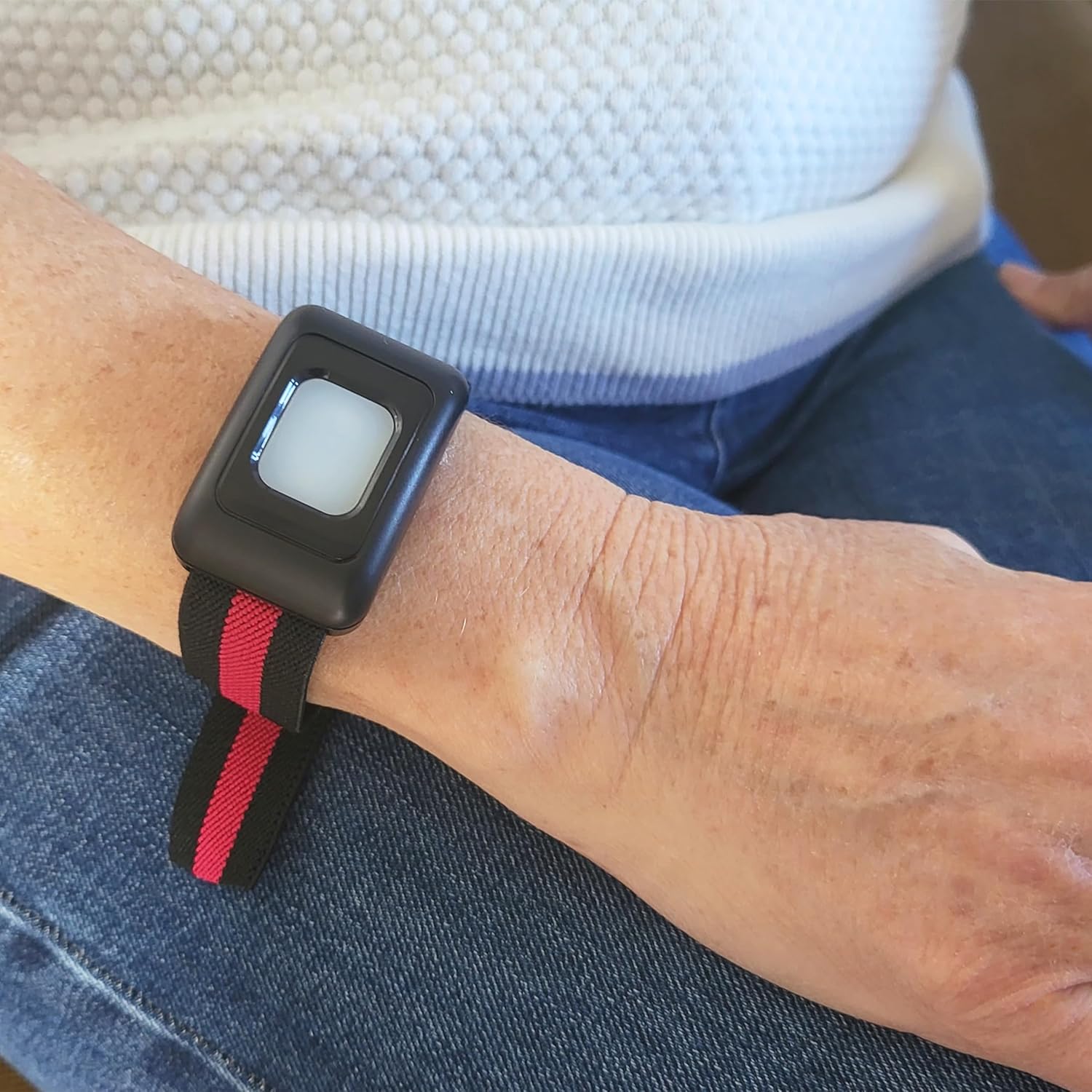
Image 3.1: The SOS button worn as a bracelet on a person's wrist.

Image 3.2: The SOS button worn as a pendant around a person's neck.
4. Operating Instructions
4.1 Activating the SOS Function
In an emergency, press the large central button on the S/M510 SOS Bracelet. A single, firm press is usually sufficient to initiate the emergency sequence.

Image 4.1: The SOS button illuminated with a red light, indicating activation or readiness.
4.2 Emergency Sequence
Upon activation, the following actions will occur via your paired smartphone:
- An automatic call will be placed to the primary helper contact configured in your smartphone.
- An SMS message containing your current GPS location will be sent to the primary helper contact.
- An SMS message containing your current GPS location will also be sent to up to five additional emergency contacts.
Your smartphone screen will typically display a countdown before the SOS call is executed, allowing you to cancel if activated accidentally.

Image 4.2: A smartphone displaying an 'SOS call will be executed in:' countdown, positioned next to the SOS bracelet.
4.3 Bluetooth Range
The S/M510 SOS Button communicates with your smartphone via Bluetooth. It has an effective range of up to 10 meters (approximately 33 feet) from the paired smartphone. Ensure your smartphone is within this range for the SOS function to operate correctly.
5. Maintenance
5.1 Cleaning
The S/M510 SOS Button is splash-resistant with an IPx5 rating, meaning it can withstand water splashes from any direction. It can be worn in the shower. To clean the device, wipe it with a soft, damp cloth. Do not submerge the device in water or use harsh chemicals.

Image 5.1: An icon indicating IPX5 splash resistance, alongside the dimensions of the SOS button (4.3 cm x 2.9 cm).
5.2 Battery Replacement
The CR2025 3V Lithium-ion battery has an estimated lifespan of 3 years. When the battery is low, the device may exhibit reduced range or inconsistent operation. Replace the battery by following the steps in Section 3.1. Always use a new, high-quality CR2025 3V battery.
6. Troubleshooting
If you encounter issues with your Swissvoice S/M510 SOS Bracelet, please refer to the following common problems and solutions:
| Problem | Possible Cause | Solution |
|---|---|---|
| SOS button does not pair with smartphone. | Bluetooth is off on smartphone; button not in pairing mode; out of range; battery low. | Ensure smartphone Bluetooth is on. Put SOS button into pairing mode (refer to smartphone manual). Bring devices closer (within 10m). Replace battery. |
| SOS function does not activate. | Not paired; out of range; battery low; button not pressed correctly. | Verify pairing status. Ensure smartphone is within 10m. Replace battery. Press the button firmly and hold briefly. |
| Emergency call/SMS not sent. | No network signal on smartphone; emergency contacts not configured; smartphone issues. | Check smartphone network signal. Verify emergency contact settings in the smartphone app. Restart smartphone. |
| Loss of connection with smartphone. | Out of Bluetooth range; interference; smartphone Bluetooth issue. | Stay within 10m of the smartphone. Avoid strong electromagnetic interference. Restart smartphone's Bluetooth. Re-pair the device if necessary. |
7. Specifications
- Model Number: ATL1427264
- Dimensions (SOS Button): 2.9 cm x 4.3 cm (1.15 in x 1.7 in)
- Weight (SOS Button): 48 grams
- Battery Type: 1 x CR2025 3V Lithium-ion (included)
- Battery Life: Approximately 3 years
- Connectivity: Bluetooth
- Operating Range: Up to 10 meters (33 feet) from paired smartphone
- Water Resistance: IPx5 (Splash-resistant)
- Compatibility: Swissvoice S510-C, S510-M, Amplicomms M510-C, M510-M smartphones
- Manufacturer: Atlinks
- Country of Origin: China
8. Warranty Information
This Swissvoice S/M510 Emergency SOS Bracelet comes with a standard manufacturer's warranty. Please refer to the warranty card included in your product packaging or visit the official Swissvoice website for detailed information regarding warranty terms, conditions, and duration.
9. Support
For further assistance, technical support, or inquiries regarding your Swissvoice S/M510 Emergency SOS Bracelet, please contact Swissvoice customer service. Contact details can typically be found on the official Swissvoice website or in the documentation provided with your product.
You may also find helpful resources and frequently asked questions on the Swissvoice support portal.


