
1. Introduction
This manual provides detailed instructions for the installation, operation, and maintenance of your Aiwit Wireless Doorbell Camera. Please read this manual thoroughly before use to ensure proper functionality and safety. This device is designed to enhance your home security by providing real-time video surveillance and two-way communication at your doorstep.
2. What's Included
Please verify that all items listed below are present in your package:
- Aiwit Wireless Doorbell Camera
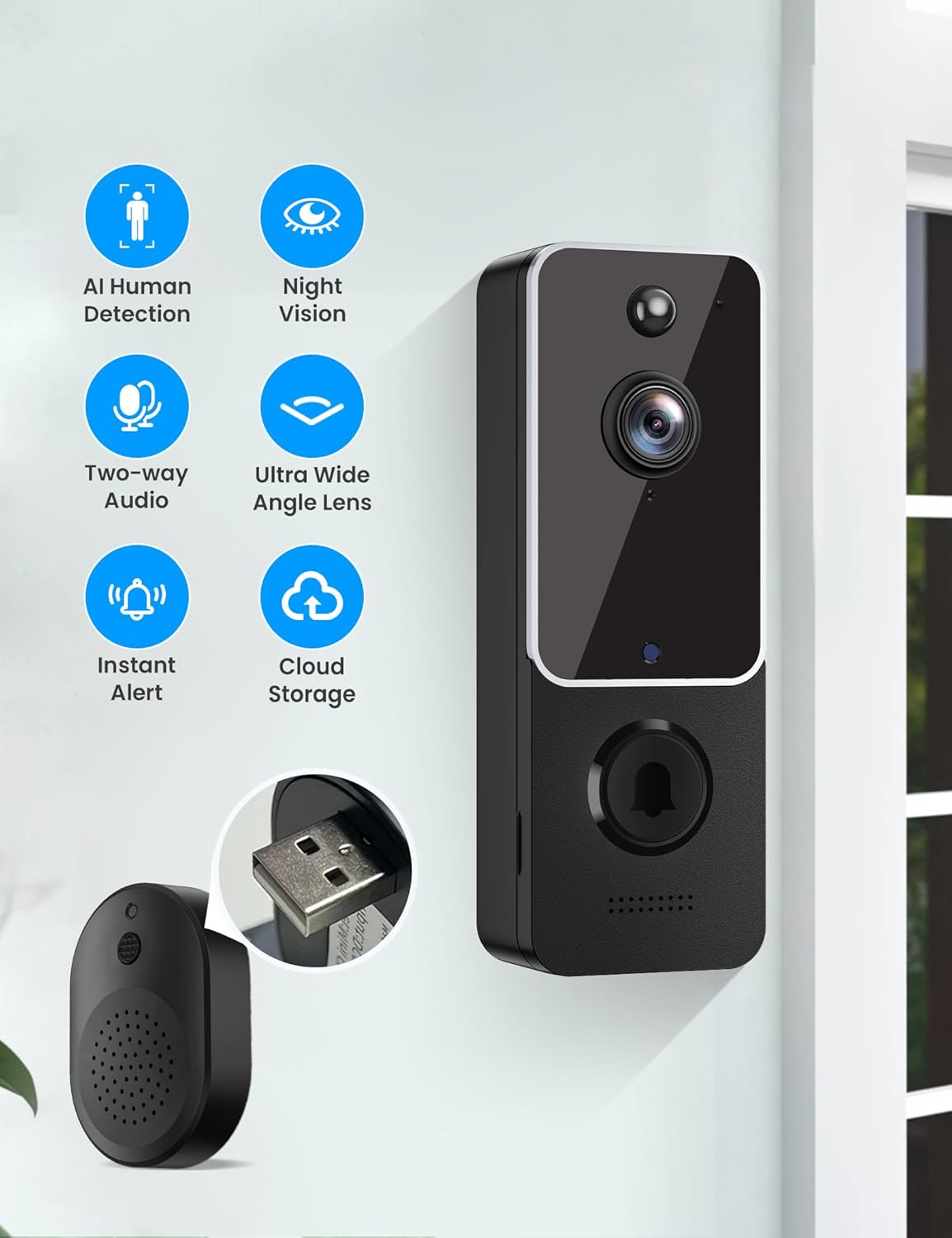
- Wireless Chime Ringer
- Mounting Screws and Anchors
- Adhesive Mounting Tape
- USB Charging Cable
- User Manual

3. Key Features
The Aiwit Wireless Doorbell Camera is equipped with several advanced features to provide comprehensive home security:
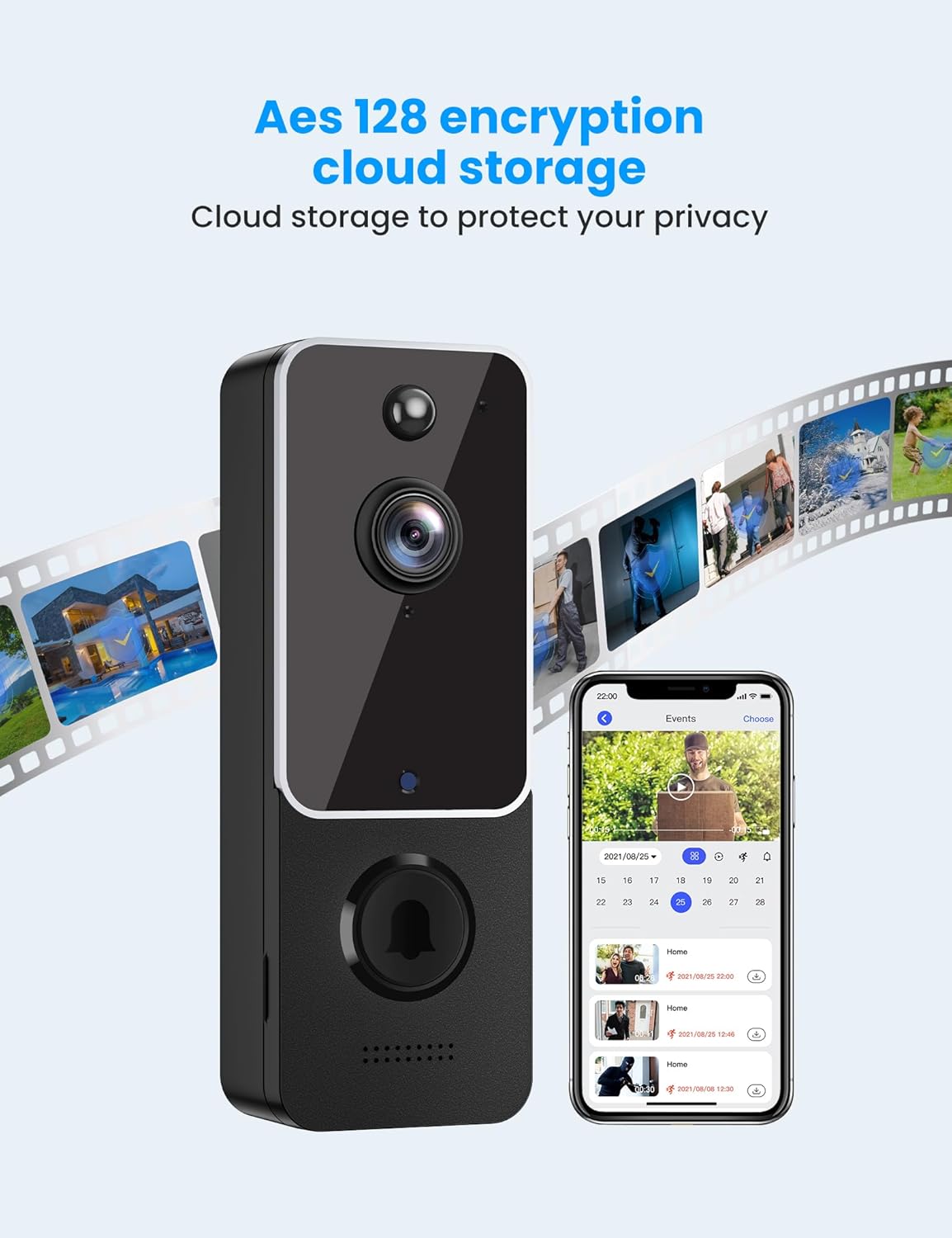
- Secure Cloud Storage Options: Enjoy AES-128 encrypted cloud storage with an optional subscription plan (sold separately). Take advantage of a 30-day free trial for uninterrupted recording, reviewing, and sharing.
- Real-Time Two-Way Communication: Easily interact with visitors from any location in real-time.
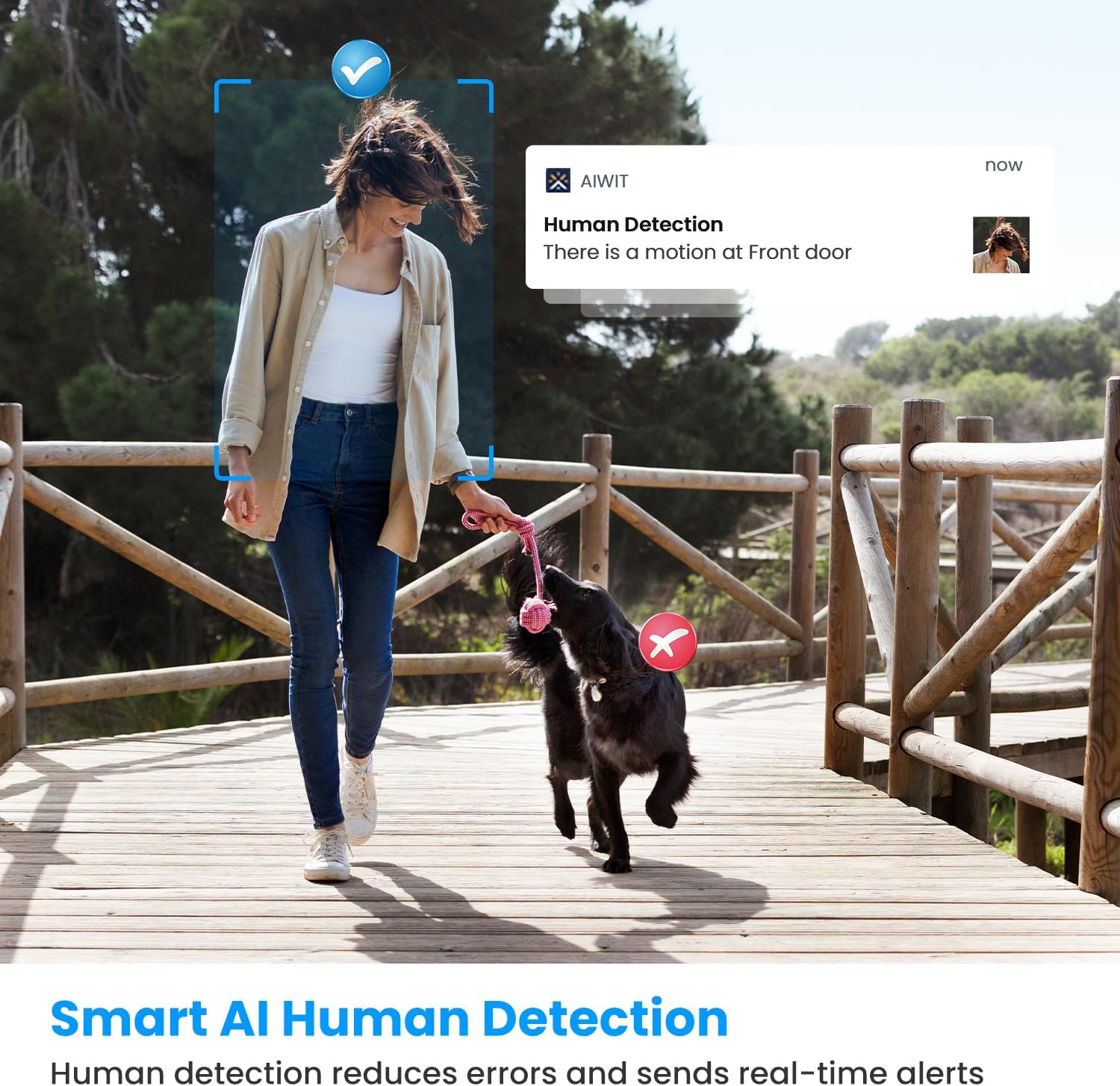
- AI-Enhanced Human Detection: Utilize advanced AI technology to accurately identify people while filtering out irrelevant motion, such as cars and trees.
- Cutting-Edge Night Vision Capabilities: Six infrared lights and a smart IR sensor provide crisp, high-resolution videos in low-light conditions, both day and night.
- Complimentary Chime for Added Convenience: Place the included doorbell chime in your dining room, kitchen, or terrace to receive instant alerts. Connect multiple chimes to a single doorbell for increased versatility.



4. Setup Guide
4.1 Charging the Doorbell
Before initial use, fully charge the doorbell camera using the provided USB charging cable. Connect the cable to the doorbell's charging port and a standard USB power adapter (not included). The indicator light will show charging status.
4.2 Download and Install the Aiwit App
Search for 'Aiwit' in your smartphone's app store (Google Play Store for Android or Apple App Store for iOS) and download the application. Follow the on-screen instructions to create an account and log in.
4.3 Pairing the Doorbell and Chime
- Plug the wireless chime into a power outlet.
- Open the Aiwit app and follow the prompts to add a new device.
- Press the doorbell button on the camera to initiate pairing. The chime will ring once successfully paired.
4.4 Mounting the Doorbell Camera
The doorbell camera offers two mounting options:
- Adhesive Mounting: For smooth, clean surfaces, use the strong adhesive tape provided. Ensure the surface is dry and free of dust before application.
- Screw Mounting: For a more secure installation, use the included screws and anchors. Mark the desired drilling spots, drill pilot holes, insert anchors, and then secure the doorbell with screws.

5. Operating Instructions
Once your Aiwit Wireless Doorbell Camera is set up, you can utilize its features through the Aiwit app:
- Live View: Open the Aiwit app to access a real-time video feed from your doorbell camera at any time.
- Two-Way Talk: When viewing the live feed or receiving a call, use the microphone icon in the app to speak with visitors at your door.
- Motion Detection Alerts: The camera will automatically detect human motion and send instant notifications to your smartphone. Tap the notification to view the event.
- Night Vision: The camera automatically switches to night vision mode in low-light conditions, providing clear black-and-white video.
- Cloud Storage Access: Review recorded events and video clips from the cloud storage section within the app. You can filter by date and event type.
6. Maintenance
To ensure optimal performance and longevity of your Aiwit Wireless Doorbell Camera, follow these maintenance guidelines:
- Cleaning: Periodically wipe the camera lens and surrounding area with a soft, damp cloth to remove dust and smudges. Avoid using harsh chemicals or abrasive materials.
- Battery Care: Recharge the doorbell camera when the battery level is low, as indicated in the Aiwit app. Avoid prolonged exposure to extreme temperatures, which can affect battery life.
- Firmware Updates: Keep the Aiwit app and doorbell firmware updated to the latest versions to benefit from new features and security enhancements.
7. Troubleshooting
If you encounter issues with your Aiwit Wireless Doorbell Camera, refer to the following common problems and solutions:
| Problem | Possible Cause | Solution |
|---|---|---|
| Doorbell not connecting to Wi-Fi | Weak Wi-Fi signal, incorrect password, or router issues. | Ensure the doorbell is within Wi-Fi range. Verify Wi-Fi password. Restart your router. |
| Poor video quality or lag | Low Wi-Fi bandwidth, interference, or dirty lens. | Improve Wi-Fi signal strength. Reduce network congestion. Clean the camera lens. |
| Motion detection not working | Incorrect sensitivity settings, or obstructions. | Adjust motion detection sensitivity in the Aiwit app. Clear any obstructions in the camera's view. |
| Battery drains quickly | Frequent motion events, extreme temperatures, or old battery. | Reduce motion detection sensitivity. Avoid placing in direct sunlight or extreme cold. Consider battery replacement if very old. |
| Chime not ringing | Chime unplugged, not paired, or out of range. | Ensure chime is plugged in. Re-pair the chime with the doorbell. Move chime closer to the doorbell. |
For further assistance, please refer to the Aiwit app's help section or contact customer support.
8. Specifications
| Feature | Detail |
|---|---|
| Model | B0C49K415Y |
| Brand | Aiwit |
| Power Source | Battery Powered (2 Lithium Polymer batteries included) |
| Connectivity Protocol | Wi-Fi (2.4Ghz) |
| Controller Type | Aiwit App |
| Mounting Type | Wall Mount |
| Color | White |
| Wireless Communication Technology | Wi-Fi |
| Installation Type | Wall-Mounted |
| Wattage | 12 watts |
| Dimensions (L x W x H) | 2 x 1.5 x 5.3 inches |
| Item Weight | 8.4 ounces |
| Low Light Technology | Night Color |
| Alert Type | Motion Only |
| Video Capture Format | H.264 |
| International Protection Rating | IP65 |
| Special Feature | Night Vision, Motion Sensor |
| Indoor/Outdoor Usage | Outdoor |
9. Warranty and Support
For warranty information and technical support, please refer to the Aiwit app's help section or visit the official Aiwit website. You may also contact Aiwit customer service directly for assistance with product issues, troubleshooting, or inquiries regarding cloud storage subscriptions.


