Introduction
Welcome to the user manual for your Ozeino OW810 Wireless Gaming Headset. This guide provides detailed instructions for setting up, operating, maintaining, and troubleshooting your headset to ensure optimal performance and longevity. Please read this manual thoroughly before using your headset.
What's in the Box
- 1x Ozeino OW810 Wireless Gaming Headset (Black)
- 1x USB & Type-C Transmitter
- 1x 3.5 mm Aux Cable
- 1x Charging Cable
- 1x User Manual
Product Overview
The Ozeino OW810 Wireless Gaming Headset is designed for an immersive audio experience across various gaming platforms. It features advanced connectivity options, superior sound quality, and comfortable design for extended use.

Figure 1: Ozeino OW810 Wireless Gaming Headset with USB & Type-C Transmitter.
Key Features:
- Superior Audio Performance: Equipped with 50mm drivers and 2.4G lossless wireless technology, delivering rich bass and accurate sound for an immersive gaming experience.
- Ultra-Low Latency Wireless: Experience real-time gaming audio with less than 30ms delay via the 2.4GHz USB & Type-C ultra-low latency wireless connection, ensuring smooth operation.
- Flexible Connectivity: Supports 2.4GHz wireless, Bluetooth, and 3.5mm wired modes for broad compatibility with various devices.
- Long-Lasting Battery: Enjoy extended gaming sessions with up to 30 hours of battery life on a single charge.
- Comfortable Design: Features breathable ear muffs and premium memory foam earpads for long-lasting comfort during prolonged use.
- Adjustable Microphone: An adjustable 120° microphone with noise-cancelling technology ensures clear voice communication.
- Intuitive Controls: Easily accessible multi-functional buttons on the headset allow for quick adjustments to volume, microphone mute, and RGB lighting.

Figure 2: Headset highlighting 7.1 Surround Sound capabilities.

Figure 3: Detailed view of the headset's internal 2.4GHz wireless technology.
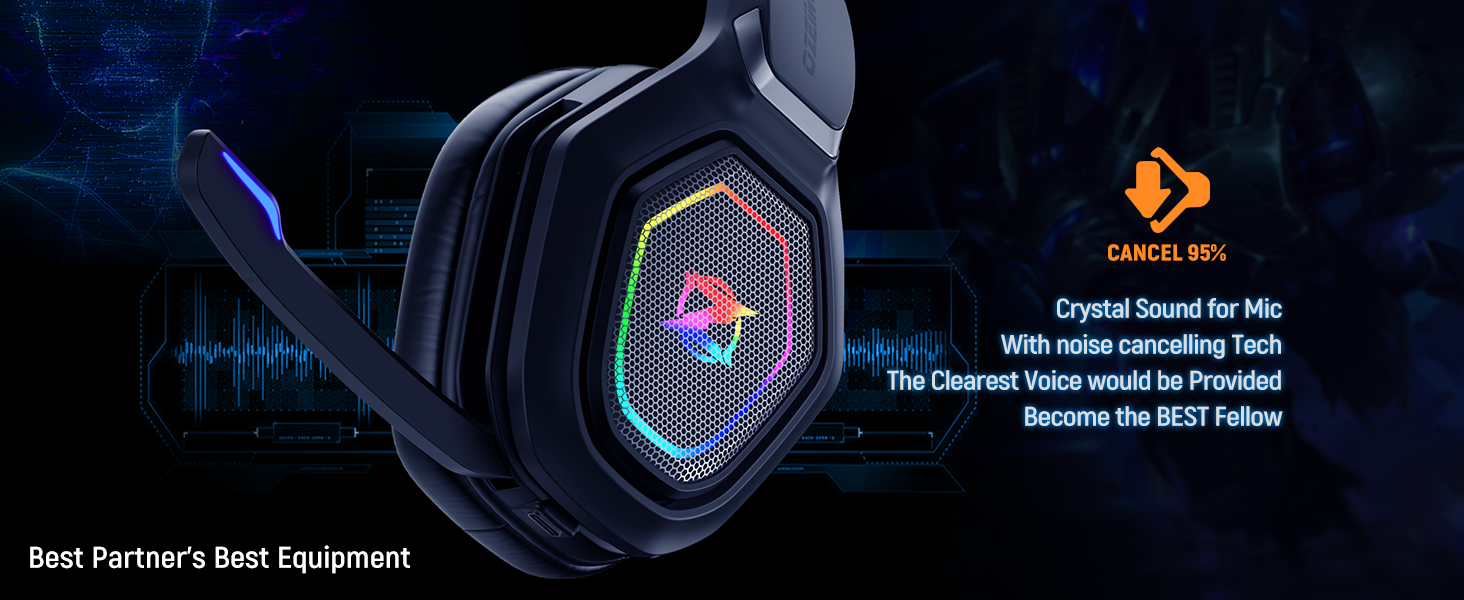
Figure 4: Visual representation of the headset's extended battery life.
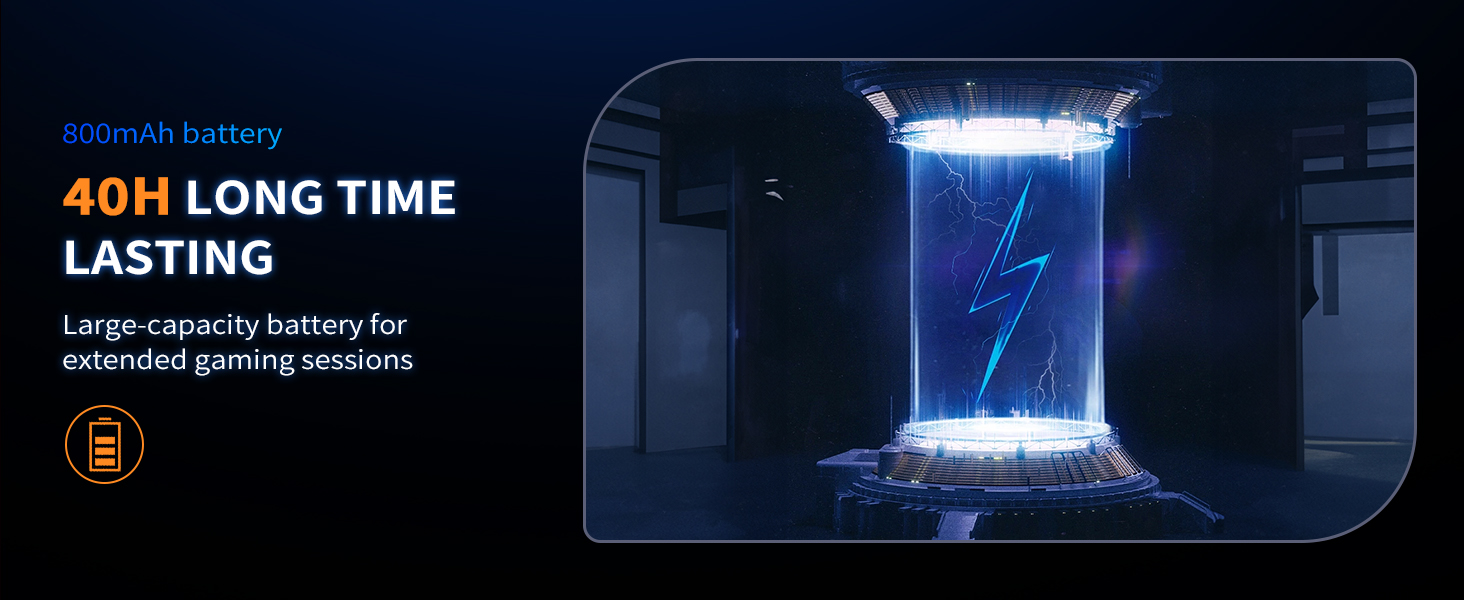
Figure 5: Close-up of the headset's comfortable, breathable ear muffs.
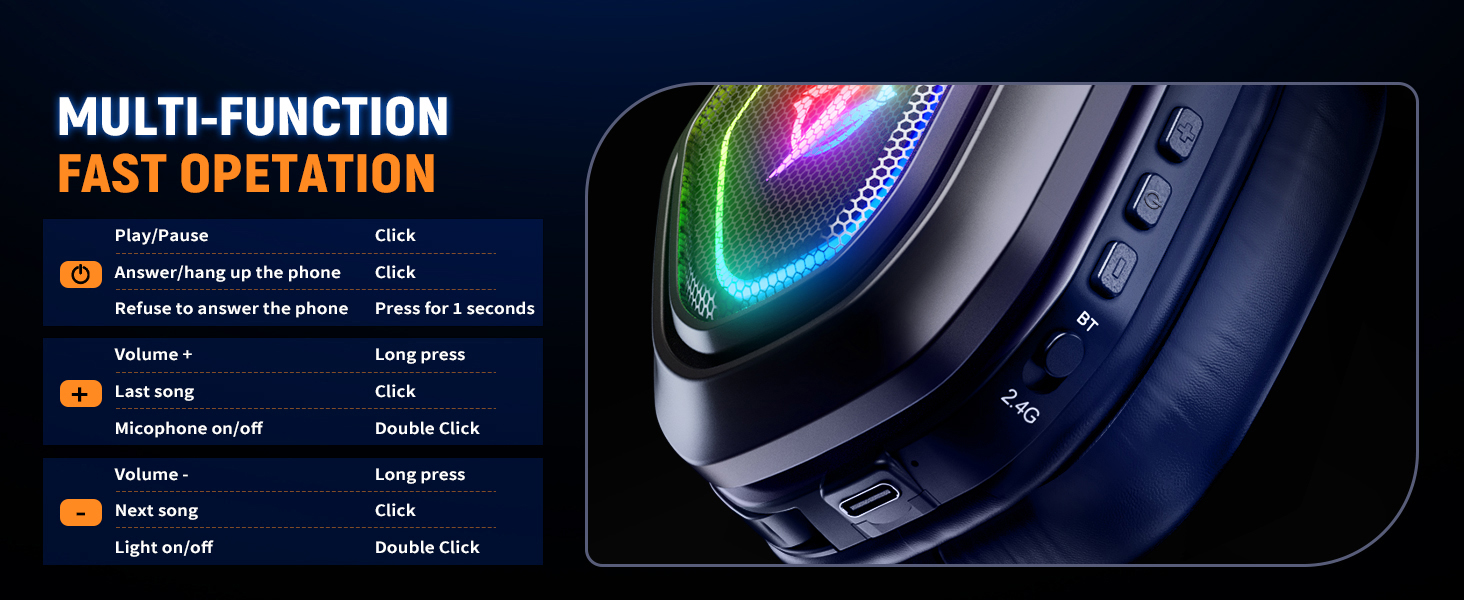
Figure 6: The headset's microphone with noise cancellation feature.
Setup
The Ozeino OW810 headset offers versatile connectivity options. Choose the method that best suits your device.
2.4GHz Wireless Mode (Recommended for Gaming Consoles & PC)
This mode provides ultra-low latency and is ideal for gaming on PS5, PS4, PC, Mac, and Nintendo Switch.
- Identify the correct USB transmitter: The included transmitter has both a standard USB-A connector and a detachable USB-C adapter.
- Plug the transmitter into an available USB port on your PS5, PS4, PC, Mac, or Switch (use the USB-C adapter for Switch or compatible laptops/phones).
- Turn on the headset by pressing and holding the Power button until the RGB lights illuminate.
- Ensure the mode switch on the headset is set to '2.4G'. The headset should automatically connect to the transmitter. A voice prompt will confirm connection.

Figure 7: The versatile USB & Type-C transmitter for various devices.
Bluetooth Mode (For Phones, Laptops, and Switch)
This mode is suitable for mobile devices and laptops with native Bluetooth. Note: Bluetooth function does not directly support PS5, PS4, or PC; an additional USB Bluetooth Adapter is required (not included) for these platforms.
- Turn on the headset.
- Set the mode switch on the headset to 'BT' (Bluetooth). The headset will enter pairing mode, indicated by a flashing light.
- On your device (phone, laptop, Switch), go to Bluetooth settings and search for 'Ozeino OW810'.
- Select the headset to pair. Once paired, a voice prompt will confirm connection.
3.5mm Wired Mode (For Music and Calls)
Use the included 3.5mm Aux Cable for a wired connection. This mode primarily supports music playback and calls.
- Connect one end of the 3.5mm Aux Cable to the headset's 3.5mm jack.
- Connect the other end to the 3.5mm audio jack on your device.

Figure 8: Overview of headset compatibility across different platforms and modes.
Operating Instructions
The Ozeino OW810 headset features intuitive controls located on the earcups for easy access during use.

Figure 9: Diagram of multi-function controls on the headset.
Button Functions:
| Function | Action |
|---|---|
| Power On/Off | Press and hold the Power button. |
| Play/Pause Music | Click the Power button. |
| Answer/Hang up Phone Call | Click the Power button. |
| Refuse Phone Call | Press and hold the Power button for 1 second. |
| Volume Up (+) | Long press the Volume + button. |
| Next Song | Click the Volume + button. |
| Volume Down (-) | Long press the Volume - button. |
| Previous Song | Click the Volume - button. |
| Microphone On/Off | Double Click the Microphone button. |
| RGB Light On/Off | Double Click the Light button. |
Maintenance
Proper care and maintenance will extend the life of your Ozeino OW810 headset.
- Cleaning: Use a soft, dry cloth to wipe down the headset. For earcups, a slightly damp cloth can be used, but ensure no moisture enters the speaker grilles. Avoid harsh chemicals or abrasive materials.
- Storage: Store the headset in a cool, dry place away from direct sunlight and extreme temperatures. When not in use, it is recommended to store it in its original packaging or a protective case to prevent dust accumulation and physical damage.
- Battery Care: To maintain battery health, avoid fully discharging the headset frequently. Charge the headset regularly, even if not in constant use. Do not expose the battery to high temperatures.
- Cable Management: When disconnecting cables, always pull from the plug, not the cable itself, to prevent damage to the connectors.
Troubleshooting
If you encounter issues with your Ozeino OW810 headset, refer to the following common problems and solutions:
- No Sound/Low Volume:
- Ensure the headset is powered on and fully charged.
- Check the volume level on both the headset and your connected device.
- Verify the correct audio output device is selected in your device's sound settings (e.g., 'Ozeino OW810' for PC).
- If using 2.4GHz wireless, ensure the USB transmitter is securely plugged in and the headset is in '2.4G' mode.
- If using Bluetooth, ensure the headset is paired and connected, and in 'BT' mode.
- Microphone Not Working:
- Ensure the microphone is not muted (double-click the Microphone button to toggle).
- Check microphone input settings on your connected device.
- Ensure the microphone is properly positioned and not obstructed.
- Connection Drops/Interference:
- Move closer to the transmitter/Bluetooth device to reduce range issues.
- Avoid strong electromagnetic interference from other devices.
- Ensure the headset is fully charged.
- Try re-pairing the headset with your device.
- Headset Not Charging:
- Ensure the charging cable is securely connected to both the headset and a power source.
- Try a different charging cable or USB port/power adapter.
Specifications
| Feature | Detail |
|---|---|
| Model Name | OW810 |
| Brand | Ozeino |
| Connectivity Technology | Wireless (2.4GHz, Bluetooth), Wired (3.5mm Aux) |
| Wireless Communication Technology | Bluetooth |
| Headphones Jack | 3.5 mm Jack |
| Audio Driver Size | 50 Millimeters |
| Frequency Range | 20 Hz - 20,000 Hz |
| Audio Latency | 20 Milliseconds (2.4GHz mode) |
| Battery Life | Up to 30 Hours |
| Bluetooth Version | 5.3 |
| Bluetooth Range | 10 Meters |
| Noise Control | Active Noise Cancellation (Microphone) |
| Material | Plastic |
| Item Weight | 1.06 pounds (0.48 Kilograms) |
| Product Dimensions | 7.48 x 3.94 x 8.27 inches |
| Compatible Devices | Desktops, Gaming Consoles (PS5, PS4, Switch), Laptops, Television |
Warranty and Support
Ozeino is committed to providing high-quality products. For any questions, technical assistance, or warranty claims, please contact Ozeino customer support through the retailer's platform or the official Ozeino website.
Additional protection plans may be available for purchase through your retailer to extend coverage beyond the standard manufacturer's warranty.


