Introduction
This manual provides comprehensive instructions for the GIGASTONE 64GB Nano Luxus Dual Drive Z50. This versatile 2-in-1 USB-A and Type-C flash drive is designed for fast data transfer and broad compatibility across various devices. Please read this manual carefully to ensure proper usage and to maximize the performance and longevity of your device.
Key Features
- Dual Connectivity: Equipped with both USB Type-A and USB Type-C connectors for broad compatibility with smartphones, PCs, Macs, TVs, and car audio systems.
- High-Speed Data Transfer: Achieves transfer speeds up to 10x faster than standard USB 2.0 flash drives, with a read speed of 100 MB/s and a write speed of 60 MB/s.
- Robust Compatibility: Supports USB 3.2 Gen 1 interface, backward compatible with USB 2.0, USB 3.0, and USB 3.1.
- Durable Design: Features a metal casing with a cap design, offering dust-proof, magnetic-proof, water-resistant, and wear-resistant properties.
- Compact and Portable: Ultra-compact and lightweight, making it easy to carry for on-the-go storage expansion.
- Ample Storage: 64GB capacity suitable for storing photos, videos, music, documents, and more.
Product Overview

The GIGASTONE 64GB Nano Luxus Dual Drive Z50, showcasing its compact metal design with a removable cap protecting the USB-C connector.

Illustration of the GIGASTONE Dual Drive connected to both a laptop via USB-A and a smartphone via USB-C, highlighting its dual interface capability.
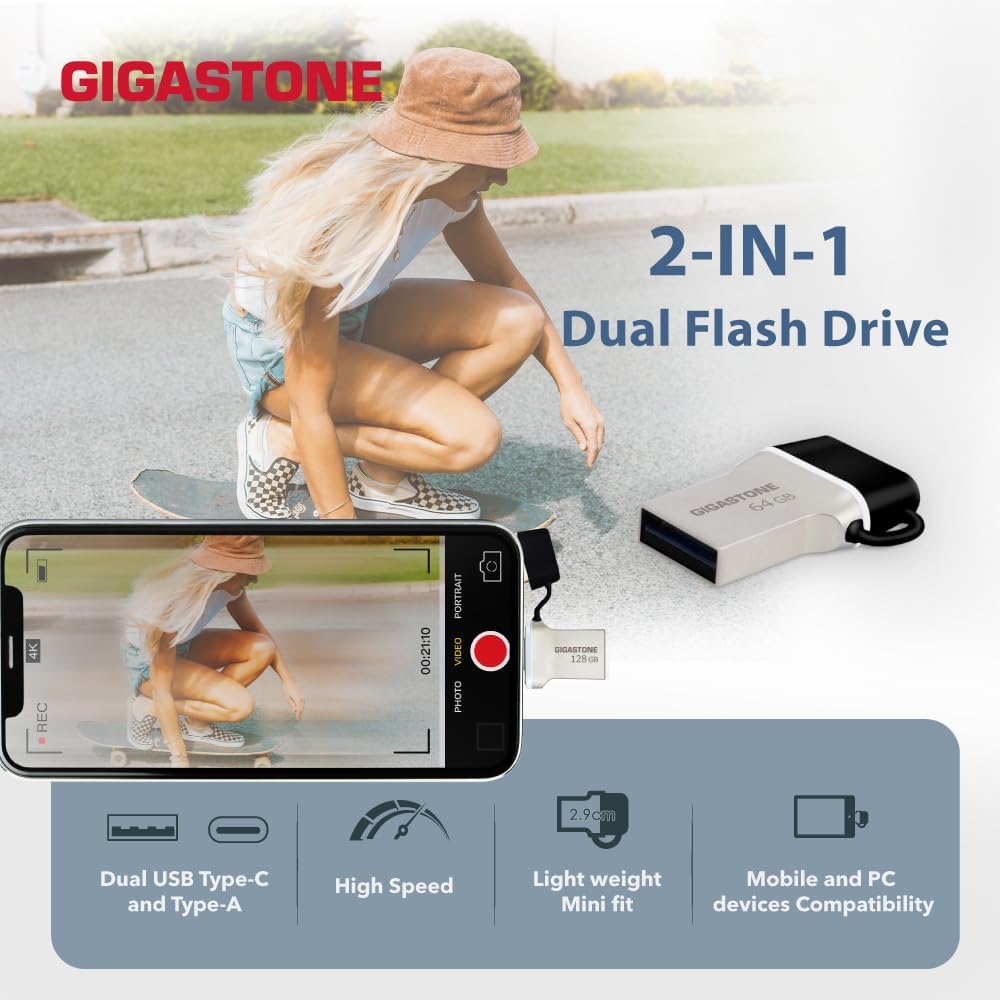
An image detailing the GIGASTONE Dual Drive's features: dual USB Type-C and Type-A, high speed, lightweight mini fit, and mobile/PC device compatibility.
Setup
- Identify Port: Determine whether your device (smartphone, tablet, PC, Mac, etc.) has a USB Type-A or USB Type-C port.
- Connect Drive: Carefully insert the appropriate connector of the GIGASTONE Nano Luxus Dual Drive into your device's USB port. Ensure a firm connection.
- Device Recognition: Your operating system should automatically detect the drive. On most systems, a notification will appear, or the drive will be visible in 'My Computer' (Windows) or 'Finder' (Mac). For smartphones, you may need to access a file manager application.
- Initial Use: The drive is pre-formatted and ready for immediate use. No additional drivers are typically required for standard operation.
Operating Instructions
Data Transfer
- Copying Files: Locate the files you wish to transfer on your device. Select them, then drag and drop them into the GIGASTONE Nano Luxus Dual Drive folder, or use the copy-paste function.
- Moving Files: To move files (removing them from the original location), use the cut-paste function.
- Accessing Files: Once files are on the drive, you can access them directly from any compatible device by plugging in the drive and navigating to its contents.
Compatibility Notes
- Smartphones/Tablets: Ensure your mobile device supports USB On-The-Go (OTG) functionality for direct connection and file management.
- Operating Systems: Compatible with Windows, macOS, Linux, and Android operating systems.
- Speed: For optimal USB 3.2 Gen 1 speeds, connect the drive to a compatible USB 3.2 Gen 1 port on your device. Connecting to a USB 2.0 port will result in USB 2.0 speeds.

A visual comparison illustrating the speed difference between USB 3.0 (USB 3.2 Gen 1) and USB 2.0, with the GIGASTONE drive connected to a laptop.
Maintenance
- Safe Ejection: Always safely eject the drive from your computer or mobile device before physically removing it. This prevents data corruption and ensures the drive's longevity.
- Physical Care: Keep the drive clean and dry. Avoid exposing it to extreme temperatures, direct sunlight, or strong magnetic fields.
- Connector Protection: Utilize the integrated cap to protect the USB-C connector when not in use.
- Storage: Store the drive in a secure location to prevent loss or physical damage.

A hand holding the GIGASTONE Dual Drive, emphasizing its compact size (2.9cm, 4 grams) and durable metal casing.
Troubleshooting
- Drive Not Recognized:
- Ensure the drive is fully inserted into the USB port.
- Try connecting to a different USB port on your device.
- Test the drive on another computer or compatible device to rule out a device-specific issue.
- Restart your computer or mobile device.
- Slow Transfer Speeds:
- Verify that you are connected to a USB 3.2 Gen 1 (or USB 3.0/3.1) port. USB 2.0 ports will limit speeds.
- Ensure your device's drivers are up to date.
- Avoid running multiple demanding applications during large file transfers.
- Data Corruption/Loss:
- Always use the "Safely Remove Hardware" option (Windows) or "Eject" function (macOS/Linux) before disconnecting the drive.
- Avoid physical shock or sudden disconnection during data transfer.
- Drive Appears Full/Incorrect Capacity:
- Operating systems calculate storage differently, leading to a slightly lower reported capacity than the advertised raw capacity. This is normal.
- Check for hidden files or system files that may be occupying space.
Specifications
| Feature | Detail |
|---|---|
| Model Name | GIGASTONE Z50 |
| Item Model Number | Z50 |
| Memory Storage Capacity | 64 GB |
| Connectivity Technology | USB |
| Hardware Connectivity | USB Type A, USB Type C |
| Read Speed | 100 Megabytes Per Second |
| Write Speed | 60 MB/s |
| Product Dimensions (LxWxH) | 0.94 x 0.83 x 0.2 inches |
| Item Weight | 0.704 ounces |
| Special Features | Dual USB Connector, Dust Proof, Magnetic Proof, Water Resistant, Wear Resistant |
Warranty and Support
The GIGASTONE 64GB Nano Luxus Dual Drive Z50 comes with a 5-year limited warranty from GIGASTONE. This warranty covers manufacturing defects and ensures reliable performance under normal usage conditions.
For warranty claims, technical support, or further assistance, please contact GIGASTONE customer service through their official website or the retailer where the product was purchased. Please retain your proof of purchase for warranty validation.


