
1. Introduction
This manual provides detailed instructions for the setup, operation, and maintenance of your FEELWORLD TP16 16 Inch Folding Teleprompter. Please read this manual thoroughly before use to ensure proper functionality and to maximize your product experience.
The FEELWORLD TP16 is designed to assist with live streaming, interviews, speeches, and online teaching by displaying scripts clearly. It supports prompting devices up to 16 inches and offers remote control via an app or Bluetooth.
2. Safety Information
- Do not expose the teleprompter to water or excessive humidity.
- Avoid dropping or subjecting the device to strong impacts.
- Use only specified accessories and power sources.
- Keep out of reach of children.
- Clean the beam splitter glass with the provided microfiber cloth only.
3. Package Contents
Verify that all items listed below are included in your package:
- 1 × Teleprompter unit
- 7 × 1/4" Customized Screws
- 2 × Extension Clamps
- 1 × Sun-hood
- 1 × Remote Controller
- 1 × Microfiber cloth
- 1 × Carrying Case
- 1 × User Manual (this document)
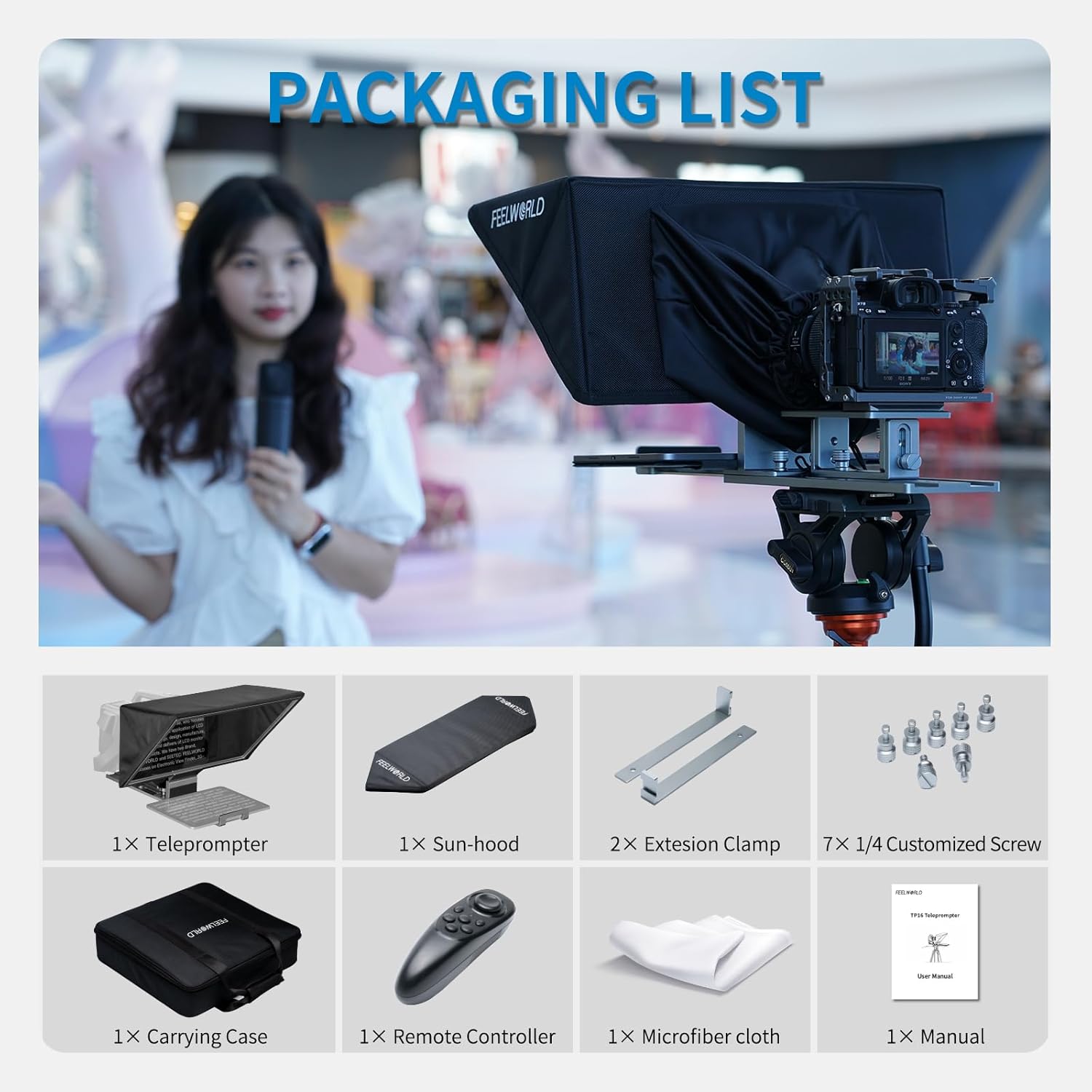
Image: All components included in the FEELWORLD TP16 teleprompter package, laid out neatly. This includes the main teleprompter unit, sun-hood, extension clamps, screws, remote controller, microfiber cloth, carrying case, and user manual.
4. Product Overview
The FEELWORLD TP16 teleprompter features a 16-inch high-definition clear beam splitter glass with 70% light transmission and 30% reflectivity, ensuring clear script visibility without affecting camera footage.

Image: A diagram illustrating the high-definition display of the teleprompter, highlighting the 70% light transmittance and 30% reflectivity of the beam splitter glass for clear script projection.
The teleprompter is designed for portability with a foldable structure and comes with a dedicated carrying case.

Image: A person carrying the black FEELWORLD branded carrying case for the TP16 teleprompter, demonstrating its portability.
5. Setup Instructions
5.1 Assembly
- Take the teleprompter unit out of its carrying case.
- Mount the teleprompter onto a tripod using the appropriate mounting points.
- Unfold the beam splitter glass frame. The hinged design allows for a 135° tilt for optimal viewing.
- Attach the sun-hood to the four sides of the glass using the Velcro fasteners. Ensure it is securely fastened to prevent light leakage.

Image: A visual guide showing the four steps for assembling the FEELWORLD TP16 teleprompter: taking it out of the case, mounting on a tripod, unfolding the beam splitter, and attaching the sun-hood.
5.2 Inserting Prompting Device
The TP16 supports prompting devices up to 16 inches. Use the adjustable clamp to secure your tablet or smartphone.

Image: An illustration demonstrating the wide compatibility of the TP16 teleprompter with various prompting devices, including tablets of 15.6", 12.9", 11", and 8.3" sizes, showing the adjustable clamp mechanism.
5.3 Camera Connection and Adjustment
The teleprompter is compatible with DSLR cameras, small and medium camcorders, and webcams. Fix your recording device onto the teleprompter using the customized 1/4" screws.

Image: Examples of the TP16 teleprompter being used with different shooting equipment, including a DSLR camera, a camcorder, and a PTZ camera, highlighting its wide applicability.
You can adjust the extension height of the camera platform from 50mm to 75mm by loosening the two screws on the side.

Image: A close-up view of the teleprompter's camera platform, showing how to adjust the extension height between 50mm and 75mm by loosening two screws.
The teleprompter also includes two hot shoe interface expansion arms for connecting external devices like microphones or fill lights.

Image: A user operating the teleprompter with an external device mounted via an expansion clamp, illustrating the hot shoe interfaces for accessories like microphones or lights.
6. Operating Instructions
6.1 App and Bluetooth Control
The FEELWORLD TP16 can be controlled using a dedicated smartphone app or the included Bluetooth remote control.
App Download:
- iOS users: Search for "FEELWORLD" in the App Store.
- Android users: Search for "FEELWORLD" in Google Play, or scan the QR code below.

Image: A display showing a tablet and smartphone running the FEELWORLD app, with instructions and QR codes for downloading the app from the App Store and Google Play.
Note: Ensure the downloaded file name is "FEELWORLD.apk" for Android. If not, delete any redundant characters.
Remote Control Functions:

Image: A detailed diagram of the FEELWORLD TP16 remote control, labeling each button with its corresponding function such as Play/Pause, Up-speed up, Down-slow down, Left-font zoom out, Right-font zoom in, Select file, Exit/Turn ON/OFF, Previous page, Loop play, Menu, Horizontal/Vertical screen switch, and Next page.
- Joystick: Up (speed up), Down (slow down), Left (font zoom out), Right (font zoom in).
- Play/Pause Button: Starts or pauses the script.
- Select File / ON/OFF Button: Enters file selection or turns the remote on/off.
- Previous Page Button: Navigates to the previous page of the script.
- Next Page Button: Navigates to the next page of the script.
- Loop Play Button: Toggles script looping.
- Menu Button: Accesses app menu settings.
- Horizontal/Vertical Screen Switch Button: Changes the orientation of the script display.
Notice: Due to variations in smartphone brands, some remote control functions may differ slightly when connected.
7. Maintenance
- Cleaning: Use the provided microfiber cloth to gently clean the beam splitter glass. Do not use abrasive cleaners or solvents.
- Storage: When not in use, fold the teleprompter and store it in the carrying case to protect it from dust and damage.
- Battery Replacement: The remote control requires two AA batteries. Replace them when the remote's performance degrades.
8. Troubleshooting
| Problem | Possible Cause | Solution |
|---|---|---|
| Script text is blurry or unclear. | Beam splitter glass is dirty; prompting device not positioned correctly; incorrect font size/zoom. | Clean the glass with the microfiber cloth. Adjust the prompting device's position. Use the remote to adjust font zoom. |
| Remote control not responding. | Batteries are low or dead; remote not paired via Bluetooth; interference. | Replace AA batteries. Re-pair the remote with your prompting device via Bluetooth. Ensure no strong interference sources are nearby. |
| Camera view shows the teleprompter frame. | Using a normal lens; camera not positioned correctly. | Use a wide-angle lens for a larger viewing area. Adjust camera position to ensure the frame is outside the shot. |

Image: A comparison showing how shooting with a normal lens might capture the teleprompter frame, while using a wide-angle lens provides a bigger viewing area and avoids the frame appearing in the shot.
9. Specifications
| Feature | Detail |
|---|---|
| Model Number | TP16 |
| Beam Splitter Glass | 16-inch, 70% Light Transmission, 30% Reflectivity |
| Supported Prompting Device Size | Up to 16 inches (tablet/smartphone) |
| Camera Compatibility | DSLR, Small/Medium Camcorder, Webcam |
| Control Method | Smartphone App (FEELWORLD), Bluetooth Remote Control |
| Extension Height Adjustment | 50mm - 75mm |
| Product Weight | Approximately 4.74 pounds (2.15 kg) |
| Package Dimensions | 17.7 x 17.5 x 5.3 inches |
| Manufacturer | FEELWORLD |
10. Warranty and Support
FEELWORLD products are designed and manufactured to high-quality standards. For warranty information and technical support, please refer to the official FEELWORLD website or contact their customer service directly.
Official Website: www.feelworld.cn
For app download issues or further assistance, you may visit the download page: FEELWORLD App Download


