
1. Introduction
This manual provides comprehensive instructions for the setup, operation, maintenance, and troubleshooting of your Havit MS951GT Wireless Mouse. Please read this manual carefully before using the product to ensure optimal performance and longevity.
2. Package Contents
Please verify that all items are present in your package:
- Havit MS951GT Wireless Mouse
- USB Receiver
- User Manual (this document)
Note: An AA battery is typically not included and must be purchased separately.
3. Product Overview
The Havit MS951GT is a wireless optical mouse designed for comfortable and precise control. It features symmetrical ergonomics, making it suitable for both left and right-handed users, and includes multi-level DPI adjustment for varied sensitivity needs.

Image 3.1: Havit MS951GT Wireless Mouse highlighting key features such as DPI adjustment and side buttons.
Key Components:
- Left/Right Click Buttons: Standard mouse functionality.
- Scroll Wheel: For vertical scrolling and middle-click functionality.
- DPI Adjustment Button: Cycles through sensitivity settings (800-1200-1600 DPI).
- Side Buttons: Multi-functional, typically used for forward/backward page navigation.
- Battery Compartment: Located on the underside of the mouse.
- USB Receiver Storage: A dedicated slot on the underside for the USB receiver when not in use.
4. Setup
4.1. Installing the Battery
- Turn the mouse over to access the underside.
- Locate the battery compartment cover and gently slide or lift it off.
- Insert one AA battery into the compartment, ensuring the polarity (+/-) matches the indicators inside.
- Replace the battery compartment cover until it clicks securely into place.
4.2. Connecting the USB Receiver
- Locate the USB receiver, which is typically stored in a slot on the underside of the mouse or within the packaging.
- Plug the USB receiver into an available USB port on your computer.
- Your computer should automatically detect and install the necessary drivers. This is a plug-and-play device, so no additional software installation is usually required.
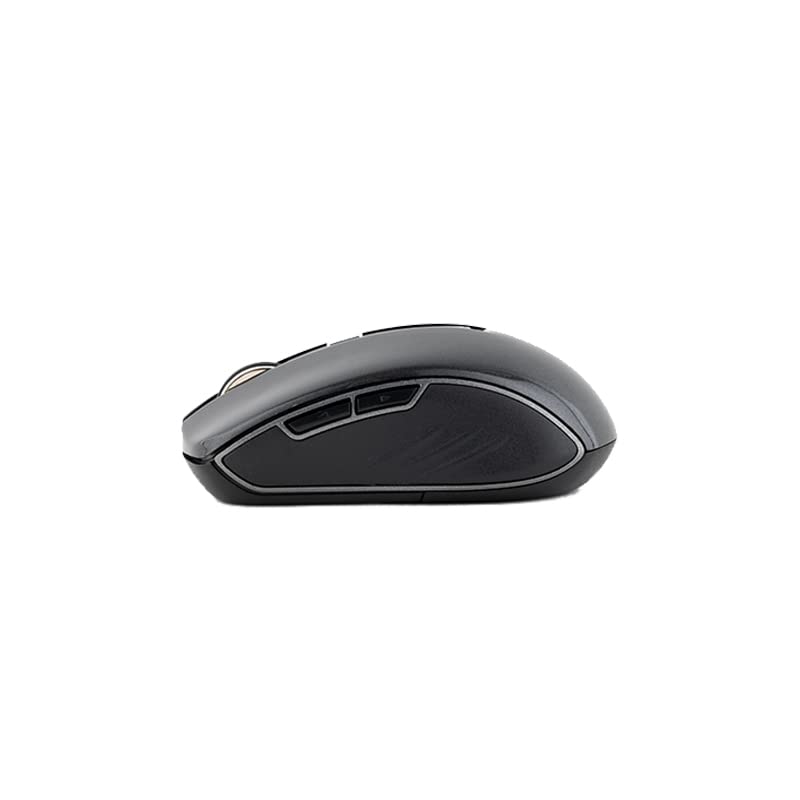
Image 4.1: The underside of the Havit MS951GT mouse, illustrating the battery compartment and the storage slot for the USB receiver.
5. Operating Instructions
5.1. Basic Mouse Functions
- Left Click: Select items, open files, activate links.
- Right Click: Access context menus.
- Scroll Wheel: Scroll up or down through documents and web pages. Pressing the scroll wheel often acts as a middle-click.
5.2. DPI Adjustment
The DPI (Dots Per Inch) button, located behind the scroll wheel, allows you to adjust the mouse's sensitivity. Pressing this button will cycle through the available DPI settings:
- 800 DPI: Lower sensitivity for precise tasks.
- 1200 DPI: Standard sensitivity for general use.
- 1600 DPI: Higher sensitivity for faster cursor movement.
Choose the DPI setting that best suits your preference and task requirements.
5.3. Side Buttons
The Havit MS951GT features multi-function side buttons, typically located on the left side of the mouse. By default, these buttons are configured for:
- Forward Button: Navigates forward in web browsers or file explorers.
- Backward Button: Navigates backward in web browsers or file explorers.
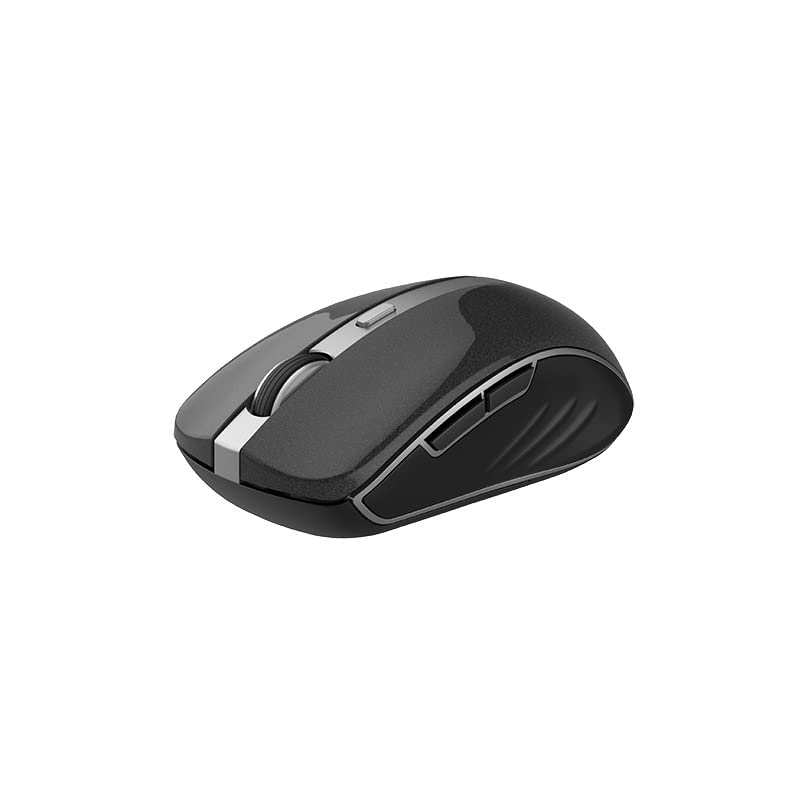
Image 5.1: Side view of the Havit MS951GT mouse, illustrating the position of the multi-function side buttons.
6. Maintenance
6.1. Cleaning
To maintain optimal performance and hygiene, clean your mouse regularly:
- Disconnect the USB receiver from your computer.
- Use a soft, lint-free cloth slightly dampened with water or a mild cleaning solution to wipe the surface of the mouse.
- Avoid using harsh chemicals or abrasive materials.
- Use a cotton swab or compressed air to clean around the scroll wheel and optical sensor.
6.2. Battery Replacement
When the mouse performance degrades or it stops responding, it is likely time to replace the AA battery. Refer to Section 4.1 for battery installation instructions.
6.3. Storage
When not in use for an extended period, the mouse features a built-in auto-sleep function to conserve battery life. For transport or long-term storage, it is recommended to:
- Remove the AA battery to prevent leakage.
- Store the USB receiver in its dedicated slot on the underside of the mouse to prevent loss.
7. Troubleshooting
If you encounter issues with your Havit MS951GT Wireless Mouse, please refer to the following common solutions:
7.1. Mouse Not Responding
- Check Battery: Ensure the AA battery is correctly inserted and has sufficient charge. Replace if necessary.
- Check USB Receiver: Ensure the USB receiver is securely plugged into a working USB port on your computer. Try a different USB port.
- Power Cycle: Turn off the mouse (if it has a power switch), remove the battery, wait a few seconds, then reinsert the battery and turn it back on.
7.2. Erratic Cursor Movement
- Clean Optical Sensor: Dust or debris on the optical sensor can cause erratic movement. Clean the sensor on the underside of the mouse with a soft, dry cloth or compressed air.
- Check Surface: Ensure you are using the mouse on a clean, non-reflective, and uniform surface. Avoid glass or highly reflective surfaces.
7.3. Connection Issues / Lag
- Reduce Interference: Move the mouse closer to the USB receiver. Avoid placing the receiver near other wireless devices (e.g., Wi-Fi routers, cordless phones) that might cause interference.
- Re-plug Receiver: Unplug and re-plug the USB receiver.
8. Specifications
| Feature | Specification |
|---|---|
| Brand | Havit |
| Model | MS951GT |
| Wireless Technology | 2.4GHz |
| Wireless Distance | 10m |
| DPI Levels | 800-1200-1600 DPI |
| Key Number | 6 (Left, Right, Scroll, DPI, 2 Side Buttons) |
| Power Supply | 1 * AA Battery |
| Dimensions (LxWxH) | 50 x 50 x 50 mm (approximate) |
| Item Weight | 100 g |
| Operating System Compatibility | Windows XP and above (PC, Laptop) |
| Material | Plastic |
| Hand Orientation | Ambidextrous |
9. Warranty and Support
Havit products are designed for reliability and performance. For information regarding warranty coverage, please refer to the warranty card included with your product or visit the official Havit website. If you require technical assistance or have questions not covered in this manual, please contact Havit customer support through their official channels.
Please retain your proof of purchase for warranty claims.


