Introduction
This manual provides detailed instructions for the BTXETUEL SayoDevice OSU O3C Rapid Trigger Mini Keypad. This device features 3 Hall magnetic linear switches, a customizable knob, and an IPS color screen, designed for enhanced control and efficiency.
What's in the Box
- SayoDevice OSU O3C Mini Keypad
- 3 Hall Magnetic Linear Switches (pre-installed)
- 1 Customizable Knob
- 1 IPS Color Screen
- USB-C to USB-A Cable (1.5m / 5 feet)
- Keycap Puller (for replaceable switches)
- Additional Keycaps (if included with specific variant)
- 3M Sticky Pads (for stable placement)
Setup
To begin using your SayoDevice OSU O3C Mini Keypad, follow these steps:
- Connect the Keypad: Connect the Mini Keypad to your computer or laptop using the provided USB-C to USB-A cable. The USB-C end connects to the keypad, and the USB-A end connects to your device.

Image: The SayoDevice OSU O3C Mini Keypad connected to a computer via its USB-C cable, displaying an animated character on its screen.
- Software Installation: The keypad requires specific software for full customization. Visit the official website (sdcx-tech.com or kpxos.com as indicated in videos) to download the latest operation software for your operating system (Windows, macOS).
Video: Demonstrates how to download and install the customization software for the programmable keypad, showing the process of setting up commands.
- Initial Calibration: Before first use or after a firmware upgrade, calibration is necessary.

Image: A visual guide showing the four steps for calibrating the SayoDevice OSU O3C Mini Keypad, involving knob presses and button presses.
- Long press the knob, then turn it to "Button".
- Select "Calibration" for K1, K2, K3 (or all keys if applicable).
- Press each button, then release it.
- Confirm "OK!" to complete calibration.
Video: Provides a step-by-step guide on how to set up and calibrate the SayoDevice OSU O3C Mini Keypad, ensuring proper functionality of the rapid trigger switches.
Operating Instructions
The SayoDevice OSU O3C Mini Keypad offers extensive customization options through its dedicated software.
Key Customization
Each of the 3 Hall magnetic linear switches can be assigned to various functions, including single keys, shortcuts (e.g., Copy, Paste), or complex macros. Use the software to map your desired functions to each key.
Video: Overview of the Sayodevice O3C Rapid Trigger Keyboard, demonstrating its features and customization capabilities.
Knob Customization
The integrated knob can be programmed for various actions. Common uses include volume control, scrolling through lists, or executing specific commands. Configure its functions within the software.
IPS Color Screen
The 0.96-inch IPS color screen (160x80 resolution) displays visible key range, button counting, and can be customized to show text, such as your ID or other relevant information.
Lighting Effects
The keypad features RGB backlighting. Use the software to select from various lighting effects (e.g., Static, Breath, TrigSpread Reverse, Spectrum, User.light) and adjust brightness and speed.
Macro Recording
Create and assign complex sequences of key presses and delays using the macro recording feature in the software. This allows for automation of repetitive tasks.
Rapid Trigger Calibration
The rapid trigger feature allows for precise control over actuation and reset points of the magnetic switches. This is crucial for competitive gaming or specific applications requiring high responsiveness.
To adjust rapid trigger settings:
- Access the keypad's internal settings by long-pressing the knob.
- Navigate to the "Trigger" or "Calibration" menu using the knob.
- Adjust parameters such as:
- Trigger (Actuation Point): The distance a key needs to travel to register a press.
- Release (Reset Point): The distance a key needs to travel upwards to reset after a press.
- DeadZone: A small area where key movement is ignored to prevent accidental inputs.
- Save your settings. Refer to the software interface for detailed visual guidance on these adjustments.
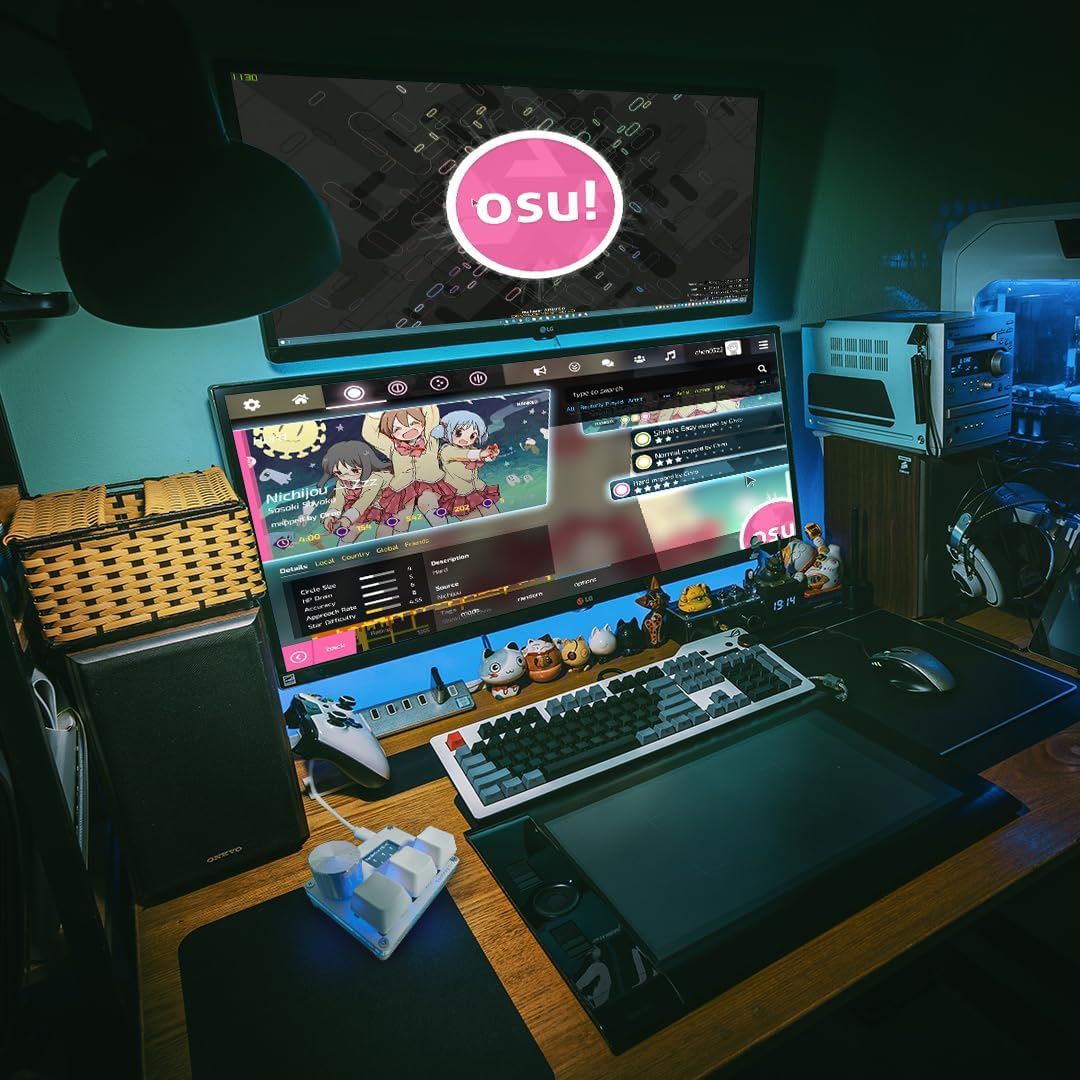
Image: A close-up view of a hand interacting with the SayoDevice OSU O3C Mini Keypad, highlighting the real-time feedback on the screen as keys are pressed.
Maintenance
To ensure the longevity and optimal performance of your SayoDevice OSU O3C Mini Keypad, follow these maintenance guidelines:
- Cleaning: Use a soft, dry cloth to wipe down the keypad. For stubborn dirt, a slightly damp cloth with mild soap can be used, ensuring no liquid enters the device.
- Keycap Removal: Use the provided keycap puller to safely remove keycaps for cleaning or replacement. Avoid pulling keycaps directly by hand to prevent damage to the switches.
- Storage: Store the keypad in a clean, dry environment away from extreme temperatures and direct sunlight.
Troubleshooting
If you encounter issues with your SayoDevice OSU O3C Mini Keypad, refer to the following common solutions:
- Keypad Not Responding:
- Ensure the USB cable is securely connected to both the keypad and your computer.
- Try connecting to a different USB port or a different computer to rule out port or system issues.
- Restart your computer.
- Keys Not Registering Correctly:
- Perform a calibration as described in the "Initial Calibration" section. This is often necessary after initial setup or firmware updates.
- Check the key assignments in the customization software to ensure they are correctly mapped.
- If using replaceable switches, ensure they are properly seated.
- Software Not Detecting Keypad:
- Verify that the correct software version for your keypad model is installed.
- Ensure your browser is compatible with the web-based configuration tool (if applicable). Common browsers like Chrome and Microsoft Edge typically support this function.
- Reconnect the keypad and restart the software.
- Screen Issues:
- Check the display settings within the keypad's internal menu or software.
- Ensure the keypad is receiving sufficient power.
Specifications
| Feature | Detail |
|---|---|
| Product Dimensions | 2.52 x 2.01 x 1.5 inches (6.4 x 5.1 x 3.8 cm) |
| Item Weight | 5.6 ounces (158.76 grams) |
| Model Number | Sayodevice-O3C |
| Manufacturer | BTXETUEL |
| Connectivity Technology | USB-C |
| Keyboard Description | Gaming Mini Keypad |
| Recommended Uses | Gaming, Productivity, Custom Shortcuts |
| Special Feature | Rapid Trigger Magnetic Switches, Customizable Knob, IPS Screen |
| Keyboard Backlighting | RGB |
| Compatible Devices | Laptop, Mac, PC |
Warranty and Support
For warranty information and technical support, please refer to the documentation included with your product or visit the official BTXETUEL website. Contact information for customer service can typically be found on the manufacturer's website.