
1. Introduction
This manual provides detailed instructions for the installation, operation, and troubleshooting of your AOOCOO Dual Monitor 4K@60Hz HDMI KVM Switch. This device allows you to control two computers or laptops using a single set of keyboard and mouse, while sharing two monitors in either extended or copy display mode. Please read this manual thoroughly before use to ensure proper functionality and to maximize your experience.
2. Package Contents
Please verify that all items listed below are included in your package. If any items are missing or damaged, please contact customer support.
- 1x AOOCOO Dual Monitor USB3.0 HDMI KVM Switch
- 2x HDMI 2.0 Cables (1.5m / 4.92ft)
- 2x USB 3.0 Cables (1.5m / 4.92ft)
- 1x Wired Controller (1.5m / 4.92ft)
- 1x User Manual

Image: Contents of the AOOCOO KVM Switch package, including the main unit, cables, and remote.
3. Product Overview
The AOOCOO Dual Monitor KVM Switch is designed to streamline your workspace by allowing two computers to share two monitors, a keyboard, a mouse, and other USB peripherals.
3.1 KVM Switch Layout

Image: Front and rear panel layout of the KVM Switch, detailing input and output ports.
The KVM switch features dedicated input sections for PC1 and PC2, each with two HDMI inputs and one USB 3.0 input. On the output side, there are two HDMI outputs for monitors (OUT A and OUT B) and four USB 3.0 ports for peripherals. A power input (DC/5V) and a wired remote port are also present.
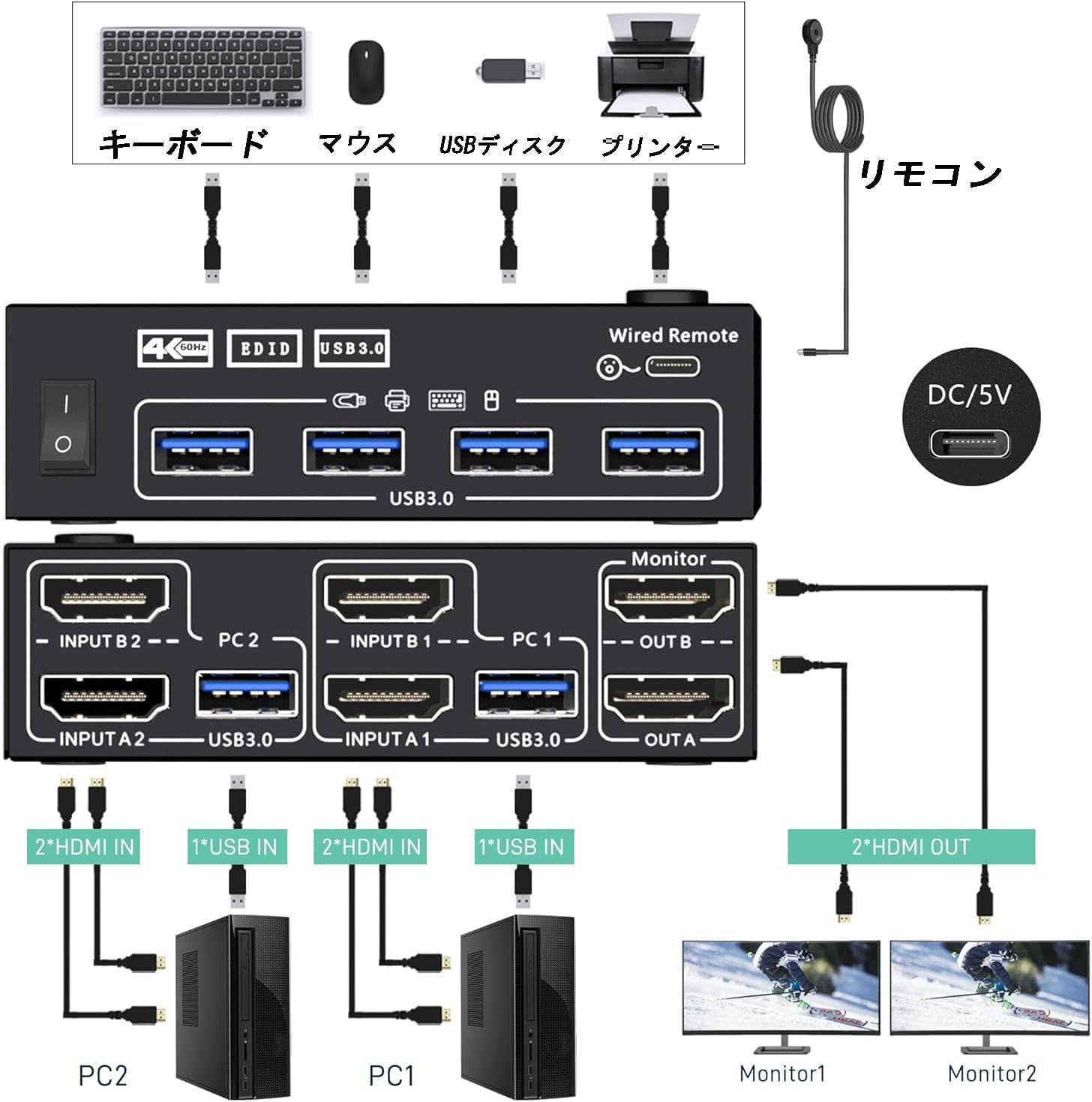
Image: KVM Switch with connected peripherals and wired remote.
4. Setup Instructions
Follow these steps to properly connect your AOOCOO Dual Monitor KVM Switch.
- Power Off Devices: Ensure both computers and monitors are powered off before making any connections.
- Connect Monitors to KVM: Connect your two monitors to the "OUT A" and "OUT B" HDMI ports on the KVM switch using HDMI cables.
- Connect PC1 to KVM:
- Connect two HDMI cables from PC1's video outputs to "INPUT A1" and "INPUT B1" on the KVM switch.
- Connect one USB 3.0 cable from PC1's USB port to the "USB3.0" port in the PC1 section of the KVM switch.
- Connect PC2 to KVM:
- Connect two HDMI cables from PC2's video outputs to "INPUT A2" and "INPUT B2" on the KVM switch.
- Connect one USB 3.0 cable from PC2's USB port to the "USB3.0" port in the PC2 section of the KVM switch.
- Connect Peripherals: Connect your keyboard, mouse, and other USB devices (e.g., printer, USB drive) to the four USB 3.0 ports on the front of the KVM switch.
- Connect Wired Remote (Optional): Plug the wired remote into the designated port on the KVM switch.
- Power On: Power on the KVM switch, then your monitors, and finally your computers.
Important Notes:
- Each computer requires two HDMI connections to the KVM switch for dual monitor functionality.
- For computers with discrete and integrated graphics cards, ensure both HDMI connections belong to the discrete graphics card for optimal performance.
- For 4K resolution, use HDMI 2.0 cables. Shorter HDMI cables are recommended for better signal integrity at higher resolutions. Ensure your computers and monitors support 4K.
- The input USB 3.0 ports (from PC to KVM) must be correctly connected for the KVM to recognize output USB devices.

Image: Detailed connection diagram for two computers and two monitors to the KVM Switch.
5. Operation
5.1 Switching Between Computers
The KVM switch offers two methods for switching between connected computers:
- Panel Button: Press the button on the front panel of the KVM switch to toggle between PC1 and PC2.
- Wired Controller: Use the included wired remote control to switch between computers.

Image: Illustration of switching methods: panel button and wired remote.
The three-color LED indicator lights on the KVM switch will show which computer is currently active.
5.2 Display Modes (Extended/Copy)
The KVM switch supports both extended display mode and copy (duplicate) display mode.
- To select your desired display mode, press "Window + P" on your keyboard. A small window will appear, allowing you to choose between "Duplicate" or "Extend" mode.
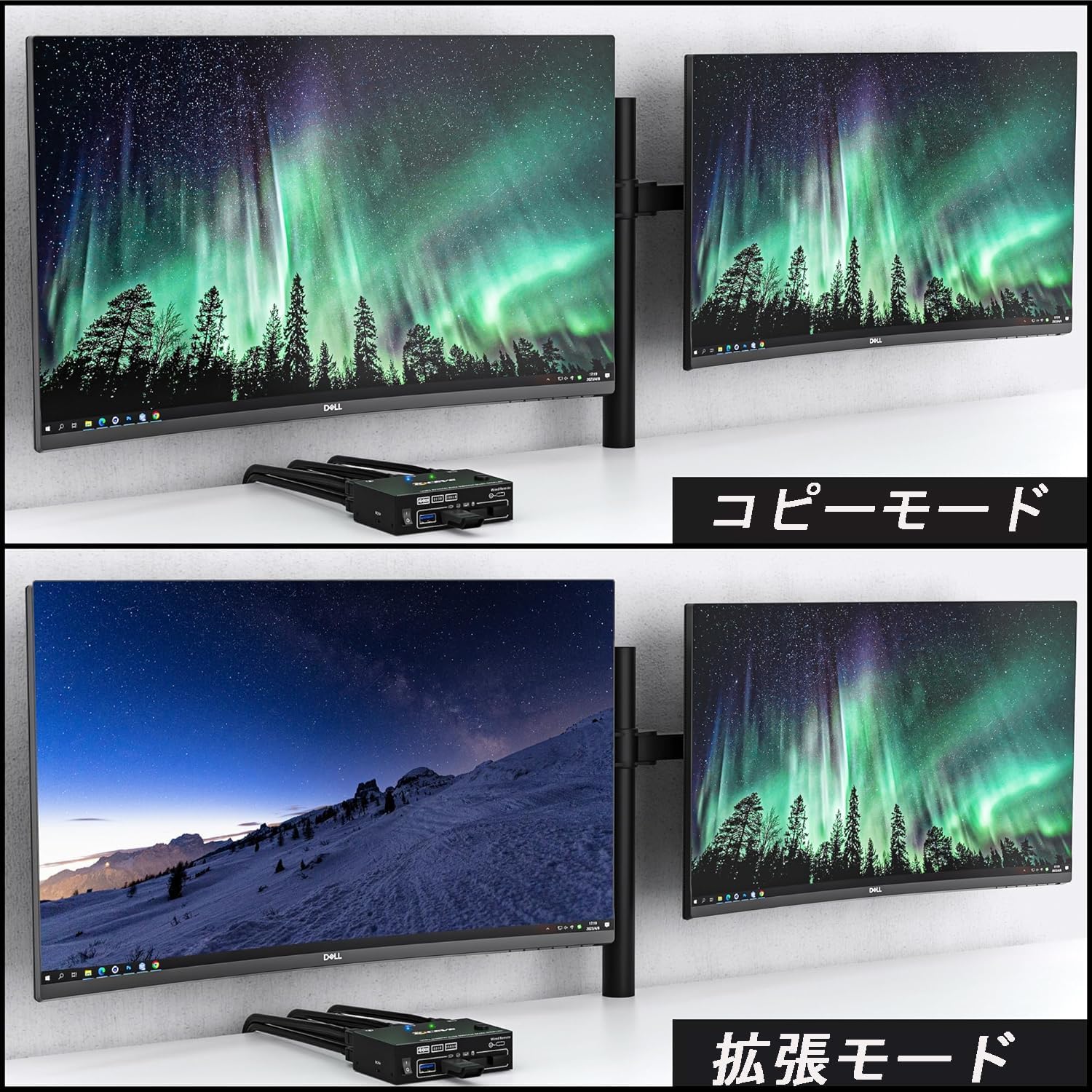
Image: Visual representation of Copy Mode and Extend Mode on dual monitors.
5.3 EDID Emulation
The KVM switch features EDID (Extended Display Identification Data) emulation. This function simulates the monitor's EDID, storing its resolution and refresh rate.
- Lock Screen: When switching from PC1 to PC2 and then back to PC1, the windows on PC1 will maintain their arrangement and will not be disrupted.
- Automatic Resolution: The KVM automatically identifies and applies the best resolution to the connected monitors.
5.4 USB 3.0 Ports
The KVM switch includes four USB 3.0 ports for connecting peripherals such as keyboards, mice, printers, and scanners. USB 3.0 offers data transfer speeds of up to 5Gbps, significantly faster than USB 2.0 (480Mbps).
Note: If the input USB 3.0 cables from your computers are not connected to the KVM or are connected incorrectly, the output USB devices will not be recognized.
6. Troubleshooting
If you encounter issues, please refer to the following common problems and solutions:
- No Display / Incorrect Resolution:
- Ensure all HDMI cables are securely connected and are HDMI 2.0 compliant for 4K resolution.
- Verify that your computers and monitors support the desired resolution (e.g., 4K@60Hz).
- Check if both HDMI inputs from each PC are connected to the KVM.
- If using a computer with both integrated and discrete graphics, ensure both HDMI outputs are from the discrete graphics card.
- Try restarting the KVM switch, monitors, and computers.
- USB Devices Not Recognized:
- Ensure the USB 3.0 cables from both computers are correctly connected to the KVM's PC input USB 3.0 ports.
- Try connecting the USB device directly to the computer to confirm it functions.
- Restart the KVM switch.
- Display Mode Issues (Extended/Duplicate):
- After switching, press "Window + P" on your keyboard and select the desired display mode.
- Ensure your operating system's display settings are configured for dual monitors.
- Switching Delays:
- Allow a few seconds for the KVM to switch and for EDID information to be exchanged.
- Ensure all cables are of good quality and properly connected.
7. Specifications
| Feature | Detail |
|---|---|
| Model Number | KVM202AS-AOO |
| Brand | AOOCOO |
| Input Ports | 4x HDMI (2 per PC), 2x USB 3.0 (1 per PC) |
| Output Ports | 2x HDMI (for monitors), 4x USB 3.0 (for peripherals) |
| Max Resolution | 4K@60Hz, 2K@144Hz |
| USB Data Transfer | Up to 5Gbps (USB 3.0) |
| Switching Methods | Panel Button, Wired Remote |
| EDID Emulation | Supported |
| Item Weight | 1.3 pounds (approx. 0.59 kg) |
| Package Dimensions | 7.99 x 6.02 x 2.32 inches |
| UPC | 793288776575 |
Image: KVM Switch with approximate dimensions.
8. Maintenance
To ensure the longevity and optimal performance of your KVM switch, please follow these maintenance guidelines:
- Cleaning: Use a soft, dry cloth to clean the exterior of the device. Avoid using liquid cleaners or abrasive materials.
- Storage: Store the KVM switch in a cool, dry place away from direct sunlight and extreme temperatures.
- Handling: Handle the device with care. Avoid dropping it or subjecting it to strong impacts.
- Ventilation: Ensure the KVM switch has adequate ventilation to prevent overheating. Do not block any vents.
9. Warranty and Support
For warranty information and technical support, please refer to the official AOOCOO website or contact their customer service directly. Keep your purchase receipt as proof of purchase.
AOOCOO Official Store: Visit the AOOCOO Store on Amazon