
FEKER IK65
Contents
FEKER IK65 Mechanical Keyboard User Manual
Model: IK65
Brand: FEKER
Introduction
Thank you for choosing the FEKER IK65 Mechanical Keyboard. This keyboard features a 65% layout with 67 keys, Gasket Mount structure, and triple-mode connectivity (USB Wired, Bluetooth 5.0, and 2.4G wireless). It is designed for an enhanced typing experience with its 4-layer filling material, factory-lubed switches, and RGB backlighting. This manual provides detailed instructions for setup, operation, and maintenance of your new keyboard.
Package Contents
Please verify that all items listed below are included in your package:
- 1 x FEKER IK65 Mechanical Keyboard
- 1 x Type-C USB Cable
- 1 x 2.4G Wireless Receiver
- 1 x Keycap & Switch Puller
- 1 x Dustproof Cover
- 1 x User Manual (this document)

Image: The FEKER IK65 Mechanical Keyboard, showcasing its compact 65% layout and two-tone PBT keycaps. The keyboard is shown detached from its base, highlighting its design.
Specifications
| Model | IK65 |
| Layout | 65% (67 Keys) |
| Structure | Gasket Mount |
| Switches | Lubed FEKER White Jade Linear 45g (Hotswappable 3/5pin) |
| Keycaps | Cherry Profile PBT |
| Connectivity | Triple Mode: USB Wired, Bluetooth 5.0, 2.4G Wireless |
| Backlighting | 16.8 Million RGB |
| Anti-Ghosting | NKRO (N-Key Rollover) |
| Battery | Built-in 4000mAh Rechargeable Li-ion |
| Compatibility | MAC, Windows (Win2000+), iOS, Android |
| Dimensions | 12.2 x 1.77 x 0.98 inches |
| Weight | 1.98 pounds |
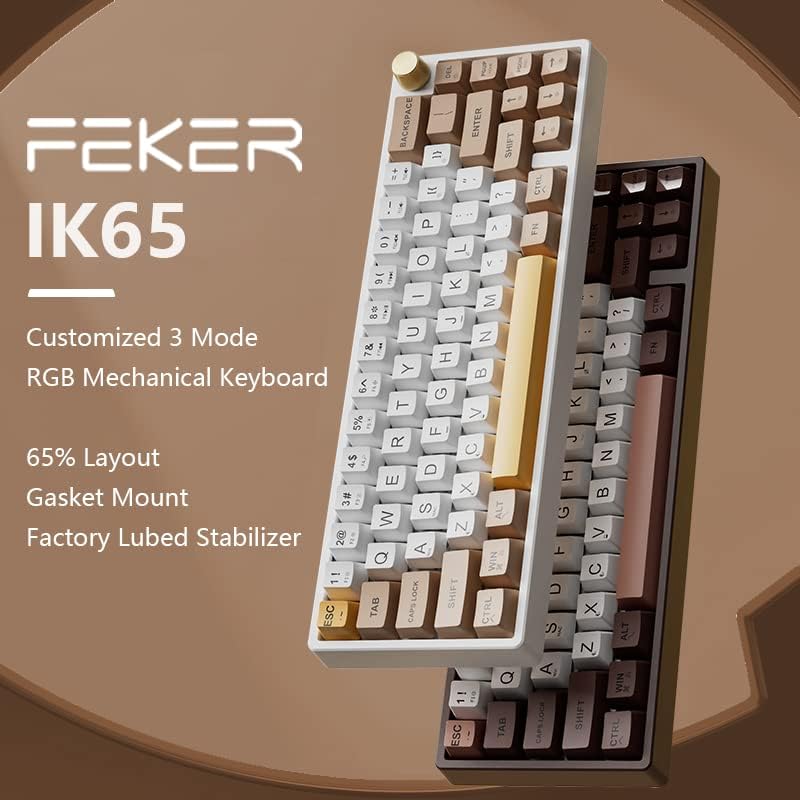
Image: The FEKER IK65 keyboard highlighting its customized 3-mode connectivity, 65% layout, Gasket Mount, and factory-lubed stabilizers.
Setup Guide
Charging the Keyboard
Before first use, it is recommended to fully charge the keyboard. Connect the supplied Type-C USB cable to the keyboard's port and the other end to a USB power source (e.g., computer USB port, wall adapter). The keyboard features a 4000mAh battery and supports 10W fast charging, allowing a full charge in approximately 30 minutes.

Image: A visual representation of the keyboard's 4000mAh battery capacity, emphasizing its long battery life and fast charging capability.
Connection Modes
The FEKER IK65 supports three connection modes: Wired, 2.4G Wireless, and Bluetooth 5.0. You can switch between these modes using the switch located on the back or side of the keyboard.
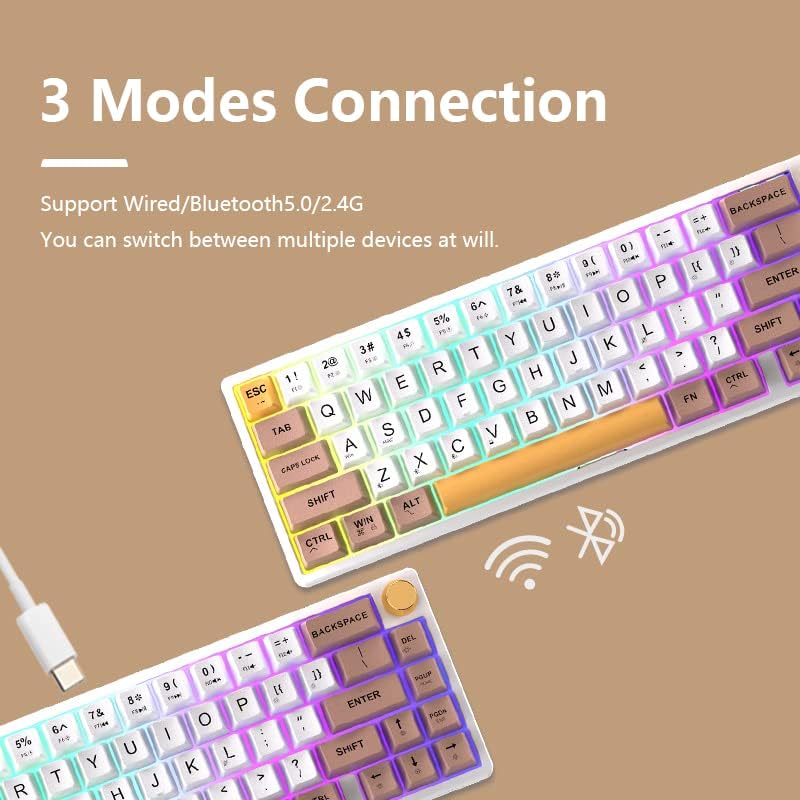
Image: Two FEKER IK65 keyboards illustrating the three connection modes: wired via USB-C cable, wireless via 2.4G receiver, and Bluetooth, with corresponding icons.
1. Wired Mode
- Ensure the mode switch on the keyboard is set to "Wired" or the corresponding icon.
- Connect the Type-C USB cable from the keyboard to an available USB port on your computer.
- The keyboard will be automatically recognized by your system.
2. 2.4G Wireless Mode
- Locate the 2.4G wireless receiver included in the package.
- Plug the 2.4G receiver into an available USB port on your computer.
- Set the mode switch on the keyboard to "2.4G" or the corresponding icon.
- The keyboard should connect automatically. If not, press Fn + R to initiate pairing.

Image: The FEKER IK65 keyboard alongside its 2.4G wireless receiver, illustrating the wireless connectivity option. Also shown are internal components like Poron foam and lubed switches.
3. Bluetooth 5.0 Mode
- Set the mode switch on the keyboard to "Bluetooth" or the corresponding icon.
- To enter pairing mode, press and hold Fn + Q, Fn + W, or Fn + E for 3-5 seconds. The indicator light will flash rapidly, indicating it's ready to pair.
- On your device (computer, tablet, phone), open Bluetooth settings and search for "FEKER IK65" or a similar name.
- Select the keyboard to connect. The indicator light will stop flashing once connected.
- You can pair up to three Bluetooth devices by assigning them to Fn+Q, Fn+W, and Fn+E. Switch between paired devices by pressing the corresponding key combination.
Operating Instructions
Function Keys (Fn Combinations)
The FEKER IK65 utilizes an Fn key for accessing secondary functions. Below are common Fn key combinations:
- Fn + Q/W/E: Switch between Bluetooth devices 1/2/3
- Fn + R: Switch to 2.4G wireless mode / Re-pair 2.4G
- Fn + T: Switch to Wired mode
- Fn + Y: Toggle RGB backlight effects
- Fn + U: Decrease backlight brightness
- Fn + I: Increase backlight brightness
- Fn + O: Decrease backlight speed
- Fn + P: Increase backlight speed
- Fn + [ {: Change backlight color (static modes)
- Fn + ] }: Change backlight color (static modes)
- Fn + ; :: Volume Down
- Fn + ' ": Volume Up
- Fn + , <: Previous Track
- Fn + . >: Next Track
- Fn + / ?: Play/Pause
- Fn + M: Mute/Unmute
- Fn + Backspace: Delete
- Fn + Win: Lock/Unlock Windows key
RGB Backlighting
The keyboard features 16.8 million color RGB backlighting with various effects. Use the Fn key combinations listed above to cycle through effects, adjust brightness, and change speed or color.
VIA Software Support
The FEKER IK65 supports VIA software for advanced key remapping, macro creation, and lighting customization. This allows for deeper modification of key positions to adapt to your personal usage habits.
- The keyboard does not require a proprietary driver; it is compatible with VIA.
- To use VIA, you will need to obtain the specific JSON file for the IK65 model. This file can typically be acquired from the seller's customer service or product support page.
- Once you have the JSON file, open the VIA application and load the file to begin customizing your keyboard.

Image: The FEKER IK65 keyboard prominently displaying the "Support Via" logo, indicating its compatibility with VIA customization software.
Hot-Swappable Switches
The FEKER IK65 features hot-swappable sockets, allowing you to change switches without soldering. It supports both 3-pin and 5-pin mechanical switches.
- To remove a switch, use the included switch puller. Gently grip the top and bottom clips of the switch and pull upwards.
- To install a new switch, align the pins of the new switch with the holes on the PCB. Press down firmly until the switch clicks into place. Ensure pins are straight to avoid bending.
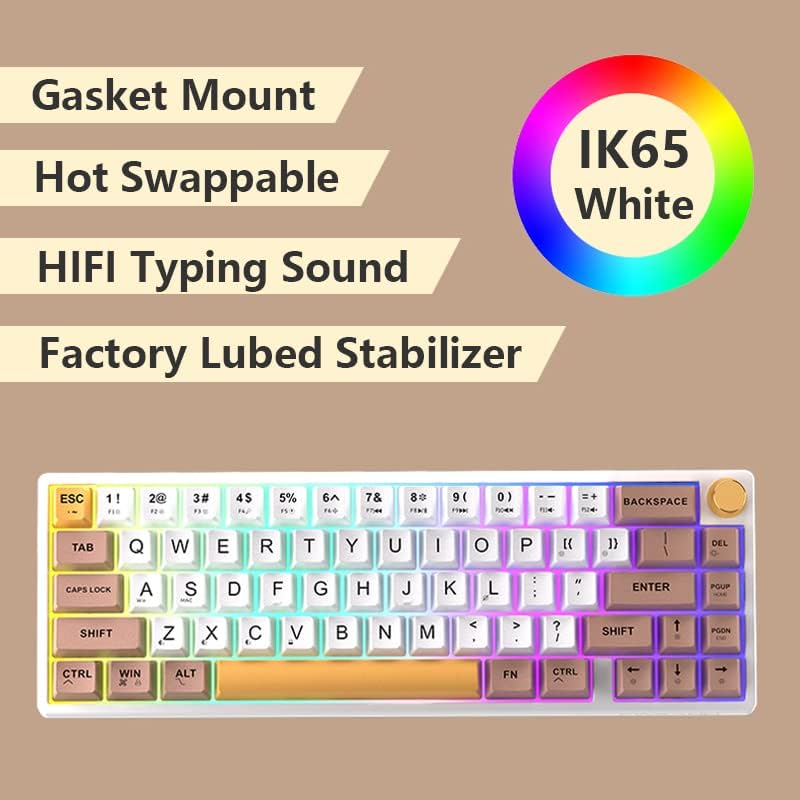
Image: The FEKER IK65 keyboard emphasizing its key features: Gasket Mount design, hot-swappable switch sockets, HIFI typing sound, and factory-lubed stabilizers.
Maintenance
Cleaning the Keyboard
- Disconnect the keyboard from all power sources before cleaning.
- Use a soft, lint-free cloth slightly dampened with water or a mild cleaning solution to wipe the keycaps and case.
- For deeper cleaning, you can use the included keycap puller to remove keycaps and clean underneath with compressed air or a small brush.
- Avoid using harsh chemicals, abrasives, or solvents as they may damage the keyboard's finish.
Storage
When not in use, store the keyboard in a cool, dry place away from direct sunlight and extreme temperatures. Use the provided dustproof cover to protect it from dust and debris.
Troubleshooting
| Problem | Possible Solution |
|---|---|
| Keyboard not responding in Wired Mode. |
|
| 2.4G Wireless connection issues. |
|
| Bluetooth connection fails or disconnects frequently. |
|
| RGB backlighting not working. |
|
| Keys not registering or double-typing. |
|
Warranty and Support
For warranty information and technical support, please refer to the warranty card included with your product or contact the seller directly. You may also visit the official FEKER website for additional resources and FAQs.
For VIA software support and the necessary JSON file, please contact the customer service of your purchase platform.
Ask a question about this manual
Ask about setup, troubleshooting, compatibility, parts, safety, or missing instructions. Manuals+ will review the question and use this page’s manual context to help answer it.