
1. Introduction
This manual provides detailed instructions for the setup, operation, and maintenance of your osee Lilmon 5 field monitor. Designed for professional and enthusiast videographers, the Lilmon 5 offers a 5.5-inch 1000 Nits high-bright touch screen with advanced monitoring features including 3D LUT, HDR, 4K HDMI input/output, exposure assist, focus assist, and waveform monitoring. Please read this manual thoroughly to ensure optimal performance and longevity of your device.
2. What's in the Box
- Lilmon 5 Monitor (1x)
- Tilt Arm (1x)
- Clean Cloth (1x)
- Quick Start Guide (QSG) and Service Card (1x)

Image: Contents of the osee Lilmon 5 package, including the monitor, tilt arm, cleaning cloth, and documentation.
3. Product Overview
3.1. Physical Components
The Lilmon 5 features a compact and robust design. Key physical components include:
- Power Button: Located on the side for turning the unit on/off.
- 1/4'' Screw Holes: Reinforced with metal and anti-rotation pin holes for secure mounting.
- SD Card Slot: For loading user LUTs and firmware updates.
- Headphone Jack: For audio monitoring.
- Battery Out: For powering external devices.
- HDMI In/Out: Supports up to 4K signal input and loop out.
- NPF Battery Slot: For power, compatible with Sony NPF batteries.
- DC In: For external power supply (6-18V DC).

Image: Rear view of the osee Lilmon 5 monitor, highlighting the HDMI input/output ports, NPF battery slot, and DC power input.

Image: Side view of the osee Lilmon 5 monitor, displaying the SD card slot, headphone jack, and battery output port.
3.2. Monitor Features
- 1000 Nits Daylight Viewable Panel: Low reflection, anti-fingerprint coating, 10-bit color, 1000:1 contrast ratio, D65 color temperature.
- Pristine and Crisp Image Quality: 22-bit internal processing color engine, HDR/LOG mapping technology.
- Super Convenient Touch Swift OS: Customizable Mysets for framing, exposure, and focus checking.
- Reliable Build: Sturdy polycarbonate housing with built-in aviation aluminum plate.
- Versatile Mounting: Torque-adjustable tilt arm or cold shoe mountings.
- Pro Color Calibration: Supports on-location calibration with X-Rite probes and osee specialized calibration software.
4. Setup
4.1. Powering the Monitor
The Lilmon 5 can be powered in two ways:
- NPF Battery: Attach a compatible Sony NPF battery to the battery slot on the rear of the monitor.
- DC Power: Connect an optional DC to D-tap cable to the DC In port for external power (6-18V DC).
4.2. Mounting the Monitor
Utilize the included torque-adjustable tilt arm or any standard cold shoe mounting accessory with the 1/4'' screw holes. The tilt arm allows for 360-degree rotation for flexible viewing angles.

Image: The osee Lilmon 5 monitor securely mounted on a camera rig, demonstrating its versatile positioning.
4.3. Connecting to a Camera
Connect your camera's HDMI output to the HDMI In port on the Lilmon 5. If needed, use the HDMI Out port to loop the signal to another monitor or device. The monitor supports up to 4K signal input.
4.4. SD Card for LUTs and Firmware
Insert an SD card (less than 32GB, formatted as FAT32) into the SD card slot to upload custom 3D LUTs or perform firmware updates.

Image: The osee Lilmon 5 displaying the custom 3D LUT feature, with an arrow pointing to the SD card slot for uploading LUTs.
5. Operating the Monitor
5.1. Swift OS Touch Interface
The Lilmon 5 features an intuitive touch-screen interface:
- Backlight Adjustment: Swipe from the left side of the screen to adjust the backlight intensity.
- Volume Adjustment: Swipe from the right side of the screen to adjust headphone volume.
- Workspace Switching: Swipe left or right across the screen to switch between up to 8 customizable workspaces (Mysets).
- Function Activation: Single tap on a function icon to enable/disable it. Use the arrow next to the icon to adjust its parameters.

Image: The osee Lilmon 5 screen showing the Swift OS interface with touch gestures for adjusting backlight and volume.
5.2. Key Monitoring Features
The Lilmon 5 offers a comprehensive suite of monitoring tools:
- Focus Peaking: Highlights in-focus areas with customizable colors and sensitivity.
- Grids: Various grid overlays (e.g., 3x3, 9x9) for composition and alignment.
- Anamorphic De-squeeze: Supports popular squeeze ratios (1.33x, 1.5x, 1.8x, 2x) for accurate viewing of anamorphic footage.
- False Color: Visualizes exposure levels with different color ranges, highly customizable.
- Zebras: Indicates overexposed areas.
- Waveform, Vectorscope, Histogram: Advanced scopes for precise exposure and color analysis.
- Image Rotate/Mirror: Allows for horizontal and vertical image flipping, useful for self-shooting or specific rig setups.
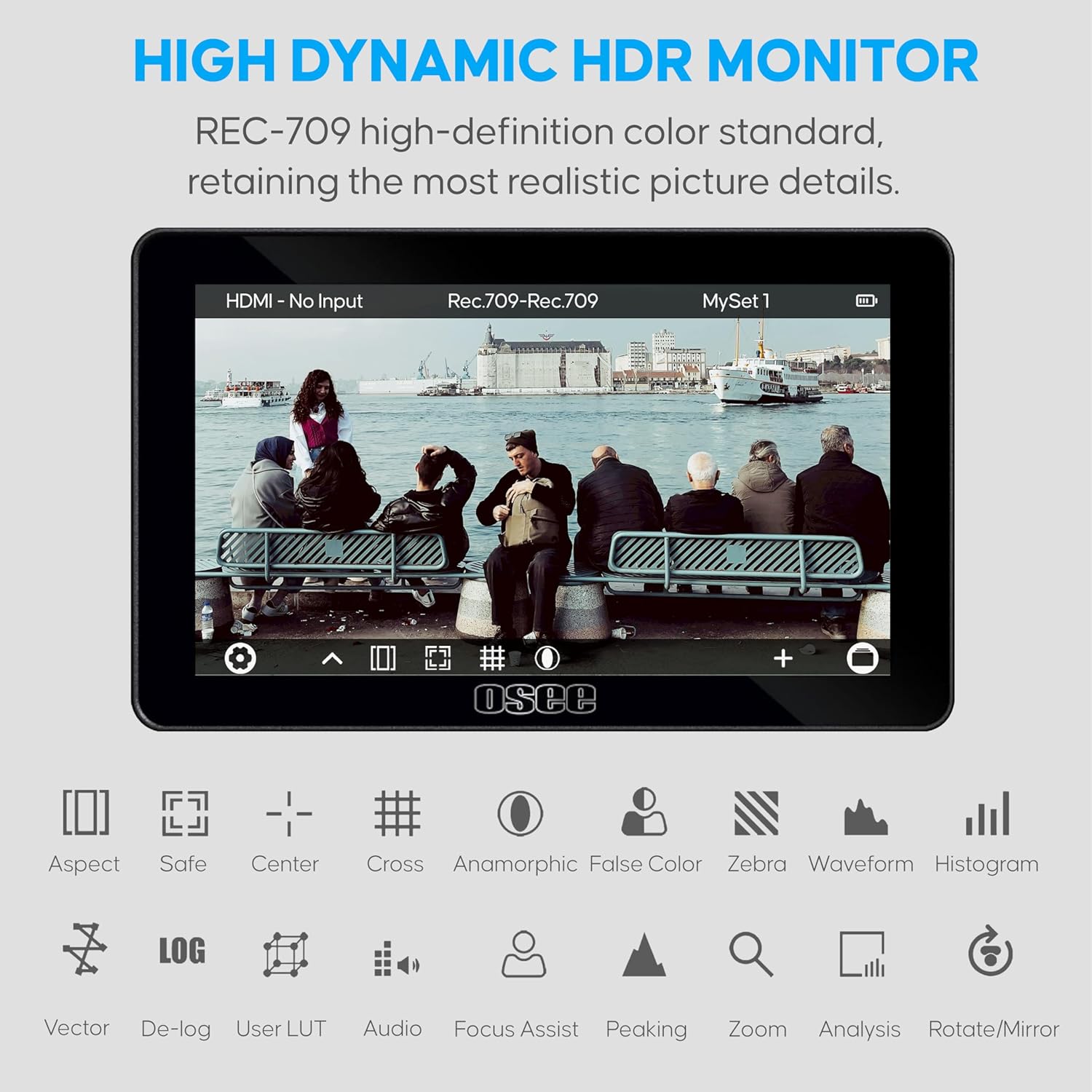
Image: The osee Lilmon 5 monitor showcasing its high dynamic HDR capabilities and a range of monitoring tools including aspect ratio, safe area, center mark, cross, anamorphic, false color, zebra, waveform, and histogram.
5.3. Official Product Videos
Video: An overview of the osee Lilmon 5 monitor, demonstrating its features, physical design, and user interface. This video provides a comprehensive look at the monitor's capabilities and how to interact with its touch-based operating system.
Video: A detailed look at the Lilmon 5, highlighting its 1000 Nits brightness and 5.5-inch touch screen. The video showcases the monitor's performance in various lighting conditions and its responsive touch interface for quick adjustments.
Video: This video demonstrates the osee Lilmon 5's high-bright display and its utility as a camera field monitor. It illustrates how the monitor's features contribute to effective outdoor filming and precise image monitoring.
6. Maintenance
6.1. Cleaning
Use the provided clean cloth to gently wipe the screen and body of the monitor. Avoid using harsh chemicals or abrasive materials that could damage the screen or finish.
6.2. Firmware Updates
Periodically check the osee official website for new firmware updates. Download the update file to a FAT32 formatted SD card and insert it into the monitor's SD card slot. Follow the on-screen instructions for updating.
6.3. Color Calibration
The Lilmon 5 supports on-location color calibration using X-Rite probes and osee specialized calibration software. This ensures color accuracy over time and consistent image reproduction.

Image: The osee Lilmon 5 monitor being calibrated with an X-Rite color checker device, demonstrating its professional color calibration capabilities.
7. Troubleshooting
7.1. Power On Issues (Screen Flash)
If the monitor's logo flashes but the unit does not fully power on, this may be due to holding the power button for too long. To properly power on the device, press and hold the power button for approximately 2 seconds, then release it. The monitor should then proceed to power on normally.
7.2. Battery Drain
If the monitor drains the battery even when turned off, ensure the power button is fully disengaged or remove the battery when not in use for extended periods. This can prevent unexpected battery depletion.
7.3. No Signal Display
Verify that the HDMI cable is securely connected to both the camera's output and the monitor's HDMI In port. Ensure the camera's video output settings match the monitor's supported input formats (e.g., 1080p, 4K).
8. Specifications
| Model | Lilmon 5 |
| Panel Size | 5.5 Inches |
| Resolution | 1920 x 1080 (FHD 1080p) |
| Image Brightness | 1000 Nits |
| Contrast Ratio | 1000:1 |
| Color Depth | 10 bits |
| Aspect Ratio | 16:9 |
| Viewing Angle | 178° x 178° |
| I/O | HDMI In & Out (up to 4K signal) |
| Item Weight | 1.08 pounds |
| Package Dimensions | 7.56 x 6.34 x 1.85 inches |
9. Warranty and Support
Your osee Lilmon 5 monitor comes with the following:
- 1 Year Warranty: Covers manufacturing defects for one year from the date of purchase.
- Lifetime Tech Support: Access to technical assistance for the lifespan of your product.
- 24/7 Live Chat: Immediate support available through online chat.
- Professional Aid Group: Dedicated team for advanced support and queries.
For further assistance, please visit the osee Store on Amazon or refer to your service card for direct contact information.


