
1. Introduction
The VOCOlinc Air Card Wallet Tracker VT2202 is a compact item finder designed to help you locate your personal belongings using the Apple Find My network. This device integrates seamlessly with your iOS devices, providing both nearby and distant tracking capabilities, along with left-behind alerts to prevent loss. This manual provides essential instructions for setup, operation, maintenance, and troubleshooting to ensure optimal performance of your tracker.

Image: The VOCOlinc Air Card Wallet Tracker shown alongside an iPhone displaying its location on the Apple Find My app.
2. Setup and Pairing
Follow these steps to set up and pair your VOCOlinc Air Card Wallet Tracker with your iOS device:
- Ensure your iOS device's Bluetooth is turned on.
- Open the Find My app on your iOS device.
- Navigate to the Items tab.
- Tap on Add Item, then select Other Supported Item.
- Press the power button on your VOCOlinc Air Card Wallet Tracker to turn it on and place it near your iOS device.
- Follow the on-screen instructions in the Find My app to complete the pairing process.
- For subsequent pairing with other items, tap the '+' icon and then 'Add Other Item' to pair.

Image: A visual representation of the pairing process, showing the steps within the Find My app.
Video: How to Pair VOCOlinc Wallet Tracker Card
Video: This video demonstrates the step-by-step process of pairing your VOCOlinc Wallet Tracker Card with an Apple iOS device using the Find My app.
3. Operating Instructions
3.1 Finding Nearby Items
When your item is within Bluetooth range (up to 200 feet/60 meters), you can use the Find My app or Siri to locate it. The tracker features a built-in speaker that emits a loud sound (80-100 dB) to help you pinpoint its exact location.
- Open the Find My app.
- Select your VOCOlinc Air Card from the Items list.
- Tap Play Sound to make the tracker emit an audible alert.
- Alternatively, activate Siri and say, "Hey Siri, find my [item name]."

Image: An iPhone screen showing the 'Play Sound' function in the Find My app, with a wallet tracker visually indicating sound emission.
3.2 Finding Far Away Items
If your item is outside the Bluetooth range, the Apple Find My network can assist. Millions of iOS devices worldwide contribute to this network, anonymously and securely relaying the location of your tracker to your Find My app. This allows you to view its last known location on a map and get directions.
- Open the Find My app.
- Select your VOCOlinc Air Card from the Items list.
- The app will display the tracker's last known location on a map.
- Tap Directions to receive navigation instructions to the item's location.

Image: The Find My app on an iPhone showing map-based directions to a VOCOlinc Air Card Wallet Tracker located at a distance.
3.3 Left-Behind Alerts
To prevent leaving your valuables behind, the Find My app can notify you if your tracker disconnects from your iOS device's Bluetooth. This feature provides an immediate alert, helping you retrieve your item before it's too far away.
- Ensure Notify When Left Behind is enabled for your tracker in the Find My app settings.
- You will receive an instant notification on your iOS device if the tracker loses its Bluetooth connection.

Image: A notification on an iPhone screen alerting the user that their tracked item has been left behind.
3.4 Sharing Items (iOS 17 and above)
With iOS 17 or newer, you can share your VOCOlinc Air Card's location with up to five other individuals. This allows multiple users to track the item's location on their own Find My app, without receiving tracking notifications if the item moves with them.
- Ensure your iOS device is updated to iOS 17 or a later version.
- In the Find My app, select the VOCOlinc Air Card you wish to share.
- Follow the prompts to add up to 5 borrowers to share the item's location.
3.5 Privacy Protection
The VOCOlinc Air Card Wallet Tracker works with the Apple Find My network, which is designed with privacy in mind. All location information is anonymous and encrypted, ensuring your privacy and security are maintained.
Video: Air Tag Card Wallet Tracker Work with Apple Find My APP
Video: This video provides an overview of the VOCOlinc Air Card Wallet Tracker's functionality with the Apple Find My app, demonstrating its various features.
4. Maintenance
4.1 Battery Life
The VOCOlinc Air Card Wallet Tracker is equipped with a built-in, non-replaceable battery designed to last up to 3 years under typical usage conditions.
4.2 Water Resistance
The tracker is IP67 water-resistant, meaning it can withstand splashes, rain, and brief immersion in water. However, it is not recommended for prolonged submersion or use in extreme water conditions.
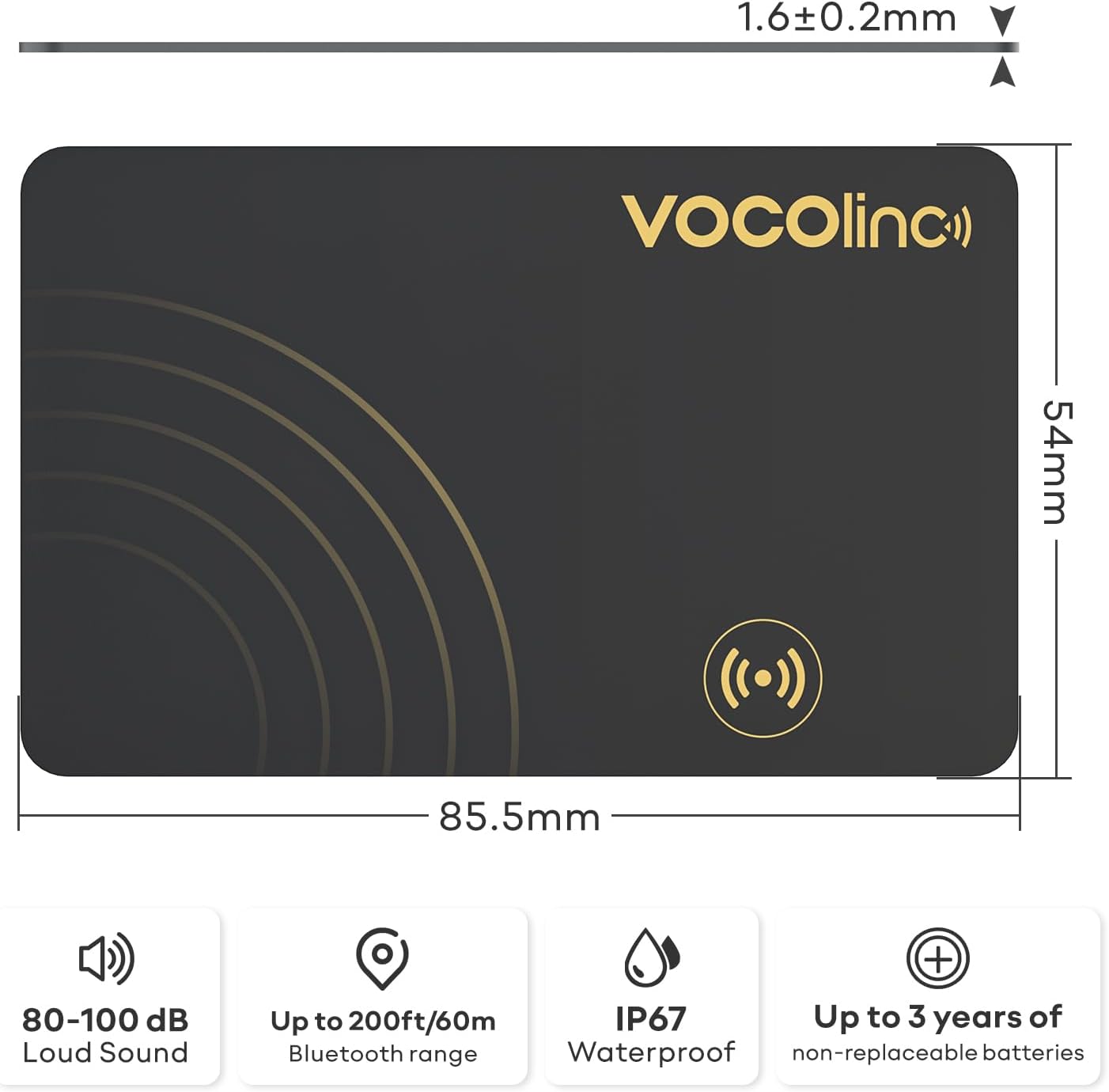
Image: An infographic detailing the physical dimensions and key features of the VOCOlinc Air Card Wallet Tracker, including its water resistance rating.
5. Troubleshooting
- Tracker not pairing: Ensure your iOS device's Bluetooth is active and the tracker is powered on and near your device. If issues persist, try resetting the tracker (refer to manufacturer's specific reset instructions if available, otherwise, long-press the button for 10 seconds until a long beep, then release).
- No sound from tracker: Check if the 'Play Sound' function is activated in the Find My app. Ensure the tracker is within Bluetooth range of your iOS device.
- Inaccurate location: For distant tracking, location relies on the Find My network. Ensure there are active iOS devices nearby to relay the signal. For nearby tracking, ensure a clear line of sight for Bluetooth.
- Left-behind alerts not working: Verify that 'Notify When Left Behind' is enabled for your tracker in the Find My app settings.
- Compatibility: This tracker is only compatible with iOS devices and does not support Android.
6. Specifications
| Feature | Detail |
|---|---|
| Model Number | VT2202 |
| Item Weight | 1.44 ounces |
| Package Dimensions | 4.76 x 4.06 x 0.35 inches |
| Battery Type | 2 Lithium Metal batteries (included, non-replaceable) |
| Battery Life | Up to 3 years |
| Water Resistance | IP67 |
| Bluetooth Range | Up to 200 feet / 60 meters |
| Sound Level | 80-100 dB |
| Compatible Devices | Apple Find My (iOS Only) |
| Material | Plastic, Silicone |
7. Warranty and Support
7.1 Warranty Information
The VOCOlinc Air Card Wallet Tracker VT2202 comes with a 1-year warranty from the date of purchase. This warranty covers manufacturing defects and malfunctions under normal use. Please retain your proof of purchase for warranty claims.
7.2 Customer Support
For technical assistance, troubleshooting, or warranty inquiries, please contact VOCOlinc customer support through the official website or your retailer's support channels. Provide your model number (VT2202) and a detailed description of the issue for efficient service.


