
Introduction
This manual provides essential information for setting up, operating, and maintaining your Coocaa 32R3G Roku LED HD Smart TV. The Coocaa 32R3G offers a comprehensive entertainment experience, featuring Roku OS for quick access to popular streaming services and combining linear television with streaming content. Enjoy high-resolution HD images with HDR10 and HLG support. Its integrated triple tuner allows reception of traditional television via satellite, cable, or antenna, including Timeshift functionality via USB. With multiple HDMI inputs and digital audio ports, the TV easily connects to various external devices.
Important Safety Information
Please read all safety instructions carefully before using your TV. Keep this manual for future reference.
- Power Source: Connect the TV only to the specified power supply.
- Ventilation: Ensure proper ventilation around the TV. Do not block ventilation openings.
- Water and Moisture: Do not expose the TV to rain or moisture. Do not place objects filled with liquids on the TV.
- Heat: Keep the TV away from heat sources such as radiators, heat registers, stoves, or other appliances that produce heat.
- Cleaning: Unplug the TV from the wall outlet before cleaning. Use a soft, dry cloth. Do not use liquid cleaners or aerosol cleaners.
- Mounting: Follow the instructions for wall mounting or stand installation carefully. Ensure the TV is securely placed to prevent falling.
- Lightning: Unplug the TV during lightning storms or when unused for long periods.
Package Contents
Verify that all items listed below are included in your package:
- Coocaa 32R3G Roku LED HD Smart TV
- Remote Control
- TV Stand (Base)
- Power Cord
- User Manual (this document)
Setup
1. Installing the TV Stand or Wall Mounting
If you are placing the TV on a surface, attach the included stand according to the instructions provided in the separate stand assembly guide. Ensure all screws are tightened securely.
For wall mounting, use a VESA-compatible wall mount kit (sold separately) and follow the wall mount manufacturer's instructions. Always ensure the wall can support the weight of the TV.
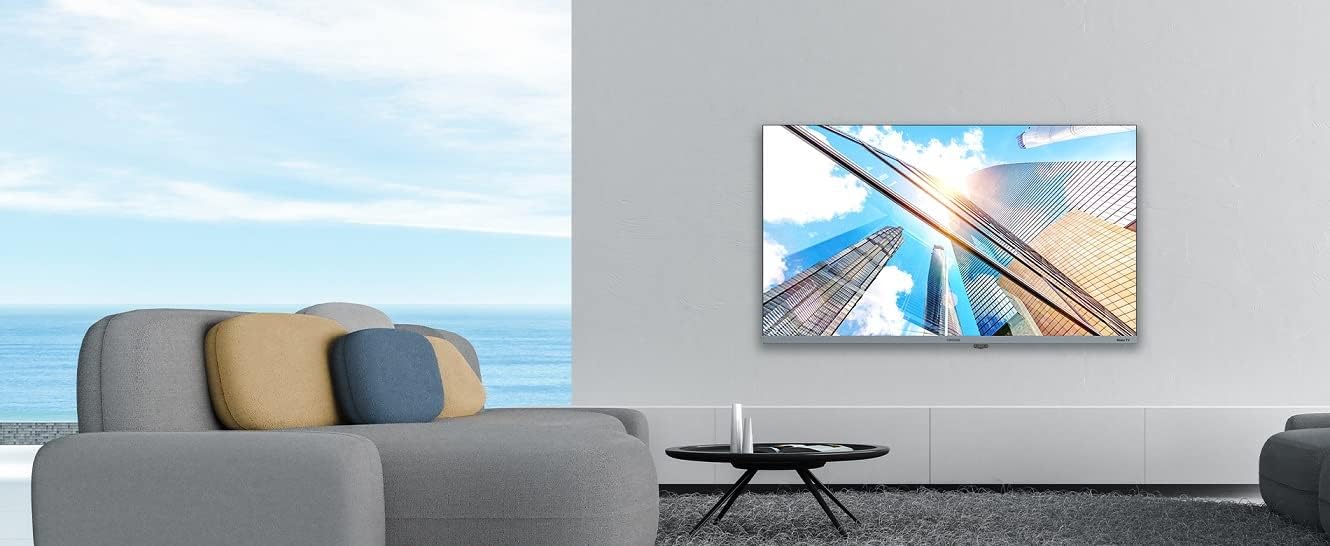
Image: Coocaa 32R3G TV displayed in a modern living room, mounted on a wall. This illustrates a typical installation scenario for the television.
2. Connecting External Devices
Connect your external devices such as cable/satellite boxes, gaming consoles, or Blu-ray players to the HDMI ports on the back of the TV. For traditional antenna or cable connections, use the RF input.
- HDMI: For high-definition audio and video.
- USB: For media playback or Timeshift functionality.
- Antenna/Cable (RF): For traditional broadcast signals.
- Digital Audio Out: For connecting to external sound systems.
- Headphone Jack: For private listening.
3. Powering On and Initial Setup
- Connect the power cord to the TV and then to a wall outlet.
- Press the Power button on the remote control or on the TV.
- Follow the on-screen instructions for the Roku OS guided setup. This includes selecting your language, connecting to your Wi-Fi network, and activating your Roku account.
Operating Your TV
1. Roku OS Home Screen and Navigation
The Roku OS provides an intuitive home screen for quick access to your favorite streaming services, connected inputs, and free live TV channels. Use the directional pad on your remote to navigate through menus and select options.

Image: The Coocaa 32R3G Roku TV home screen, showing various streaming application icons like Netflix, Disney+, and inputs such as 'Kabelbox' (Cable Box) and 'Spielkonsole' (Game Console). This illustrates the user interface for accessing content.
2. Remote Control Functions
The included remote control is designed for ease of use, offering all necessary functions to control your TV, including quick access buttons to popular streaming channels.
- Power: Turns the TV on or off.
- Home: Returns to the Roku home screen.
- Directional Pad: Navigates menus and selects items.
- OK/Enter: Confirms selections.
- Back: Returns to the previous screen.
- Volume Up/Down: Adjusts the sound level.
- Mute: Mutes or unmutes the sound.
- Channel Up/Down: Changes channels (for live TV).
- Instant Replay: Jumps back a few seconds in video playback.
- Star (*): Accesses options menu for current content.
- Quick Access Buttons: Dedicated buttons for popular streaming services (e.g., Netflix, Disney+).
3. Streaming Services and Live TV
Access a wide range of streaming services directly from the Roku home screen. The integrated triple tuner allows you to watch traditional live television via satellite (DVB-S), cable (DVB-C), or antenna (DVB-T).
- Channel Store: Add new streaming channels from the Roku Channel Store.
- Multi-Channel Search: Search for content by title, actor, or genre across various streaming services and live TV.
- Timeshift: Use a connected USB drive to pause and rewind live TV.
4. Voice Control and Roku Mobile App
The Coocaa 32R3G supports various voice assistants, including Apple AirPlay, Apple Home, Alexa, and Google Home, allowing for convenient voice control.
Download the free Roku mobile app (available for iOS and Android) to control your TV, use voice search, and enjoy private listening through headphones connected to your mobile device.
Maintenance
Proper care and maintenance will ensure the longevity of your Coocaa 32R3G TV.
- Screen Cleaning: Gently wipe the screen with a soft, lint-free cloth. For stubborn marks, slightly dampen the cloth with water or a specialized screen cleaner (do not spray directly onto the screen).
- Cabinet Cleaning: Wipe the TV cabinet with a soft, dry cloth. Avoid using abrasive cleaners or solvents.
- Ventilation: Keep the ventilation openings clear of dust and debris to prevent overheating.
- Power Cord: Regularly check the power cord for any damage.
Troubleshooting
If you encounter issues with your TV, refer to the following common solutions:
| Problem | Possible Solution |
|---|---|
| No Power |
|
| No Picture, But Sound is Present |
|
| No Sound, But Picture is Present |
|
| Remote Control Not Working |
|
| Cannot Connect to Wi-Fi |
|
Specifications
| Brand | coocaa |
| Model Number | 32R3G |
| Display Size | 80 Centimeters (approx. 32 inches) |
| Display Technology | LED |
| Resolution | 720p |
| Refresh Rate | 50 Hz |
| Operating System | Roku OS |
| Connectivity Technology | Wi-Fi |
| Ports/Interfaces | 2x HDMI, 2x USB (USB 2.0, USB 1.0), Headphone Jack, Digital Audio Out |
| Special Features | Integrated Speaker, HDR10, HLG Support, Triple Tuner (DVB-T/C/S), Timeshift via USB |
| Aspect Ratio | 16:9 |
| Product Dimensions (D x W x H) | 7 x 72 x 42 Centimeters |
| Color | Black |
Warranty and Support
For warranty information and technical support, please refer to the warranty card included with your product or visit the official Coocaa website. Keep your purchase receipt as proof of purchase.


