
TOPDON TopScan
TOPDON TopScan OBD2 Scanner User Manual
Model: TopScan | Brand: TOPDON
1. Introduction
The TOPDON TopScan is a powerful and portable OBD2 diagnostic tool designed for both professional mechanics and DIY enthusiasts. It connects wirelessly via Bluetooth to your iOS or Android smartphone, offering comprehensive vehicle diagnostics, bi-directional control, and various maintenance functions. This manual provides detailed instructions for setting up, operating, maintaining, and troubleshooting your TopScan device.

Image: The TOPDON TopScan OBD2 Scanner, a compact black device with the TOPDON logo, designed for vehicle diagnostics.
2. Safety Information
Always read and follow all safety warnings and instructions provided in this manual and your vehicle's service manual. Improper use can lead to damage to the device, vehicle, or personal injury.
- Ensure the vehicle is in a safe, well-ventilated area before performing any diagnostics.
- Do not operate the device while driving.
- Keep the device away from water, extreme temperatures, and direct sunlight.
- Only use the device with compatible vehicles (OBDII standard).
- Disconnect the device from the OBD-II port when not in use.
3. Package Contents
Verify that all items are present in your TopScan package:
- TOPDON TopScan OBD2 Scanner Unit
- Quick Start Guide
4. Product Overview
The TopScan device is a compact unit designed to plug directly into your vehicle's OBD-II port. It features indicator lights for power, Bluetooth connectivity, and communication status.

Side view of the TopScan device, highlighting its compact design.

Front view of the TopScan device, showing the indicator lights.
5. Setup
5.1 App Download and Registration
To use the TopScan, you must download the companion application. For iOS devices, search for 'TOPGURU' in the App Store. For Android devices, search for 'TopScan' in Google Play. After installation, open the app and register for an account.
5.2 Device Connection
- Locate your vehicle's OBD-II port, typically under the dashboard on the driver's side.
- Plug the TopScan device firmly into the OBD-II port.
- Turn the vehicle's ignition to the 'ON' position (engine off).
- Open the TopScan/TOPGURU app on your smartphone.
- The app will guide you through the Bluetooth pairing process. Ensure Bluetooth is enabled on your phone.
- Once connected, the app will prompt you to download the necessary diagnostic software for your vehicle's make and model.

Image: Step-by-step visual guide on connecting the TopScan device to a vehicle's OBD-II port and pairing it with a smartphone via the app.
6. Operating Instructions
6.1 Full System Diagnosis
The TopScan supports full system diagnosis, allowing you to read and clear diagnostic trouble codes (DTCs) from all available vehicle modules, including Engine, Transmission, ABS, Airbag, and more. This provides a comprehensive overview of your vehicle's health.

Image: An illustration showing various vehicle systems (Engine, ABS, Airbag, Transmission, etc.) that the TopScan can diagnose.
6.2 Bi-directional Control (Active Tests)
This feature allows you to send commands from your smartphone to the vehicle's Electronic Control Unit (ECU) to perform active tests on specific components. This helps in quickly identifying faulty parts without manual disassembly. Examples include testing A/C clutch, windows, doors, and sunroof.

Image: A smartphone screen displaying the TopGuru app, with arrows indicating commands being sent to and received from a vehicle, illustrating bi-directional control for components like wipers, windows, and headlights.
6.3 Maintenance Services (8+ Hot Reset Functions)
The TopScan provides access to over 8 common reset and maintenance functions, enabling you to perform routine service tasks. These include:
- Oil Reset
- Throttle Adaptation
- EPB (Electronic Parking Brake) Reset
- Steering Angle Reset
- DPF (Diesel Particulate Filter) Regeneration
- ABS (Anti-lock Braking System) Bleeding
- BMS (Battery Management System) Reset
- Airbag Reset

Image: A mechanic working on a car, with a list of 8 maintenance services (Oil Reset, Throttle Adaptation, EPB Reset, Steering Angle Reset, DPF Regeneration, ABS Bleeding, BMS Reset, Airbag Reset) displayed.
6.4 DTC Repair Guide and Fault Code Database
The built-in repair guide and fault code database provide detailed explanations for diagnostic trouble codes, including causes and suggested solutions. This feature assists users in understanding and resolving issues efficiently.
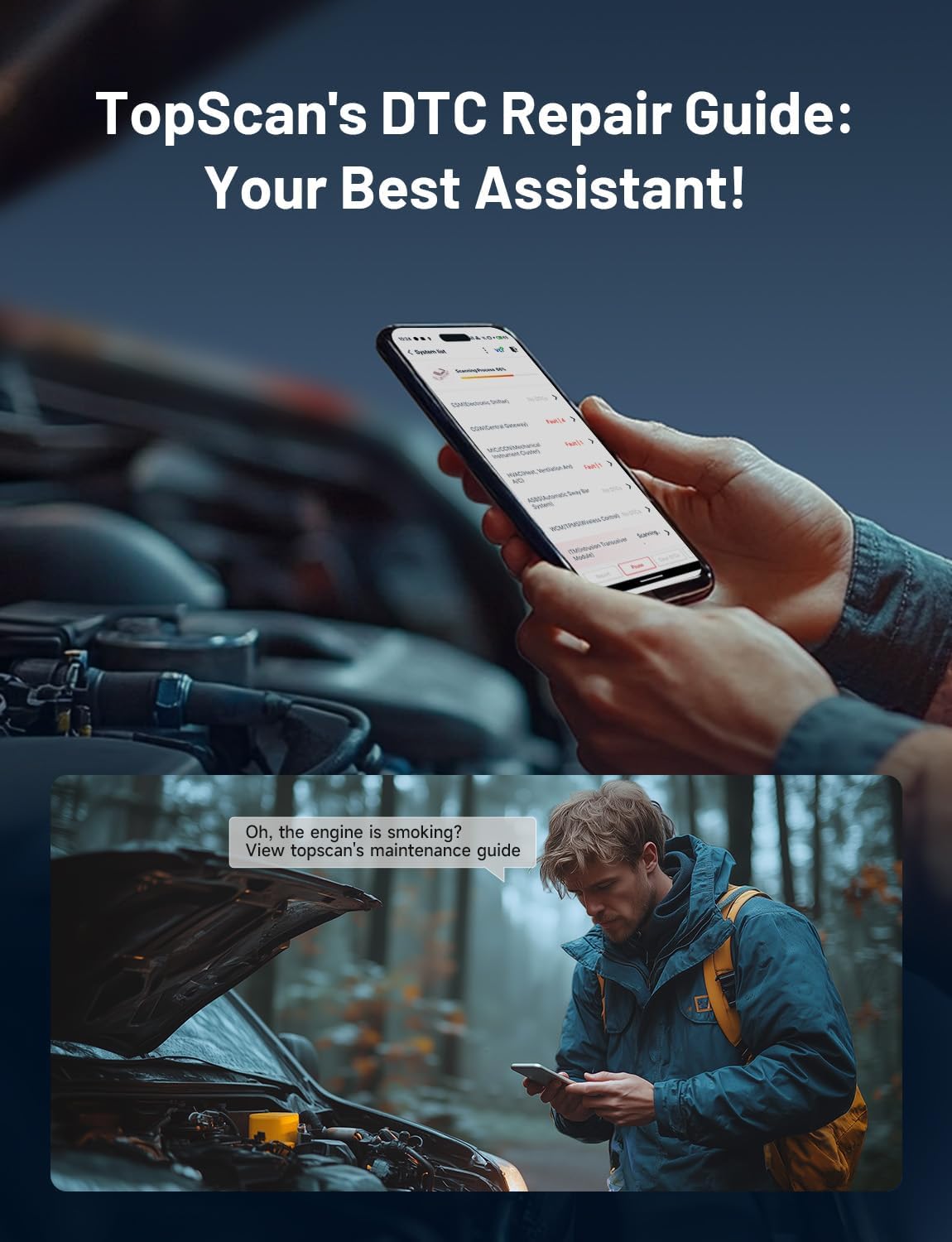
Image: A smartphone displaying the TopScan's DTC Repair Guide, showing a fault code and its description, with a person looking at a car engine in the background.
6.5 FCA Gateway Access & Performance Testing
The TopScan allows access to the FCA (Fiat Chrysler Automobiles) Secure Gateway, enabling protected functions on compatible FCA vehicles (Chrysler, Dodge, Jeep, Fiat, etc.). Note: You need your own FCA account for this feature. It also supports performance testing to analyze speed changes and calculate engine volumetric efficiency (VE).

Image: An illustration of the TopScan device with text indicating 'FCA CAN-FD' and 'Unlock More Cars', surrounded by car silhouettes, emphasizing compatibility with FCA vehicles.
6.6 Data Stream Visualization
View live data streams from your vehicle's sensors in multiple display modes (graphs, numbers, dials) for easier analysis and comparison. This helps in monitoring real-time performance and identifying anomalies.
6.7 Smog Check (I/M Readiness)
Perform a quick I/M Readiness check to determine if your vehicle is ready for emissions testing. This function verifies the status of emission-related monitors.

Image: A blue SUV with two smartphone screens showing 'PASS' and 'FAIL' results for I/M Readiness, indicating easy emissions testing.
6.8 AutoVIN & AutoScan
The AutoVIN feature automatically identifies your vehicle's information, streamlining the diagnostic process. AutoScan quickly scans all available systems for faults.
Video: This video explains 'How To Operation AutoVIN?', demonstrating the automatic vehicle identification process within the TopScan app.
6.9 Software Updates
The TopScan app provides one-click online updates to ensure you always have the latest features and vehicle compatibility. Regular updates are recommended.
7. Maintenance
To ensure the longevity and optimal performance of your TOPDON TopScan device, follow these maintenance guidelines:
- Cleaning: Wipe the device with a soft, dry cloth. Do not use abrasive cleaners or solvents.
- Storage: Store the device in a cool, dry place, away from direct sunlight and extreme temperatures.
- Software Updates: Regularly check for and install software updates via the TopScan app to ensure compatibility with new vehicle models and access to the latest features.
- Connection: Ensure the OBD-II port and the device's connector pins are clean and free from debris before connecting.
8. Troubleshooting
If you encounter issues with your TopScan device, refer to the following common troubleshooting steps:
| Problem | Possible Cause | Solution |
|---|---|---|
| Device does not power on. | Not properly connected to OBD-II port; Vehicle ignition not ON. | Ensure the device is fully inserted into the OBD-II port. Turn the vehicle ignition to the 'ON' position. Check vehicle's battery. |
| Bluetooth connection fails. | Bluetooth not enabled on phone; App not open; Device not in pairing mode. | Ensure Bluetooth is enabled on your smartphone. Restart the TopScan app. Re-plug the device into the OBD-II port. |
| Cannot read vehicle information/DTCs. | Incorrect vehicle profile selected; Software not downloaded; Incompatible vehicle. | Verify the correct vehicle make/model is selected in the app. Download the specific vehicle software package. Confirm vehicle is OBDII compliant. |
| App crashes or freezes. | Outdated app version; Insufficient phone memory; Software glitch. | Update the app to the latest version. Close other apps running in the background. Restart your smartphone. |
Video: This video explains 'Get Technical Service Bulletins Specific To Your Vehicle.', demonstrating how to access TSBs through the TopScan app for detailed repair information.
Video: This video illustrates 'How to Unlock the FCA US SGW with TopScan?', detailing the process for accessing protected functions on FCA vehicles.
Video: This video showcases 'Some Features that Will Surprise You - TopScan Scan tool', providing an overview of advanced functionalities.
Video: This video addresses the question 'Are y still taking the car to the dealership to check the fault light?', promoting the TopScan as an alternative for diagnosing issues.
9. Specifications
- Brand: TOPDON
- Model: TopScan
- Item Weight: 3.84 ounces
- Product Dimensions: 3.31 x 1.98 x 1.07 inches
- Power Source: Corded Electric (via OBD-II port)
- Operating System Compatibility: iOS 10.0 or above, Android 11.0 or above
- Connectivity: Bluetooth 5.0
- Vehicle Coverage: Supports 100+ car brands and 10,000+ vehicle models (OBDII compliant from 1997 to 2022)
- Functions: Bi-directional Control, Full System Diagnosis, 8+ Reset Functions, DTC Repair Guide, Performance Test, FCA Gateway Access, Data Stream, I/M Readiness, AutoVIN, AutoScan, Online Updates.
10. Warranty and Support
TOPDON provides a warranty for the TopScan device. Please refer to the official TOPDON website or your purchase documentation for specific warranty terms and conditions. The TopScan includes a free first-year subscription for full features. After the first year, certain core OBD2 functions remain available without subscription, while advanced features require renewal.
Customer Support:
For technical assistance, product inquiries, or warranty claims, please contact TOPDON customer support:
- Email: Support@Topdon.com
- US Phone Service: 833-956-8335 (Monday-Friday, 9:00 AM - 6:00 PM Eastern Time)

Image: A group of customer support representatives wearing headsets, indicating available assistance for TOPDON products.
Ask a question about this manual
Ask about setup, troubleshooting, compatibility, parts, safety, or missing instructions. Manuals+ will review the question and use this page’s manual context to help answer it.