
1. Introduction
Thank you for choosing the GenMachine Mini PC. This compact yet powerful computer is designed to deliver exceptional performance for a variety of tasks, including gaming, office productivity, and creative design. Equipped with an AMD Ryzen 7 3750H processor, ample memory, and fast storage, it offers a seamless computing experience. This manual provides essential information for setting up, operating, maintaining, and troubleshooting your new Mini PC.
2. What's in the Box
Please verify that all items are present and in good condition upon unboxing.
- 1 x GenMachine Mini PC
- 1 x HDMI Cable
- 1 x Power Adapter
- 1 x User Manual (this document)
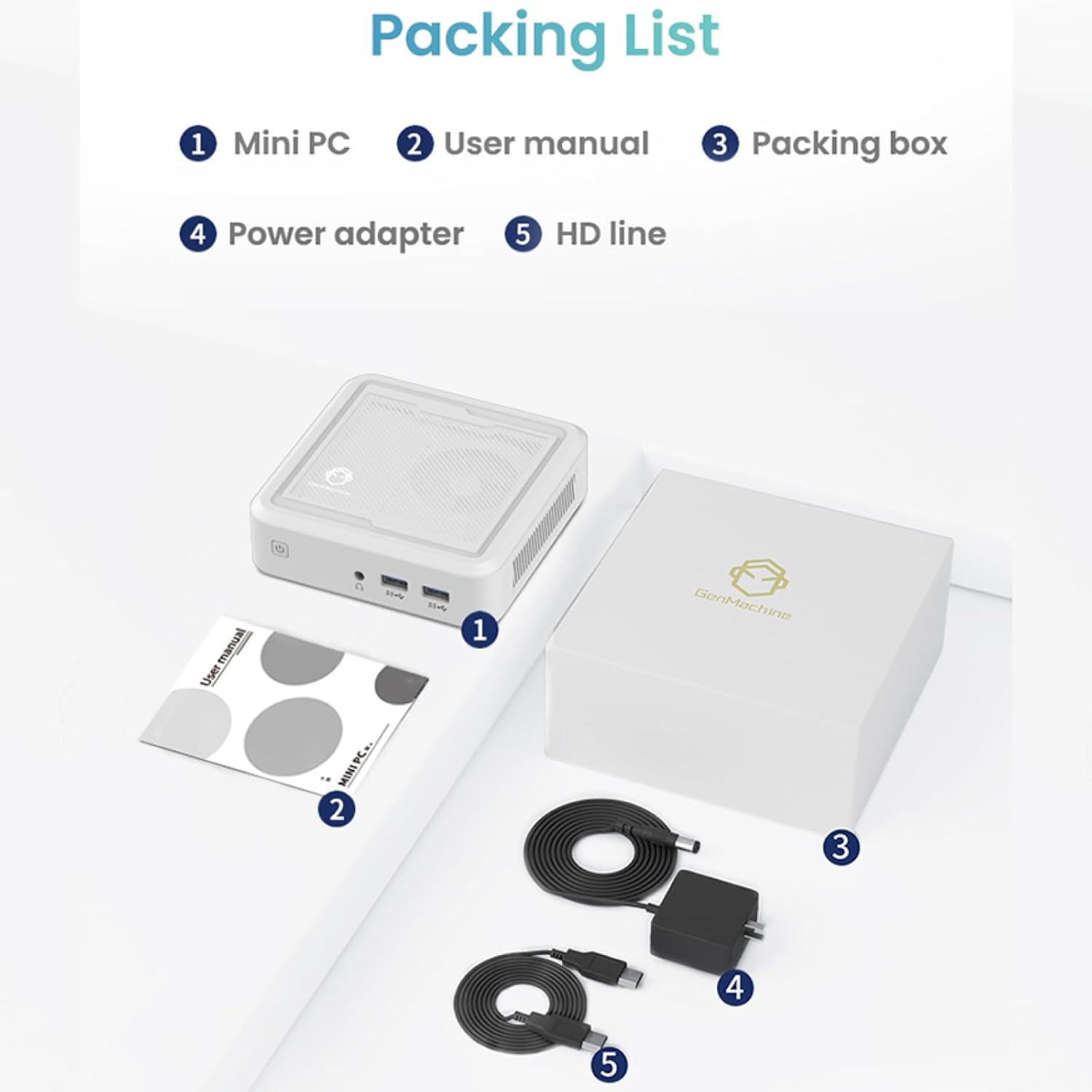
Figure 2.1: Packaging contents of the GenMachine Mini PC.
3. Product Features
The GenMachine Mini PC is engineered with features to enhance your computing experience:
- Powerful Performance: Equipped with an AMD Ryzen 7 3750H processor, delivering speeds up to 4.0GHz with 4 cores and 8 threads for demanding tasks.
- Ample Memory and Storage: Features 8GB of DDR4 RAM and a 256GB SSD with M.2 NVMe support for seamless multitasking and quick file access.
- Versatile Connectivity: Advanced WiFi 6 and Bluetooth 5.2 capabilities ensure high-speed internet and smooth device pairing.
- Compact Design: A sleek, small form factor that fits easily into any workspace or gaming setup.
- Multiple Display Options: HDMI and DisplayPort outputs support dual 4K displays for expanded productivity and immersive visuals.

Figure 3.1: Front view of the GenMachine Mini PC.
3.1 Rich Interface for Easy Connection
The Mini PC offers a comprehensive set of ports to meet various connectivity needs:
- USB 3.0 x 4
- HDMI x 1
- DisplayPort (DP) x 1
- LAN (Ethernet) x 1
- 3.5mm Audio Jack x 1
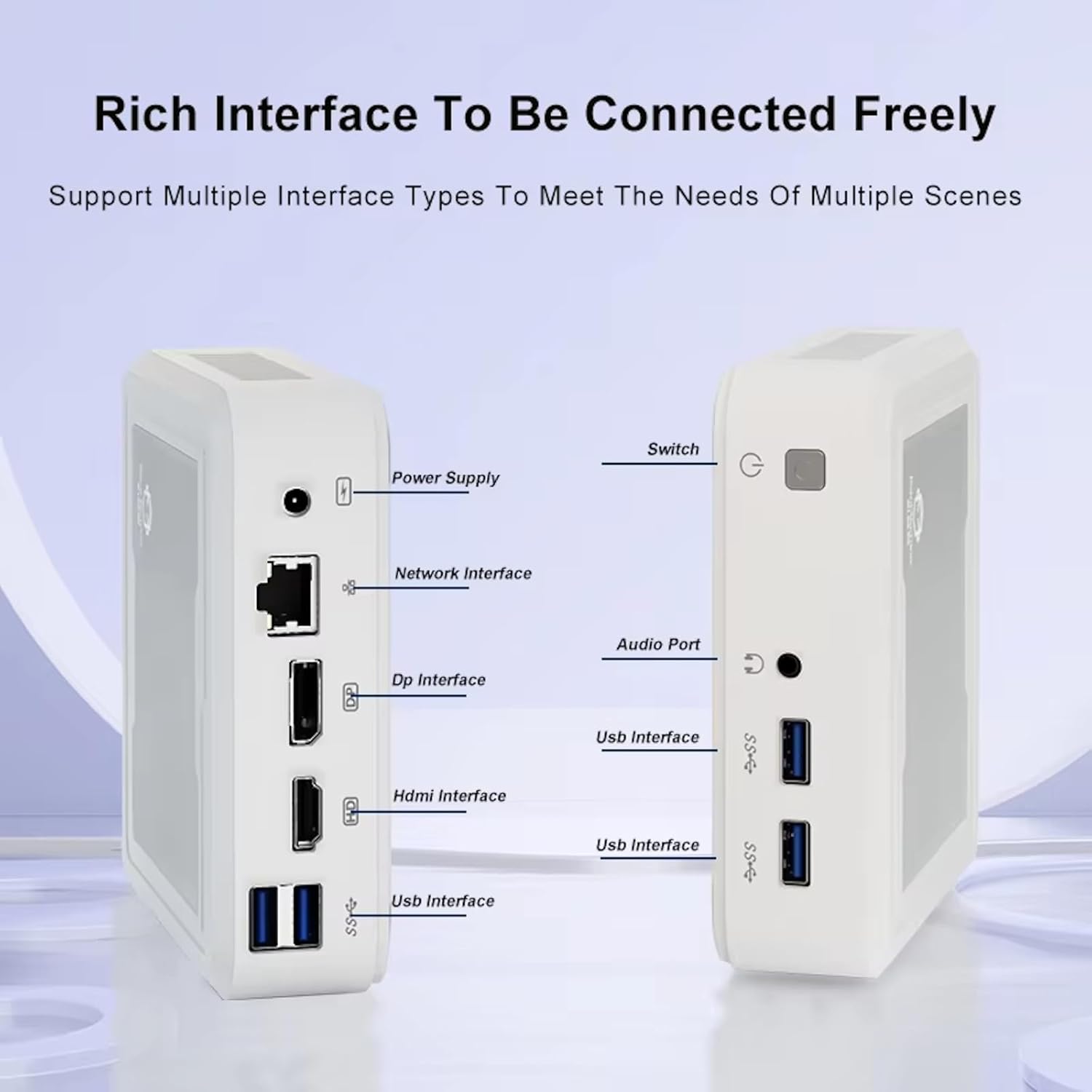
Figure 3.2: Available ports on the GenMachine Mini PC.
3.2 Dual Monitor Support
Enhance your productivity or gaming experience by connecting up to two 4K displays simultaneously using the HDMI and DisplayPort outputs.

Figure 3.3: Dual 4K display setup with the GenMachine Mini PC.
Video 3.1: Demonstration of the GenMachine Mini PC supporting two monitors simultaneously.
3.3 Energy Efficiency and Quiet Operation
Designed for low noise operation, the Mini PC maintains a quiet environment, making it suitable for various settings.

Figure 3.4: Noise level comparison of the GenMachine Mini PC.
3.4 Compact and Durable Design
The Mini PC features an ultra-durable, lightweight metal casing, making it space-saving and robust for any work environment.
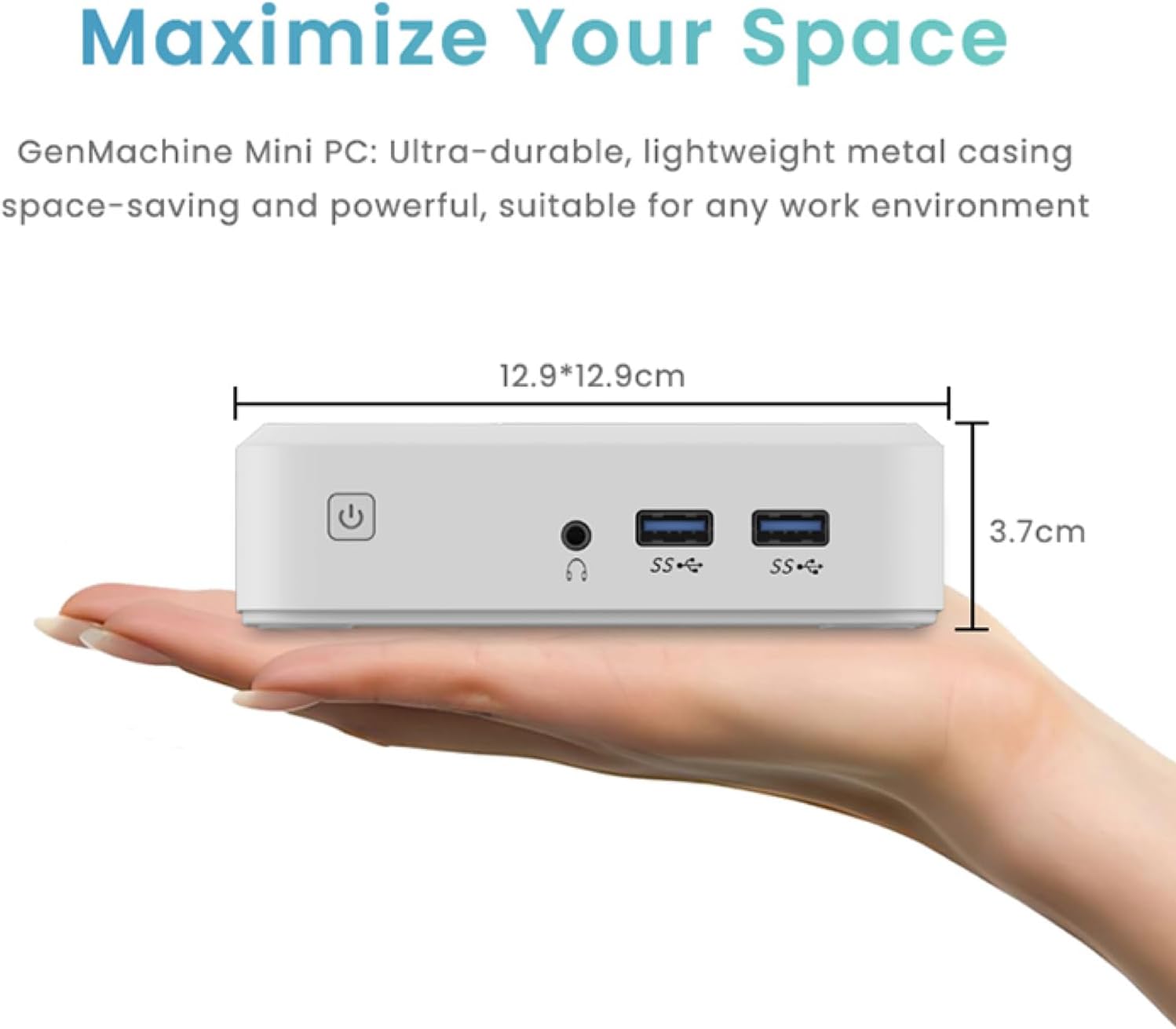
Figure 3.5: Compact size of the GenMachine Mini PC.
Video 3.2: Overview of the GenMachine Mini PC's features and compact design.
4. Setup Guide
Follow these steps to set up your GenMachine Mini PC:
- Unpack the Mini PC: Carefully remove all components from the packaging.
- Connect to a Display: Use the provided HDMI cable to connect the Mini PC to your monitor or TV. If using a DisplayPort monitor, use a compatible DP cable (not included).
- Connect Peripherals: Plug in your keyboard, mouse, and any other USB devices into the available USB 3.0 ports.
- Connect to Network (Optional): For a wired internet connection, connect an Ethernet cable to the LAN port. For wireless, ensure your WiFi network is available during initial setup.
- Connect Power: Plug the power adapter into the DC-in port on the Mini PC, then plug the adapter into a power outlet.
- Power On: Press the power button on the front of the Mini PC. The system should boot up.
5. Operating Instructions
5.1 Initial Boot and Operating System Setup
Upon first power-on, the Mini PC will guide you through the operating system setup process. Follow the on-screen prompts to configure language, region, user accounts, and network settings.
5.2 Power Management
- Power On: Press the power button once.
- Shut Down: Access the power options through the operating system's start menu and select 'Shut down'.
- Restart: Access the power options through the operating system's start menu and select 'Restart'.
- Sleep Mode: Access the power options through the operating system's start menu and select 'Sleep'.
5.3 Connecting to Wi-Fi and Bluetooth
To connect to a wireless network or Bluetooth device, use the respective settings within your operating system. The Mini PC supports WiFi 6 and Bluetooth 5.2 for fast and reliable connections.
6. Maintenance
Regular maintenance helps ensure the longevity and optimal performance of your Mini PC:
- Cleaning: Use a soft, dry cloth to clean the exterior. For dust in vents, use compressed air. Ensure the device is powered off and unplugged before cleaning.
- Ventilation: Ensure the Mini PC is placed in a well-ventilated area. Do not block the air vents.
- Software Updates: Regularly update your operating system, drivers, and applications to ensure security and performance.
- Data Backup: Periodically back up important data to an external drive or cloud storage.
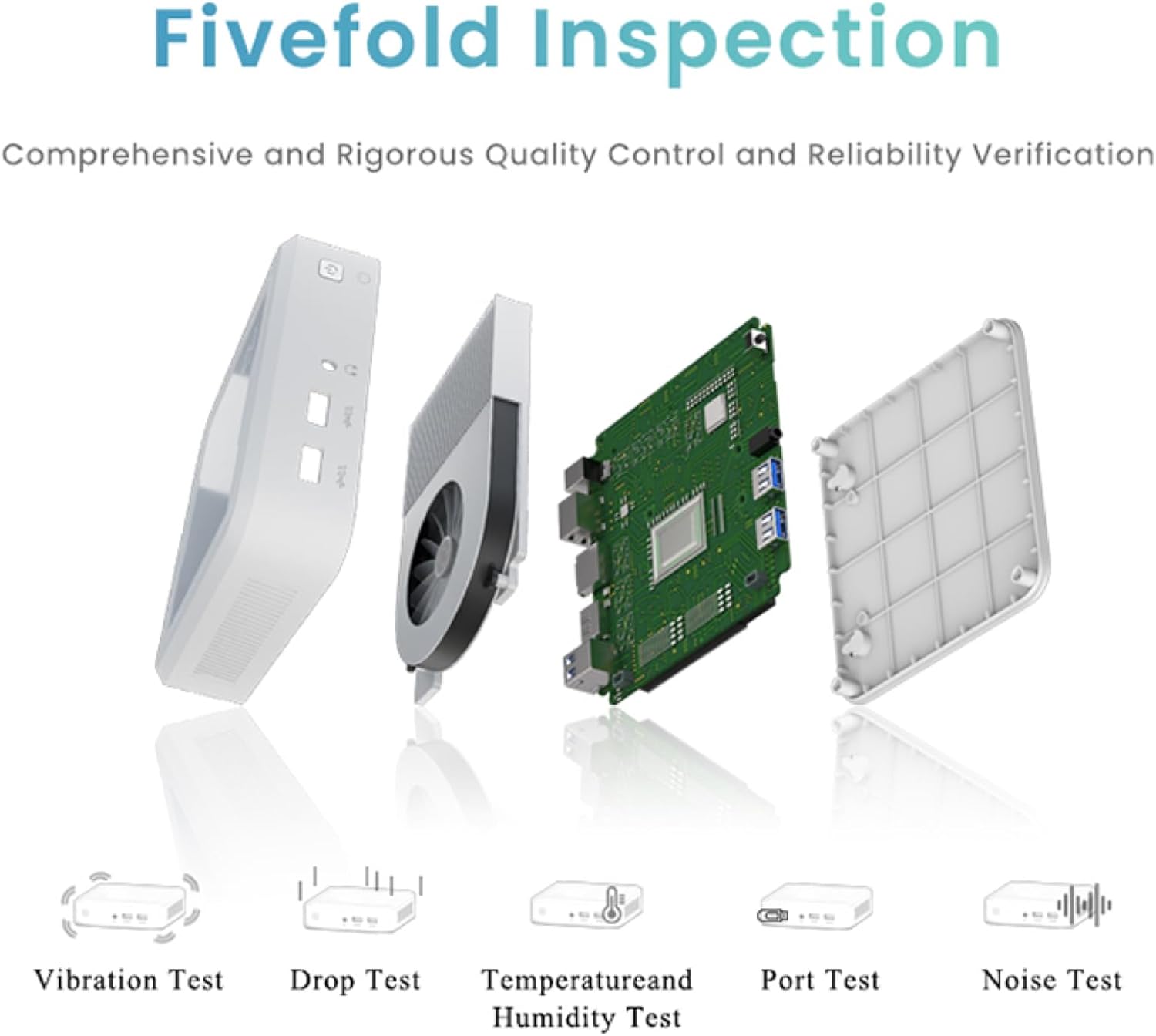
Figure 6.1: GenMachine's Fivefold Inspection process for quality control.
7. Troubleshooting
If you encounter issues with your Mini PC, refer to the following common problems and solutions:
- No Power:
- Ensure the power adapter is securely connected to both the Mini PC and a working power outlet.
- Try a different power outlet.
- No Display:
- Verify that the HDMI or DisplayPort cable is securely connected to both the Mini PC and the monitor.
- Ensure the monitor is powered on and set to the correct input source.
- Try a different display cable or monitor if possible.
- System Freezes or Unresponsive:
- Perform a hard reset by holding the power button for 5-10 seconds until the device powers off, then restart.
- Ensure the operating system and drivers are up to date.
- Check for overheating; ensure proper ventilation.
- Run a system diagnostic or memory test if the issue persists.
- No Internet Connection:
- For wired connections, check the Ethernet cable and router status.
- For Wi-Fi, ensure Wi-Fi is enabled in the operating system and you are connected to the correct network with the correct password.
- Restart your router/modem.
8. Specifications
| Feature | Specification |
|---|---|
| Processor | AMD Ryzen 7 3750H (4 cores, 8 threads, up to 4.0GHz) |
| RAM | 8GB DDR4 |
| Storage | 256GB SSD (with M.2 NVMe support) |
| Graphics Coprocessor | AMD Radeon Vega 10 Graphics |
| Max Screen Resolution | 3840 x 2160 pixels (4K) |
| Wireless Type | 802.11ac (WiFi 6), Bluetooth 5.2 |
| USB Ports | 4 x USB 3.0 |
| Video Outputs | HDMI, DisplayPort |
| Operating System | OS (Pre-installed) |
| Item Weight | 2.1 pounds |
| Product Dimensions | 4.9 x 4.9 x 1.4 inches |
| Color | Black |
9. Warranty and Support
For warranty information and technical support, please refer to the warranty card included with your product or visit the official GenMachine website. Keep your purchase receipt as proof of purchase for warranty claims.
If you require further assistance, please contact GenMachine customer support through the channels provided on their official website.


