
1. Introduction
Welcome to the user manual for your new Lenovo IdeaPad Slim 3 laptop. This guide provides essential information on setting up, operating, maintaining, and troubleshooting your device. The IdeaPad Slim 3 is designed for mobility and efficient performance, featuring a lightweight and thin profile, making it suitable for work, study, and everyday use.

Figure 1.1: Front view of the Lenovo IdeaPad Slim 3 laptop, showcasing its display and keyboard.
Equipped with an AMD Ryzen 3 7320U processor and 8GB of memory, this laptop is built for smart multitasking. It includes a 15.6" FHD display with TüV-certified Low Blue Light for eye comfort and integrated Dolby Audio for clear sound.
2. Package Contents
Before proceeding with the setup, please verify that all items are present in your product packaging:
- Lenovo IdeaPad Slim 3 Laptop
- Power Adapter
- Quick Start Guide (if included)
If any items are missing or damaged, please contact Lenovo customer support.
3. Setup
3.1 Initial Power On and Charging
- Connect the power adapter to the laptop's power input port.
- Plug the power adapter into a wall outlet.
- Allow the laptop to charge for at least 30 minutes before first use, or until the battery indicator shows sufficient charge.
- Press the power button to turn on the laptop.
3.2 Operating System Setup (Windows 11 Home)
Upon first power-on, you will be guided through the Windows 11 Home setup process. Follow the on-screen prompts to:
- Select your region and keyboard layout.
- Connect to a Wi-Fi network.
- Accept the license agreement.
- Create or sign in with a Microsoft account.
- Set up a PIN or password for login.
- Configure privacy settings.
It is recommended to allow Windows to perform initial updates after setup for optimal performance and security.
4. Operating Your Laptop
4.1 Keyboard and Touchpad
The laptop features a full-size keyboard and a larger touchpad for comfortable navigation.
- Keyboard Backlight: If your model supports it, press Fn + Spacebar to cycle through backlight brightness levels (off, low, high).
- Touchpad Gestures: Utilize multi-touch gestures for scrolling, zooming, and switching applications. Refer to Windows settings for customization.
4.2 Ports and Connectivity
The IdeaPad Slim 3 offers various ports for connecting peripherals and external devices.

Figure 4.1: Left side ports including power, USB, HDMI, and USB-C.
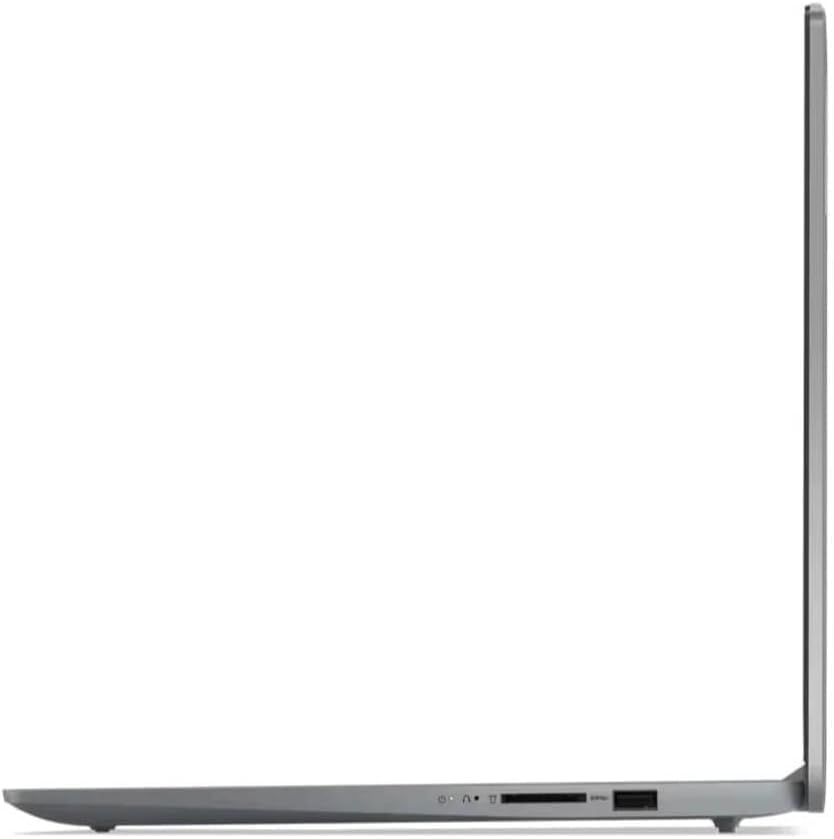
Figure 4.2: Right side ports including USB and SD card reader.
- USB-C Port: A full-function Type-C port supports data transfer, power delivery, and display output.
- USB-A Ports: Connect standard USB devices such as mice, keyboards, or external drives.
- HDMI Port: Connect to external monitors or projectors.
- Audio Jack: For headphones or external speakers.
- SD Card Reader: Insert an SD card for additional storage or data transfer.
4.3 Security Features
The laptop includes a built-in fingerprint reader for enhanced security.
- Fingerprint Reader: Set up your fingerprint for secure and quick login via Windows Hello. Access this feature in Windows Settings > Accounts > Sign-in options.
4.4 Audio and Display
- Dolby Audio: Enjoy clear audio from the integrated 2W speakers. Adjust settings via the Dolby Access application or Windows Sound settings.
- TüV Low Blue Light: The display is certified to reduce harmful blue light emissions, promoting eye comfort during extended use.
5. Maintenance
5.1 Cleaning Your Laptop
- Screen: Use a soft, lint-free cloth lightly dampened with water or a screen cleaning solution. Do not spray liquid directly onto the screen.
- Keyboard and Chassis: Use a soft, dry cloth. For stubborn dirt, a slightly damp cloth can be used, ensuring no liquid enters openings.
- Ports: Keep ports free of dust and debris. Use compressed air if necessary, holding the can upright.
5.2 Battery Care
- Avoid fully discharging the battery frequently.
- Store the laptop in a cool, dry place if not used for extended periods.
- The Rapid Charge Boost feature allows for quick charging when needed.
5.3 Software Updates
Regularly check for and install updates for Windows and Lenovo drivers to ensure optimal performance, security, and compatibility.
- Windows Updates: Go to Settings > Windows Update.
- Lenovo Updates: Use the pre-installed Lenovo Vantage application or visit the official Lenovo support website.
6. Troubleshooting
| Problem | Possible Cause | Solution |
|---|---|---|
| Laptop does not power on. | Low battery or power adapter issue. | Ensure power adapter is securely connected and plugged into a working outlet. Allow battery to charge for a few minutes before attempting to power on again. |
| Wi-Fi connection issues. | Incorrect Wi-Fi password, router issue, or driver problem. | Verify Wi-Fi password. Restart your router. Check Device Manager for Wi-Fi driver status and update if necessary. |
| Slow performance. | Too many applications running, low storage, or outdated drivers. | Close unnecessary applications. Free up disk space. Update Windows and Lenovo drivers. |
| Display issues (e.g., no image, flickering). | Driver issue, external display connection, or hardware problem. | Restart the laptop. If using an external monitor, check cable connections. Update graphics drivers. |
For more complex issues, refer to the Lenovo support website or contact customer service.
7. Specifications
| Feature | Detail |
|---|---|
| Model Name | 82XQ001GUS |
| Processor | AMD Ryzen 3 7320U |
| Operating System | Windows 11 Home |
| Display | 15.6 Inches FHD (1920 x 1080 pixels) IPS, TüV Low Blue Light |
| Memory (RAM) | 8GB DDR5 SDRAM |
| Storage | 256GB SSD |
| Graphics | AMD Radeon 610M (Integrated) |
| Audio | Dolby Audio, 2x 2W Speakers, Dual Microphone |
| Wireless Connectivity | 2.4 GHz Radio Frequency (Wi-Fi) |
| Ports | 1x USB-C (Full-function), 1x USB 3.0, 2x USB 2.0, HDMI, Audio Jack, SD Card Reader |
| Security | Fingerprint Reader |
| Color | Arctic Gray |
| Dimensions (LxWxH) | 15.6 x 13 x 2.8 inches |
| Weight | 3.57 pounds |
| Power Source | Battery Powered (Rapid Charge Boost) |
| Environmental Compliance | ENERGY STAR rated, EPEAT Silver-registered (30% post-consumer recycled plastic in bottom cover/power adapter case, 30% ocean-bound plastic in system bag) |
8. Warranty and Support
8.1 Product Warranty
Your Lenovo IdeaPad Slim 3 comes with a standard manufacturer's warranty. Please refer to the warranty card included in your product packaging or visit the official Lenovo website for detailed terms and conditions, including warranty duration and coverage.
8.2 Customer Support
For technical assistance, troubleshooting, or service inquiries, please contact Lenovo customer support through the following channels:
- Lenovo Support Website: support.lenovo.com (for drivers, manuals, and FAQs)
- Phone Support: Refer to the Lenovo support website for regional contact numbers.
- Lenovo Vantage App: Use the pre-installed application on your laptop for system health checks, updates, and direct support access.
When contacting support, please have your laptop's serial number (located on the bottom of the device or in system information) readily available.